How to Move a Picture in Microsoft Word
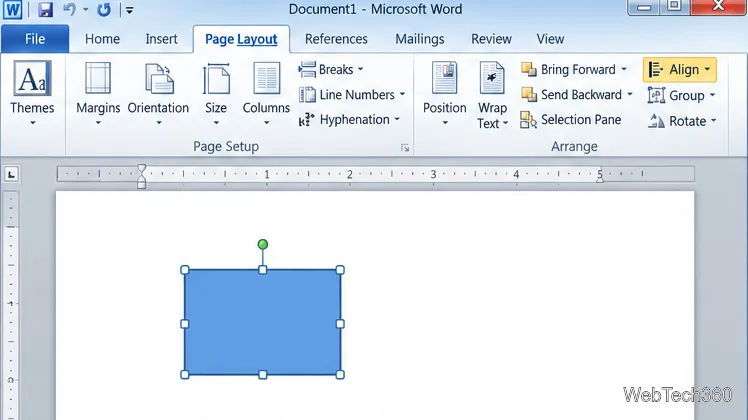
Learn how to drag a picture in Word, choose text wrapping, keep it with a paragraph or fix it on the page, and troubleshoot images that will not move.
In Outlook 2010, save a person in your Contacts folder, then use the Outlook Address Book to choose that person when composing an email. The Address Book is a lookup window, not a separate place where you create contacts. This guide covers adding and organizing contacts, making a contact group, and finding saved people in the recipient picker.
Outlook 2010 is a legacy desktop program. Microsoft ended Office 2010 support on October 13, 2020, so it no longer receives security fixes or technical support. The steps below describe the classic Outlook 2010 ribbon; labels can vary slightly by account setup.
Start Outlook 2010 and select Contacts in the navigation pane, usually at the lower-left of the window. If you do not see it, use the navigation buttons or Folder List to open the Contacts folder for the correct Outlook data file or account. The main pane displays the records saved in that folder. Use the search box above the list to look for a name, company, or other detail.
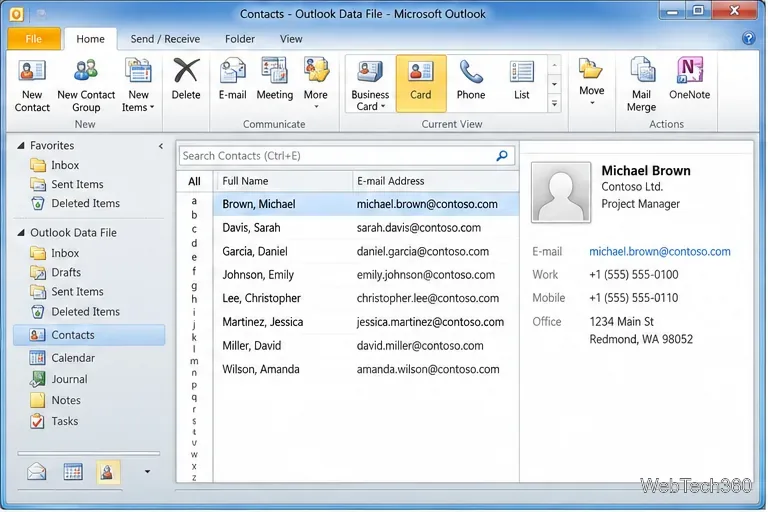
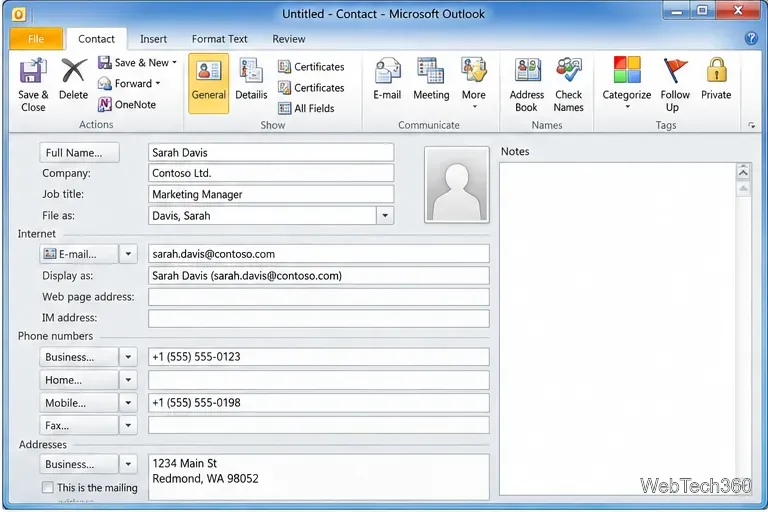
Outlook can display the same list as cards, phone-style entries, or a table, depending on the view controls available in your ribbon. If a contact is missing from a view, check that you opened the folder where it was saved before creating another copy.
For a small list, use search and the view controls to keep records easy to find. You can assign a color category or a follow-up flag to a selected contact. Use Move if you keep separate Contacts folders. Before choosing Delete, confirm that the selected row is the record you intend to remove.
To email the same set of people regularly, create a personal contact group:
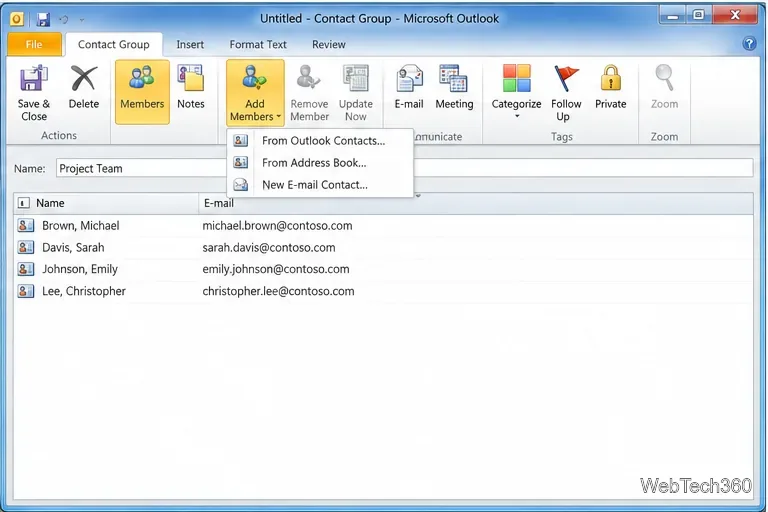
A contact group is a convenient list in your Outlook profile; it is not the organization-wide directory. Removing a group does not delete the individual contact records. Microsoft’s contact group guidance describes the same distinction in current Outlook.
To use a saved entry in a message, create a new email and select To. In the Select Names dialog, open the Address Book list and choose the relevant Contacts list. Search by name, select the matching person, then choose To, Cc, or Bcc before confirming. You can repeat the selection for additional recipients.
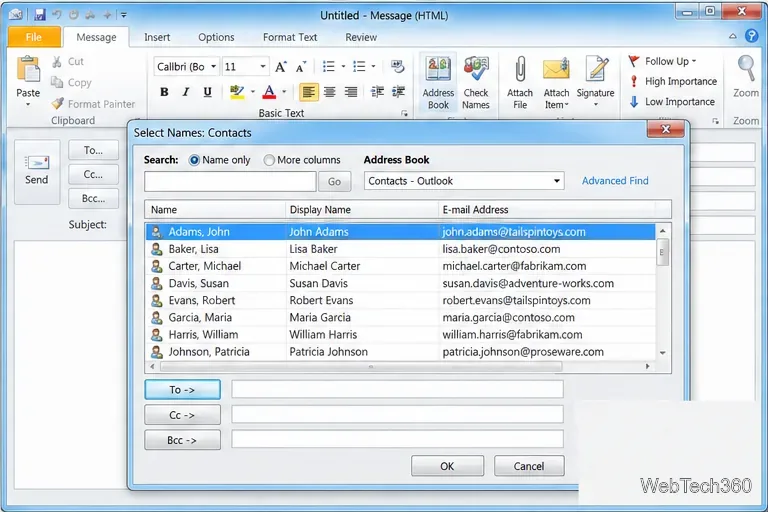
First check that you are searching the right address list and the right Contacts folder. The built-in Outlook Address Book normally lists items from the default Contacts folder that have an email address or fax number; a work account may also show a separate Global Address List maintained by the organization. Microsoft explains these sources in its Address Book settings guide.
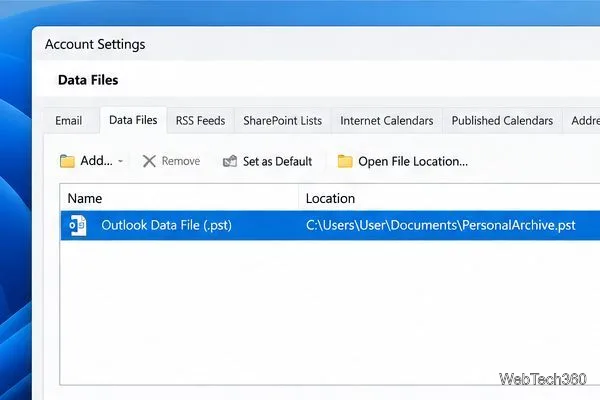
If you use an additional Contacts folder, right-click it, choose Properties, and look for the Outlook Address Book tab. Select Show this folder as an e-mail Address Book if available. If the tab is missing, check File > Account Settings > Account Settings > Address Books to see whether the Outlook Address Book service is configured; the exact options depend on the profile. Microsoft’s classic Outlook instructions explain how eligible contact folders are added to the picker.
Because Office 2010 is out of support, consider moving to a supported mail application before relying on it for sensitive or business communication. For historical use, these Contacts and Address Book steps should help you manage the saved entries in an existing Outlook 2010 profile.
Learn how to drag a picture in Word, choose text wrapping, keep it with a paragraph or fix it on the page, and troubleshoot images that will not move.
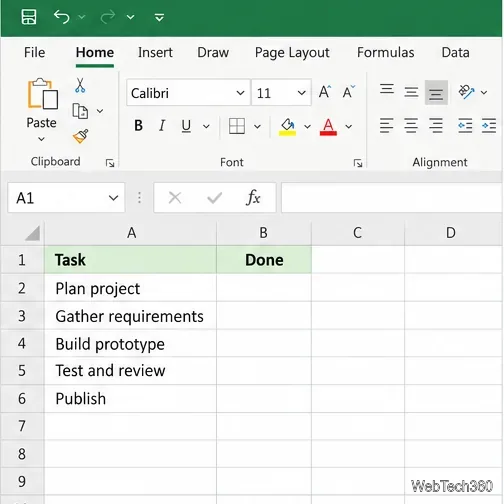
Learn how to insert a checkbox in Excel with the in-cell tool, count checked items with formulas, or add a linked Form Control in older desktop versions.
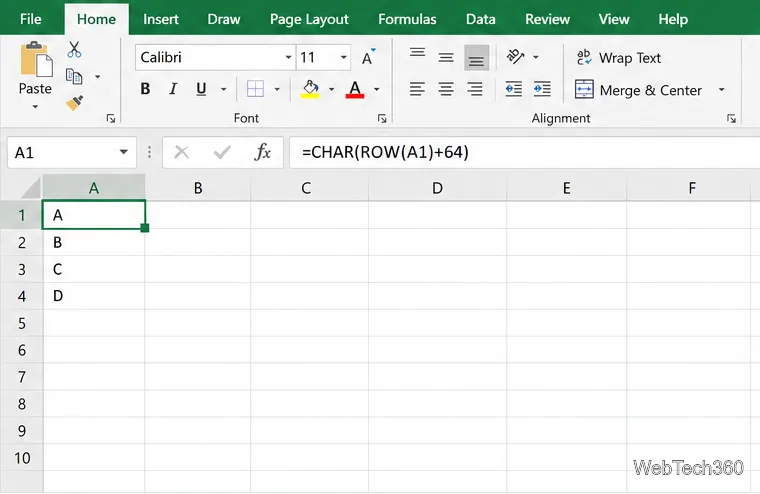
Generate A to Z, lowercase letters, or labels beyond Z in Excel with a fill-handle formula, SEQUENCE, or a reusable custom list.
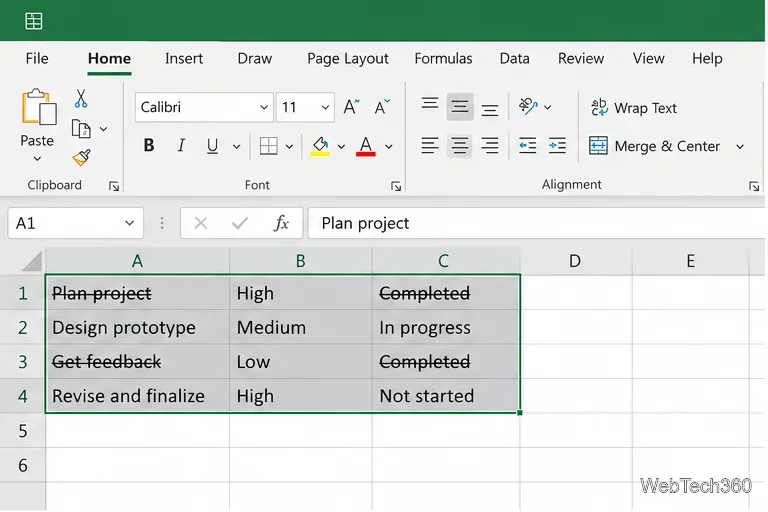
Learn how to strikethrough in Excel on Windows, Mac, and the web, format part of a cell, and remove the line without deleting its value.
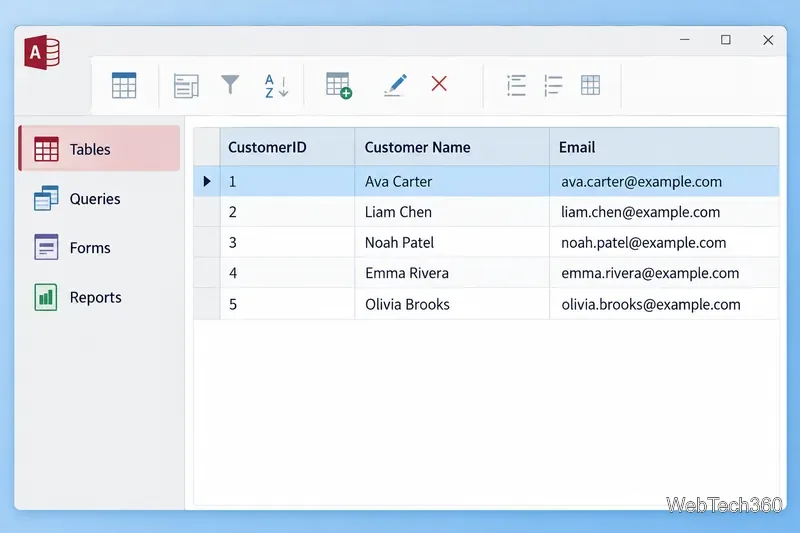
Microsoft Access is a Windows database app for storing related records, building queries, creating data-entry forms, and generating reports. Learn how it works and when it fits.
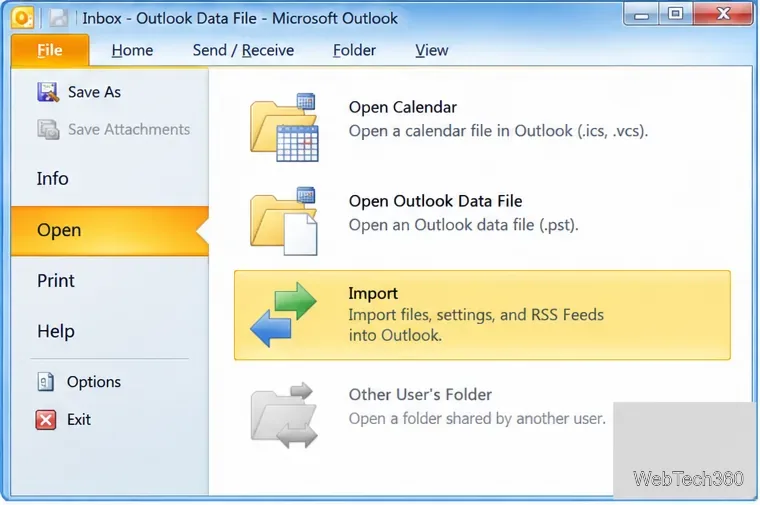
Learn how to import a PST into Outlook 2010 or export mail, contacts, calendar, and tasks. Follow the correct menus and avoid missing folders or duplicates.
Learn how to adjust gridline height and width in Word 2010, change visible line frequency, and set the underlying horizontal and vertical drawing-grid spacing.
Recover a forgotten Outlook PST password with Kernel’s current steps, including how to identify the right file, make a backup, and check the tool’s limits.
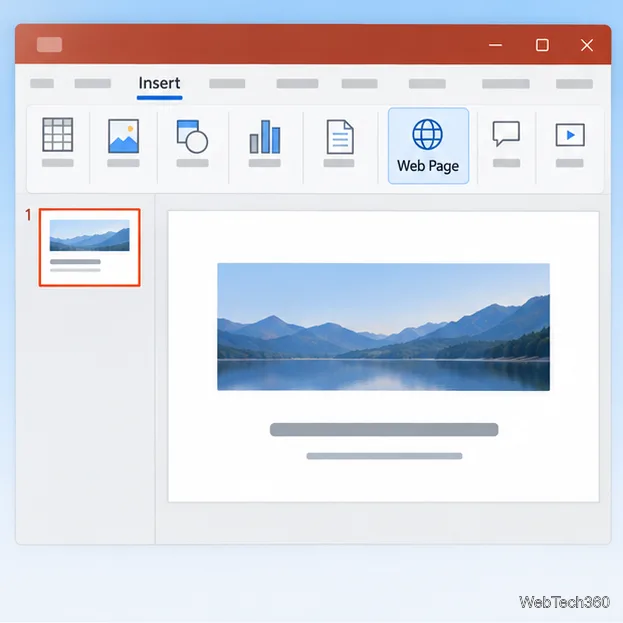
Use the LiveWeb add-in to place a website on a PowerPoint slide, set its size and refresh behavior, and check compatibility before presenting.
Set an Access 2010 database application to open directly to a data-entry form, hide object lists, limit menus, and check the setup before sharing.