How to Move a Picture in Microsoft Word
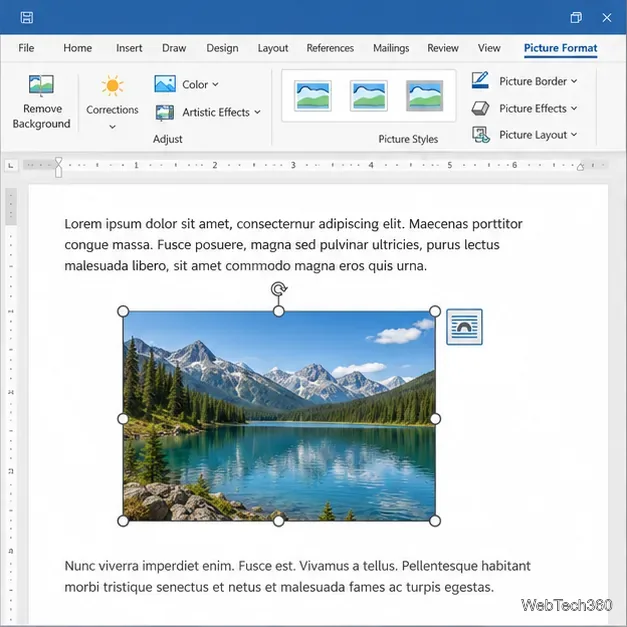
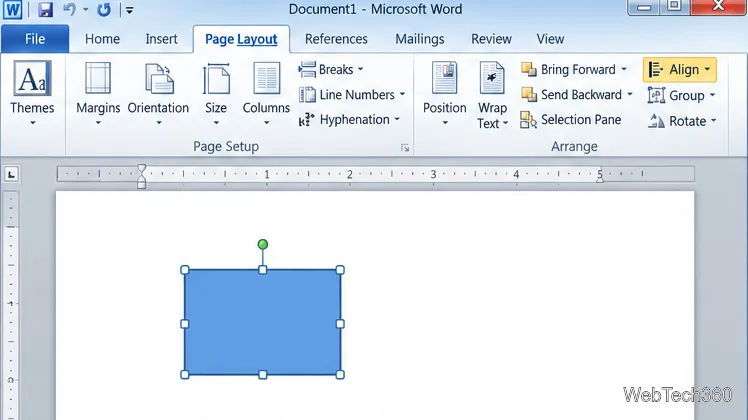
Learn how to drag a picture in Word, choose text wrapping, keep it with a paragraph or fix it on the page, and troubleshoot images that will not move.
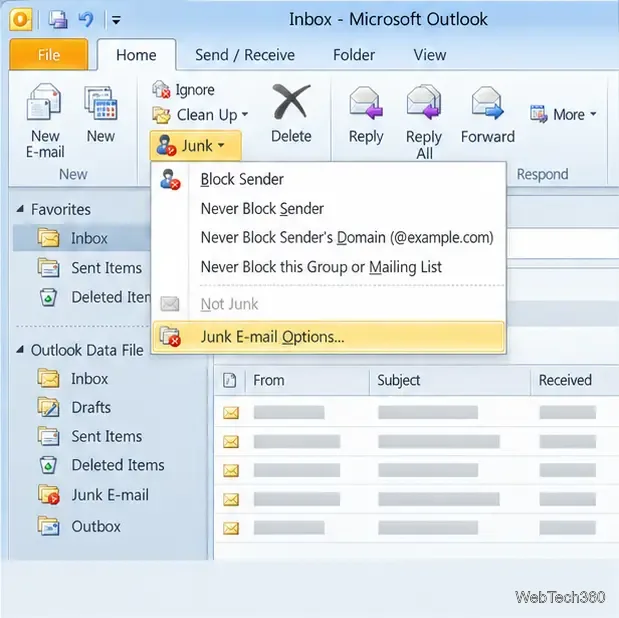
The Outlook 2010 junk email filter can move suspected spam into the Junk E-mail folder, but its protection level and sender lists determine what it catches. Open Home > Junk > Junk E-mail Options to check the settings. For a Gmail account connected through IMAP, also check Gmail’s Spam folder: Gmail’s server-side spam decisions and Outlook’s local junk filter are separate.
Outlook’s filter sorts messages after delivery; it does not stop a message from reaching the mailbox. The options include No Automatic Filtering, Low, High, and Safe Lists Only. “No Automatic Filtering” disables automatic classification, but blocked senders can still be moved to Junk. The selected level may differ on a particular installation, so inspect it instead of assuming the filter is active or inactive.
The older article’s test—where a message appeared to move only after it was opened—doesn’t establish that Outlook waits for a click. Microsoft’s current classic Outlook guidance says the filter evaluates incoming messages automatically, but that documentation does not cover every Outlook 2010 and IMAP-provider combination. Synchronization delays, account settings, and whether a message was moved by Gmail or Outlook can make the sequence look different.
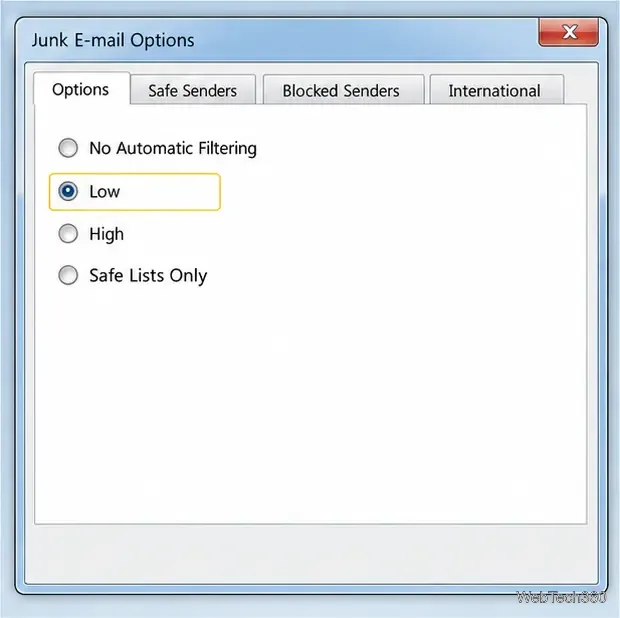
Low is intended to catch the most obvious junk while reducing false positives. High is more aggressive, so check the Junk E-mail folder regularly for legitimate messages. Safe Lists Only is restrictive: mail from senders not on the safe lists may be treated as junk. Avoid selecting any option that permanently deletes suspected junk unless you are comfortable losing messages that were misclassified. Microsoft explains the level tradeoffs in its Outlook junk-filter protection guide.
For repeated mail from one address, select a message from that sender, open Home > Junk, and choose Block Sender. To review or remove entries, return to Junk E-mail Options and open the Blocked Senders tab. Prefer blocking the exact address over an entire domain: domain-wide blocks can also catch legitimate notices from unrelated teams or services that share that domain.
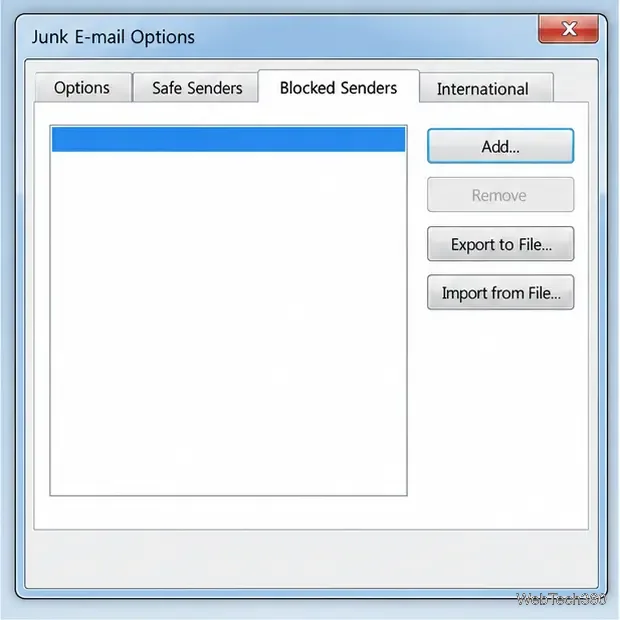
If a wanted sender is being misclassified, add the address under Safe Senders. Do this only for correspondents you trust; a safe-sender entry can keep their messages out of Outlook’s Junk folder even when the content looks suspicious. Recheck the Junk E-mail folder before deleting items, and move a false positive back to the Inbox. Microsoft’s overview of the classic Outlook filter describes how these lists affect classification.
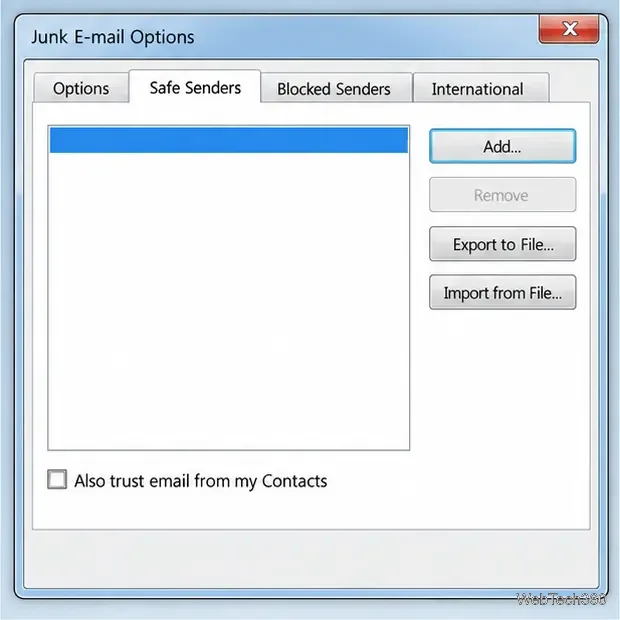
First open Gmail in a browser and check both Inbox and Spam. If the unwanted message is in Gmail’s Inbox, report it as spam in Gmail; Google says reports help Gmail identify similar messages. If it is already in Gmail’s Spam folder but Outlook still shows it in the Inbox, check whether Outlook has synchronized Gmail’s labels and folders, then refresh the account. Gmail’s labels and messages sync to connected email clients, though their folder presentation can differ. Use Gmail’s Report spam and IMAP setup guidance for server-side handling.
If a legitimate message is in Gmail Spam, mark it Not spam in Gmail. If it is in Outlook’s Junk E-mail folder, restore it there and adjust Outlook’s safe-sender list if appropriate. These actions address different filters; changing Outlook’s list does not train Gmail’s spam system.
There is also a compatibility limit: Google notes that older email clients may not support its recommended security standards. Outlook 2010 may therefore have trouble connecting to Gmail with modern sign-in requirements. Avoid weakening account security to force a connection; use a supported email client if Google sign-in is unavailable. Office 2010 support ended on October 13, 2020, so it no longer receives Microsoft security fixes. See the Office 2010 lifecycle record.
Learn how to drag a picture in Word, choose text wrapping, keep it with a paragraph or fix it on the page, and troubleshoot images that will not move.
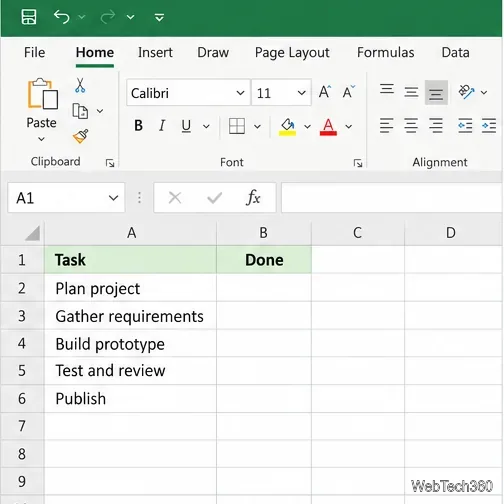
Learn how to insert a checkbox in Excel with the in-cell tool, count checked items with formulas, or add a linked Form Control in older desktop versions.
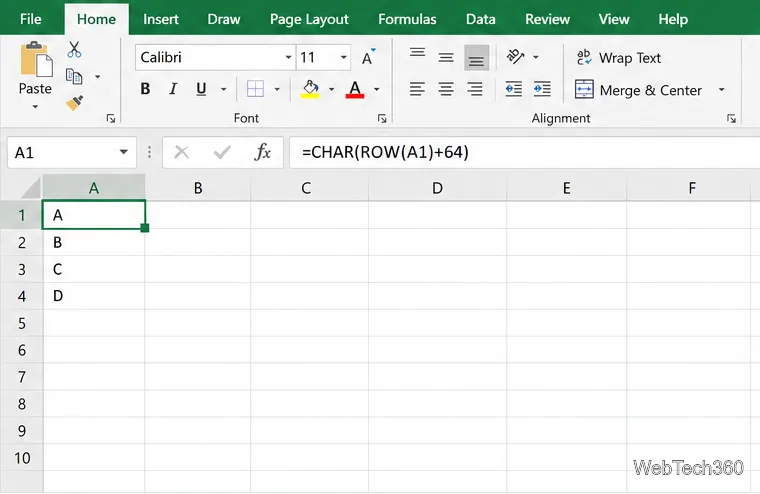
Generate A to Z, lowercase letters, or labels beyond Z in Excel with a fill-handle formula, SEQUENCE, or a reusable custom list.
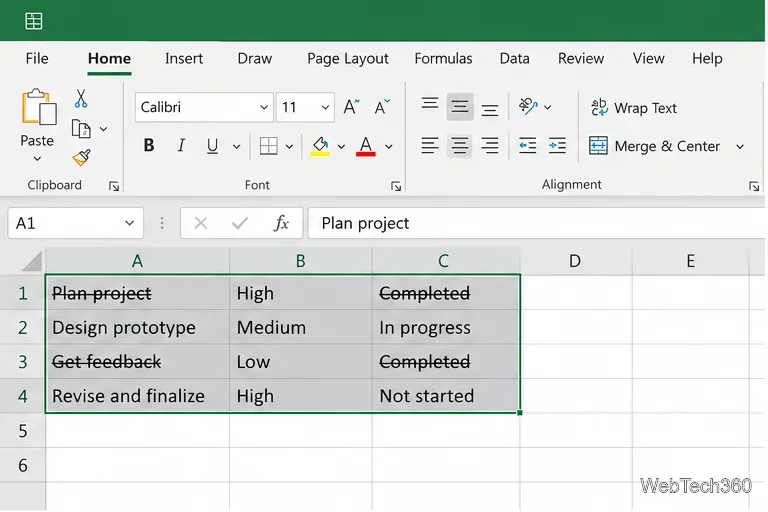
Learn how to strikethrough in Excel on Windows, Mac, and the web, format part of a cell, and remove the line without deleting its value.
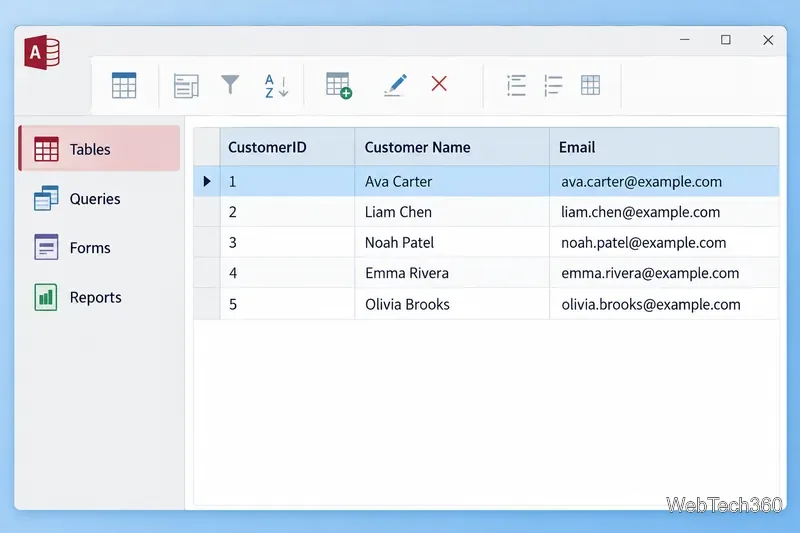
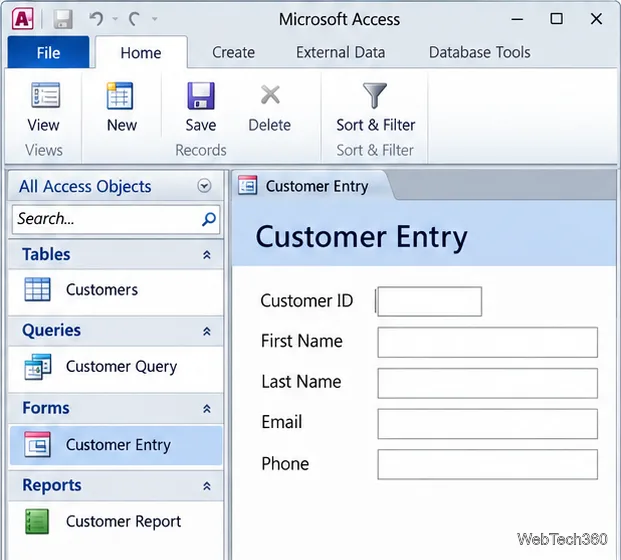
Microsoft Access is a Windows database app for storing related records, building queries, creating data-entry forms, and generating reports. Learn how it works and when it fits.
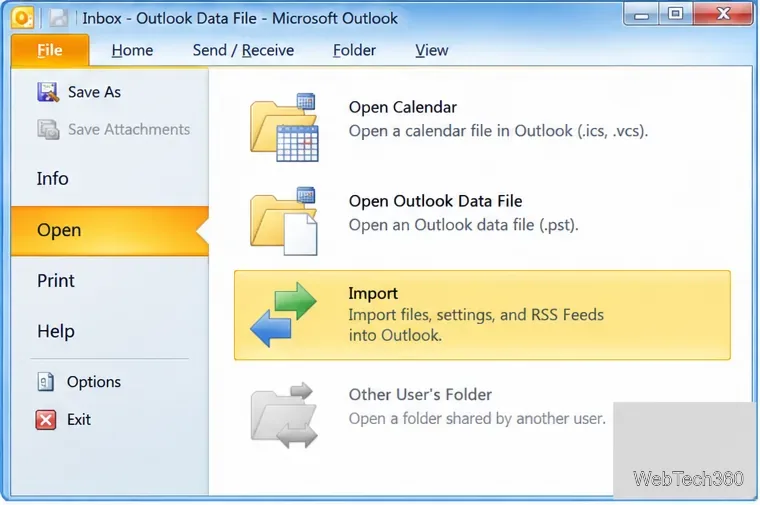
Learn how to import a PST into Outlook 2010 or export mail, contacts, calendar, and tasks. Follow the correct menus and avoid missing folders or duplicates.
Learn how to adjust gridline height and width in Word 2010, change visible line frequency, and set the underlying horizontal and vertical drawing-grid spacing.
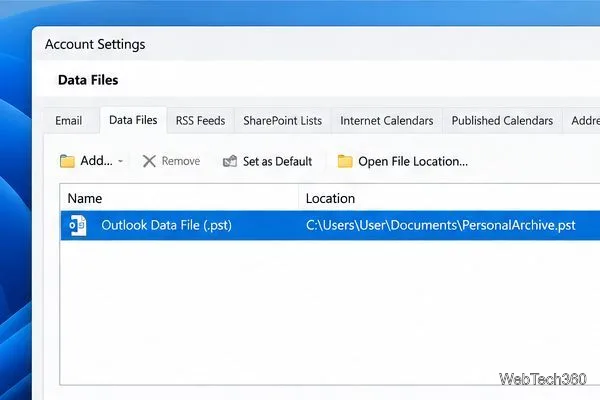
Recover a forgotten Outlook PST password with Kernel’s current steps, including how to identify the right file, make a backup, and check the tool’s limits.
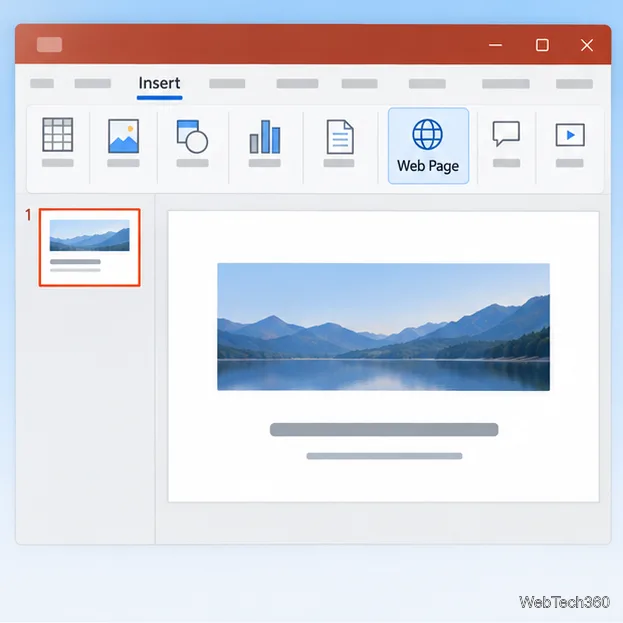
Use the LiveWeb add-in to place a website on a PowerPoint slide, set its size and refresh behavior, and check compatibility before presenting.
Set an Access 2010 database application to open directly to a data-entry form, hide object lists, limit menus, and check the setup before sharing.