How to Move a Picture in Microsoft Word
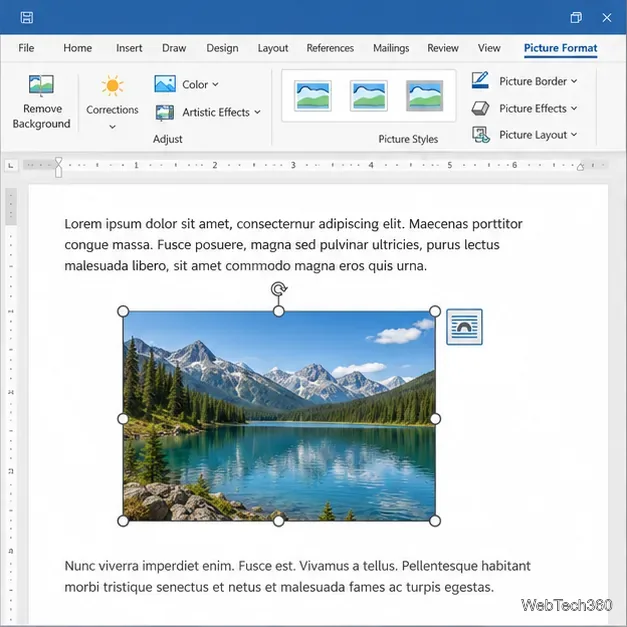
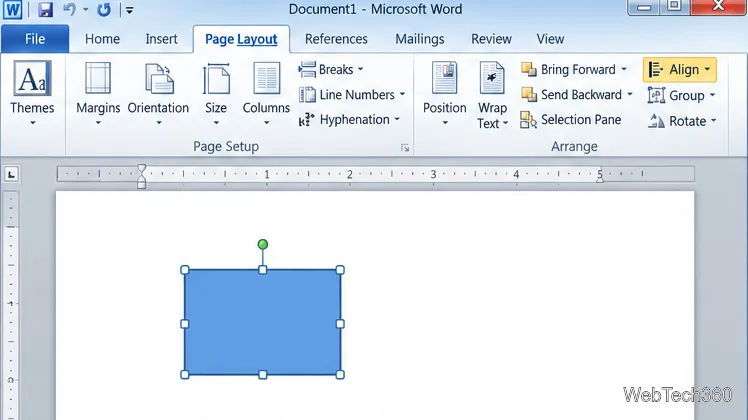
Learn how to drag a picture in Word, choose text wrapping, keep it with a paragraph or fix it on the page, and troubleshoot images that will not move.
An Outlook 2010 profile is a set of account settings and data-file locations that Outlook uses when it starts. If you want to keep work and personal mail separate, or choose between two accounts at launch, create or select a profile in Windows Control Panel. Close Outlook before changing profiles; Outlook cannot switch profiles while it is running.
A profile does not copy your messages or act as a backup. It tells Outlook which accounts and storage locations to use. Microsoft’s overview of Outlook email profiles explains that mail data may be stored on a server or in an Outlook Data File (.pst), depending on the account and setup.
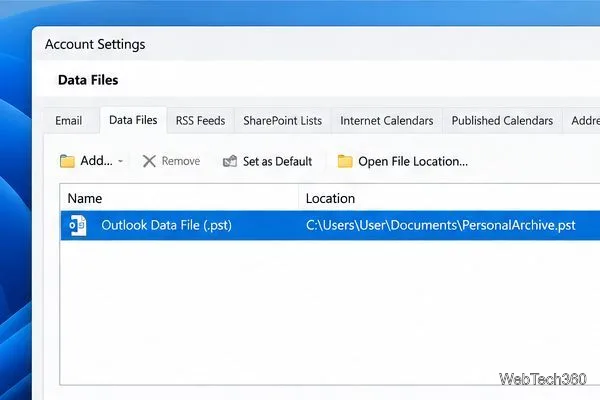
A profile can include email accounts, connection settings, and data-file locations. Depending on the account, messages may be stored on a mail server, in a local .pst file, or in offline data. You can also attach an archive .pst.
Separate profiles can keep work and personal accounts apart and reduce the chance of sending from the wrong account. They are not Windows logins and cannot be password-protected; protect the computer and Outlook data with a password-protected Windows account.
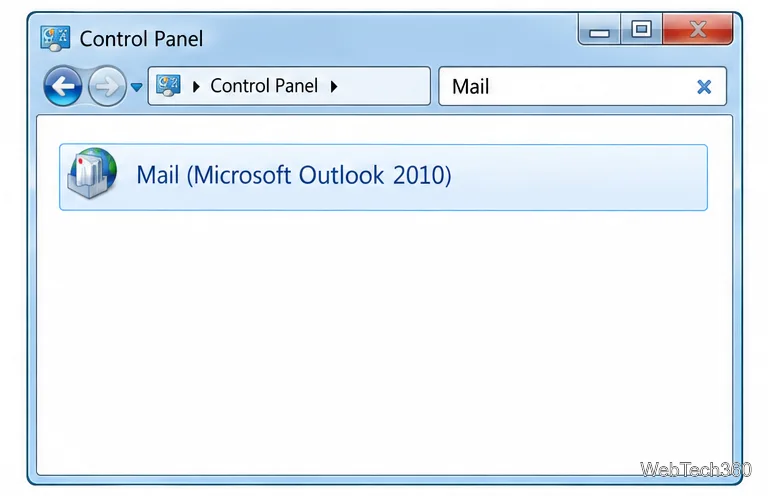
If Mail is missing, open Outlook once and search Control Panel again. Its location varies by Windows and Office installation; Microsoft recommends searching Control Panel for “Mail.” See Microsoft’s profile-editing instructions.
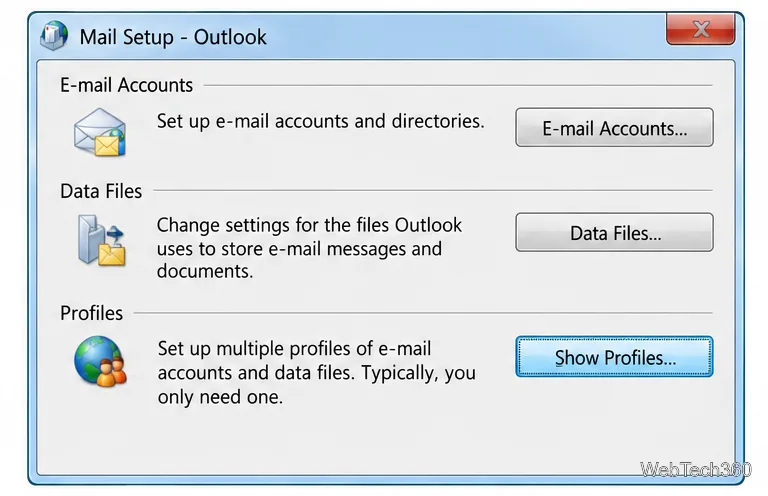
A new profile does not import messages from another one. Back up any .pst file and attach it to the profile that needs the archive. Mail stored on a server may sync after account setup, depending on the provider and account type.
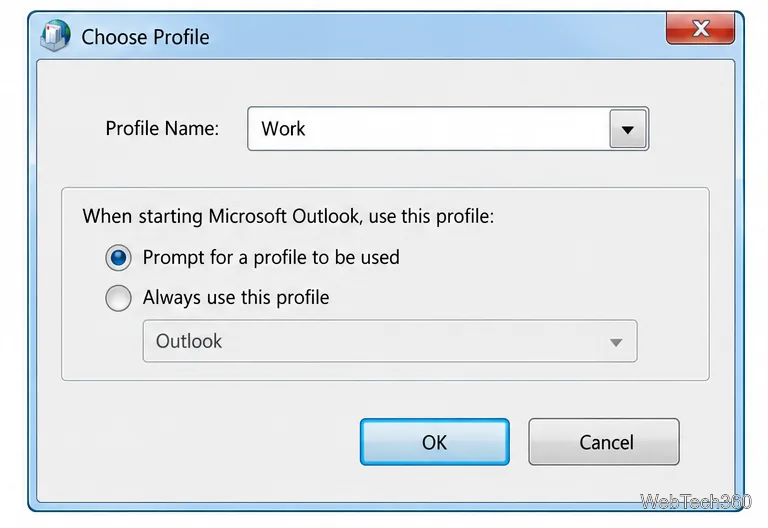
In Show Profiles, choose one of the startup options:
Select Apply or OK to save the choice, then start Outlook. If you selected the prompt option, choose the profile you want for that session.
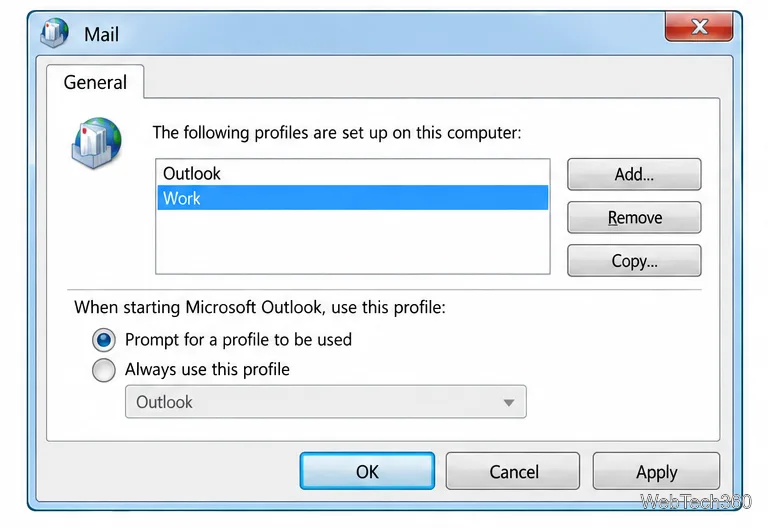
To adjust a profile, select it in Show Profiles and choose Properties, then review its email accounts and data files.
If the dialog shows Copy, use it only as a starting copy of the configuration. Review its account settings and file paths; copying a profile does not copy mailbox contents or back up a .pst file.
To remove a profile, select it and choose Remove. This removes that profile’s account configuration. A .pst file associated with it normally remains on the computer, but you must attach it through another profile to open its contents. Offline cached data may be removed with the profile, so confirm that important mail is available on the server and back up any .pst files before removal. Microsoft’s profile-removal guidance describes these data-file considerations.
Microsoft ended support for Outlook 2010 in October 2020. A new profile may fix local configuration problems, but it cannot meet a mail provider’s newer sign-in requirements. Microsoft says the Control Panel Mail applet in current Outlook versions cannot configure accounts that require Modern Authentication. If Outlook 2010 cannot sign in, check the provider’s current requirements and consider a supported Outlook version. See the Outlook 2010 lifecycle page.
For a profile-selection problem, reopen Control Panel’s Mail applet and confirm whether Prompt for a profile to be used or Always use this profile is selected. For missing messages, check whether they belong to an account stored online or to a .pst file that has not been attached to the profile you opened.
Learn how to drag a picture in Word, choose text wrapping, keep it with a paragraph or fix it on the page, and troubleshoot images that will not move.
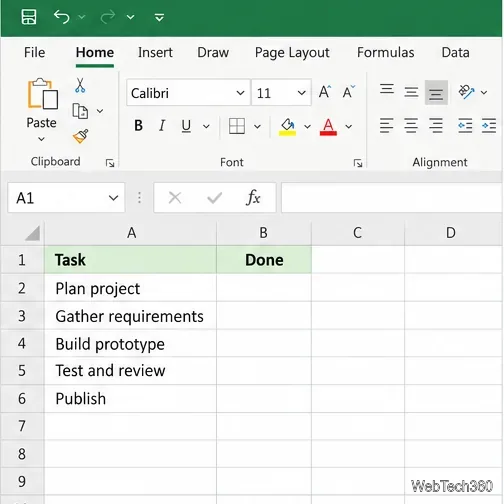
Learn how to insert a checkbox in Excel with the in-cell tool, count checked items with formulas, or add a linked Form Control in older desktop versions.
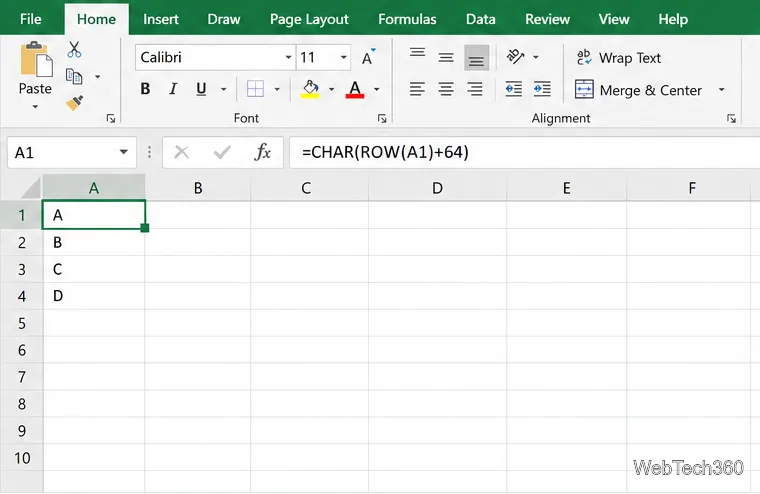
Generate A to Z, lowercase letters, or labels beyond Z in Excel with a fill-handle formula, SEQUENCE, or a reusable custom list.
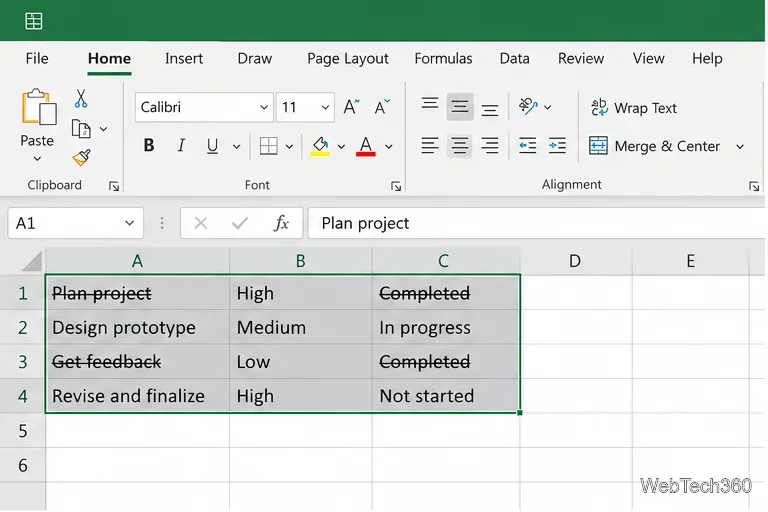
Learn how to strikethrough in Excel on Windows, Mac, and the web, format part of a cell, and remove the line without deleting its value.
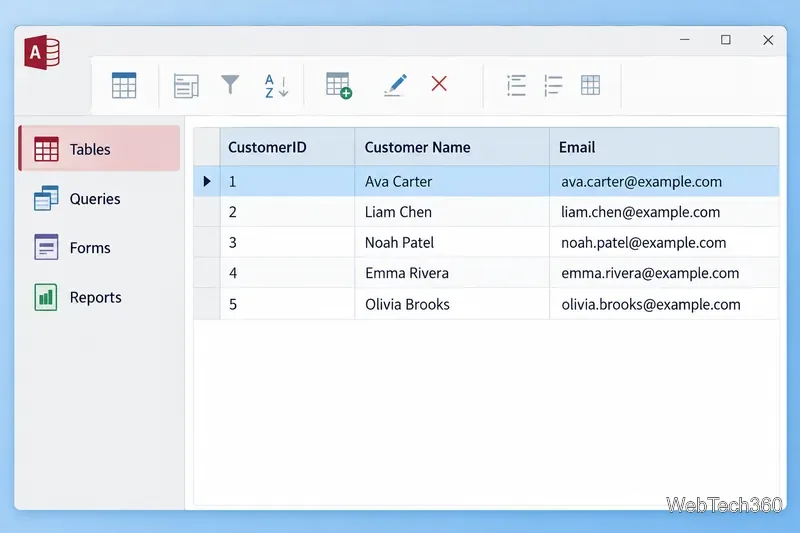
Microsoft Access is a Windows database app for storing related records, building queries, creating data-entry forms, and generating reports. Learn how it works and when it fits.
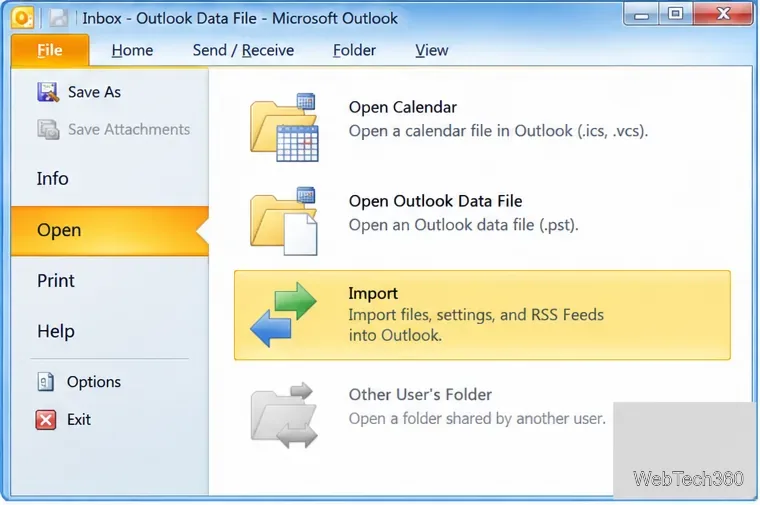
Learn how to import a PST into Outlook 2010 or export mail, contacts, calendar, and tasks. Follow the correct menus and avoid missing folders or duplicates.
Learn how to adjust gridline height and width in Word 2010, change visible line frequency, and set the underlying horizontal and vertical drawing-grid spacing.
Recover a forgotten Outlook PST password with Kernel’s current steps, including how to identify the right file, make a backup, and check the tool’s limits.
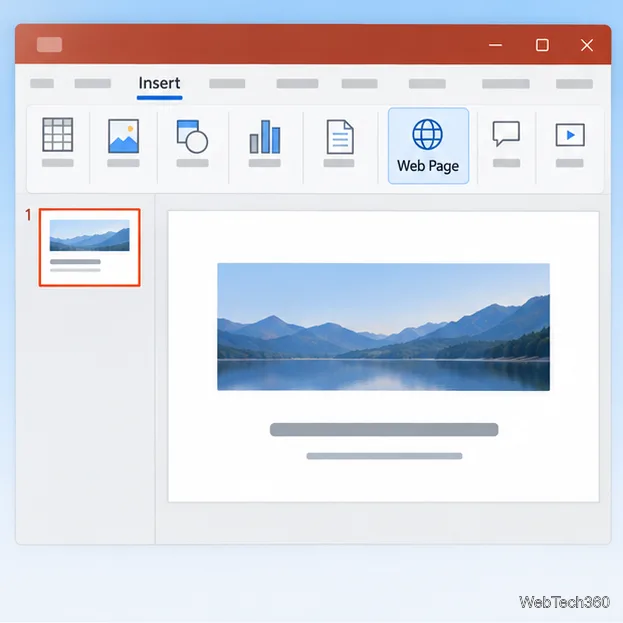
Use the LiveWeb add-in to place a website on a PowerPoint slide, set its size and refresh behavior, and check compatibility before presenting.
Set an Access 2010 database application to open directly to a data-entry form, hide object lists, limit menus, and check the setup before sharing.