How to Move a Picture in Microsoft Word
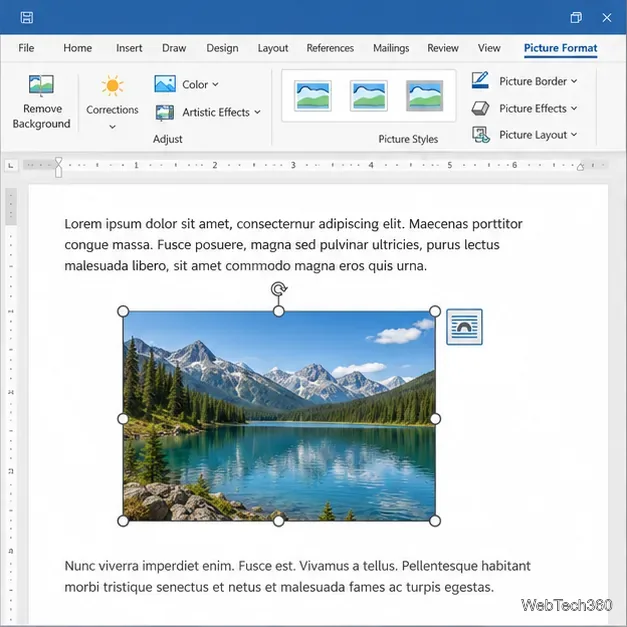
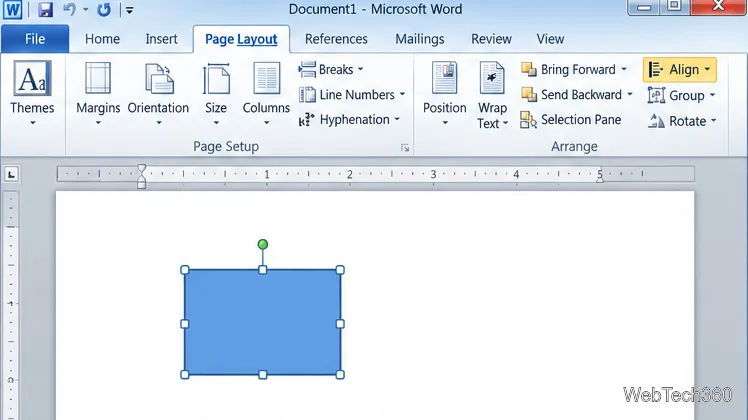
Learn how to drag a picture in Word, choose text wrapping, keep it with a paragraph or fix it on the page, and troubleshoot images that will not move.
Microsoft PowerPoint 2010 built on the Ribbon and the .pptx format introduced in PowerPoint 2007. Its most useful changes were a customizable Ribbon, slide sections, richer video editing, background removal, and a more capable file-management view. If you are comparing versions, the key distinction is that PowerPoint 2010 added new ways to edit and share presentations; it did not make .pptx files automatically readable by PowerPoint 2003 or earlier.
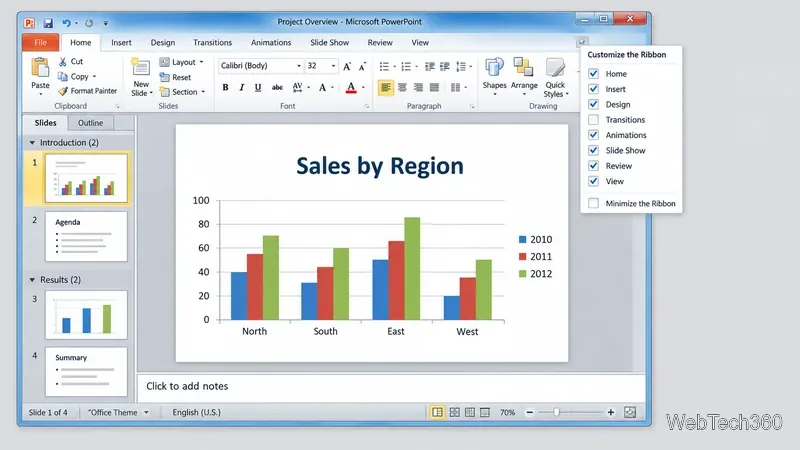
The Ribbon itself was not new in 2010; it arrived in Office 2007. PowerPoint 2010 let people customize it, however, by adding personal tabs or command groups and hiding tabs they did not use. Right-click the Ribbon and choose Customize the Ribbon, or open File > Options > Customize Ribbon. This is useful when a presentation workflow repeatedly uses the same commands.
Office 2010 also replaced the Office button with the File tab and Backstage view. Instead of editing a slide, Backstage collects tasks such as opening, saving, printing, sharing, and checking file information in one place. It makes file-level actions easier to find, while the Ribbon remains the home for commands that change slide content.
Sections let you group related slides under labels such as “Introduction,” “Research,” or “Recommendations.” In Normal view, use the Section control on the Home tab to add a section, rename it, or manage its slides. Sections can be collapsed in the thumbnail pane, which makes a long deck easier to scan and helps when moving or revising a group of slides.
PowerPoint 2010 also refined presentation effects. A separate Transitions tab puts slide-to-slide effects and their timing in a visible gallery, while the Animations tools make effects easier to apply and review. These tools help presenters build a consistent sequence, but restrained use usually keeps the audience focused on the content.
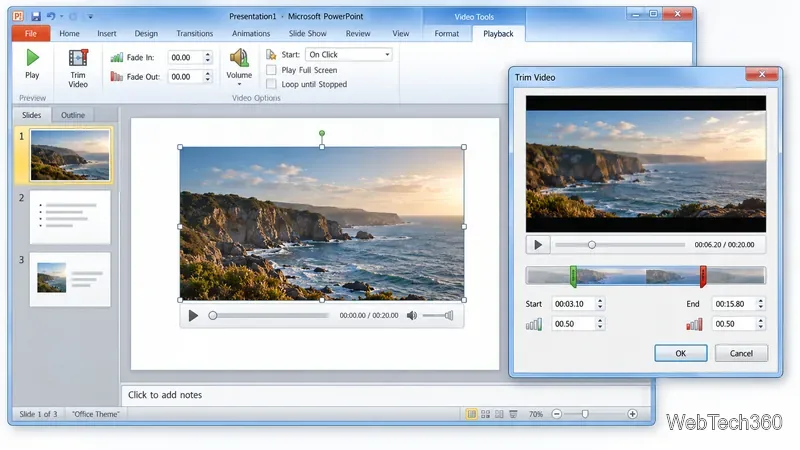
PowerPoint 2010 added practical video-editing controls after a clip is inserted. You can trim the beginning or end, set fade-in and fade-out timing, and choose playback behavior from the contextual video tools. Embedding media can make a presentation more portable than relying on a separate linked file, but it can also increase the presentation’s size. Check playback on the computer and display you plan to use.
You could also save a finished deck as a video. In PowerPoint 2010, open File > Save & Send > Create a Video, choose a quality option, and decide whether to use recorded timings and narration. The 2010 export workflow created a Windows Media Video file. Microsoft also promoted a broadcast feature for presenting to remote viewers, but that relied on an online service. Treat it as a legacy capability rather than assuming it will work from an old installation today.
The Remove Background tool can isolate a subject from a picture without switching to a separate image editor. Select an inserted picture, open Picture Tools, and choose the background-removal command. PowerPoint marks an area to remove; use the keep/remove refinement controls to correct the selection before applying it. The result depends on the contrast and detail in the original image, so inspect edges such as hair or transparent objects.
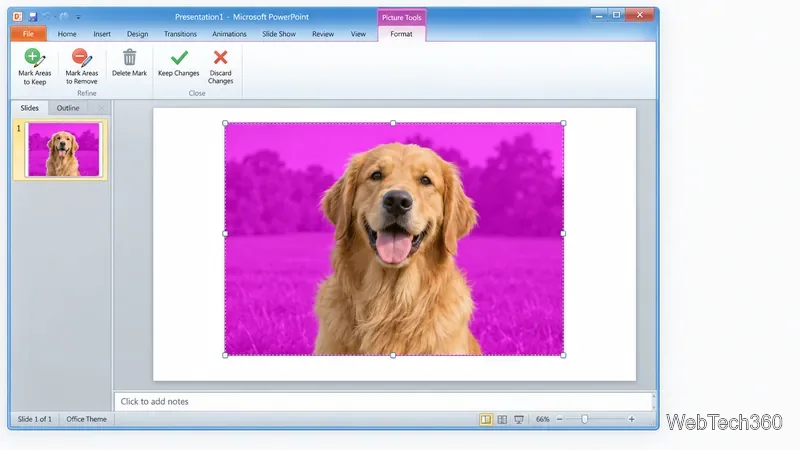
A built-in screenshot tool also lets you insert an open-window capture or select part of the screen from the Insert tab. This is handy for diagrams, software walkthroughs, and evidence slides; crop the capture and remove unrelated private information before sharing. Microsoft’s PowerPoint 2010 Product Guide documents these presentation, media, and picture-editing features.
PowerPoint 2010 uses the Office Open XML .pptx format that PowerPoint 2007 introduced. It can also save to the older .ppt format for a PowerPoint 97–2003 workflow, but this is a conversion, not a guarantee that every newer effect will survive unchanged. Microsoft’s Compatibility Checker warns about features that may change; for example, some embedded or upgraded media can become a picture in the older file format. Keep a .pptx master and test a converted copy with the intended older version.
PowerPoint 2010 also supported co-authoring for presentations stored in a SharePoint library, as described in Microsoft’s Office 2010 announcement. That collaboration depended on compatible shared infrastructure, so it was not the same as simply emailing a file back and forth.
For opening or maintaining a legacy deck, these tools can still be useful if you have a compatible installation. But Microsoft ended Office 2010 support on October 13, 2020, so it no longer receives security updates or technical support. Microsoft lists the dates on its Office 2010 lifecycle page. For everyday work, especially presentations containing sensitive information or files exchanged online, use a supported Office version. The best summary of “what’s new” is therefore historical: PowerPoint 2010 made editing and presenting richer, while its online services and unsupported software status need to be considered separately.
Learn how to drag a picture in Word, choose text wrapping, keep it with a paragraph or fix it on the page, and troubleshoot images that will not move.
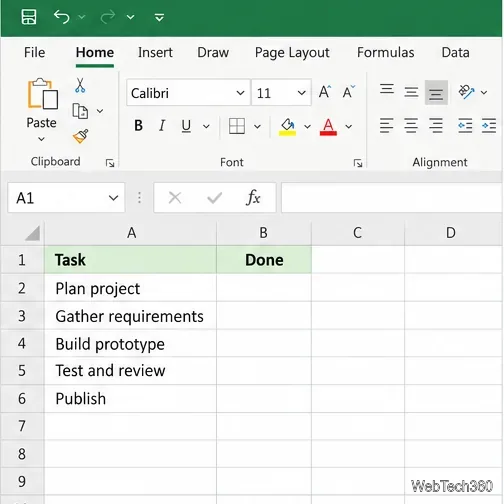
Learn how to insert a checkbox in Excel with the in-cell tool, count checked items with formulas, or add a linked Form Control in older desktop versions.
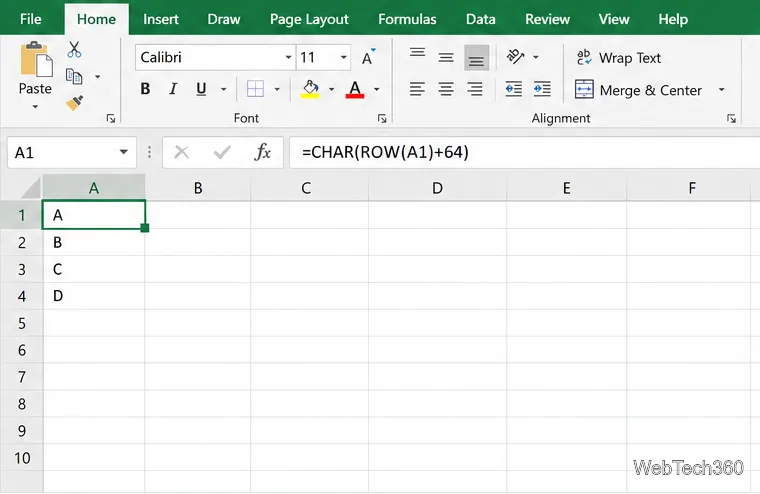
Generate A to Z, lowercase letters, or labels beyond Z in Excel with a fill-handle formula, SEQUENCE, or a reusable custom list.
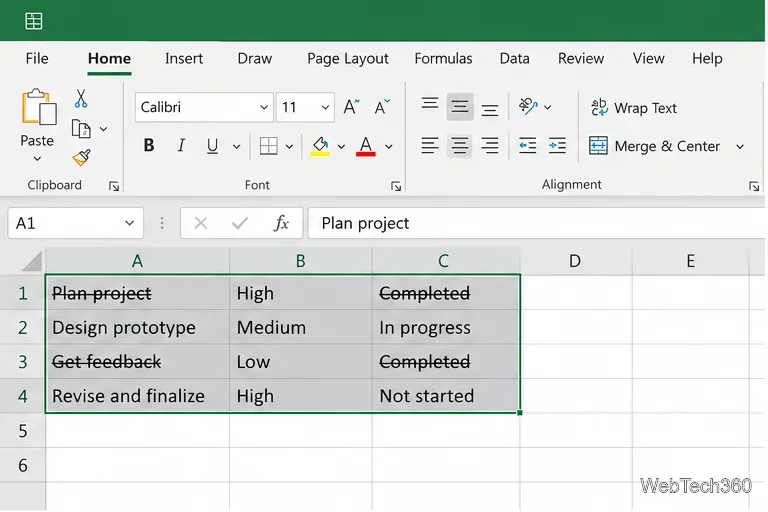
Learn how to strikethrough in Excel on Windows, Mac, and the web, format part of a cell, and remove the line without deleting its value.
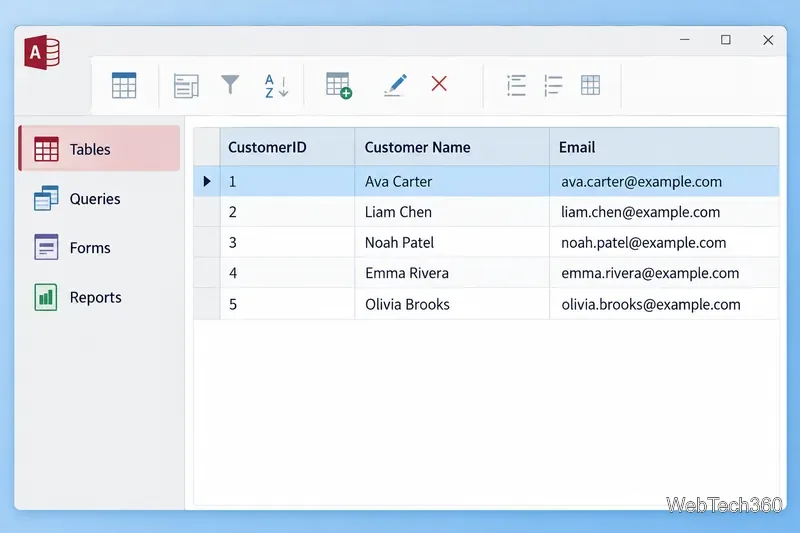
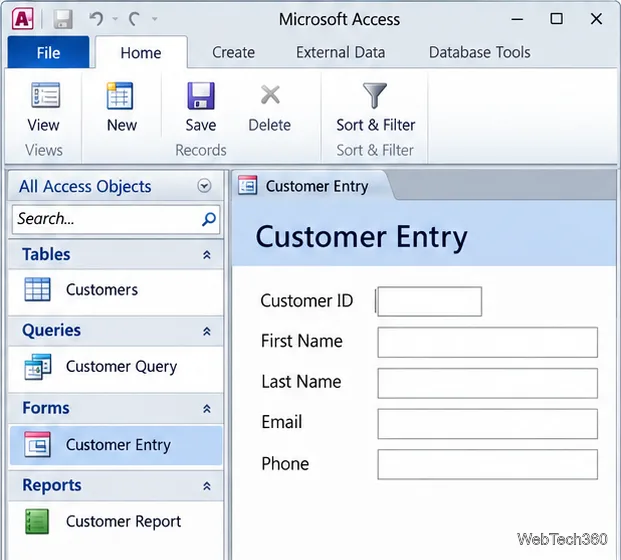
Microsoft Access is a Windows database app for storing related records, building queries, creating data-entry forms, and generating reports. Learn how it works and when it fits.
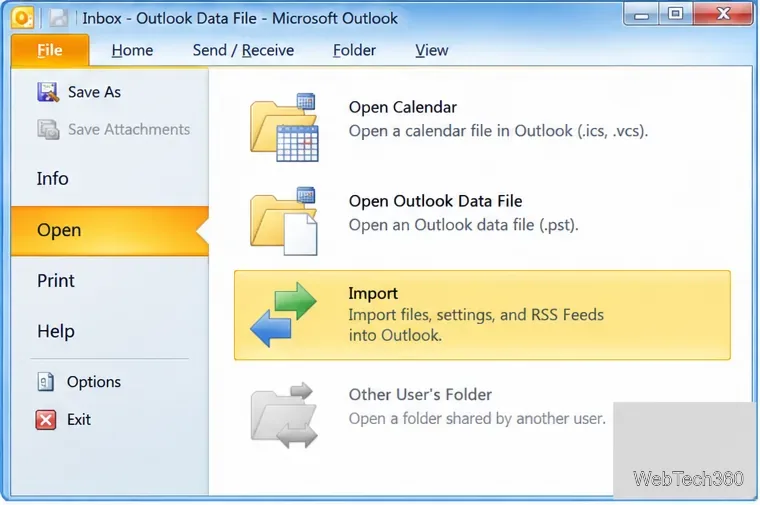
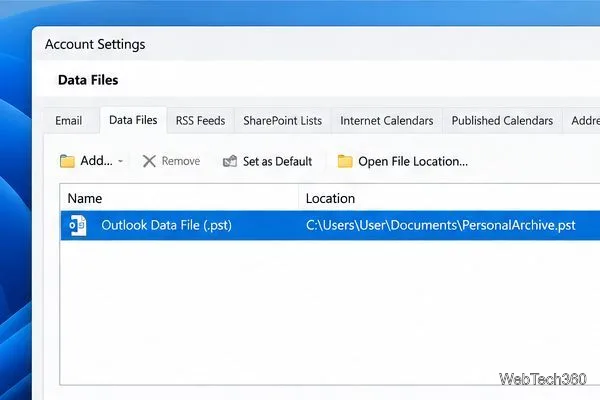
Learn how to import a PST into Outlook 2010 or export mail, contacts, calendar, and tasks. Follow the correct menus and avoid missing folders or duplicates.
Learn how to adjust gridline height and width in Word 2010, change visible line frequency, and set the underlying horizontal and vertical drawing-grid spacing.
Recover a forgotten Outlook PST password with Kernel’s current steps, including how to identify the right file, make a backup, and check the tool’s limits.
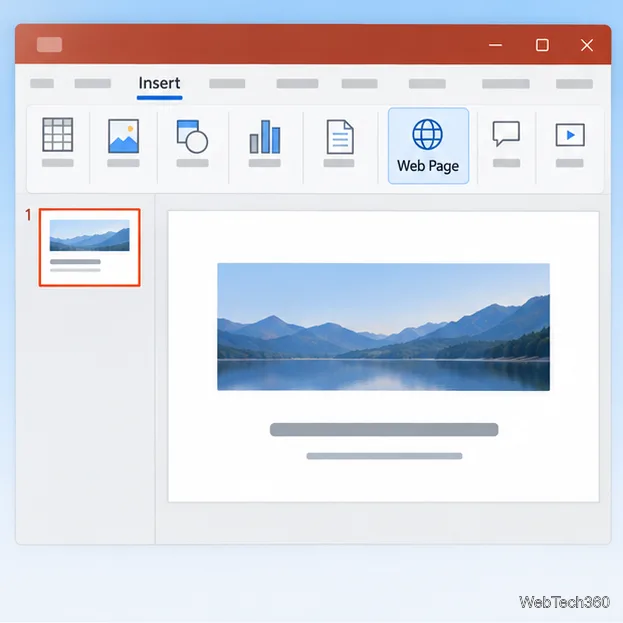
Use the LiveWeb add-in to place a website on a PowerPoint slide, set its size and refresh behavior, and check compatibility before presenting.
Set an Access 2010 database application to open directly to a data-entry form, hide object lists, limit menus, and check the setup before sharing.