How to Move a Picture in Microsoft Word
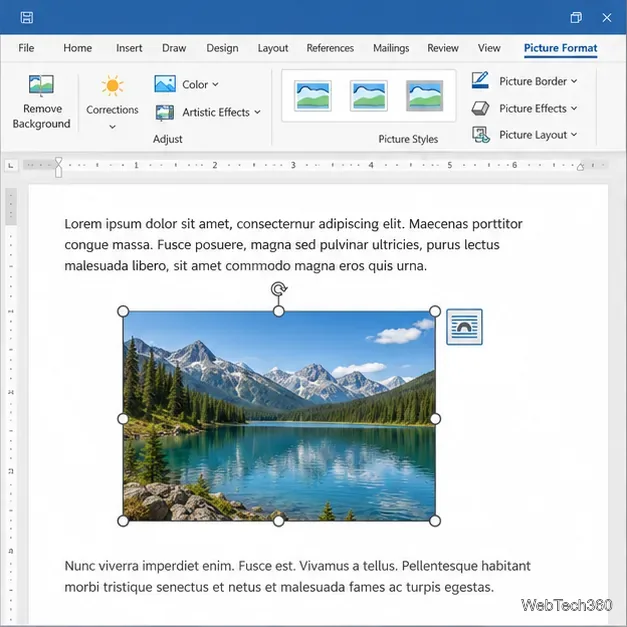
Learn how to drag a picture in Word, choose text wrapping, keep it with a paragraph or fix it on the page, and troubleshoot images that will not move.
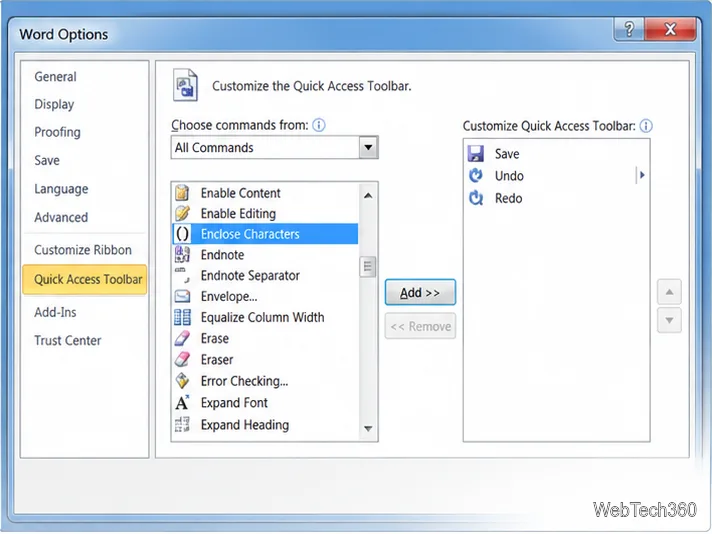
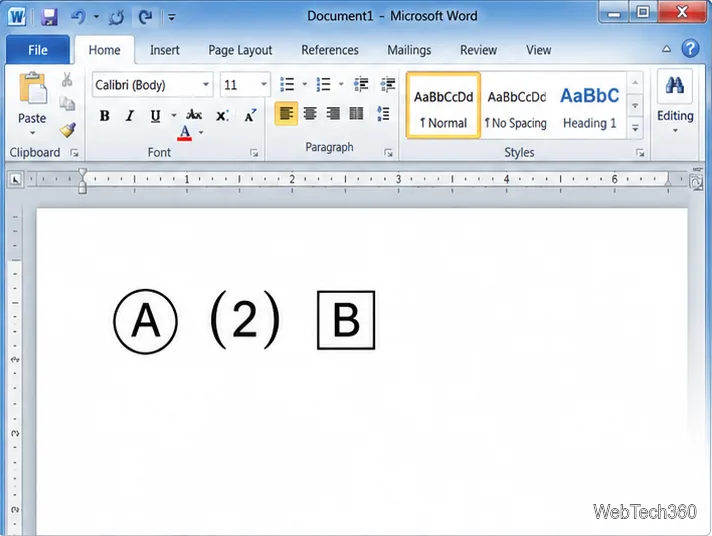
Word 2010’s Enclose Characters command wraps a selected letter, number, or short text string in a shape such as a circle or square. The command is not shown on the Ribbon by default, so first add it to the Quick Access Toolbar. Then select the text, choose a fitting style and enclosure, and apply it.
This walkthrough is for the desktop version of Word 2010 for Windows. Menu labels can differ in localized editions. If the command is missing from your installation, use the alternatives below instead of assuming that a newer version has the same controls.
The feature is useful for short labels, numbered marks, or characters that need a visible border in a document. It applies a shape around the selected content within the text flow, so it is convenient for inline use compared with drawing a separate object. It is best suited to one character or a short selection; long words can become cramped or difficult to read inside a small enclosure.
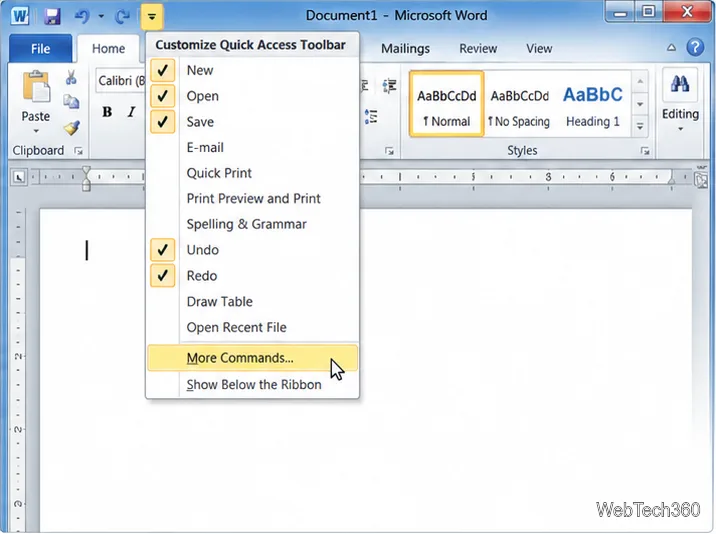
Microsoft’s current Quick Access Toolbar instructions describe the same general process for adding commands. They are not a version-specific reference for this Word 2010 feature.
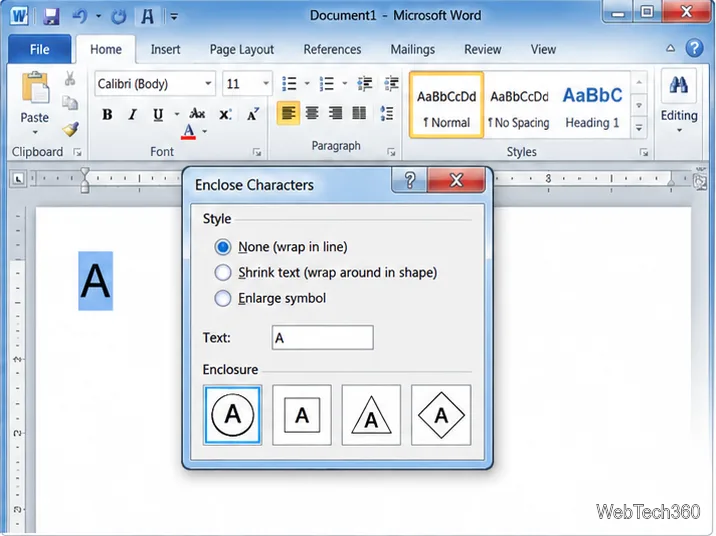
To give different characters different shapes, apply the command to each selection separately. For example, enclose a letter in a circle, then select a number and choose a different enclosure. This keeps each mark independent and makes later edits easier.
If you set the command source to All Commands and still cannot find Enclose Characters, the feature may not be available in that installation or language. Microsoft notes that Office 2010 support ended on October 13, 2020, and that much of its online help content was retired. See the official Office 2010 end-of-support notice for the support status.
For a prebuilt circled or otherwise enclosed character, open Insert > Symbol and browse the available symbols in your chosen font. Microsoft’s symbol-insertion guide explains how to choose a symbol or open More Symbols. If you need a custom-sized border around a word, insert a shape and place text inside it; this is a separate drawing object, so it may move differently from ordinary inline text.
Because Word 2010 is no longer supported, check any enclosed text on the computer and Word version that will open the finished document. This is especially useful when the enclosure carries meaning, rather than serving only as decoration.
Learn how to drag a picture in Word, choose text wrapping, keep it with a paragraph or fix it on the page, and troubleshoot images that will not move.
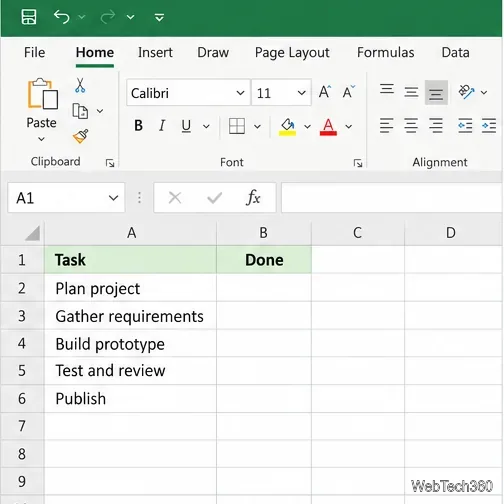
Learn how to insert a checkbox in Excel with the in-cell tool, count checked items with formulas, or add a linked Form Control in older desktop versions.
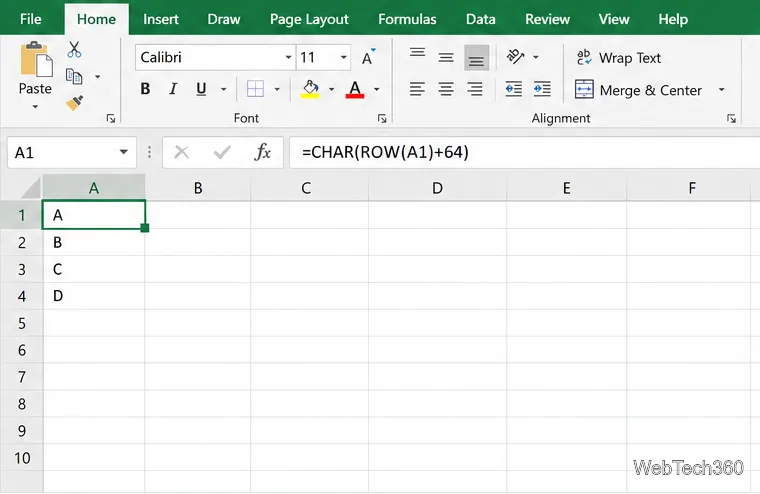
Generate A to Z, lowercase letters, or labels beyond Z in Excel with a fill-handle formula, SEQUENCE, or a reusable custom list.
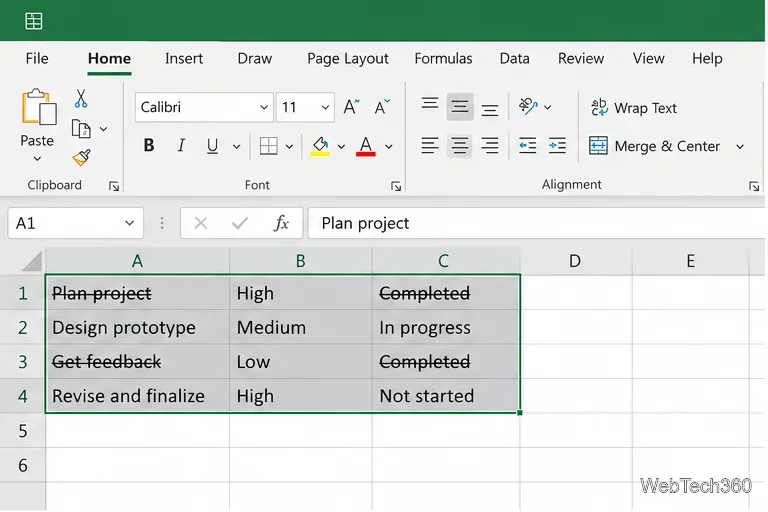
Learn how to strikethrough in Excel on Windows, Mac, and the web, format part of a cell, and remove the line without deleting its value.
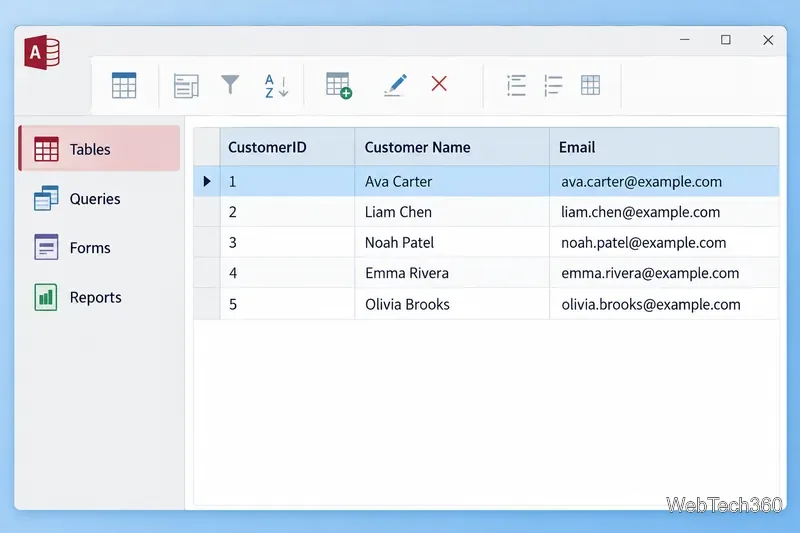
Microsoft Access is a Windows database app for storing related records, building queries, creating data-entry forms, and generating reports. Learn how it works and when it fits.
Learn how to import a PST into Outlook 2010 or export mail, contacts, calendar, and tasks. Follow the correct menus and avoid missing folders or duplicates.
Learn how to adjust gridline height and width in Word 2010, change visible line frequency, and set the underlying horizontal and vertical drawing-grid spacing.
Recover a forgotten Outlook PST password with Kernel’s current steps, including how to identify the right file, make a backup, and check the tool’s limits.
Use the LiveWeb add-in to place a website on a PowerPoint slide, set its size and refresh behavior, and check compatibility before presenting.
Set an Access 2010 database application to open directly to a data-entry form, hide object lists, limit menus, and check the setup before sharing.