Home
» NETWORK ADMIN
»
Export a Zimbra Mailbox to PST or EML: What Works and How
Export a Zimbra Mailbox to PST or EML: What Works and How
Quick answer: Zimbra’s documented mailbox export produces an archive such as TAR, TGZ, or ZIP; when mail messages are packaged in those formats, Zimbra stores them as individual .eml files. The Zimbra export documentation reviewed does not describe a native PST export. To make a PST, use Outlook after the complete mailbox is available there, or use an approved conversion workflow and verify the result.
These formats solve different needs. EML is a portable format for individual messages. A Zimbra TGZ or ZIP is a container that may hold many EML files (and, depending on what you export, other mailbox data). PST is an Outlook data file. Changing a file extension from .tgz to .pst does not convert the contents.
Choose the route that matches your goal
Goal
Use this route
What to check
Save a whole mailbox or selected folders for an archive
Zimbra Web Client Preferences > Import/Export, or an administrator-run Zimbra REST export
Save the archive as delivered; its extension and included data depend on the chosen export and server version.
Keep individual messages as EML
Export an archive and extract its message files, or use Zimbra’s Download Email as EML Zimlet for one message when installed
Confirm you can open sample EML files and that attachments are present.
Create a PST for Outlook
Make the Zimbra mailbox fully available in Outlook, then export the Outlook account to a PST
Confirm the account type, folder synchronization, and export options in your Outlook version.
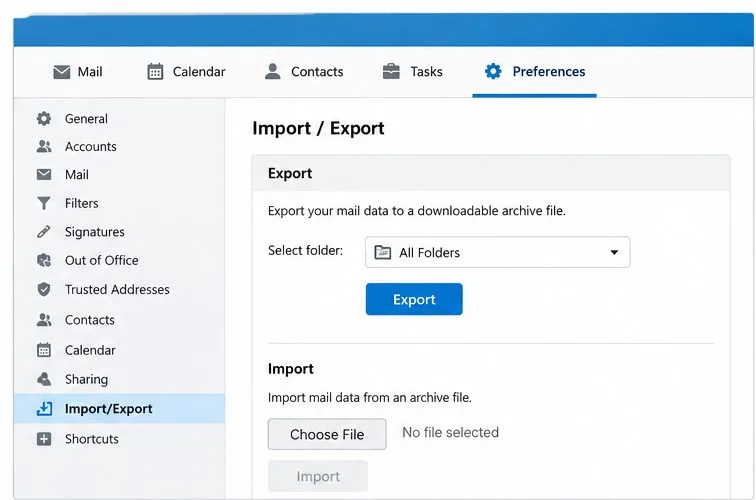
Zimbra’s Import/Export preferences show the mailbox archive export control; available options can differ by deployment.
1. Export a mailbox archive from Zimbra
In the Zimbra Web Client, open Preferences and look for Import/Export. Choose the mailbox or folders you intend to save, then select the export control and download the resulting archive. The exact labels and format choices vary across Zimbra versions, themes, and administrator policies. If the page is missing, ask the Zimbra administrator whether the feature is disabled or whether your organization expects exports to be performed by an administrator.
Zimbra’s REST documentation lists ZIP, TAR, and TGZ response formats. It also documents using the zmmailbox command-line client to run an export, which is an administrator task because it requires appropriate server access and mailbox authorization. For example, the documented pattern for exporting the whole mailbox to a TGZ archive is:
Replace the sample address and output path with values approved for your server. Do not run server commands on a workstation or use another person’s mailbox without authorization. For very large mailboxes, Zimbra’s CLI reference uses a zero timeout in its export example; an administrator should still consider available disk space and local operating procedures.
The Web Client export and REST export are not guaranteed to include exactly the same data. Zimbra describes exporting selected mailbox content, including folders and potentially calendar or address-book entries. Decide whether you need mail only or a wider account archive, and inspect the selected scope before starting.
2. Extract and check the EML files
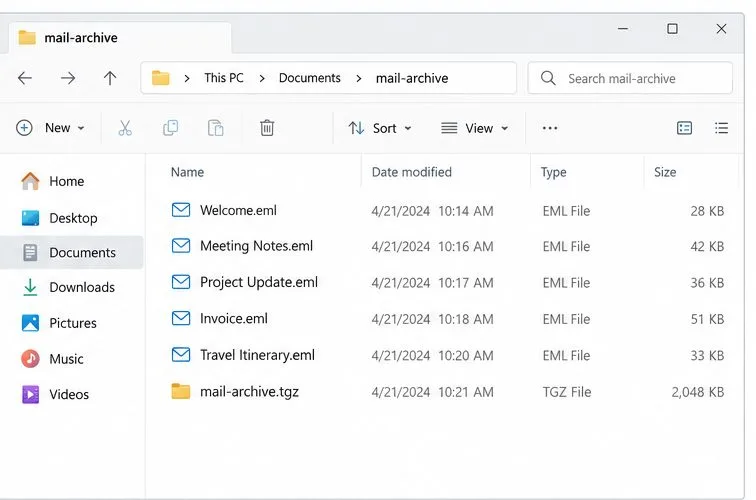
Keep the original downloaded archive unchanged as a backup. Make a working copy, then open or extract it with an archive utility that supports its actual extension. In Zimbra’s official REST reference, messages inside ZIP, TAR, and TGZ exports are packaged as .eml files in MIME format. Folder names and the archive’s other contents can vary, so do not assume that every file in it is an email.
After extraction, the message files are visible as individual .eml items; retain the untouched archive until you verify the copy.
Open a few representative EML files, including a message with an attachment and one from a nested folder if applicable. Check the sender, recipient, date, body, and attachment. A successful download alone does not prove that every folder or message was included. Compare folder names and approximate message counts with Zimbra, and preserve a copy of the original export until the destination has been checked.
3. Download one message as EML when the Zimlet is available
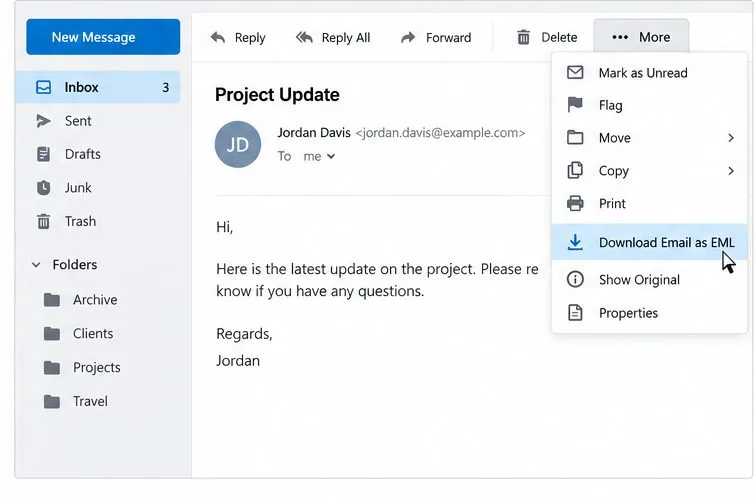
If you only need a few messages, an administrator may have installed Zimbra’s Download Email as EML Zimlet. In the message view, open the More menu and select the EML download action. Zimbra’s official 2022 Zimlet article describes this menu action, and the Zimbra 10.1.17 release notes dated May 28, 2026 list a zimbra-zimlet-download-email package. That does not mean the feature is enabled on every server or visible to every user.
The More menu shows the optional Download Email as EML action; ask your administrator if it is absent.
If you do not see the item, use the full mailbox archive route or ask the administrator about the supported Zimlet for your installed Zimbra version. Avoid browser extensions or third-party tools that ask for mailbox credentials unless your organization has reviewed and approved them.
4. Create a PST through Outlook
A PST is an Outlook data file, not another name for a Zimbra archive. Microsoft documents PST export from Outlook after the account and its contents have been added to the desktop app. If your organization permits connecting the Zimbra mailbox to Outlook, configure the supported account method, wait for synchronization to finish, and confirm that the folders and date range you need are visible before exporting.
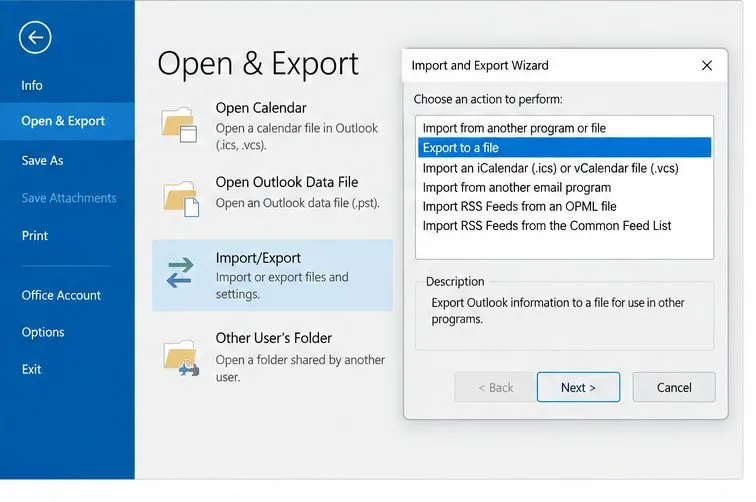
In classic Outlook for Windows, use File > Open & Export > Import/Export > Export to a file > Outlook Data File (.pst). Select the correct mailbox or folder and include subfolders when required; then choose a local destination and complete the wizard. Microsoft cautions that Outlook can export only mail available in the profile. Its current instructions also note that classic Outlook may be configured to download only a limited date range by default. Where your account’s Sync Settings offers a time-range control, set it to include all mail before exporting and wait for the download to complete. Do not assume that a PST made from a partially synchronized account is a full Zimbra backup.
Classic Outlook starts PST creation from Open & Export and the Import/Export Wizard; choose Outlook Data File in the next wizard step.
Microsoft’s current support page also documents PST export in new Outlook for Windows under Settings > Files > Export. The available data and behavior depend on account and app version; Microsoft notes that calendar and contact items saved in PST files are not available in new Outlook at this time. If the new Outlook route does not offer the account or folder you need, use a supported classic Outlook profile or ask your administrator about an approved migration tool.
Can an EML archive be imported into Outlook first?
For some cases, yes. Microsoft currently documents bulk EML import in new Outlook for Windows through Settings > Files > Import. It requires an active internet connection; only top-level EML files in the selected folder are imported, nested files are ignored, and Microsoft documents a 14 MB size limit per EML file. If your extracted archive uses separate folders, process them in a way that preserves the intended folder mapping and check the imported messages before creating a PST. This is a conditional workaround, not a guarantee that Zimbra’s original folder structure, labels, calendars, contacts, or every large message will transfer exactly.
Common assumptions to avoid
“A TGZ is already a PST.” It is not. The Zimbra archive can contain EML messages; Outlook’s PST export is a separate conversion/export step. Keep the original archive.
“Export means the server mailbox will be emptied.” Zimbra’s documented export retrieves a copy. Still, verify whether an administrator’s migration workflow has separate delete or move steps before using it.
“One successful export proves completeness.” It does not. Verify folder coverage, date range, attachments, and a sample of messages in the destination.
“Every Zimbra account has an EML button.” The single-message menu depends on an optional Zimlet and server configuration. Use the built-in archive route if it is unavailable.
Practical choice: use Zimbra’s archive for a broad mailbox copy or EML access, the optional Zimlet for a small number of individual messages, and Outlook’s own export to create a PST only after confirming Outlook has the complete content you need.