Home
» NETWORK ADMIN
»
What Is IIS? Microsoft’s Windows Web Server and Alternatives
What Is IIS? Microsoft’s Windows Web Server and Alternatives
Internet Information Services (IIS) is Microsoft’s web server platform for Windows. It receives HTTP and HTTPS requests and serves websites, web applications, and APIs. “Windows Web” is sometimes used informally to mean IIS; it is not a separate Microsoft server product. Administrators can manage IIS with the graphical IIS Manager, PowerShell, command-line tools, and configuration files.
On Windows Server, IIS is installed as the Web Server (IIS) role. On supported Windows client editions, it can be enabled as an optional feature, usually for local development or testing. The available components depend on the Windows edition and version, so a developer-PC setup should not be treated as a production deployment guide.
An illustrated IIS Manager layout shows where administrators select a site and access common settings.
What IIS provides
IIS can serve static files such as HTML, stylesheets, scripts, and images. It can also pass requests to applications that generate content dynamically. IIS uses optional modules for tasks such as authentication, logging, request filtering, compression, and URL rewriting, allowing administrators to enable the pieces an application requires.
IIS is commonly used with Microsoft web applications. For example, ASP.NET Core can run with IIS through the ASP.NET Core Module; Microsoft’s current .NET Hosting Bundle documentation explains the runtime and module needed for that setup. Other technologies may work through additional handlers or modules, but compatibility, maintenance, and security support should be checked for the specific application.
The graphical console is one of IIS’s main conveniences. It organizes sites, bindings, application pools, modules, security settings, and logs in a single place. The same environment can also be automated with PowerShell or configured through files, which helps teams repeat settings across servers.
How IIS handles a web request
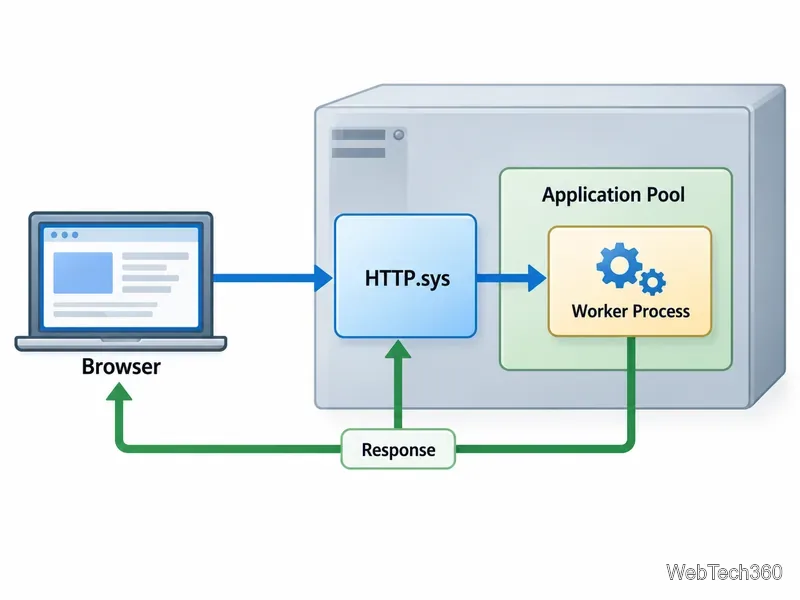
In modern IIS, the Windows HTTP stack HTTP.sys listens for incoming HTTP and HTTPS traffic. IIS services and the Windows Process Activation Service (WAS) use the server’s configuration to route a request to the right site and application pool. A worker process then handles the request and returns a response through the HTTP stack. Microsoft’s IIS architecture guide describes these components and the request flow.
An application pool groups one or more web applications under worker-process settings. Separate pools create process boundaries, which can keep a problem in one application from directly affecting applications in another pool. They do not isolate workloads from the server’s shared operating system, CPU, memory, or network capacity, so resource use and permissions still need monitoring.
Conceptual request flow: HTTP.sys receives a browser request, IIS routes it to an application pool, and a worker process returns the response.
When does IIS make sense?
Choose IIS when your application already depends on Windows Server, ASP.NET, Windows authentication, or IIS-specific configuration, or when your team is equipped to administer Windows servers.
Consider another server when you need a Linux-first deployment, prefer file-based configuration, or want a reverse proxy with a different operating model.
Use IIS Express for lightweight local development and testing when a full server installation is unnecessary. Microsoft describes it as a development-oriented version, not a general production hosting replacement.
IIS is a Windows component rather than a separately purchased web-server license per site or visitor. However, the Windows Server license and access rules can apply to the deployment. Microsoft notes that a Client Access License may be required for access to Windows Server software; review the official CAL guidance and the terms for your particular hosting arrangement.
IIS alternatives to consider
There is no universal “best” web server. Compare the platform your application needs, how your team prefers to configure services, and whether the server must host an application directly or route traffic to another process.
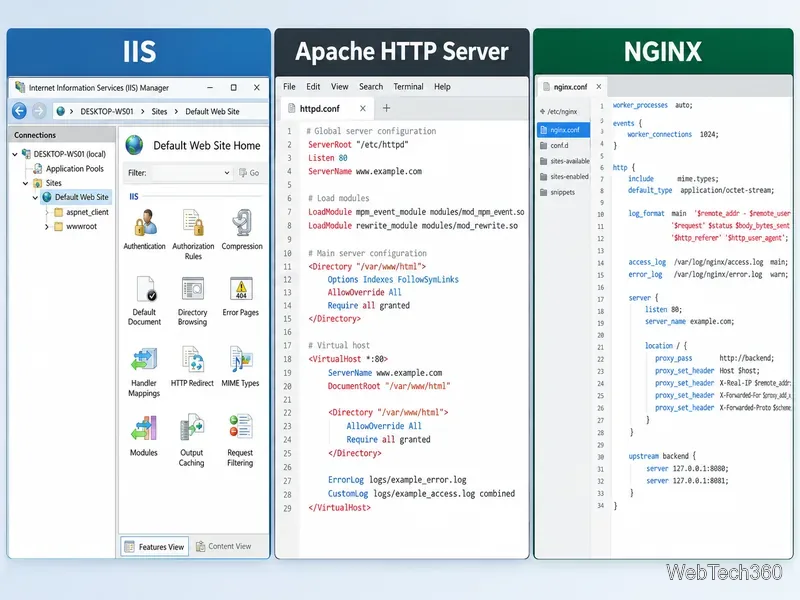
Conceptual interface comparison: IIS uses a Windows console, while Apache and NGINX are often configured through text files.
Option
Good fit when
Trade-off to consider
Apache HTTP Server
You want a modular, open-source server with extensive configuration options and broad platform documentation.
Its many modules and directives give flexibility but require administrators to understand and maintain the configuration. See the Apache HTTP Server documentation.
NGINX
You need a web server that can also act as a reverse proxy or HTTP load balancer in front of application services.
It is configured through text files and commonly routes dynamic requests to a separate application process. Review the official NGINX documentation.
Caddy
You want concise configuration and automatic HTTPS certificate provisioning and renewal for eligible public hostnames.
Automatic HTTPS still depends on correct domain, network, and deployment setup; see Caddy’s official Automatic HTTPS guide.
For an existing Windows application, keeping IIS may be the simplest choice if the server is supported and securely maintained. For a new project, decide from the application’s platform requirements and the operating tools your team can reliably operate. Test authentication, URL rules, certificates, logging, and deployment behavior before moving a live site from one server to another.
Bottom line
IIS is Microsoft’s configurable web server for Windows, with a management console and application-pool model that suit many Windows-hosted sites and services. Apache HTTP Server, NGINX, and Caddy are credible alternatives when their platforms or operating models better match a project. Choose based on application compatibility, administration needs, and the licensing and support requirements of the full environment.