Home
» NETWORK ADMIN
»
Fix “App Couldn’t Be Installed Because Server Has No Internet” on Android
Fix “App Couldn’t Be Installed Because Server Has No Internet” on Android
Start with the connection test, not a factory reset. If Android says an app could not be installed because the server has no internet, the message alone does not identify which connection failed or prove that Google Play’s servers are down. It can appear when the phone or emulator has no usable internet, when Google Play Store is stuck, or when a specific app cannot be downloaded for that device. Test whether other internet apps work, then choose the branch below that matches what you find.
This guide is for installations through Google Play on an Android phone, tablet, or emulator. If you are installing an APK from a website or using an enterprise app catalog, the Play Store steps may not apply; check that installer or your organization’s administrator instead.
The interface images are illustrative; Android settings labels and layouts vary by manufacturer and Android version.
Choose the troubleshooting path by symptom
What you observe
Best first move
Why this is a useful distinction
Web pages and multiple apps also fail
Test another network and check the Wi-Fi or mobile connection
The problem is more likely at the device, router, carrier, or network-policy level than in one app listing.
Other apps work, but Play Store downloads fail for several apps
Restart Play Store, then clear its cache
This targets the store app’s temporary state before you reset its stored settings.
Only one app fails
Check whether Google Play lists the app as available for this device
Device compatibility or app availability is a different issue from general internet access.
The error occurs only in an emulator
Check the host computer’s connection, proxy, and DNS path
The emulator uses a virtual network that depends on the host environment.
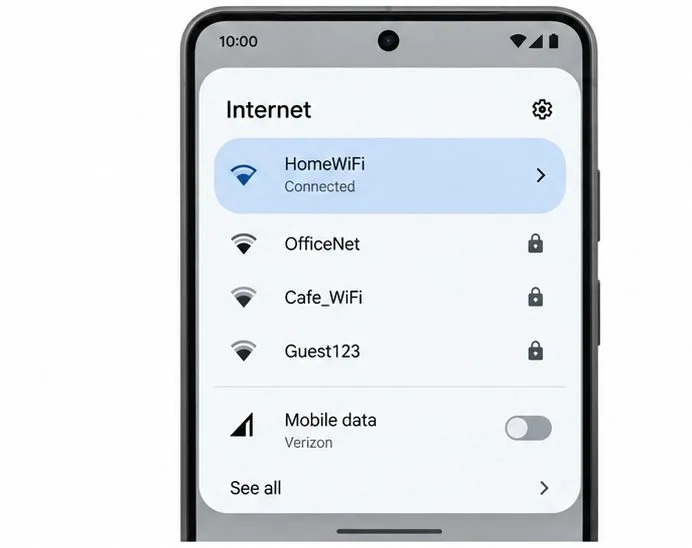
Use Android’s Internet panel to confirm the active Wi-Fi connection and try another permitted network or mobile data.
1. Test whether Android actually has internet access
Open a browser and load a few ordinary websites. Then try a different app that needs an internet connection. A Wi-Fi icon only tells you the phone is connected to an access point; it does not prove that the access point has working internet service. If a hotel, school, or public Wi-Fi network requires a sign-in page, complete that sign-in first.
Switch once between Wi-Fi and mobile data, if your plan allows it, and retry the download. If mobile data works but Wi-Fi does not, focus on the router or Wi-Fi network. If neither works, toggle Airplane mode off and on, restart the phone, and contact the carrier or network administrator if the browser still cannot load pages. If you use a VPN, proxy, firewall, or Private DNS setting, test with it temporarily disabled only when your organization’s policy allows it, then restore the setting. Avoid changing multiple network settings at once; one change at a time helps identify the cause.
2. Check available storage and Android updates
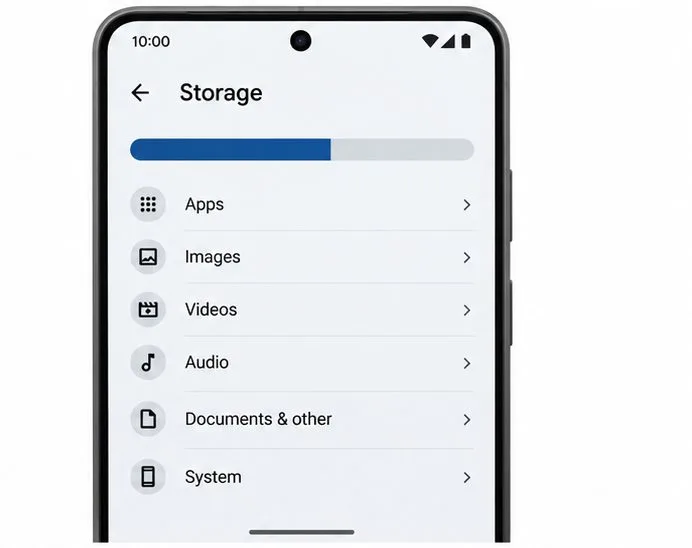
Open Settings > Storage and check free space. Google notes that low storage can stop apps from downloading or installing and lists less than 1 GB available as one sign that a device may be low on space. That figure is a diagnostic clue, not a universal minimum for every app: the app size, temporary download space, and device can affect what is needed.
The Storage screen helps you see whether limited free space could be interrupting an app download or installation.
If space is tight, remove downloads or media you can safely replace, then try installing again. Do not delete app data or personal files just to free space unless you understand what will be removed. Also check Settings > System > Software update (the path varies by device) and install any update your manufacturer offers. A pending system update is not proof of the cause, but keeping Android current is part of Google Play’s basic troubleshooting guidance.
3. Restart Google Play Store and the device
Close Google Play Store from the recent-apps screen, reopen it, and retry the installation. If the download still fails, restart the phone or tablet. This is a low-impact check that clears a temporary stalled state; it does not erase installed apps or personal files. If the message returns immediately across several unrelated downloads, move on to the Play Store cache check instead of repeating restarts.
4. Clear the Google Play Store cache
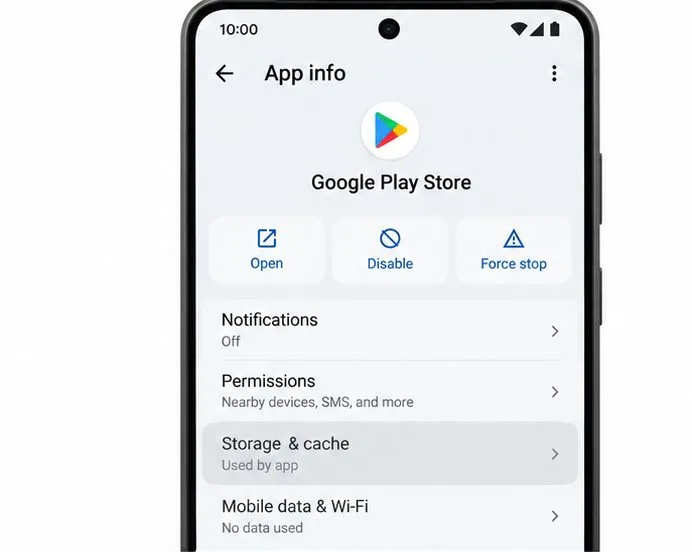
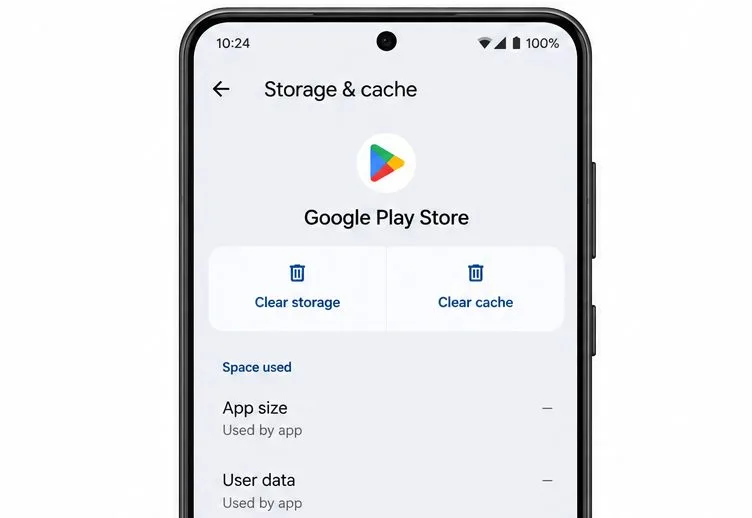
On most current Android devices, open Settings > Apps > Google Play Store > Storage & cache > Clear cache. You can also touch and hold the Play Store icon, tap App info, and open its storage screen. Menus differ by Android version and device maker, so search Settings for “Google Play Store” if the labels differ.
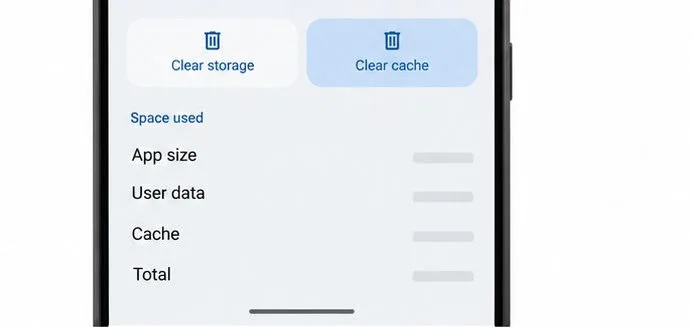
Open Google Play Store’s App info and select Storage & cache before clearing its temporary cache.Choose Clear cache first; it is separate from Clear storage, which resets more Play Store data.
Clearing the cache removes temporary files. It is a reasonable next step when several Play Store downloads fail but other internet use works. Reopen Play Store and test one download. If the error remains, only then consider clearing Play Store storage/data.
5. Clear Play Store storage only if cache clearing did not help
In the same storage screen, choose Clear storage or Clear data, then confirm the prompt. This resets Play Store’s locally stored app data. Google warns that it can remove settings such as parental controls and password protection; you may also need to accept the Play Store Terms of Service again. Recheck any family or purchase-protection settings after Play Store reopens.
Clear storage is a stronger reset than clearing cache, so use it after the cache-only test and review Play Store settings afterward.
Do not confuse Play Store data with your Google Account data or installed app data. The screen should identify Google Play Store as the app being reset. If the only option shown is “Clear data,” confirm you are in the Play Store’s App info page before proceeding.
6. If only one app fails, check availability before resetting anything else
Open the app’s page in Google Play and check whether the store says it is available for your device. Google’s guidance for a one-app download problem begins with this compatibility check. Availability can depend on the device and app requirements; clearing Play Store data will not make an unsupported device compatible.
If the app is listed as available but still fails while other apps install normally, note the app name, device model, Android version, and the time of the failed attempt. Contact that app’s developer for a one-app issue. If every app fails, contact Google Play support after the general connection and store troubleshooting steps. This distinction saves you from repeatedly resetting unrelated system components.
7. Check Play Protect certification when the problem affects the device broadly
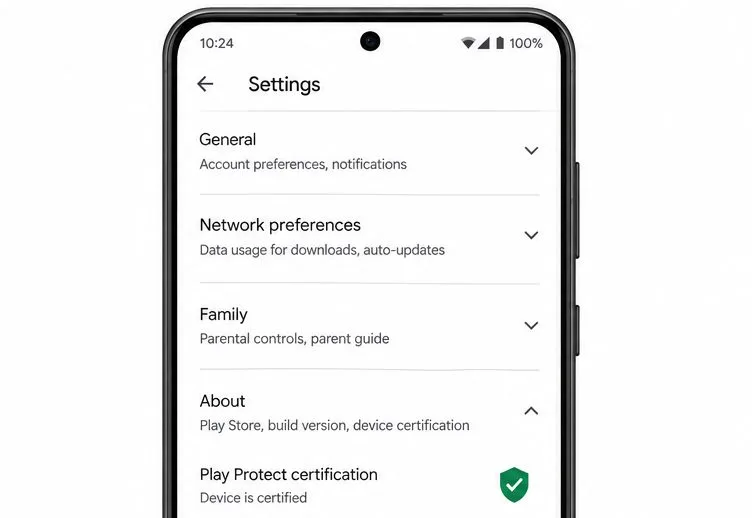
If Play Store problems persist across apps—especially on a device with a modified Android build, unlocked bootloader, or root—check Play Store > profile picture > Settings > About > Play Protect certification. Google says only certified devices are eligible to include licensed Google apps, and apps or features may not work correctly on an uncertified device. Certification is separate from Play Protect’s malware scanning, so turning off Play Protect is not a fix for an uncertified-device problem.
The About page shows Play Protect certification status; an uncertified result calls for the device maker’s supported software guidance.
If the device is uncertified, use the manufacturer’s supported software or recovery instructions and check Google’s certification help page. Avoid installing unofficial Google apps or flashing firmware unless you understand the security and data-loss risks. A certified status does not prove that a particular download server is reachable; it simply rules out this separate device-certification issue.
8. If the failure is only in Android Emulator, troubleshoot the host network
First confirm that the computer running Android Emulator can browse the internet. Android’s emulator documentation explains that the emulated device reaches the network through the host computer and that firewalls or network rules on the host or router can block traffic. A working browser inside the emulator is a useful test; if it cannot open websites either, fix emulator networking before resetting Play Store data.
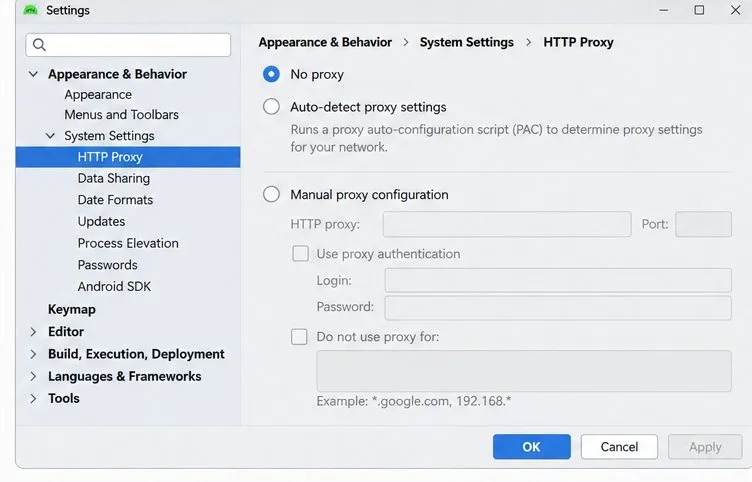
For an emulator on a managed or corporate network, review Android Studio’s HTTP Proxy settings with the network administrator.
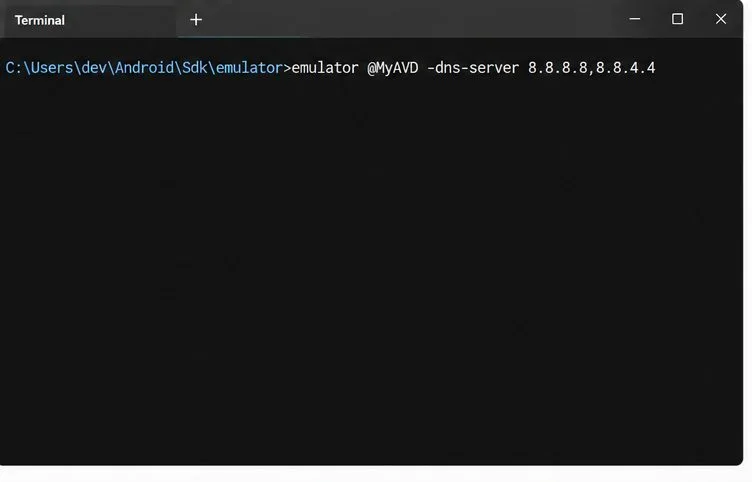
If the host uses a corporate proxy, configure the proxy as documented for Android Studio rather than bypassing company controls. If browsing fails because of DNS resolution, Android’s emulator documentation describes launching the emulator with a DNS server option. For example, a developer can test the documented command-line form emulator @MyAVD -dns-server 8.8.8.8,8.8.4.4. Replace MyAVD with the actual virtual-device name, and use an approved DNS resolver. Do not apply a public DNS server on a managed network without permission.
The emulator’s documented dns-server option is a targeted test for DNS resolution failures, not a general Play Store repair.
Use higher-impact resets only as a last resort
Google advises against clearing Google Play services data until other troubleshooting options have been tried. That data can include information such as saved passwords, transit or payment cards, and it may require signing in again or reauthenticating payment methods. If you reach this step, read Google’s warning first and make sure you can recover account access. Removing and re-adding a Google Account can also remove some information from the device temporarily, so back up or sync important data before doing it.
A factory reset is not an appropriate first response to a single failed app installation. Consider it only after simpler checks fail, you have a verified backup, and the device manufacturer or Google support recommends it for your situation.
Best next move: first see whether a browser and other apps can get online, then try a different permitted network. If internet works everywhere except Google Play, clear the Play Store cache before resetting its data. If only one app or one emulator fails, follow that narrower path instead.