Home
» NETWORK ADMIN
»
Fix BigBlueButton Breakout Rooms Audio Not Connecting: A Reliable Troubleshooting Path
Fix BigBlueButton Breakout Rooms Audio Not Connecting: A Reliable Troubleshooting Path
When BigBlueButton breakout-room audio does not connect, the most useful first question is not “which service should I restart?” It is “does audio fail only after entering a breakout room, or does it also fail in the main meeting?” That distinction quickly separates a room-transition problem from a broader browser, network, or media-server problem.
This guide is written for BigBlueButton 3.0, which remains the current stable documentation line as of October 2026; BigBlueButton 4.0 is still documented as in development. BigBlueButton 3.0 can use different audio bridges, including bbb-webrtc-sfu, livekit, and freeswitch through the meeting API, so avoid assuming every deployment has the same media path. The official BigBlueButton API reference documents those bridge choices, while the BigBlueButton troubleshooting guide remains the best starting point for server-side checks.
What a good fix looks like
A successful result is more than seeing the microphone icon turn green. After the fix, a participant should be able to enter a breakout room, join audio within a few seconds, hear another participant, speak and be heard, mute and unmute normally, and return to the main room without getting stuck in a reconnect loop. If only one browser or one network still fails after everyone else succeeds, stop changing the server and focus on that client environment.
Observation
Most likely area
Next move
Main room and breakout audio both fail
Browser permission, device, firewall, TURN, or media bridge
Start with Steps 1–4
Main room works, breakout room hangs on “connecting”
Room transition, stale client state, bridge-specific issue
Start with Steps 1, 2, and 5
Only users on one office, school, or VPN network fail
Network filtering or ICE/TURN path
Prioritize Step 4
Many users fail at once
Server or network configuration
Prioritize Steps 3–5
Step 1: Reproduce the problem cleanly
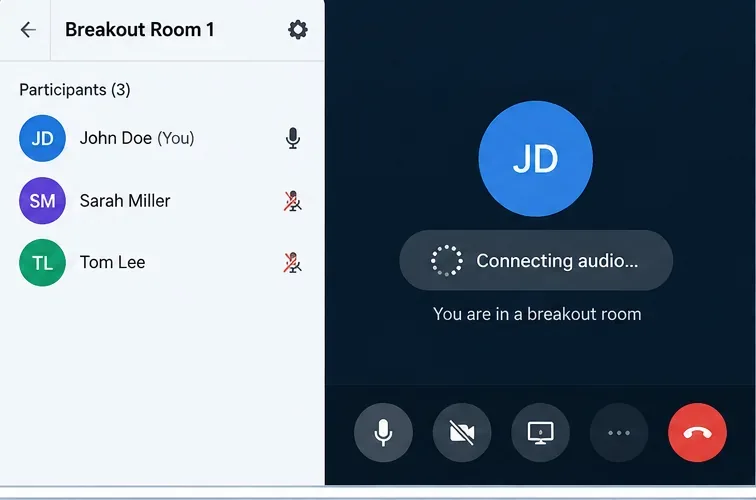
Before changing configuration, reproduce the issue with one moderator and one participant. Confirm that the participant can join audio in the main room, then move that participant into a breakout room and note exactly what happens. “Connecting audio…” that never completes is different from a browser permission denial, a missing microphone device, or audio that connects but carries no sound.
The first useful observation is whether the breakout room stalls during audio connection or fails earlier because of a device or permission problem.
If the main room works but the breakout room does not, try leaving the breakout room, returning to the main room, and entering the breakout again once. A one-time stale client state can clear after a clean rejoin. If the problem repeats reliably, continue with the checks below rather than repeatedly refreshing the page.
Success check: the participant joins the breakout audio once, leaves, rejoins, and gets audio again. If that is reliable, the problem was likely transient. If the same transition fails every time, move on.
Step 2: Verify browser microphone permission and the selected device
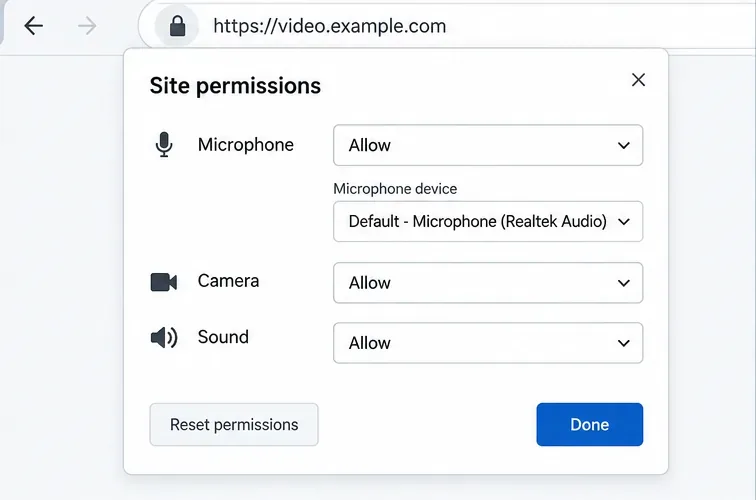
BigBlueButton audio is browser-based WebRTC, so a denied microphone permission can look like a breakout-specific problem if the user first notices it after entering the smaller room. Open the browser’s site permissions for the BigBlueButton hostname and make sure microphone access is allowed. Then confirm that the intended microphone is selected and that another application is not monopolizing the device.
Confirm microphone access for the BigBlueButton site before treating the failure as a server-side breakout-room problem.
Test with a current version of Firefox or Chromium-based browser. If the participant can reproduce the same failure on two current browsers, that makes a pure browser-profile issue less likely. If one browser works and another fails on the same machine and network, reset permissions or test with a clean browser profile before touching BigBlueButton configuration.
Success check: the microphone activity indicator responds, audio joins in the main room, and the same browser can join breakout audio. If the main room still fails, the breakout room is not the real root cause.
Step 3: Check BigBlueButton before restarting anything
On the server, run sudo bbb-conf --check. BigBlueButton’s own documentation recommends this as the first server-side diagnostic because it checks whether core components started correctly and surfaces common configuration problems. Review anything listed under “Potential problems” instead of immediately restarting every service.
Also run sudo bbb-conf --status and inspect the relevant systemd services for your audio bridge. BigBlueButton 3.0 deployments commonly use bbb-webrtc-sfu for audio by default, while LiveKit can be enabled per meeting or server-wide. If your integration passes audioBridge=livekit, troubleshoot LiveKit rather than assuming the legacy FreeSWITCH path is carrying the browser audio.
The official configuration-files documentation recommends placing local overrides under /etc/bigbluebutton so package upgrades do not overwrite them.
Success check:bbb-conf --check shows no unexplained errors, the active audio-bridge services are running, and new test meetings behave consistently. If service health is good but one network still fails, shift attention to ICE, NAT, and TURN.
Step 4: Diagnose ICE, NAT, firewall, and TURN problems
WebRTC must establish a usable media path between the browser and the BigBlueButton media infrastructure. If signaling succeeds but media cannot find a viable network path, users can get ICE negotiation failures or remain stuck while joining audio. BigBlueButton’s firewall documentation specifically points to incorrect external IP announcements and blocked UDP as common causes.
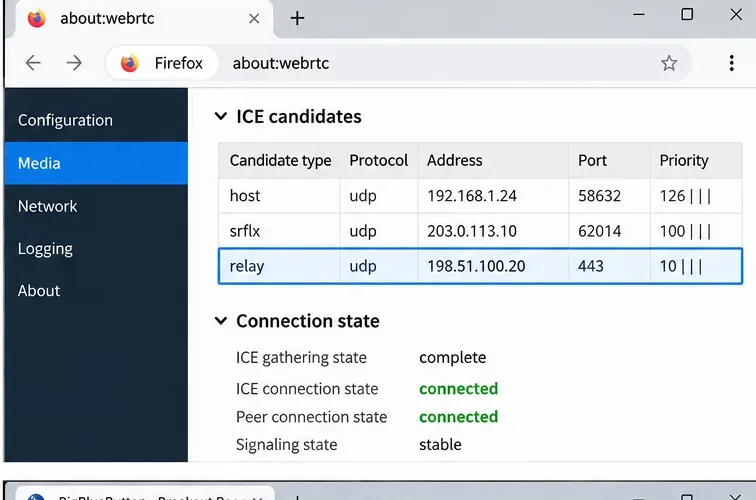
Firefox about:webrtc can reveal whether ICE negotiation completed and whether the browser obtained a usable host, server-reflexive, or relay candidate.
On Firefox, about:webrtc is useful because it shows ICE candidates and connection state. If you see the server advertising an internal address where an external address is expected, check the NAT and announced-IP configuration. BigBlueButton’s firewall configuration guide explains how mediasoup should announce the public address when the server sits behind NAT.
If failures cluster on restrictive corporate, school, hotel, or VPN networks, configure a TURN server. BigBlueButton’s installation documentation recommends TURN for users behind restrictive firewalls. A useful validation is to test the same user on a different network, such as a phone hotspot. If the hotspot works and the managed network fails, that is strong evidence that the network path—not breakout-room logic—is the limiting factor.
Do not blindly open broad port ranges copied from old forum posts. Use the port and bridge requirements for your installed BigBlueButton version and deployment topology. Older FreeSWITCH- or SIP.js-specific advice may not apply to a current 3.0 installation.
Success check: ICE reaches a connected state, the expected public or relay candidate appears, and the same affected user can join breakout audio from the previously failing network. If the user still fails while other users on the same network succeed, return to device/browser checks.
Step 5: Compare the configured audio bridge and retest room transitions
If main-room audio works but breakout audio consistently fails for many users, confirm which audio bridge the meeting actually uses. BigBlueButton 3.0 exposes the audioBridge create parameter with valid values including bbb-webrtc-sfu, livekit, and freeswitch. An integration can override the server default per meeting, so the configuration you inspect may not match the bridge used by the failing session.
Create a fresh test meeting without custom per-meeting overrides, then repeat the same main-room → breakout-room → main-room sequence. If the clean meeting works but meetings created by your LMS or custom application fail, inspect the API parameters sent by that integration. If both fail, the problem is more likely in server media configuration or a version-specific defect.
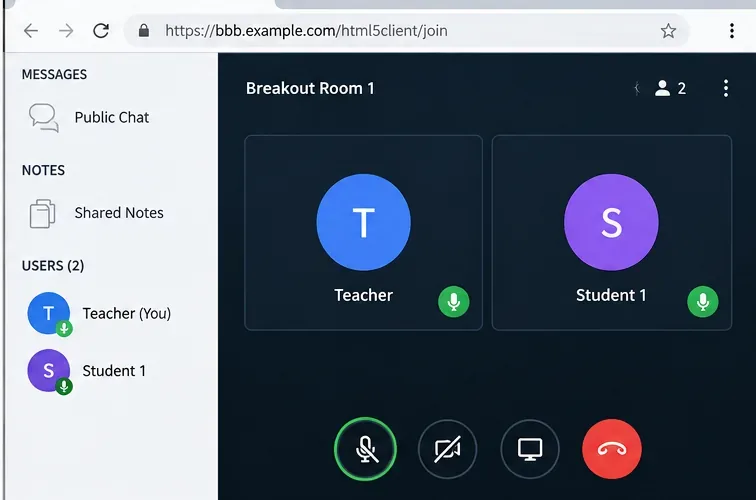
After the fix, verify the result with at least two participants in the same breakout room so both send and receive audio are tested.
After configuration changes, restart BigBlueButton only when needed with sudo bbb-conf --restart, then run sudo bbb-conf --check again. Avoid stacking several changes before testing; one change at a time makes it possible to identify which adjustment actually corrected the problem.
Success check: two participants can speak to each other in a breakout room, return to the main room, and re-enter a breakout without a stuck connection. Repeat this from at least one external network before considering the incident closed.
When to change approach
If the problem persists after browser permissions, server health, ICE/TURN, and bridge selection all check out, collect evidence instead of continuing to guess. Record the BigBlueButton version, browser and operating-system versions, whether the issue reproduces on the public BigBlueButton demo, the output of sudo bbb-conf --check, the meeting’s audio-bridge setting, and any relevant browser WebRTC diagnostics. BigBlueButton’s Getting Help guide explicitly asks for this kind of network and environment information when troubleshooting audio or video failures.
As of October 2026, BigBlueButton 3.0 is still the stable documentation line, with 3.0 releases continuing on GitHub, while the 4.0 documentation is labeled in development. That matters because BigBlueButton 4.0 changes the default media framework to LiveKit, so 4.0-specific advice should not be applied automatically to a 3.0 server. Check the official BigBlueButton release page before following version-sensitive instructions.
Final verification checklist
Main-room audio connects for the affected participant.
Microphone permission is allowed and the intended device shows input activity.
bbb-conf --check has no unexplained media-service errors.
ICE reaches a connected state; restrictive networks have a usable TURN path when required.
The meeting uses the audio bridge you think it uses.
Two users can hear each other in a breakout room, then return to the main room and rejoin successfully.
If all six checks pass repeatedly, the repair is producing the result that matters: stable audio across room transitions, not merely a temporary green microphone icon.