Home
» NETWORK ADMIN
»
Fix BigBlueButton Kurento Media Server Crashes Under Load
Fix BigBlueButton Kurento Media Server Crashes Under Load
A Kurento Media Server (KMS) process that exits during busy BigBlueButton meetings can interrupt recording or, on older installations, live audio and video. The useful first result is not simply a service that starts again: it is knowing which media stack is handling the affected feature, what resource or failure precedes the exit, and whether the fix keeps the next comparable meeting stable.
Start by confirming the BigBlueButton release and the role Kurento plays on this server. BigBlueButton 2.5 and later use mediasoup by default for live WebRTC media; Kurento may still be present for recording or because an administrator retained a legacy/custom setup. So “Kurento crashed” does not by itself prove that KMS is carrying the overloaded webcams. See the official BigBlueButton troubleshooting guide for the version distinction. The detailed KMS remedies below are drawn from the versioned BigBlueButton 2.7 server customization guide; check the documentation matching your installed release before applying them.
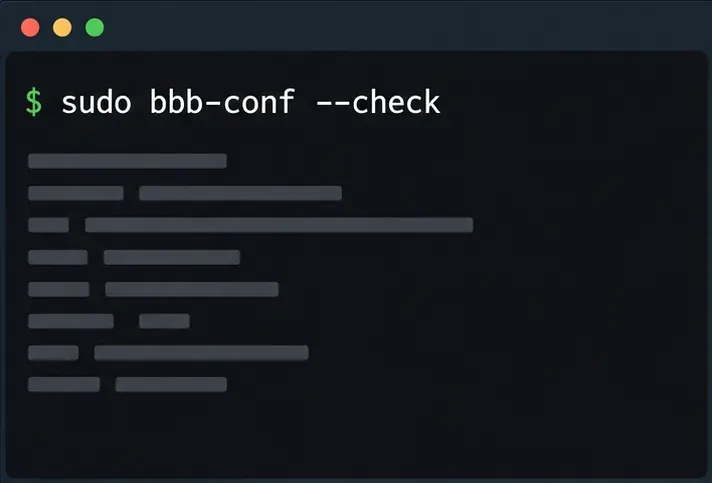
Use sudo bbb-conf --check to establish the installed BigBlueButton version and review configuration before changing the media stack.
First confirm what failed
Collect evidence before restarting services repeatedly. Record the time users first saw the problem, the affected meeting, whether audio, webcam, screen sharing, or recording failed, and whether the whole server or only one media feature degraded. A service restart can restore a process temporarily while erasing the timing clues that distinguish a crash from a network or client issue.
On the BigBlueButton host, begin with read-only checks:
sudo bbb-conf --check
sudo systemctl status kurento-media-server --no-pager
sudo journalctl -u kurento-media-server --since "1 hour ago" --no-pager
sudo ls -lt /var/log/kurento-media-server/ | head
Use the relevant unit name for the release and deployment. If the service is split into multiple KMS units, inspect the unit and log for the process that failed. Compare the systemd journal timestamp with the newest KMS log. Look for an explicit exit, a restart loop, a failed media pipeline, or a resource-related message; one “warning” line without a matching failure is not enough to identify a cause.
Confirm whether users actually use Kurento for the failing traffic. In Firefox, about:webrtc can expose peer connection details; Chrome offers chrome://webrtc-internals. BigBlueButton’s troubleshooting documentation describes checking the negotiated session details for mediasoup. Also inspect your configured media services and recording workflow. If live media is on mediasoup and only recording stops when KMS exits, tune the recording/Kurento path rather than blindly changing live webcam settings.
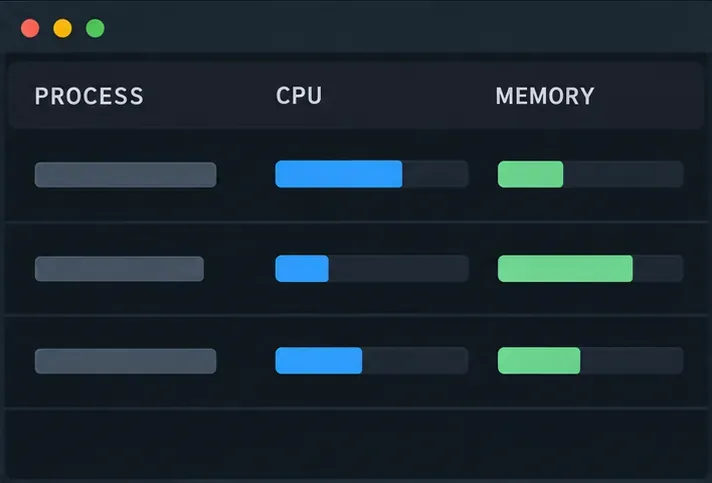
Compare CPU and memory pressure for the relevant media process with the moment the service exits; this panel is a schematic monitor view, not live server data.
Find the pressure that comes before the exit
“Under load” can mean several different bottlenecks. Sample the host while a representative meeting is active, and compare the sample with the event time. Useful checks include:
free -h and vmstat 1 for available memory, swapping, and run-queue pressure;
mpstat -P ALL 1 for per-core CPU saturation, if the sysstat tools are installed;
df -h and iostat -xz 1 for a full filesystem or storage latency, where available;
journalctl -k --since "1 hour ago" for kernel messages, including an out-of-memory kill;
systemd status and KMS logs for repeated exits, pipeline failures, and which media operation was active.
Do not rely on the server’s average CPU alone. A media process can be constrained by one busy core while other cores appear idle, or memory pressure can trigger a kill without a long period of high CPU. Conversely, a user’s “camera froze” report may occur while KMS stays healthy because UDP is blocked or the browser cannot establish a WebRTC path. BigBlueButton documents TURN as a remedy for restrictive networks; TURN may improve connectivity, but it does not add KMS compute capacity. If the service remains active and logs show no resource event, investigate ICE, firewall, and client connectivity before raising media limits.
Capacity depends on the actual mix of streams and processing, not just the meeting headcount. The number of published and received webcams, screen shares, audio sessions, recording, negotiated quality, and meeting layout all matter. This is why a sustainable limit should be measured with the organization’s own meeting pattern rather than copied from an unrelated server.
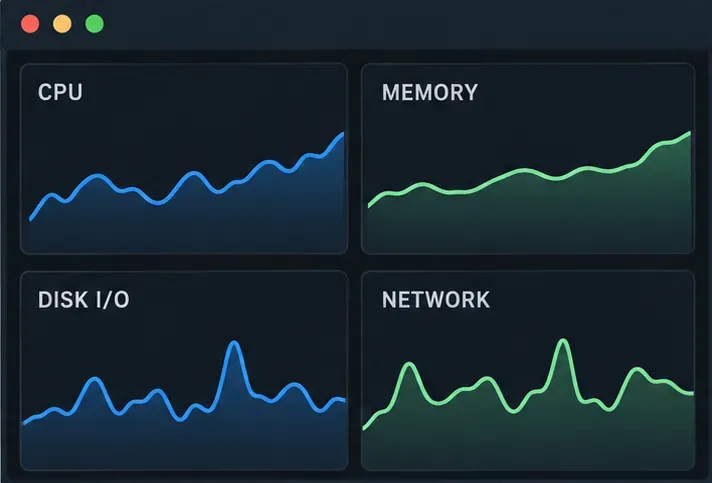
Observe CPU, memory, disk I/O, and network trends together during a controlled reproduction; rising lines here illustrate categories to monitor, not measured BigBlueButton performance.
Choose a remedy that matches the evidence
For a legacy KMS deployment, separate media workloads
The BigBlueButton 2.7 customization guide documents running three KMS processes, one each for listen-only audio, webcam, and screen-share handling. Its stated benefit is to spread media start/stop work across separate processes and limit the impact when one KMS process crashes. The guide’s setup uses the BigBlueButton configuration script’s enableMultipleKurentos setting and then restarts BigBlueButton. Follow the instructions for your exact release and inspect the resulting service units and logs after the restart.
This separation is a containment and distribution measure, not a substitute for sufficient CPU, memory, or storage. It can also increase baseline resource use because additional processes run. Schedule a maintenance window: sudo bbb-conf --restart interrupts active sessions. Do not hand-edit generated service files or assume that a command documented for 2.7 applies unchanged to a newer or vendor-modified installation.
Set media thresholds when the server needs an admission limit
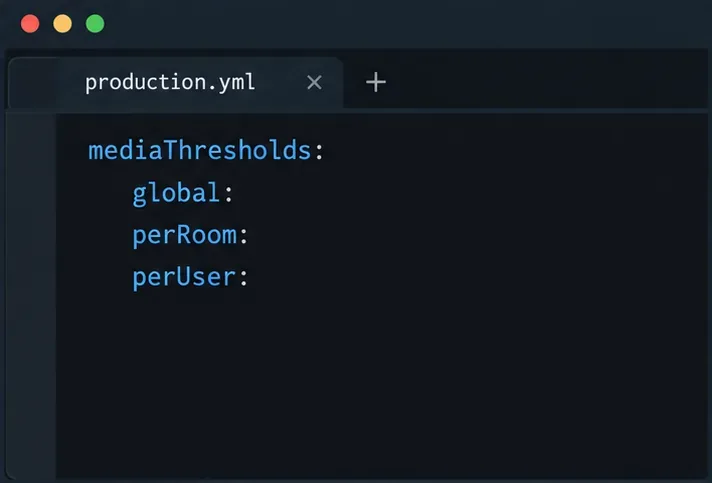
For KMS-based versions that support the documented option, BigBlueButton allows mediaThresholds values for global, perRoom, and perUser. The 2.7 guide shows these in /etc/bigbluebutton/bbb-webrtc-sfu/production.yml, an override file intended to survive package upgrades. A zero means no limit in the documented example. Reaching a configured threshold can cause a “Media resources not available (2002)” error when a participant tries to share a webcam.
Choose values from measured capacity and the required quality of service; do not paste the documentation’s illustrative example as a universal safe limit. A threshold makes overload more predictable by declining additional media, but it does not repair a crash caused by a bug, a memory leak, or an unrelated operating-system limit. Confirm the setting names and behavior in the documentation for your release before deploying it.
The configuration example identifies threshold keys only; select version-compatible values from measured load and the matching BigBlueButton documentation.
Reduce media demand before raising capacity assumptions
When monitoring shows resource saturation, first reduce the peak work the service must perform. Ask moderators to turn on webcams selectively, avoid unnecessary simultaneous screen shares, or split a very large interactive session into smaller rooms if that fits the teaching format. On versions that expose supported webcam pagination or stream limits, tune those through the documented override mechanism. A smaller number of received streams can reduce fan-out, while lowering camera resolution or bitrate may reduce processing and bandwidth demand. These changes trade visual detail or spontaneity for stability; explain the trade-off to meeting hosts and validate that the resulting experience is acceptable.
Consider an upgrade or architecture change when limits return
If the installed release is old, confirm the supported upgrade path and media architecture before investing further in KMS tuning. Since BigBlueButton 2.5, mediasoup is the default for live media, while Kurento’s role differs from older releases. A persistent KMS crash on a current server may therefore point to recording, a customized media stack, or a specific integration. For a legacy deployment that repeatedly reaches its measured ceiling after sensible limits and workload changes, upgrading or redesigning the deployment may be more effective than increasing thresholds. The operational cost is compatibility testing, migration planning, and a maintenance window.
Validate the change under a comparable meeting
Change one setting or workload practice at a time, then test using a controlled meeting that resembles normal peak use. Note the BigBlueButton release, participant count, approximate number of active webcams, screen shares, and whether recording is enabled. This gives a useful comparison without treating participant count as the only load variable.
Confirm the relevant KMS unit remains active and does not enter a restart loop.
Compare CPU per core, available memory and swap, disk activity, and logs before and during the test.
Verify audio, webcam, screen sharing, and recording separately, according to the role Kurento actually serves.
Check whether 2002 errors, failed media setup, or user reports change; no single metric proves the fix.
Repeat at the expected busy period before declaring the capacity change successful.
If the service still crashes, capture the exact KMS log and journal window, kernel messages, installed BigBlueButton/Kurento versions, and the active configuration overrides for the administrator or support team. If the service stays healthy but users still cannot connect, shift the investigation to ICE candidates, firewall rules, TURN availability, and browser-side WebRTC diagnostics. The right outcome is a stable media workload with understood limits—not an unlimited stream count or a guarantee that one configuration fits every server.
Documentation reviewed October 5, 2026. The detailed Kurento workload and threshold examples above are explicitly tied to BigBlueButton 2.7 documentation; verify the matching release notes and administrator guide before applying settings elsewhere.