Home
» NETWORK ADMIN
»
Fix BigBlueButton Webcam Not Loading: ICE Socket Connection Failed
Fix BigBlueButton Webcam Not Loading: ICE Socket Connection Failed
When a BigBlueButton webcam stays blank and the browser or meeting reports “ICE Socket Connection Failed,” the message points to a failed media connection, but it does not identify one universal cause. The camera permission, the user’s network, the server’s firewall, NAT addressing, and TURN relay settings can all matter. Start with checks that isolate the problem before changing server configuration.
BigBlueButton’s current troubleshooting guide describes a related error, 1007: ICE negotiation failed, as a failure to negotiate a path between the browser and media server. It lists NAT, blocked UDP ports, and the possible need for TURN on restrictive networks. The exact phrase in your browser may differ by BigBlueButton version, hosting platform, or client. Treat it as a clue, not a diagnosis. Read the BigBlueButton 4.0 troubleshooting guide.
First, identify whether the camera or the connection is failing
Camera permission is required for a browser to access a webcam, and the meeting page must use a secure context such as HTTPS. Those checks determine whether the browser can capture local video. ICE is the WebRTC process that finds a network route for sending media between the browser and BigBlueButton. A camera permission denial and a failed ICE route are different problems, although both can leave the webcam unavailable. MDN documents the browser permission and secure-context requirements.
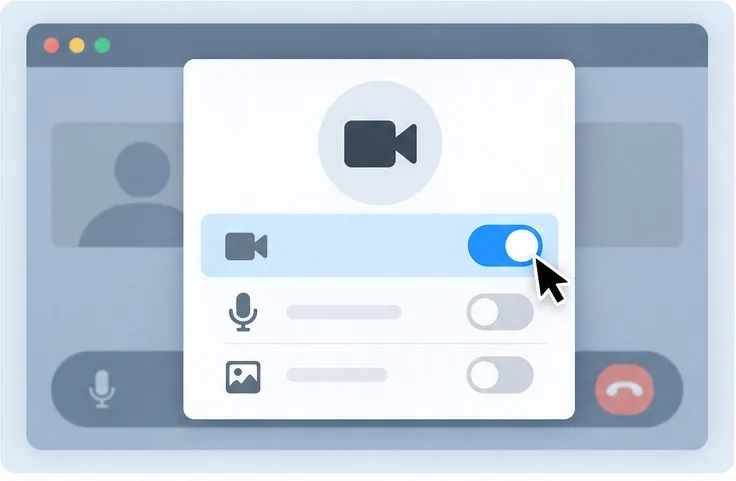
A conceptual browser permission panel with the camera switched on; the symbols are illustrative and do not reproduce a specific browser or BigBlueButton screen.
Check the camera icon beside the address bar and the browser’s site settings. Allow camera access for the BigBlueButton site, confirm that the intended camera is selected, and close other apps that may be using it. If the browser shows a local preview but the meeting still cannot publish video, local device access is probably working; continue with network checks. If no preview appears, resolve device selection, operating-system privacy settings, or browser permission first.
Try these participant checks in order
Reload once and rejoin. Leave the meeting, reload the page, then join again and retry the webcam. This can clear a transient browser or media-session issue, but a repeated ICE failure usually needs a network or server-side fix.
Update or switch to a supported browser. Try a current version of another supported desktop browser. If the webcam works there, record the original browser and version for the meeting host. Browser-specific behavior can occur, so one successful browser does not prove the server is configured correctly for every user.
Compare another network. If permitted, join from a phone hotspot or a different trusted network. A successful webcam on the second connection strongly suggests that the original Wi-Fi, VPN, proxy, or corporate firewall is restricting media traffic. It does not prove which specific rule is responsible.
Test the same room with another participant. If several people on unrelated networks cannot publish webcams, report a likely server or hosting issue to the meeting administrator. If only one person fails, focus first on that participant’s device, browser, and network.
Test another BigBlueButton room or demo. If your organization permits it, use a separate room or the official BigBlueButton test service. If the camera works there but not on your organization’s server, share that comparison with the administrator.
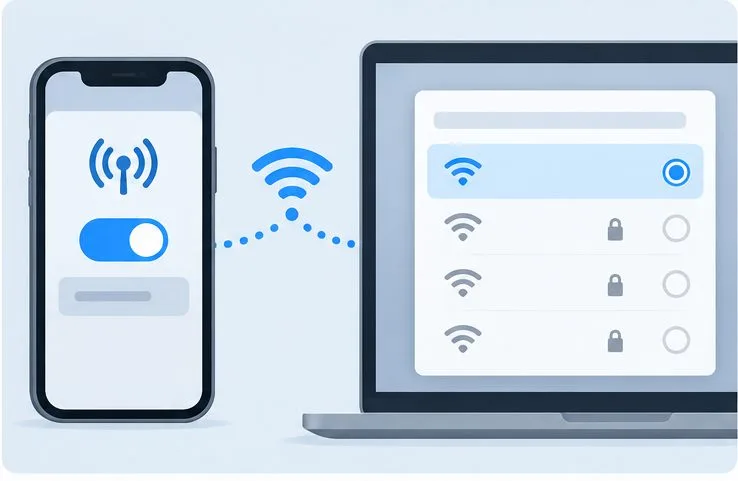
A phone hotspot and a laptop Wi-Fi list represent a quick comparison between a restricted network and a separate connection.
What administrators should verify
When several users are affected, verify the media path at each network boundary: the host firewall, cloud security group, router or NAT device, and any upstream network firewall. BigBlueButton’s firewall documentation lists TCP 80 and 443 for web traffic and, in the documented default configuration, UDP 16384–32768 for media. Your installation may use a customized range or a version-specific media stack, so confirm the actual configuration before changing rules. Do not open a broader range than the installation requires. Check the current BigBlueButton firewall configuration guide.
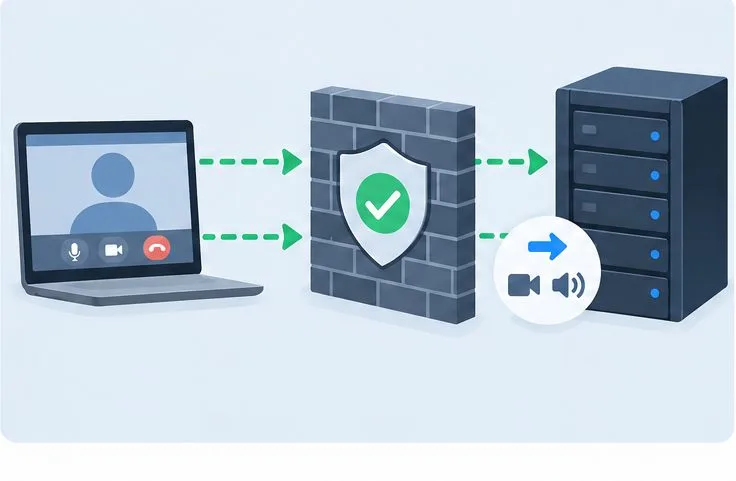
A conceptual network path shows meeting media passing through a firewall to a server; check the actual rules and port range used by your installation.
For a server behind NAT, confirm that the media service advertises a reachable external IP address. BigBlueButton 2.5 and later use mediasoup for HTML5 WebRTC media; the official firewall guide describes configuring the announced external address in /etc/bigbluebutton/bbb-webrtc-sfu/production.yml. A private address, stale public address, incorrect port forward, or missing IPv6 configuration can prevent clients from reaching the media service. Apply only the instructions that match your BigBlueButton release and network layout, then restart services only as directed by the guide.
Also check whether affected users are on networks that block outbound UDP. A TURN server can relay WebRTC traffic when a direct route is unavailable, but it must be installed, reachable, and configured for the relevant BigBlueButton version. The TURN documentation and package defaults differ across releases; follow the guide for the exact version you run. Do not copy credentials or port settings from a different release. Review the BigBlueButton 4.0 TURN server guidance.
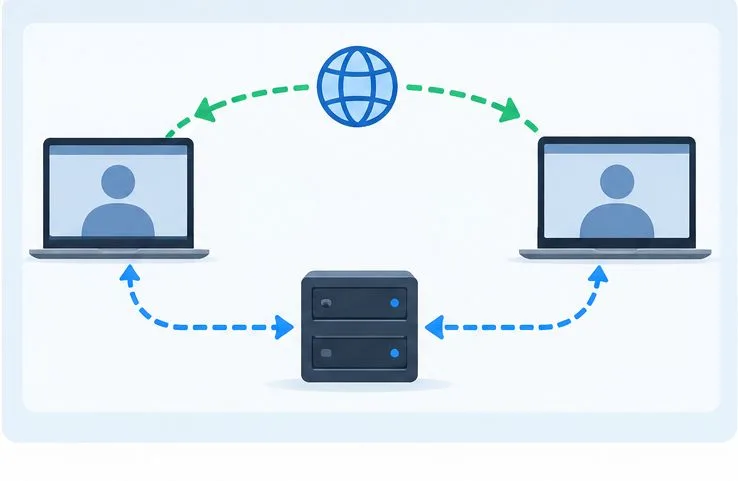
A conceptual WebRTC path shows endpoints using a relay server when a direct connection cannot be established.
Common assumptions to avoid
“The webcam error means the camera is broken.”
Not necessarily. If the local preview appears and the browser has permission, the device can be working while the media route fails. Action: try another network and ask whether other participants are affected before replacing the camera.
“Allowing the camera fixes every webcam failure.”
Permission only lets the browser capture video. It does not open blocked UDP traffic or correct a server’s NAT address. Action: after confirming permission, test the connection from another network.
“A meeting that loads normally proves its media network is open.”
The page and meeting controls can load over HTTPS while real-time audio or video cannot establish its separate media path. BigBlueButton documents ICE failures alongside blocked UDP and NAT as possible causes. Action: use a webcam test and compare the results across networks.
“Every server should use the same ports and TURN settings.”
Documented defaults are useful starting points, not proof of the live configuration. Ports can be customized, and TURN setup varies by release. Action: inspect your deployed version and configuration before modifying firewall or relay rules.
How to confirm the fix
After a change, join a fresh meeting and publish the webcam for at least a minute. Confirm that your local preview appears, other participants can see the stream, and reconnecting does not reproduce the ICE error. Ask a user on the previously affected network to repeat the same test. If only the hotspot test succeeds, give the network administrator that result and request review of outbound WebRTC traffic. If all networks fail for multiple users, send the BigBlueButton host the server version, approximate time, affected browsers, error code or exact message, whether audio works, and the results of each network test. Avoid posting meeting links, access tokens, or unredacted browser logs publicly.
A useful diagnosis narrows the failing layer: local camera access, one user’s network, or the server’s media route. The message alone cannot distinguish those cases, but these checks can give your administrator evidence for the next change.