Home
» NETWORK ADMIN
»
Fix Element Android Notifications Without Google Services: UnifiedPush Guide
Fix Element Android Notifications Without Google Services: UnifiedPush Guide
Element can receive messages normally while it is open yet fail to alert you after the screen is locked. On an Android phone without Google Play Services, that usually points to the delivery path rather than the Matrix account itself. The goal of this guide is not merely to make one test notification appear. A good result is repeatable: messages arrive while Element is in the background, after the phone has been idle, and without needing to reopen the app.
This guide focuses on current Element X for Android, which Element recommends for new users. As of October 6, 2026, the latest public GitHub release is Element X Android 26.09.4, and recent releases include active UnifiedPush components. UnifiedPush is an open protocol that lets an Android app receive push messages through a distributor other than Google's Firebase Cloud Messaging (FCM). Element's own project guidance states that installing a UnifiedPush distributor allows Element X to detect it and offer it as a push provider. See the Element X Android repository, Element X Android releases, and the Element team discussion on notifications without Google Play Services.
What a successful fix should look like
Before changing settings, define the result you are trying to achieve. A notification setup is healthy when all of the following are true:
Android allows notifications for Element.
A UnifiedPush distributor such as ntfy, Sunup, or another supported distributor is installed and running.
Element X shows that distributor as its active push provider.
The distributor is allowed to run in the background and is not placed in Android's Restricted battery state.
A message sent from another Matrix account arrives while Element is fully in the background.
The same test still works after the phone has been idle for several minutes.
If messages appear only after opening Element, you have synchronization but not reliable background delivery. If they appear immediately while the app is open but are delayed when it is closed, focus on the push distributor and Android background restrictions rather than room notification rules.
Why notifications fail without Google services
Most mainstream Android applications use FCM, Google's push service, to wake the app when new data is available. Element's notification documentation explains that FCM requires Google Play Services. On a de-Googled phone, an FCM-only configuration cannot provide the normal wake-up path. Android also limits what ordinary applications can do in the background, especially when a device enters idle states.
UnifiedPush replaces that dependency with a distributor. A distributor is the Android app that maintains the push connection and passes incoming notifications to applications that registered with it. The UnifiedPush project lists ntfy, Sunup, NextPush, gCompat-UP, and other options. See the official UnifiedPush distributor list.
Step 1: Confirm Android is allowed to show Element notifications
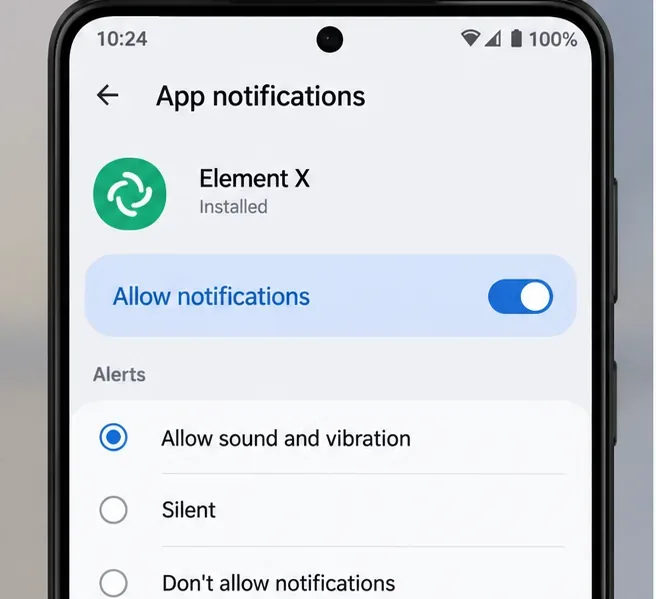
Start with the simplest failure point. On Android 13 and later, applications need the POST_NOTIFICATIONS runtime permission before normal notifications can appear. Open Android Settings, find Element X under Apps, and verify that notifications are allowed. Also review individual notification categories if your Android version or manufacturer exposes them.
Android should allow Element X notifications before you troubleshoot the push transport. On Android 13 and later, notification permission can block alerts even when push delivery itself is working.
Android's official documentation confirms that newly installed apps on Android 13 or later cannot send ordinary notifications until the user grants permission. See the Android notification permission documentation.
Quality check: if Android shows notifications disabled, fix that first and retest. If notifications are already allowed but nothing arrives while Element is backgrounded, continue to the push provider.
Step 2: Install and enable a UnifiedPush distributor
Install a UnifiedPush distributor from a source appropriate for your device. ntfy is a common choice because it can use its public server or a self-hosted server. The UnifiedPush quickstart for ntfy instructs users to install ntfy, grant the required notification and battery permissions, then select ntfy as the distributor inside compatible applications. See the official ntfy UnifiedPush quickstart.
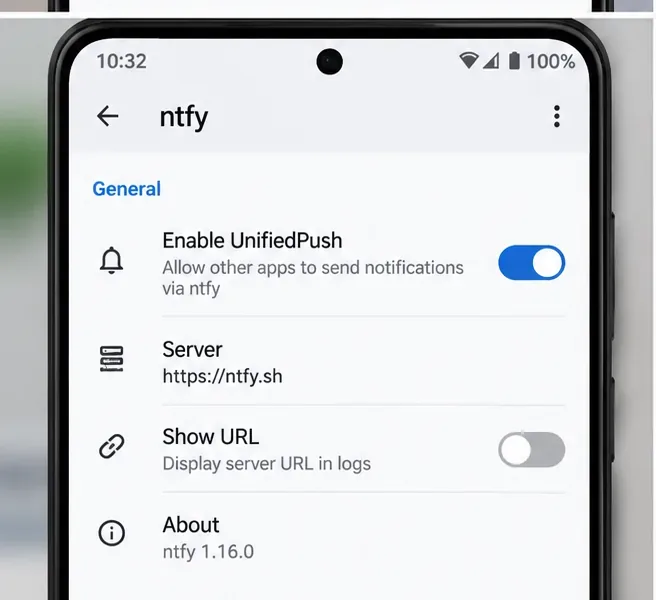
Open ntfy and make sure UnifiedPush support is enabled. If you use a self-hosted ntfy server, verify that the Android app is connected to that server and that the server is reachable over HTTPS from the phone's current network.
The distributor must have UnifiedPush enabled and an active server connection. The exact wording can differ by ntfy version, but the distributor must be ready before Element can register with it.
Quality check: simply having ntfy installed is not enough. The distributor should be enabled and reachable. If Element cannot see the distributor after installation, fully close and reopen Element X, then check for app updates before changing server-side Matrix settings.
Step 3: Select the UnifiedPush provider inside Element X
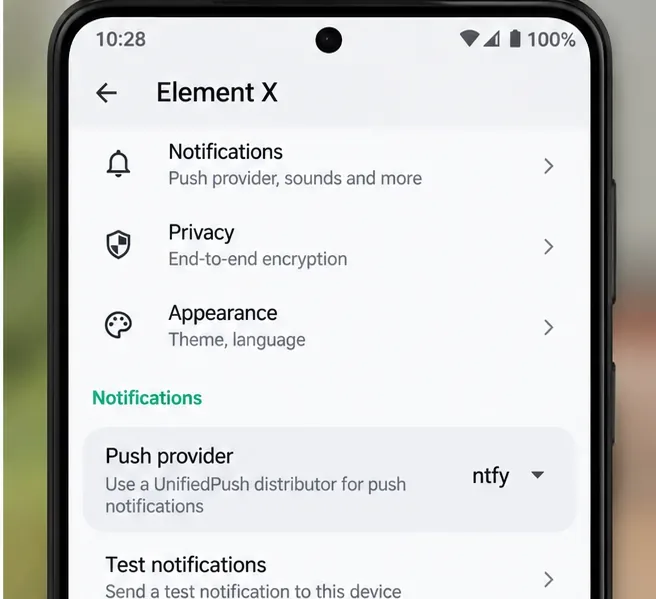
Open Element X settings and go to the notification area. When a compatible distributor is detected, Element X can expose a push-provider choice. Select the installed UnifiedPush distributor rather than Firebase/FCM. Element's project maintainers explicitly described this flow for devices without Google services, and current source includes a UnifiedPush push-provider module.
Select the installed UnifiedPush distributor in Element X. If your version includes a notification test or troubleshooter, run it before changing battery settings or server configuration.
If your build does not show a provider selector even after a distributor is installed, do not assume the homeserver is broken. First update Element X to a current supported build and restart both Element X and the distributor. UI labels have changed across Element X releases, so the exact menu name may differ.
Quality check: the useful sign is not just that the provider name appears. Send a real message from another Matrix account while Element is backgrounded. A working provider should cause the device to wake Element and display the message notification without opening the app manually.
Step 4: Remove background restrictions from the distributor
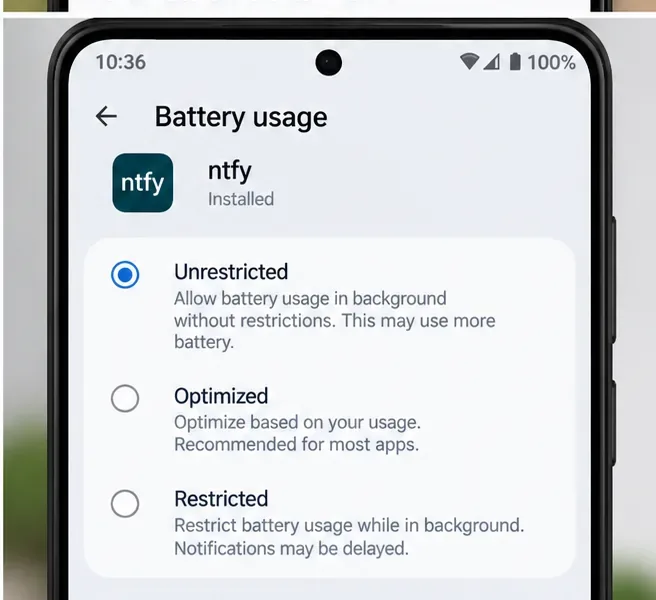
UnifiedPush depends on the distributor staying reachable. If Android places ntfy or another distributor in a Restricted battery state, the push connection can be suspended. Android documents three broad background battery modes on many devices: Unrestricted, Optimized, and Restricted. Restricted can prevent jobs, alarms, and foreground-service behavior that apps rely on.
For troubleshooting, allow the UnifiedPush distributor to run without battery restrictions. This may increase battery use, so keep the setting only if it materially improves reliability on your device.
Open Android Settings for the distributor and change battery usage from Restricted to Unrestricted if notifications are delayed or disappear during idle periods. You can also inspect Element X itself and make sure it is not explicitly restricted. Manufacturer-specific Android builds may add separate controls for auto-start, background data, or app sleeping.
Google's Android documentation notes that a user-selected Restricted state can fully prevent an app from running in the background on some devices. See Android background optimization guidance.
Quality check: lock the phone and leave it idle for 10 to 20 minutes, then send several messages from another account. If alerts arrive promptly and consistently, the background path is healthier than a test performed immediately after opening the app.
How to tell which part is still failing
Observed result
Most likely area
Next action
No notification even while Element is open
Room rules, account notification settings, or Android notification permission
Check Element's room/account notification settings and Android permission first.
Notifications appear only when Element is opened
Push provider or distributor background connection
Confirm Element is using UnifiedPush and remove battery restrictions from the distributor.
Works for a few minutes, then stops after idle
Doze, OEM battery controls, sleeping-app policies
Set the distributor to Unrestricted and inspect manufacturer-specific background controls.
Element shows a distributor, but no real messages arrive
Distributor server, Matrix push gateway, or endpoint rate limiting
Test a different distributor/server before reinstalling Element.
Only one room is silent
Room-specific notification rule
Check that room's notification level instead of changing global push settings.
When to switch away from the current setup
A configuration can be technically correct and still be a poor fit. Element's tracker documents cases where some UnifiedPush endpoints, including public ntfy infrastructure in certain Matrix scenarios, can be rate-limited, which means registration may look correct while notifications still fail to arrive. See Element's issue on UnifiedPush endpoint rate limiting.
If permission, provider selection, and battery settings are all correct but delivery remains inconsistent, try a different UnifiedPush distributor or a self-hosted push server. UnifiedPush documents both hosted and self-hosted choices. This is often a better diagnostic step than repeatedly clearing Element data, because it changes the part of the delivery chain most likely to be failing.
Self-hosting can provide more control, but it adds operational responsibility. For ntfy, the Matrix gateway must be configured correctly for a self-hosted deployment. The official UnifiedPush ntfy guide notes this requirement. Do not move to self-hosting solely because one test notification was delayed; switch when failures are repeatable and you have already ruled out Android restrictions.
What about the older Element Android app?
The previous-generation Element Android application also implemented non-FCM operation and UnifiedPush. Its official documentation describes both F-Droid background polling and UnifiedPush support. However, Element now recommends Element X for new users, so the current Element X path is the better starting point unless you have a specific compatibility requirement. The legacy implementation details remain useful for understanding why polling alone is less reliable under Android idle modes. See the archived/current project documentation for UnifiedPush in Element Android.
Final verification checklist
Android notification permission for Element X is enabled.
A UnifiedPush distributor is installed, enabled, and connected.
Element X is configured to use that distributor.
The distributor is not in Android's Restricted battery mode.
A message from another account produces a notification while Element is backgrounded.
The same test works after the phone has been idle.
If delivery still fails, you test another distributor or server before resetting the Matrix account.
There is no universal setting that guarantees instant delivery on every Android build. Device vendors can impose additional background restrictions, networks can interfere with persistent connections, and a push endpoint can be temporarily unavailable or rate-limited. The strongest result is therefore repeatable behavior across several background and idle tests, not a single successful notification.