Home
» NETWORK ADMIN
»
Fix Element Desktop Crashing on Linux Wayland
Fix Element Desktop Crashing on Linux Wayland
What a successful fix looks like
Element Desktop should stay open through the action that used to trigger the crash: signing in, joining a call, sharing a screen, or leaving the app idle in the background. A single successful launch is not enough to confirm a fix. Test the same trigger more than once and check whether the app remains stable after the computer suspends and wakes.
Wayland is not the only possible cause. Element Desktop is an Electron app, and a crash may involve the Wayland compositor, Xwayland, graphics drivers, a recent app update, or a package-specific build. The steps below use small, reversible tests to narrow that down. They do not establish that every Element crash on Linux is a Wayland defect.
Checked October 6, 2026. Electron 38 changed the default so Electron apps launch natively on Wayland when the session reports XDG_SESSION_TYPE=wayland. Electron documents --ozone-platform=x11 as a way to use Xwayland instead. This change matters only when the Electron version bundled with your Element build includes it; the Element version and package source determine that. See the Electron 38 release notes and Electron’s breaking-change notes.
1. Confirm that the desktop session is Wayland
Open a terminal and run:
echo $XDG_SESSION_TYPE
If the output is wayland, continue. If it says x11, the current login is already using X11, so a Wayland-specific launch test will not explain the crash. You can also identify the desktop and session details with:
echo "$XDG_CURRENT_DESKTOP"
loginctl show-session "$XDG_SESSION_ID" -p Type
Illustrative terminal view of the Wayland session check. Your terminal theme and output may differ.
Record the desktop environment, graphics hardware, and how you installed Element. These details help distinguish a general crash from a problem limited to one compositor, GPU driver, or package build.
2. Compare native Wayland with Xwayland
First close any existing Element window. For a Debian or Ubuntu package that provides the element-desktop command, launch it from a terminal with:
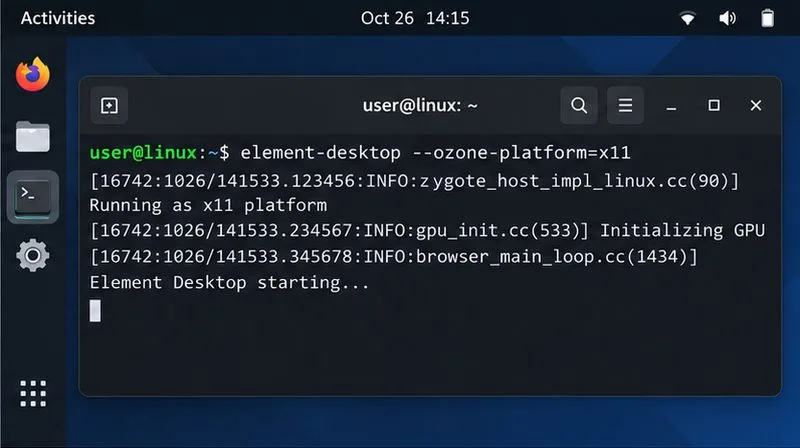
element-desktop --ozone-platform=x11
Leave the terminal open so that any startup errors remain visible. Use Element normally and repeat the action that usually causes the crash. If the Xwayland run remains stable while a normal launch crashes, that is useful evidence of a Wayland path or integration problem. It is a diagnostic result, not proof of the exact underlying defect.
Illustrative terminal view of the Xwayland test command. Whether this exact command works depends on the package and its executable name.
To return to normal behavior, close Element and start it from the regular application launcher. The flag applies only to the process started with that command. Electron documents the Xwayland switch in its BrowserWindow platform notes.
If your installation is Flatpak or another community package, do not assume the command above targets its sandboxed app. Check the package’s launcher command or use its package-specific way to pass an application argument. Element’s download page lists its Debian/Ubuntu package instructions and identifies Flatpak and several other Linux packages as community-maintained: Element Desktop downloads.
3. Update Element from the same package source
If switching to Xwayland changes the result, or if the crash began after an update, install the latest stable build offered by the source you already use. Updating from the same source avoids accidentally running two builds with different launchers, configuration paths, or bundled Electron versions.
For Debian or Ubuntu installed from Element’s official repository, refresh the package index and upgrade Element:
For Flatpak, update through the software center or run flatpak update. For Arch, Fedora, openSUSE, or another distribution, use the package manager and repository you originally chose. Do not install an unrelated “nightly” build as a crash fix; Element labels its nightly builds as unstable testing builds.
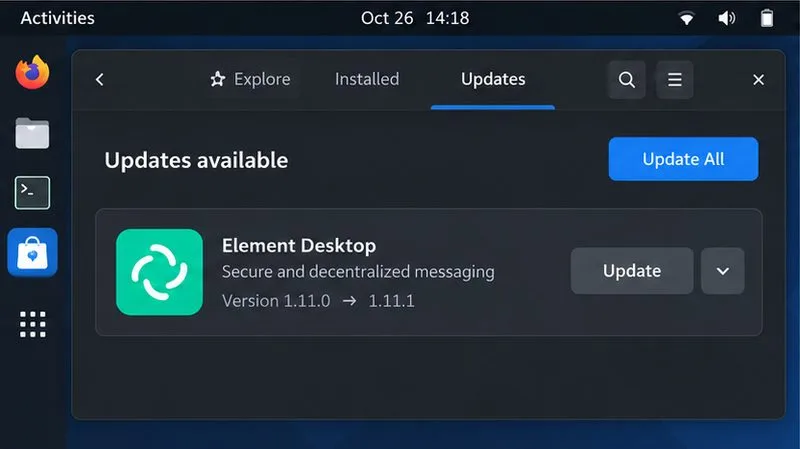
Illustrative package updater showing where an app update may appear. The displayed version and update state are examples, not a report about your installation.
After the update, fully quit Element and relaunch it. In Element, open Settings → Help & About to note the client version if the app stays open long enough. This is useful when comparing reports or contacting support. Avoid downgrading to an old release unless the distribution’s maintainers or Element support specifically recommend it; older builds may miss fixes and security updates.
4. Test graphics acceleration and collect crash evidence
If the app still crashes both normally and under Xwayland, try one run with Chromium’s GPU acceleration disabled:
element-desktop --disable-gpu
This is a temporary troubleshooting test, not a recommended permanent setting. If the crash disappears only with this flag, the result points toward a graphics or driver interaction; it does not identify whether the driver, compositor, Electron, or app code is at fault. Video playback and other graphics-heavy features may also behave differently. Close that process and relaunch without the flag to undo the test.
For a crash that happens during calls or screen sharing, test those actions separately. A historical Element issue described a screen-sharing crash under Wayland in an older Element release; it should not be read as confirmation that current versions share the same defect. The project repository has since been archived, so use current package and support channels for new reports: historical Wayland screen-sharing report.
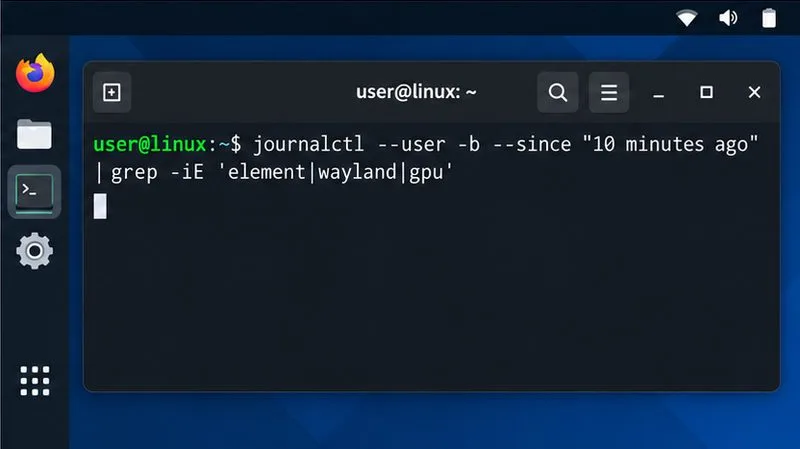
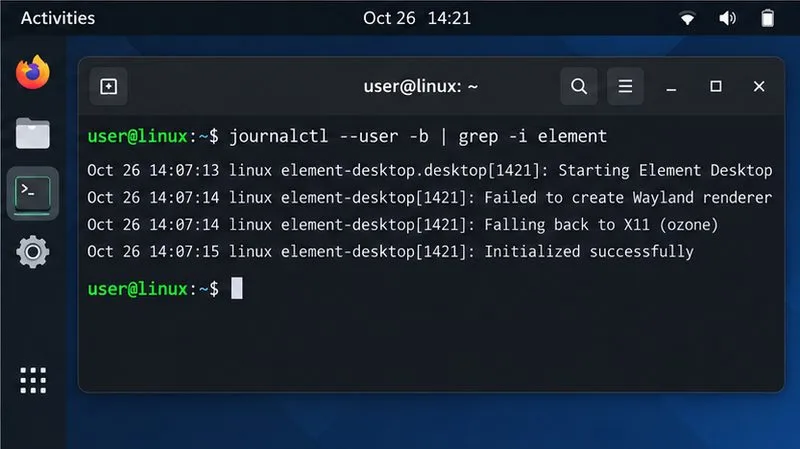
Capture logs close to the time of a crash. On systems using the systemd journal, try:
If the system recorded a core dump, this may list it:
coredumpctl list element-desktop
Illustrative terminal view of a journal search. The sample lines are not real diagnostic output; inspect your own system’s entries and timestamps.
Logs can include usernames, file paths, room or server details, or other private information. Review and redact them before posting publicly. If the journal search returns nothing, that does not prove there was no crash; some package formats and systems log differently. A distribution’s crash reporter or system logs may be more useful.
Protect your local session data
Do not begin by deleting ~/.config/Element, ~/.config/Riot, or a Flatpak data directory. Those locations can contain local app state, and removing them may sign you out or affect locally stored encryption keys and settings. A reset is a last-resort diagnostic, not a routine Wayland fix. Before considering one, confirm that you can sign in again and that your encryption keys or recovery key are backed up. Prefer steps that leave the profile untouched.
If Element opens but behaves oddly, use the app’s own settings and support guidance before changing its profile files. For account settings and version information, consult the current Element client settings documentation.
How to tell whether the fix worked
Use the same sequence that previously triggered the failure: start Element, sign in, leave it in the background, join the relevant type of call, and test screen sharing if that was part of the problem. Repeat the sequence after a normal app restart. A practical result is that Element stays responsive and no new crash or core dump appears during these checks.
Stable only with --ozone-platform=x11: keep that as a temporary workaround if needed and report the Element version, package source, Linux distribution, desktop environment, GPU, and reproduction steps through a current support channel.
Stable only with --disable-gpu: investigate graphics driver and compositor updates, and include the test result in a support report. Expect possible graphics trade-offs while the flag is active.
Still crashing in both tests: update through your existing package source, capture logs, and check whether the same account works in Element Web. If only Desktop fails, include the logs and exact trigger in a support request; if both fail, investigate account, server, or network causes as well.
There is no single command that can guarantee a fix for every Linux Wayland crash. The useful outcome is a reproducible stability improvement and enough evidence to identify which layer needs attention.