Home
» NETWORK ADMIN
»
Fix High CPU Usage in Jitsi Meet on Client Browsers
Fix High CPU Usage in Jitsi Meet on Client Browsers
Illustrative scenario: Morgan uses an older laptop for a Jitsi Meet call. The fan gets loud and the browser’s CPU use stays high when several people have their cameras on. This is a fictional example, not a report of a real user or a test result. It gives us a practical way to separate the likely causes: decoding several incoming video streams, encoding Morgan’s camera, video effects, or a browser and graphics issue.
Start by identifying which part of the call is expensive. Then change one setting at a time and compare under similar meeting conditions. A Jitsi Meet client can use significant CPU even when the Jitsi server is healthy; this guide focuses on the browser and device, not server-side Videobridge capacity.
The screen illustrations below show example controls and checks. The exact appearance and availability of controls can differ by Jitsi deployment, browser, and version.
1. Check whether the browser is the process using CPU
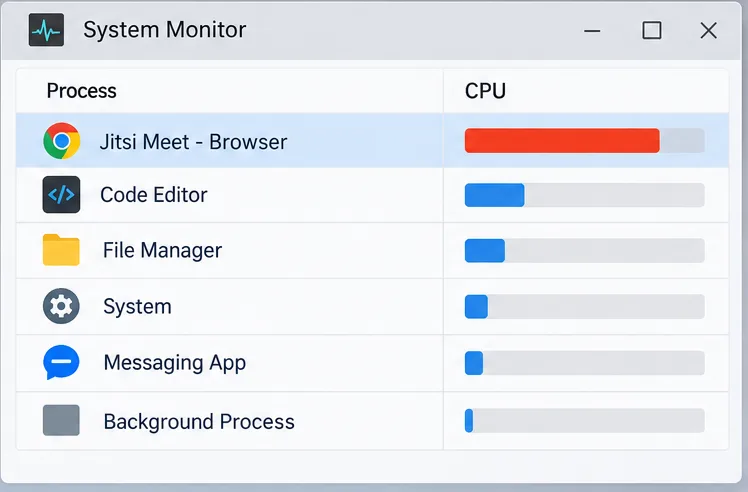
An example system monitor highlights the browser process running Jitsi Meet so you can separate meeting load from other applications.
While the problem is happening, open your operating system’s Task Manager, Activity Monitor, or system monitor. Look for the browser process and, if the tool breaks browser activity into tabs or tasks, the Jitsi Meet tab. Note whether CPU use is sustained or only spikes briefly when someone joins or changes video. Also check whether another application—such as a screen recorder, game, or video editor—is using more of the processor.
For Morgan, this first check answers a useful question: is the browser carrying most of the load, or is the fan responding to a different application? Record the meeting size, whether the local camera is on, and whether effects are active. These details make later comparisons meaningful.
2. Find out whether incoming video tiles are the trigger
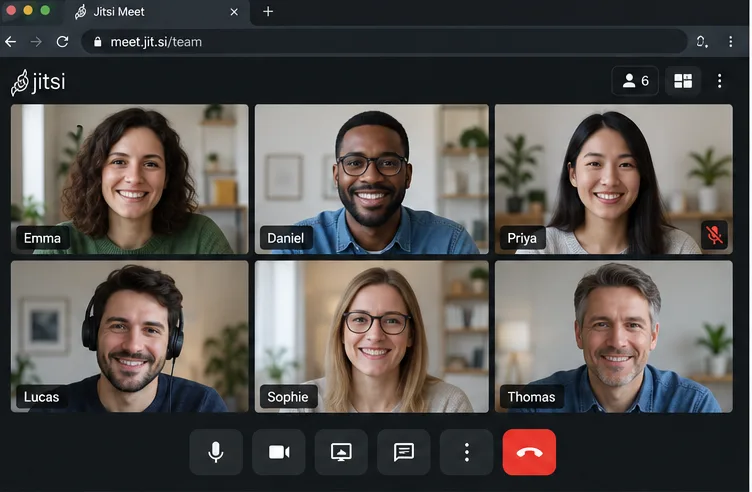
A multi-person tile view illustrates why a call with many visible video feeds can be more demanding than a simpler layout.
Compare the same device in a one-to-one call and a larger call, if you can do so naturally. In the larger meeting, note whether CPU rises as more cameras become visible or when you switch to a tile-heavy layout. Rendering and decoding multiple moving video streams can place more work on the client than a single remote video. This is a diagnostic clue, not proof by itself: call size, video resolution, device drivers, and other applications also change the load.
If the CPU stays high even in a one-to-one call with video effects off, focus next on the local camera, browser, and graphics path. If it rises mainly with many incoming tiles, prioritize receive-quality controls and layout or host policy.
3. Lower incoming video quality when the control is available
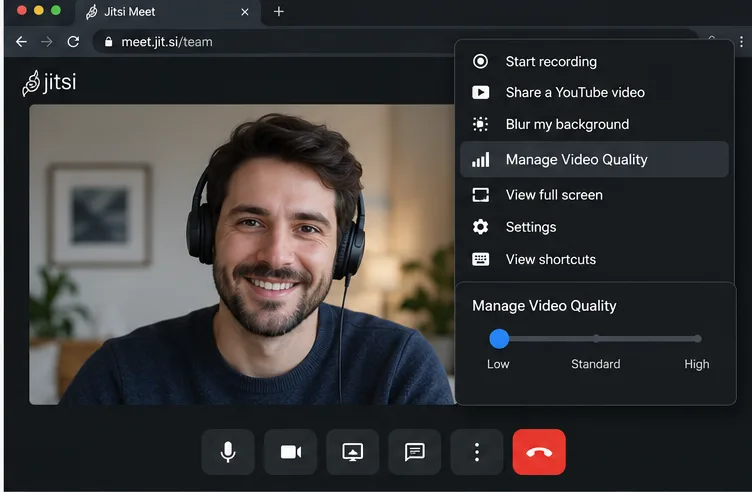
The example menu shows a low receive-quality selection under Manage Video Quality; available options depend on the meeting deployment.
Open the meeting’s More actions menu and look for Manage Video Quality. If your deployment exposes a quality slider, choose a lower setting and observe whether the incoming tiles become less detailed and the browser becomes more responsive. This control concerns the video you receive; it does not necessarily lower the resolution of your own camera stream.
Jitsi’s current configuration guide describes startLastN as controlling how many participant videos are received, and says the quality slider is used when channelLastN is configured. Therefore, do not assume every Jitsi room has this control or that it behaves identically everywhere. If it is absent, continue with the other steps or ask the meeting administrator whether the deployment supports receive-quality management.
4. Test the local camera separately
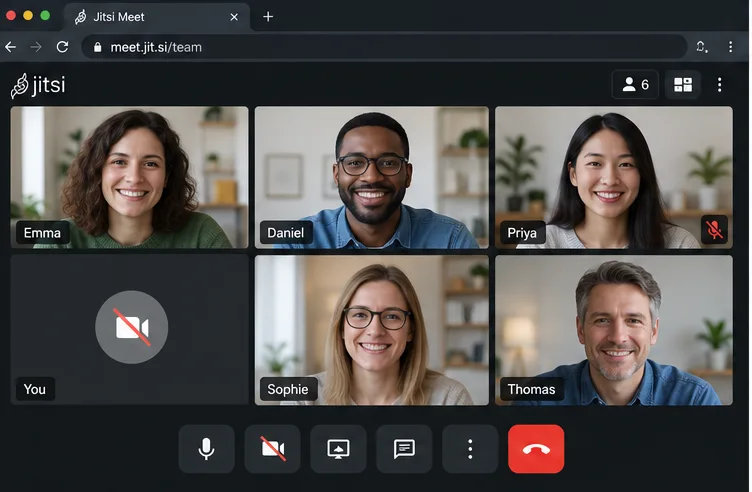
Turning off the local camera is a quick way to check whether capturing and encoding your own video contributes to the load.
Turn off your camera briefly while keeping the rest of the call as similar as possible. If that makes a clear difference, the load may involve camera capture or encoding on your device. It does not remove the work of decoding other participants’ videos, so a busy gallery may still be demanding.
If video is not essential, leave the camera off. If you need to send video, improve lighting and frame the camera steadily so the image remains useful at a lower resolution; avoid changing several quality controls simultaneously, because that makes the result harder to interpret.
5. Disable virtual backgrounds and other video effects
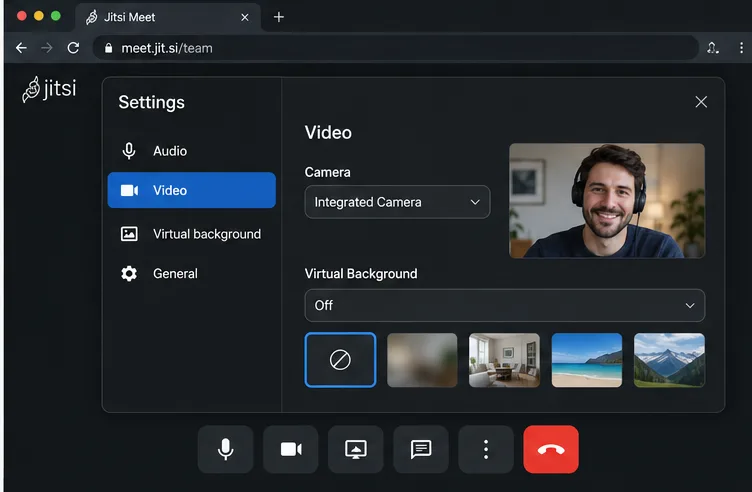
The video settings example shows Virtual Background set to Off, a useful diagnostic when background effects are enabled.
If blur or a virtual background is active, switch it off for a short comparison. Effects add processing to the local video path and may be a poor fit for an older device. The Jitsi configuration reference includes an option to disable virtual backgrounds for a deployment, but whether a participant can toggle the feature depends on the site’s setup.
Morgan should test this after the camera comparison: first camera off, then camera on with effects off. If the second state is easier on the laptop than the original setup, the effect is a practical candidate to leave disabled. Do not infer that the effect is the cause if the difference is not repeatable.
6. Check browser and graphics settings methodically
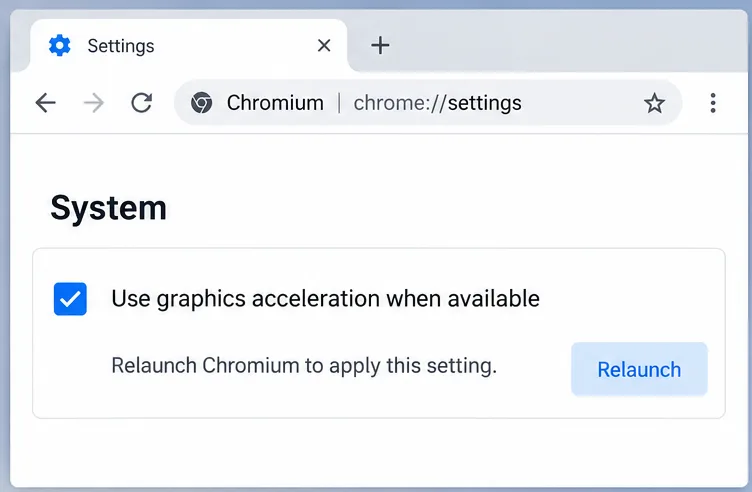
The browser system settings example shows the graphics acceleration option; changing it requires a browser relaunch.
Close unrelated high-load tabs and applications, then make sure you are using a current browser supported by your Jitsi deployment. Jitsi’s browser support page lists supported desktop browsers, but support can change; confirm the current list for the version you use. If the issue persists, temporarily test without browser extensions in a clean profile where your organization’s policy permits it.
Hardware acceleration is a diagnostic variable, not a universal fix. In Chrome, Google’s support instructions describe turning off graphics acceleration and relaunching as a troubleshooting step. If you suspect a GPU or driver problem, record the original setting, change it, restart the browser, and compare the same meeting. Software rendering can shift work back to the CPU, so restore the setting if performance gets worse. Update the browser and graphics driver through your normal supported update process; avoid installing drivers from untrusted sources.
7. For a self-hosted site, consider a lower camera capture resolution
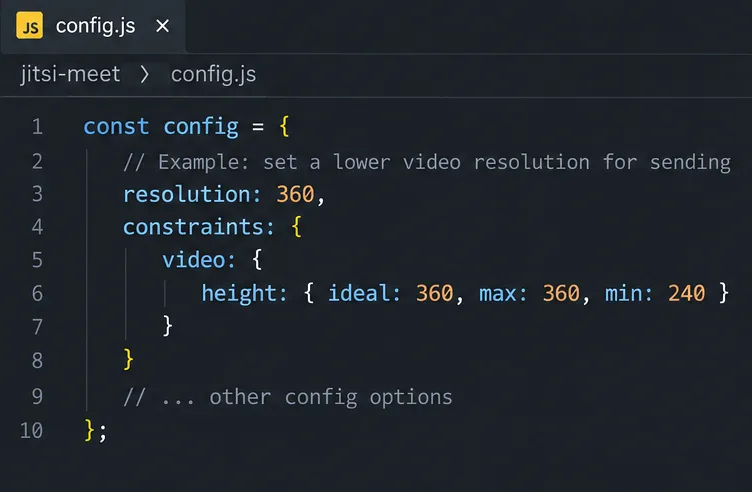
An example config.js snippet sets a 360-pixel preferred and maximum video height for local capture.
Administrators of a self-hosted Jitsi deployment can review the video configuration after testing participant-side options. The configuration reference documents resolution as the preferred local video height and documents capture constraints separately. For example, an administrator could test a lower capture target like this in the valid configuration object:
This is an example, not a universal drop-in patch: confirm the syntax and supported options against the Jitsi release and configuration used by your deployment. A lower capture target trades image detail for less video data to process and send. Test image quality, camera behavior, and client CPU on representative devices before applying the change broadly. The reference notes that capture constraints are independent of the resolution setting.
8. Reduce how many remote videos stay at full resolution
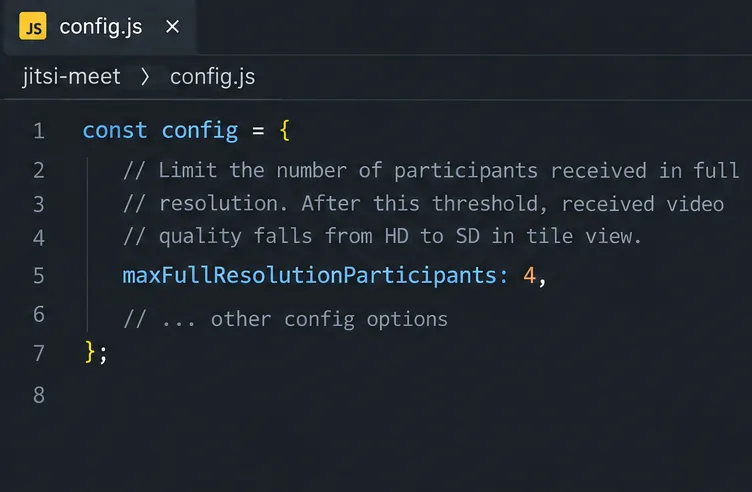
The example config entry limits how many participants remain at full receive resolution in tile view; the chosen value is illustrative.
For administrators whose users report high CPU mainly in large tile views, review maxFullResolutionParticipants. Jitsi documents this option as the number of participants shown at full resolution before received video is reduced from HD to SD in tile view. A configuration such as maxFullResolutionParticipants: 4 is only an example value, not a recommended setting for every organization.
This setting affects video quality for participants and should be evaluated as a site-wide policy. Check the current configuration documentation for the exact semantics in your release, stage the change, and ask users to compare the same room size and layout. Do not confuse this setting with an increase in the server’s capacity; it changes what clients receive.
How can you tell whether the fix worked?
Repeat the comparison under similar conditions: same device, browser, meeting size, layout, and camera state. Check whether browser CPU use settles, whether audio remains clear, whether remote video is usable, and whether your own video still meets the meeting’s needs. Change one setting at a time and note the result. If CPU remains high with the camera off, effects disabled, and only a few remote videos, try a supported browser profile and check system graphics or thermal limits; that pattern points beyond one Jitsi video option and may require device or browser diagnostics.
For a client-side issue, the least disruptive fixes are usually to reduce incoming video quality when available, remove unnecessary local video processing, and close competing workloads. Self-hosted configuration changes can help when the pattern affects many participants, but they also change the experience for everyone. Consult the official Jitsi user guide for advanced meeting controls, the Jitsi configuration reference, and the supported browsers list. For Chrome acceleration troubleshooting, follow Google Chrome’s official graphics acceleration guidance. These pages were checked October 6, 2026; the Jitsi handbook is updated over time, so verify options against your installed release.