Home
» NETWORK ADMIN
»
Fix Jitsi Meet Screen Sharing on macOS Sonoma: Permission and Browser Checks
Fix Jitsi Meet Screen Sharing on macOS Sonoma: Permission and Browser Checks
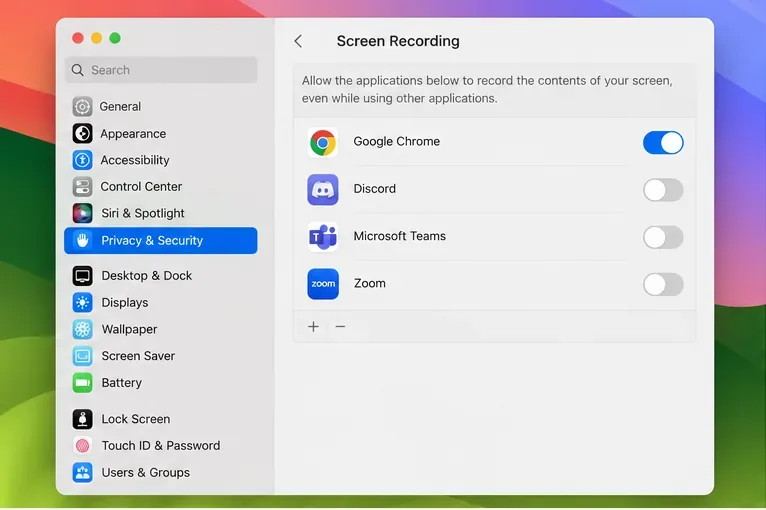
If Jitsi Meet will not start screen sharing on macOS Sonoma, first allow screen capture for the browser you are actually using, then fully quit and reopen that browser. In Sonoma, open Apple menu > System Settings > Privacy & Security > Screen Recording, switch on the entry for Safari, Chrome, Firefox, or your other Jitsi browser, and try sharing again. Jitsi runs inside the browser, so granting permission to a different app will not fix the browser’s capture request.
This is the best first fix when clicking Jitsi’s screen-share control does nothing, the browser cannot open a source picker, or macOS reports that screen recording is not permitted. If the browser already has permission and a screen picker opens, use the later checks below instead of repeatedly changing unrelated camera or microphone settings.
Illustrative settings view: the Screen Recording list shows Google Chrome enabled; choose the browser that is running your Jitsi meeting.
1. Enable Screen Recording for the correct browser
Join the meeting in the browser where the failure happens. For example, if the Jitsi tab is open in Chrome, enable Chrome—not Safari, Firefox, or the Jitsi Meet app on another device. The permission belongs to the application that requests screen capture. Apple explains how to review and change screen and system-audio access in its Mac privacy settings guide.
On your Mac, open the Apple menu and select System Settings.
Select Privacy & Security in the sidebar. Scroll down if needed.
Open Screen Recording. Depending on the macOS release, the setting may be labeled Screen & System Audio Recording.
Turn on the switch beside the browser you use for Jitsi. If the browser is not listed, return to the meeting, click Jitsi’s screen-share button once to trigger the permission request, then check this panel again. On versions that show an add button, you can use it to select the browser from Applications.
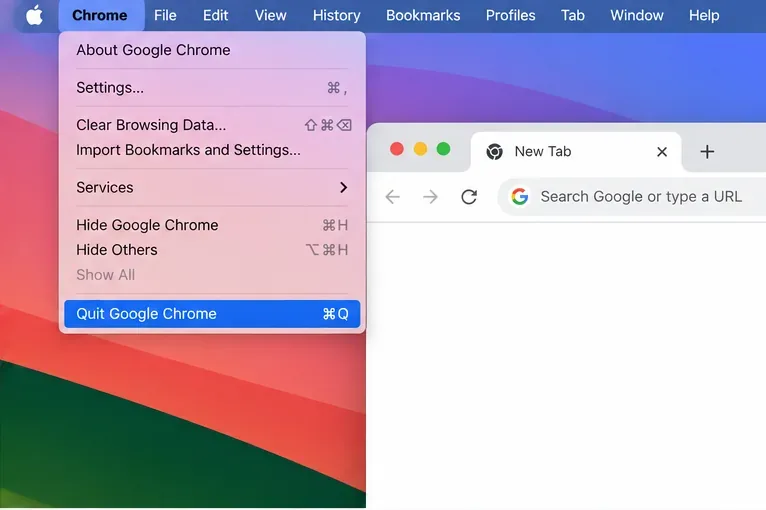
Quit the browser completely with its application menu > Quit or press Command-Q. Reopen it, rejoin the meeting, and request screen sharing again.
Closing a browser window is not always the same as quitting the application. Relaunching is a useful check because a browser may need to refresh its access after the macOS setting changes. Do not grant screen access to an app you do not recognize; this permission can expose what is visible on the screen.
Illustrative Chrome menu: choose Quit Google Chrome or press Command-Q, then reopen the browser before testing Jitsi again.
2. Start a fresh share request in Jitsi
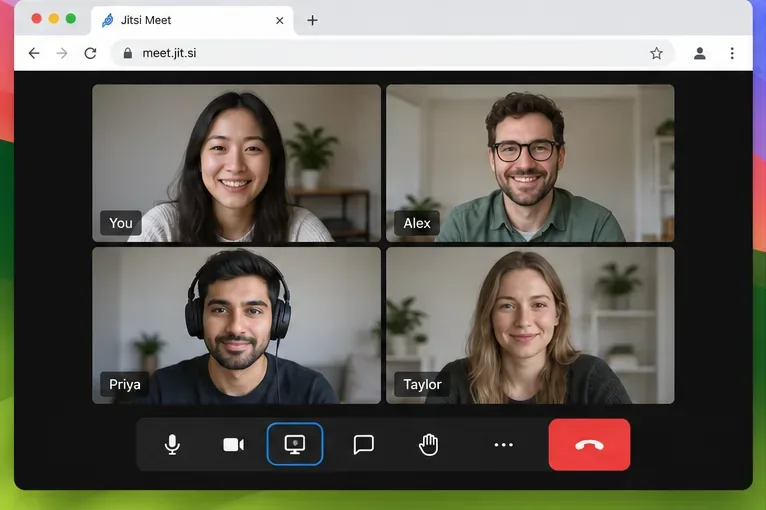
After reopening the browser, enter the meeting and select the monitor-shaped Share your screen control in the call toolbar. Jitsi’s meeting guide covers joining a meeting in a browser, and its keyboard shortcut reference lists D for switching between camera and screen sharing on supported meeting interfaces. The toolbar button is easier to verify when troubleshooting.
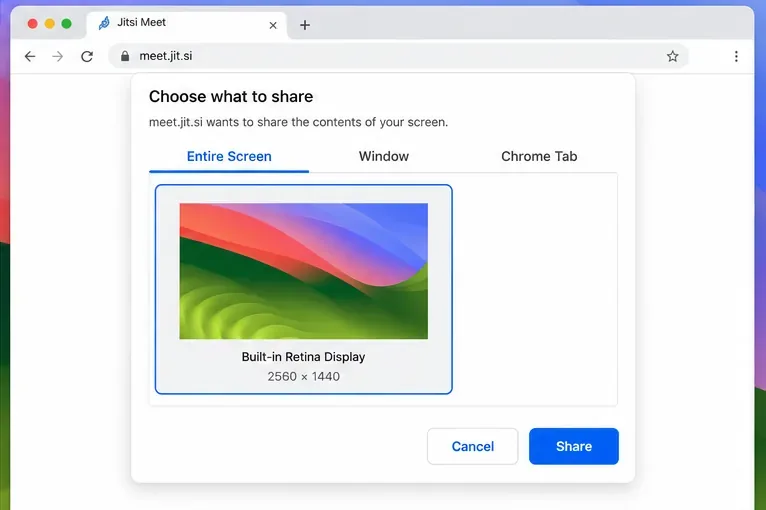
When a source picker appears, choose a display, window, or browser tab that matches what you intend to show, then confirm with the picker’s share button. The exact choices and wording vary by browser and version. If you select a single window, keep that window open; if you select a browser tab, make sure it is the tab containing the content to present.
Illustrative Jitsi meeting toolbar: use the monitor-shaped control to request a screen or window source.Illustrative browser source picker: select the display, window, or tab you mean to present, then confirm sharing.
3. Diagnose the point where sharing stops
What you see
What to check next
Clicking Share your screen produces no picker or system prompt
Verify that Screen Recording is enabled for the active browser; quit and reopen that browser.
A macOS permission alert appears
Allow access only if you intended to share through that browser, then follow any prompt to open System Settings.
The browser picker opens but sharing does not begin
Select a source and confirm it. If the picker immediately closes, retry with a different source such as a window or entire display.
Your selection appears to start, but other participants see nothing
Ask a participant to confirm what they see. Check for a stopped share or meeting-specific restrictions before resetting macOS permissions.
These symptoms help separate a macOS permission block from a browser or meeting problem. If the picker opens, macOS has allowed the browser far enough to offer a source; the cause may instead be a canceled selection, browser issue, or a restriction on the particular Jitsi service.
4. Check browser and site-level issues
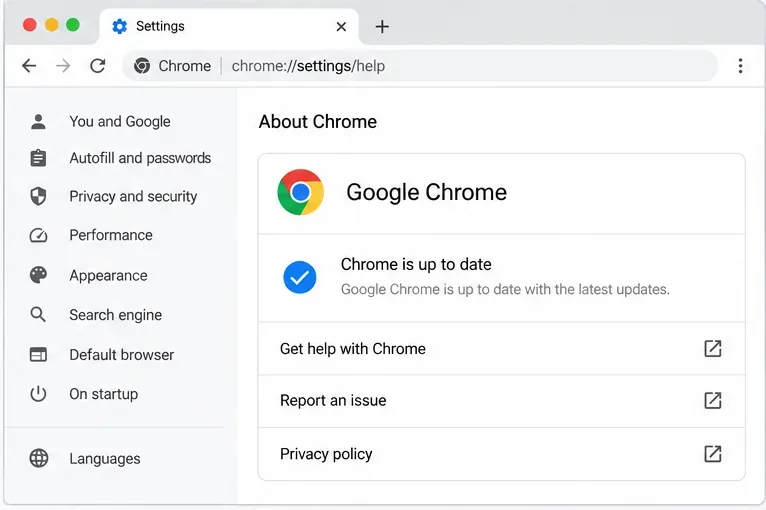
Update the browser through its official update mechanism, then test Jitsi in a normal browser window without extensions that modify page behavior. A private window can be a limited comparison, but it may disable extensions or have different site settings, so a successful test there does not by itself prove that macOS permissions were the cause.
Illustrative Chrome About page: check your own browser’s update status in its About section; the message shown here is an example.
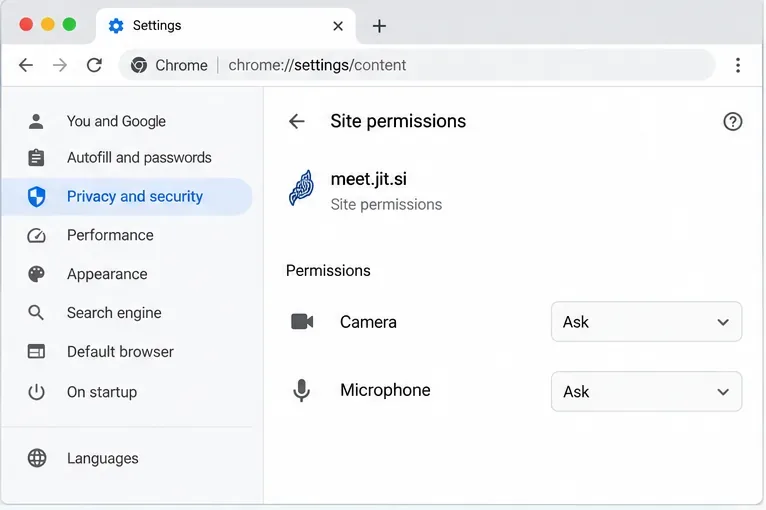
Camera and microphone permissions are separate from macOS Screen Recording. If video or audio also fails, check the browser’s permissions for the meeting site; Chrome’s site settings documentation explains where website permissions are managed. Changing camera or microphone access alone will not authorize screen capture.
Illustrative site settings show camera and microphone controls for meet.jit.si; these controls are separate from macOS Screen Recording access.
Only compare with another supported desktop browser if your meeting host or service allows it. If screen sharing works in a second browser, check the first browser’s version, extensions, and application-level macOS permission. If no browser can share, check whether the Jitsi administrator has disabled screen sharing or whether an organization-managed Mac policy controls privacy permissions.
5. When toggling permission does not help
If the correct browser is enabled but the problem persists, turn its Screen Recording switch off and back on, quit the browser, and test once more. Avoid resetting all macOS privacy permissions or deleting browser data as an early step: those actions affect other apps or sites and may not address a capture problem.
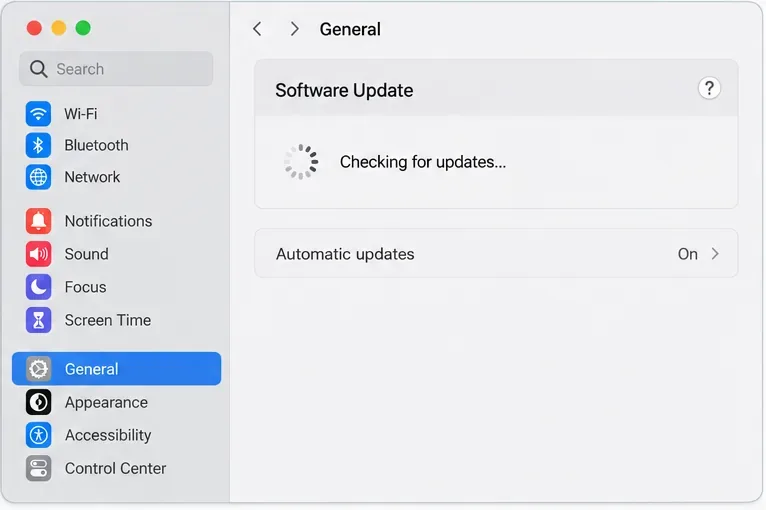
If Sonoma itself has pending compatible updates, check System Settings > General > Software Update and review Apple’s macOS update instructions. An update can address broader system issues, but it is not a guaranteed fix for a Jitsi screen-share permission problem; save your work and plan for any restart before installing.
Illustrative Software Update pane: check whether a compatible macOS update is available, but do not treat an update as a guaranteed sharing fix.
For a work-managed Mac, a setting that is locked or reverts may be controlled by your organization. Contact its IT administrator rather than trying to bypass device policy. If only one self-hosted Jitsi deployment fails, give its administrator the browser name and version, macOS version, whether the source picker appeared, and whether another meeting service can share. Do not include private meeting links or screen contents in a public support request.
How to tell whether the fix worked
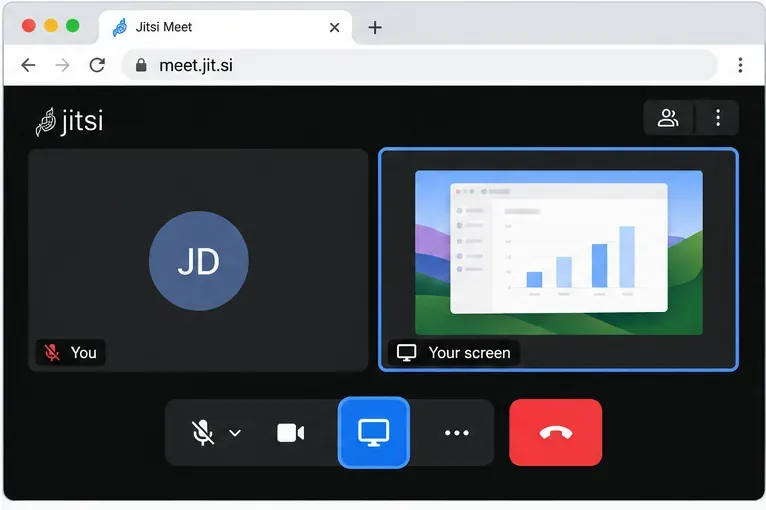
Illustrative active-share view: confirm with another participant that the selected content is visible, then stop sharing when the test is complete.
The practical success check is that Jitsi opens a source picker, you select the intended display or window, and another participant confirms that they can see the shared content. Stop sharing after the test. If the permission is enabled but that sequence still fails, the macOS toggle is no longer the only likely cause; move on to the browser, organization policy, or Jitsi service checks above. Interface labels can vary across macOS and browser releases, so use Apple’s current guide if your Sonoma settings panel differs.
Interface illustrations in this guide are examples, not screenshots from a live test; labels and source-picker options can differ by browser and macOS version.