Home
» NETWORK ADMIN
»
Fix Kopano WebApp Cannot Connect to Kopano Core Error
Fix Kopano WebApp Cannot Connect to Kopano Core Error
The fastest way to fix a Kopano WebApp “Cannot Connect to Kopano Core” error is to determine which of three layers is actually broken: Kopano Core itself, the WebApp-to-Core endpoint, or the PHP-MAPI layer that WebApp uses to communicate with Core. Restarting everything may occasionally appear to fix the problem, but it hides the cause and can make recurring failures harder to diagnose.
Kopano’s official WebApp documentation states that WebApp depends on php-mapi, and its DEFAULT_SERVER setting controls where WebApp connects to Kopano Core. The documented choices include the local Unix socket, HTTP on port 236, and HTTPS on port 237. See the Kopano WebApp configuration documentation and the Kopano Core Administrator Manual.
Important version note: Kopano’s public administrator manuals available at the time of writing are older than many current Linux distributions. Package names, PHP versions, service wrappers, and log locations can therefore differ on your installation. The connection model and configuration options described below are based on Kopano’s own published documentation, but you should confirm local paths and package versions before changing a production server.
Which fix should you try first?
Start with the symptom that best matches your system rather than applying every change at once.
What you observe
Most likely area
Best first action
Main tradeoff
kopano-server is stopped or failed
Kopano Core
Inspect service status and server logs
Restarting is quick, but logs are more useful before restart
Core is running, but WebApp cannot connect locally
Socket path or permissions
Verify /var/run/kopano/server.sock and WebApp’s DEFAULT_SERVER
Unix sockets are efficient locally but require correct filesystem access
WebApp and Core are on different hosts
Network endpoint
Use a documented HTTP/HTTPS endpoint and test reachability
HTTP is simpler; HTTPS adds encryption but also certificate configuration
Core and endpoint are healthy, but WebApp still fails
PHP-MAPI or PHP runtime
Confirm the MAPI extension is loaded for the web server’s PHP environment
CLI PHP and web-server PHP can use different configurations
1. Is Kopano Core actually running?
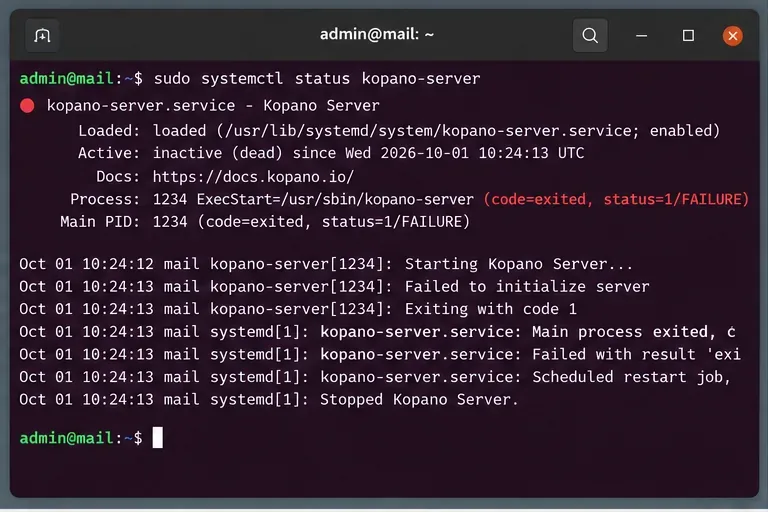
Check the server process before editing WebApp configuration. On a systemd-based distribution, use:
sudo systemctl status kopano-server
If the unit is failed or inactive, inspect its recent journal before restarting it:
Look for database connection errors, configuration parse failures, permission problems, missing files, or startup errors. Kopano’s Core documentation notes that configuration changes generally require the affected component to be restarted, for example with systemctl restart kopano-<component>. It also documents /etc/kopano/server.cfg as the usual configuration file for kopano-server. See Configure KC Components.
Choose this route when: the service is clearly down, crashes after startup, or other Kopano tools also cannot talk to Core. Fixing WebApp first would only treat a downstream symptom.
Tradeoff: a restart is the fastest recovery attempt, but if the process immediately fails again you need the journal output. On production systems, capture the failure details before restarting so you do not lose the clearest evidence.
Start at the service layer: if kopano-server is not running, WebApp cannot establish a Core session regardless of its front-end settings.
2. Does WebApp point to the correct Kopano Core endpoint?
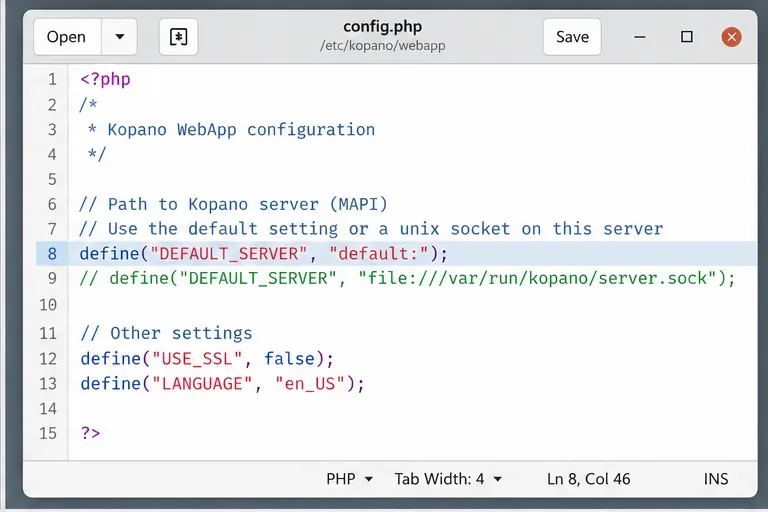
In WebApp, the key setting is DEFAULT_SERVER in config.php. Kopano’s official WebApp manual documents these examples:
The documented default maps to the local socket file:///var/run/kopano/server.sock. That is usually the simplest choice when WebApp and Core run on the same machine. If they run on separate machines, a local Unix socket cannot work; you need a reachable HTTP or HTTPS endpoint instead. Kopano’s performance-tuning documentation describes a WebApp host connecting to a separate Kopano server over port 236, or port 237 for SSL. See Kopano performance tuning and split-server configuration.
Local Unix socket: generally the lowest-overhead option on one host and avoids exposing a TCP service simply for local WebApp access. The cost is that the socket must exist and the web server process must be able to use it.
HTTP on port 236: easier to test across hosts and suitable for trusted internal networks when your security architecture allows it. The tradeoff is that traffic is not encrypted at the Kopano transport layer.
HTTPS on port 237: appropriate when you need encrypted transport between WebApp and Core. It introduces certificate setup and validation requirements. Kopano’s special configuration documentation shows WebApp using an HTTPS DEFAULT_SERVER and, in some scenarios, client certificates. See Kopano special Core configurations.
Match DEFAULT_SERVER to the way your deployment is actually laid out; a local socket is appropriate only when WebApp and Core share a host.
3. If you use a Unix socket, does it exist and can the web server reach it?
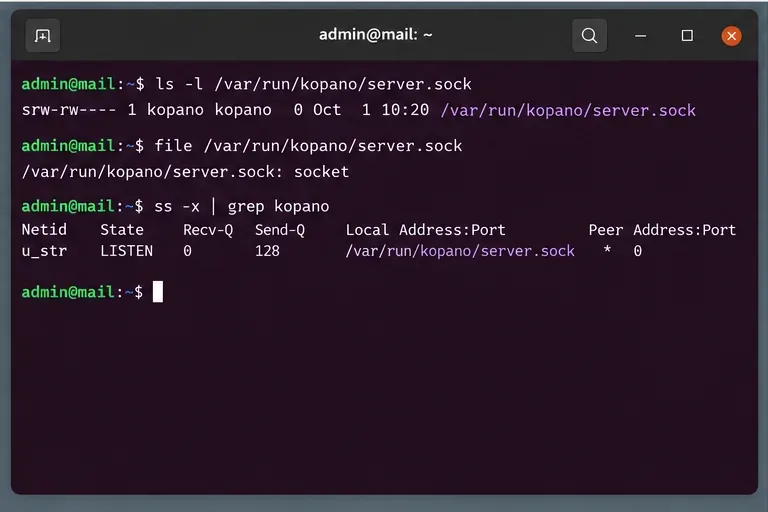
For a same-host deployment, verify the socket itself:
ls -l /var/run/kopano/server.sock
file /var/run/kopano/server.sock
ss -xl | grep kopano
If the file is missing, do not create a regular file with that name. The socket is created by the running Kopano server. A missing socket therefore usually points back to Core startup, a changed socket path, or a configuration mismatch.
If the socket exists, inspect its ownership and mode. The web server user must be able to access the socket through its directory path. Depending on your distribution, the web server account may be www-data, apache, or another service-specific user. Avoid solving permission errors with broad modes such as chmod 777; that increases exposure and may be overwritten the next time the service recreates the socket.
A better approach is to align WebApp with the socket location produced by Kopano and then use the distribution’s intended group or service permissions. If your server has been customized, compare the Core configuration with the WebApp endpoint before changing ownership.
For local WebApp access, verify that the documented Kopano server socket exists as a real Unix socket and is listening before changing WebApp code.
4. What if Core is healthy but WebApp still says it cannot connect?
Check PHP-MAPI next. Kopano explicitly states that WebApp depends on php-mapi. The WebApp configuration check can also test for PHP and PHP-MAPI availability. See WebApp Config.php documentation.
A quick CLI check is:
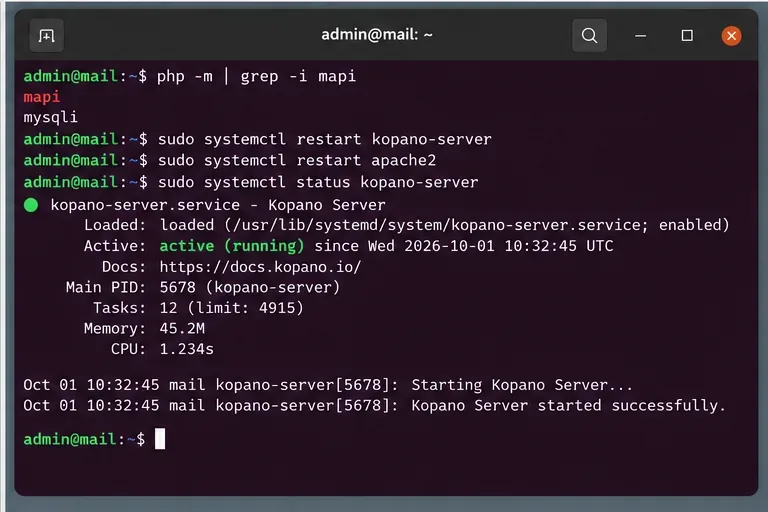
php -m | grep -i mapi
However, this test has an important limitation: the PHP command-line interface may not use the same configuration as Apache PHP, PHP-FPM, or another web-server integration. A positive CLI result proves only that the CLI environment sees the module.
Useful follow-up checks include:
php --ini
php -i | grep -i mapi
Then compare that with the PHP configuration used by your web server or FPM pool. If the package is missing or versions are incompatible, install the matching Kopano Core/PHP-MAPI package set from the repository intended for your distribution and Kopano release. Do not mix unrelated PHP-MAPI builds simply to make the extension appear in php -m.
Choose this route when:kopano-server is healthy, the endpoint is correct and reachable, but WebApp fails during its PHP-side connection or configuration checks.
Tradeoff: package reinstall or upgrade may be the right repair when binaries are mismatched, but it changes more of the system than fixing a single endpoint. Confirm package versions first and schedule production upgrades appropriately.
After fixing the actual dependency or endpoint issue, restart only the affected components and confirm kopano-server returns to an active state.
Should you restart Apache, PHP-FPM, or Kopano Server?
Restart the component whose configuration or module actually changed.
If you changed /etc/kopano/server.cfg, restart kopano-server.
If you installed or enabled a PHP extension, restart the PHP-serving layer used by WebApp, such as Apache or the relevant PHP-FPM service.
If you only changed WebApp’s PHP configuration file, a full Kopano Core restart is usually unnecessary unless the Core endpoint itself also changed.
The exact web-service command varies by distribution and PHP packaging. Examples might be systemctl restart apache2, systemctl restart httpd, or a versioned PHP-FPM unit. Use the service name present on your host rather than copying a command blindly.
What about remote Core servers and firewalls?
If WebApp and Kopano Core are separated, first verify routing and the configured listener before blaming WebApp. Kopano documentation describes HTTP access on port 236 and SSL access on port 237. A remote deployment therefore adds several failure modes that a local Unix-socket deployment does not have: firewall rules, listener binding, DNS, TLS certificates, reverse proxies, and intermediate network policy.
For an HTTP endpoint, you can at least check whether a TCP listener is reachable from the WebApp host:
nc -vz core.example.net 236
For HTTPS, verify the TLS endpoint separately with a tool appropriate to your certificate policy. A successful TCP connection does not prove that WebApp authentication or MAPI operations will succeed, but a failed connection does prove that PHP-MAPI cannot reach the configured service over that address and port.
If you use a reverse proxy, remember that Kopano’s documentation requires the proxy path and backend mapping to be consistent with the URL WebApp uses. The official Core manual also notes HTTP/1.1 considerations for proxying Kopano traffic. See Kopano Core component configuration.
A practical diagnostic order that minimizes unnecessary changes
Check kopano-server status. If it is failed, fix Core first.
Read the Core logs. Database or configuration failures must be solved before WebApp can connect.
Verify DEFAULT_SERVER. Confirm that it matches a local socket or the correct remote HTTP/HTTPS endpoint.
Test the actual socket or network listener. This separates transport failures from PHP problems.
Verify PHP-MAPI in the web runtime. Do not rely only on the CLI PHP environment.
Restart only affected services. Then retest WebApp and review logs if the error remains.
This order is safer than starting with package reinstalls because it preserves evidence and makes each test meaningful. It also avoids the opposite mistake: repeatedly restarting WebApp or Apache when Kopano Core itself cannot start.
When is changing DEFAULT_SERVER the wrong fix?
Do not change DEFAULT_SERVER merely because the login page shows a connection error. If the current value correctly points to the intended Core instance, changing it can hide the original problem or send users to the wrong backend.
For example, replacing default: with http://localhost:236/kopano is not inherently an upgrade. It changes the transport from the documented local default socket to TCP. That can be useful for debugging or for a topology that requires TCP, but it also changes the security and operational surface. For a same-host setup, fixing the missing or inaccessible socket is often cleaner than opening another listener.
What should you do if the error persists?
At that point, collect evidence from both sides of the connection:
the exact DEFAULT_SERVER value, with credentials or secrets removed;
systemctl status kopano-server and recent Kopano server journal entries;
the socket ownership or remote listener information;
the PHP version and loaded MAPI extension in the web-serving runtime;
the WebApp/PHP error log around a failed login attempt.
Kopano’s WebApp documentation says PHP error logging is enabled through PHP settings in config.php and warns against displaying errors directly because doing so can corrupt JSON responses. That makes server-side logs the better diagnostic source. Refer to the official WebApp logging settings before increasing verbosity.
Once you identify whether the failure is Core startup, transport, permissions, PHP-MAPI, or remote networking, apply the smallest fix that addresses that layer. That is more reliable than treating “Cannot Connect to Kopano Core” as a single error with one universal remedy.