Home
» NETWORK ADMIN
»
Fix M_FORBIDDEN: You do not have permission in Matrix Room Admin
Fix M_FORBIDDEN: You do not have permission in Matrix Room Admin
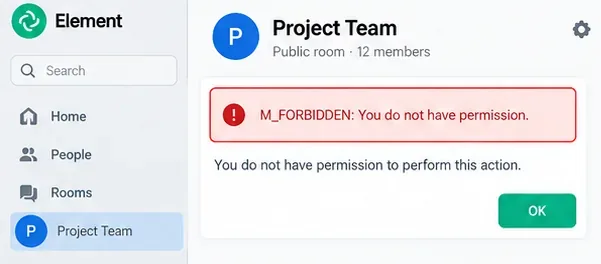
You try to change a Matrix room setting, remove a user, ban someone, edit permissions, or perform another administrative action and get M_FORBIDDEN: You do not have permission. For a newcomer, the message can be confusing because “admin” can mean two different things in Matrix: a server administrator controls the homeserver, while a room administrator has enough power inside one specific room. Those are separate permission systems.
The reliable fix is to identify which permission layer blocked the action before changing anything. Matrix room authorization is based on power levels: numbers stored in the room state that determine who may invite, kick, ban, redact messages, change room settings, or edit the power levels themselves. The current Matrix specification defines those rules in the Matrix Client-Server API specification. Synapse separately documents that a server admin is distinct from a room admin in the Synapse Admin API documentation.
An M_FORBIDDEN response means the homeserver rejected the attempted action. The exact reason depends on the action, membership state, and room power levels.
Before you change anything: know the four values that matter
You usually need four pieces of information:
Your Matrix user ID, for example @alice:example.com.
The room ID, for example !abc123:example.com. A room alias such as #team:example.com is easier to read, but many APIs operate on the internal room ID.
Your membership state. In most cases you must be joined to the room before you can perform room-management actions.
Your power level and the required level for the action.
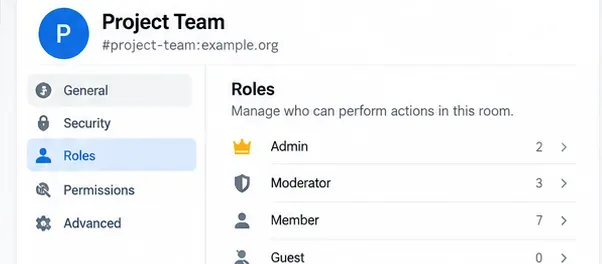
In Element Web or Desktop, the room ID and room version can be found in Room Settings under Advanced. Element’s current documentation also places room management under Room Settings → Roles & Permissions. See Element’s room settings guide.
Step 1: Confirm that you are actually joined to the room
Matrix distinguishes several membership states, including invited, joined, left, and banned. A user generally needs the join membership state to send room events or administer the room. This matters because a homeserver administrator account can still fail a normal room action if that account is not participating in the room.
If you are using a Matrix client such as Element, open the room and confirm that it appears as an active room you have joined, not just an invitation or historical room. If you operate Synapse and need a server-admin recovery path, Synapse provides an admin endpoint for joining a local user to a room, but it still documents permission requirements around that operation. See Synapse room membership administration.
Avoid this mistake: do not assume that possessing a Synapse Admin API token automatically gives the same account room-level privileges. Server administration and room administration are intentionally distinct.
Step 2: Check your role and the action’s required power level
Element presents common power levels as familiar roles such as Member, Moderator, and Admin. Under the hood, Matrix evaluates numbers rather than labels. The Matrix specification recommends the familiar interpretation of ordinary users below the state-event threshold, moderators above that threshold, and administrators at or above the level required to edit m.room.power_levels. Typical rooms commonly use 0 for members, 50 for moderators, and 100 for administrators, but a room can customize those values.
Client labels such as Admin and Moderator are a readable presentation of Matrix power levels. Always inspect the room’s actual permissions because custom rooms may use different thresholds.
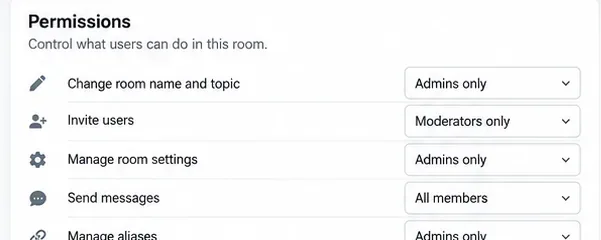
Open Room Settings → Roles & Permissions. Check both your role and the exact action you are attempting. Element’s current documentation lists common actions such as changing settings, removing users, banning users, changing history visibility, and changing permissions, each with its own required power level.
For example, suppose your account has power level 50 and the room requires 100 to change permissions. You can still be a moderator and perform some administrative tasks, but attempting to edit the permission model will correctly return M_FORBIDDEN.
Step 3: Check the target user as well as your own power
This is one of the easiest Matrix rules to miss. For kick and ban operations, reaching the action threshold is not always enough. The Matrix authorization rules also require the target user to have a lower power level than the person performing the action.
Example: your account has level 50, the room’s kick threshold is 50, and another moderator also has level 50. You satisfy the kick threshold, but you still cannot kick the equal-level moderator. The authorization rules reject the operation because the target is not below you.
Permissions are evaluated per action. A user can be allowed to invite members or send messages while still lacking the level required to change room settings or manage another privileged user.
This same principle explains many confusing moderation failures. A room admin should inspect both sides of the comparison:
Your current power level.
The required kick or ban threshold.
The target user’s current power level.
If the target is an equal-level administrator, another equal-level administrator normally cannot simply remove that user’s privilege. Element’s advanced room-management documentation explicitly warns that admins cannot remove admin permissions from other admins in the ordinary client workflow. See Element advanced room management.
Step 4: Use an existing room admin when one is available
The simplest recovery is usually organizational rather than technical. If another active room administrator exists and has enough authority, ask that administrator to promote your joined account through Room Settings → Roles & Permissions.
This is preferable to manipulating room state manually because the client shows the current role model and applies the same authorization rules as any other Matrix client. After promotion, retry the original action.
If it still fails, compare the exact action with the permission threshold rather than assuming “Admin” means every action is automatically allowed. Custom power-level events can assign unusual thresholds to specific event types.
Step 5: If no usable room admin remains, recover through Synapse
If you operate the Synapse homeserver and a room has been left without an active administrator, use Synapse’s supported recovery APIs instead of editing the database or fabricating room events. Synapse provides a Make Room Admin API:
POST /_synapse/admin/v1/rooms/<room_id_or_alias>/make_room_admin

{
  "user_id": "@alice:example.com"
}
Authenticate that request with the access token of a Synapse server administrator. The official room-admin API documentation is available at Synapse Rooms Admin API. The endpoint grants the chosen local user the highest room power available to a local user in that room; if necessary and possible, it can invite that user first.
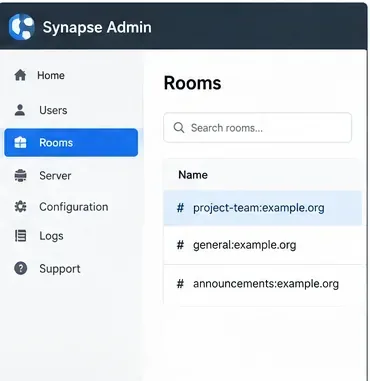
A homeserver administrator can use Synapse’s supported room APIs to identify the affected room and recover room-level administration when no suitable room admin remains.
After the recovery call, join or re-open the room with the promoted account and retry the action in the Matrix client.
Special case: room version 12 and later
Matrix room version 12 changes how creators are represented. The creator has an effectively unlimited, immutable power level and is not listed like an ordinary user in the users map of m.room.power_levels. The creator cannot be demoted through a normal power-level event. This behavior is documented in the Matrix room version 12 specification.
That means a troubleshooting technique copied from an older room version may not apply unchanged to a version-12 room. Check the room version before attempting advanced recovery or power-level edits.
How to inspect power levels directly
For advanced troubleshooting, the relevant room state event is m.room.power_levels. It contains fields such as:
If your account is not listed under users, its level normally falls back to users_default. For most rooms that means 0. Specific event types can also override the general state or message thresholds through the events map.
Do not replace the entire power-level event with a small partial object unless you know exactly what the client or API will preserve. Power-level state can contain multiple important fields, and accidentally dropping them can change more permissions than intended.
What not to do
Do not promote a Synapse account to server admin just to solve an ordinary room-role problem. Use the smallest privilege needed.
Do not edit Synapse database rows to change room power levels. Room authorization is represented by signed room events, not simply a user flag in the database.
Do not restart Synapse as a routine fix for M_FORBIDDEN. Authorization failures are usually deterministic room-state decisions, not stale-process problems.
Do not assume clearing the client cache changes permissions. The homeserver enforces the authorization rule.
Do not expose access tokens in shell history, screenshots, support tickets, or URLs. Prefer an Authorization: Bearer ... header when using APIs.
Quick diagnosis table
What you see
Most likely check
Next move
M_FORBIDDEN when changing room settings
Your level versus the required state-event or settings level
Have a sufficiently privileged room admin promote you or adjust the threshold.
M_FORBIDDEN when kicking or banning
Action threshold and target user’s level
Your level must meet the threshold and exceed the target user’s level.
Server admin cannot manage the room in the client
Server-admin versus room-admin distinction
Join the room and use the supported make_room_admin recovery API if appropriate.
No active room admin remains
Synapse recovery path
Use the Make Room Admin API with a server-admin token.
Old instructions behave differently
Room version
Check whether the room is version 12 or later before editing power levels.
Final verification
The fix is complete when the account that needs to administer the room is joined, has a power level high enough for the intended action, and can perform that action without a 403 M_FORBIDDEN response. For moderation actions, also verify that the target user’s power level is lower when the Matrix authorization rules require it.
For a new Matrix administrator, the most useful mental model is simple: first identify whether you are dealing with homeserver authority or room authority. Then inspect membership, your power level, the action threshold, and the target user’s level. That sequence resolves most permission errors without unnecessary server changes.