Home
» NETWORK ADMIN
»
Fix Nextcloud Desktop Sync Client Stuck on “Processing Files”
Fix Nextcloud Desktop Sync Client Stuck on “Processing Files”
If Nextcloud Desktop stays on “Processing files”, do not start by deleting the sync database or removing your local folder. The safest first move is to determine whether the client is still scanning, whether one file is repeatedly failing, or whether the client has actually stopped making progress. In many cases the fix is much smaller: pause and resume the sync, close an application that is locking a file, rename an incompatible filename, remove a competing sync tool from the same folder, or update the desktop client.
As of October 6, 2026, the latest stable release listed by the official Nextcloud Desktop project is 34.0.4; 35.0.0 RC builds are prereleases. Nextcloud’s own documentation also warns that using the same directory with another synchronization system is unsupported and can lead to unreliable results or even data loss. Start with the least destructive checks below, and only rebuild the sync connection after you know the files on the server and computer are safe.
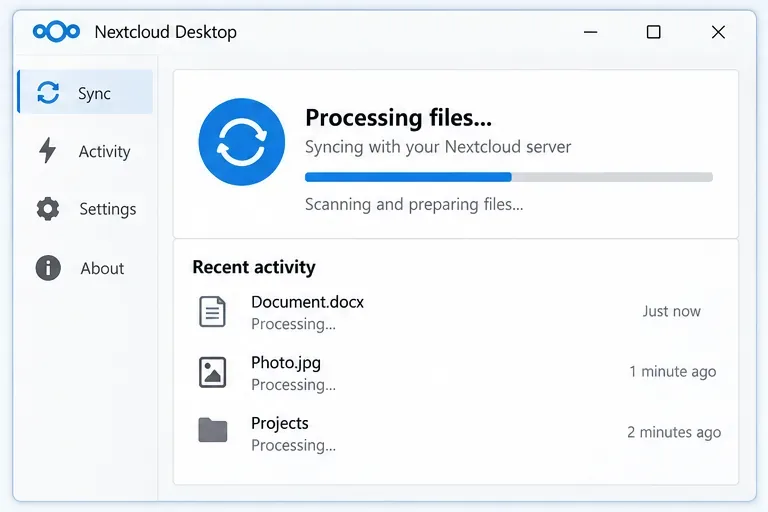
Nextcloud Desktop showing “Processing files” with recent items still being scanned; use this view to decide whether the client is progressing or truly stuck.
1. First, confirm that “Processing files” is really stuck
“Processing” can mean the client is discovering folder changes, comparing metadata, preparing uploads, or working through a large tree. If the current file, activity list, disk usage, or log output is changing, the client may still be working. A very large folder, a first-time sync, or a folder containing many small files can spend much longer in discovery than a simple document folder.
Open the Nextcloud main window and look at recent activity. Then open the local sync folder and sort by modified time or check file-status overlays. If different files are being touched over time, let the current cycle finish before changing the configuration. If the same path or message repeats and nothing else changes, move to the next step.
2. Pause and resume the affected sync, then restart the client
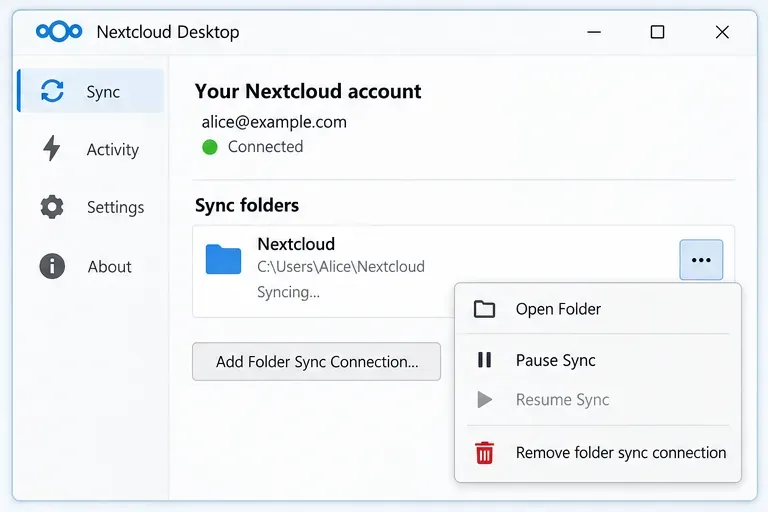
A Nextcloud sync-folder menu with Pause Sync, Open Folder, and Remove folder sync connection; pause and resume before using the more disruptive remove option.
For a client that has stopped advancing, use the folder’s menu to pause synchronization, wait for the status to change, and resume it. If that does not help, exit Nextcloud completely and start it again. This clears a stalled process without changing the sync relationship or deleting any files.
This is especially appropriate after a laptop resumes from sleep, a VPN changes networks, a mounted drive reconnects, or an application that had a synced file open has just been closed. Rebooting the entire computer is reasonable if you suspect a locked file, but it should not be your only diagnostic step: if the same file causes the stall again, the logs will tell you more.
3. Find the one file or folder that is blocking the cycle
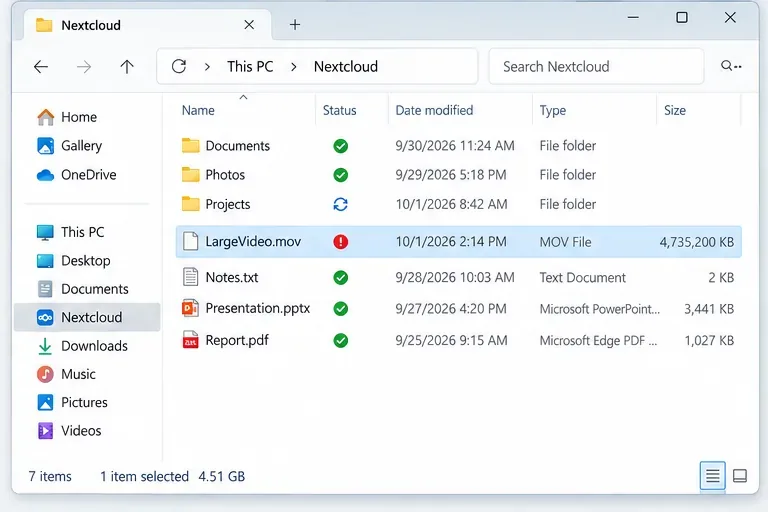
Windows File Explorer showing a Nextcloud folder where one large file has an error badge while other items are synchronized; a single blocker can keep a sync cycle busy.
A sync can look globally stuck when the real problem is local to one path. Look for a red error badge, warning entry, repeated filename in the activity list, or a log message that names the same file over and over.
Common file-level causes include a file that is still open for exclusive writing, a path the current user cannot read or write, a file that keeps changing while Nextcloud tries to process it, or a filename that the destination filesystem cannot represent. Windows is a particularly important case because a filename valid on a Linux-hosted Nextcloud server may not be valid on Windows. Nextcloud Server can be configured to enforce Windows-compatible filenames; the official documentation explains the restriction and examples such as reserved names and forbidden characters in the Windows-compatible filenames guide.
If one file is implicated, close the program using it, rename it to a simple cross-platform name if necessary, and make sure your account has read/write access to the local folder. Then resume sync and see whether the queue advances.
4. Check ignored files, unsupported paths, and competing sync software
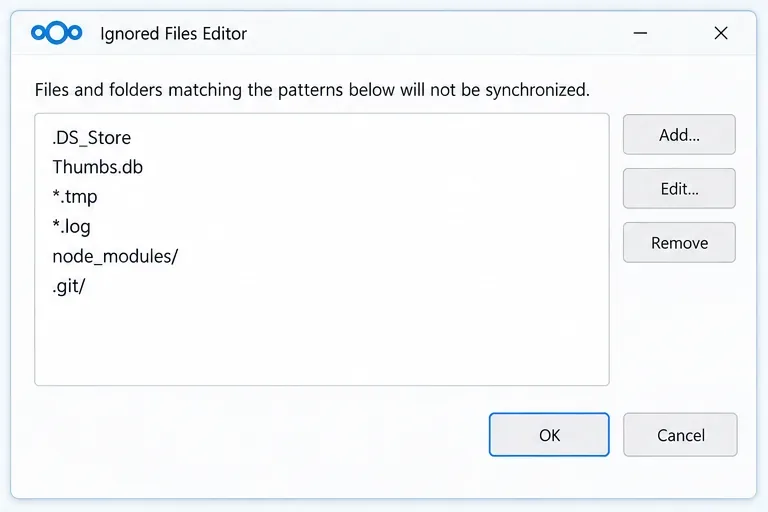
The Ignored Files Editor with file and folder patterns; review exclusions when specific files never leave the processing queue.
Nextcloud includes an ignored-files editor and a built-in exclusion list. The client also excludes files with characters that cannot be synchronized to another filesystem. If a particular directory never synchronizes, review your custom ignore patterns and make sure a broad wildcard is not matching more than intended.
Do not casually edit the global sync-exclude.lst file. Nextcloud’s manual specifically warns that modifying the global exclude definition can make the client unusable or cause unwanted behavior. Use the editor for custom rules unless you have a controlled reason to change the packaged list.
Also make sure the Nextcloud folder is not simultaneously managed by OneDrive, Dropbox, Syncthing, rsync, Windows Offline Files, or another synchronization product. Nextcloud’s official troubleshooting page says synchronizing the same directory with Nextcloud and another sync system is unsupported. If two tools are watching the same tree, move one of them to a separate folder rather than trying to make both coexist.
5. Rule out network, proxy, antivirus, and storage bottlenecks
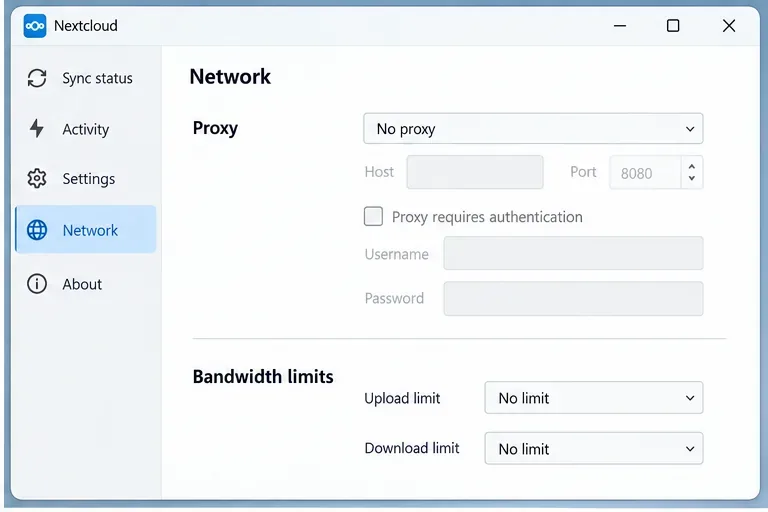
Nextcloud Network settings with proxy and bandwidth controls; verify that proxy or throttling settings are not preventing normal transfers.
If the client discovers files correctly but transfers do not progress, check the Network tab. An old manual proxy, a VPN-only proxy, or very low bandwidth limits can make a healthy sync appear frozen. Temporarily test on a direct, reliable connection if your policy allows it.
Nextcloud also notes that on-access antivirus scanning can slow upload and download performance on either the server or the client. That does not mean you should disable endpoint protection as a default fix. Instead, check whether security software is scanning the same large or rapidly changing file repeatedly, and work with your administrator if an exclusion is appropriate for your environment.
Check free disk space on the computer and available quota on the Nextcloud server as well. A client cannot complete downloads if the local disk is full, and uploads can fail when the server account or storage backend has no space left.
6. Update to a stable desktop-client release
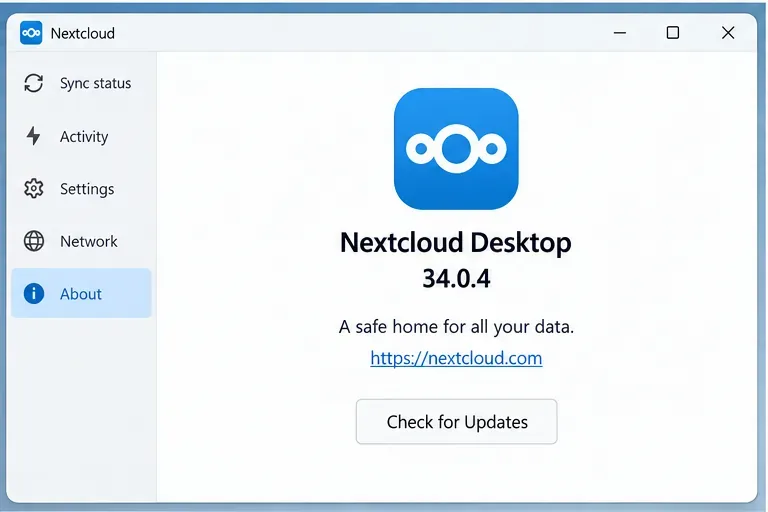
Nextcloud Desktop About screen showing version 34.0.4; compare your installed build with the current stable release before deep troubleshooting.
Before spending time on database surgery, compare your installed client with the current stable release. On October 6, 2026, the official project marks 34.0.4 as the latest stable release, while 35.0.0 RC builds are prereleases. Release 34.0.x includes multiple discovery, Windows, macOS, and file-provider fixes, so an update is a sensible step if you are on an older supported build.
Use the client’s updater or obtain the installer from Nextcloud’s official distribution channels. The authoritative release history is the Nextcloud Desktop releases page. Avoid installing a release candidate on a production workstation solely to troubleshoot a sync problem unless you are intentionally testing it and can roll back.
7. Read the logs instead of guessing
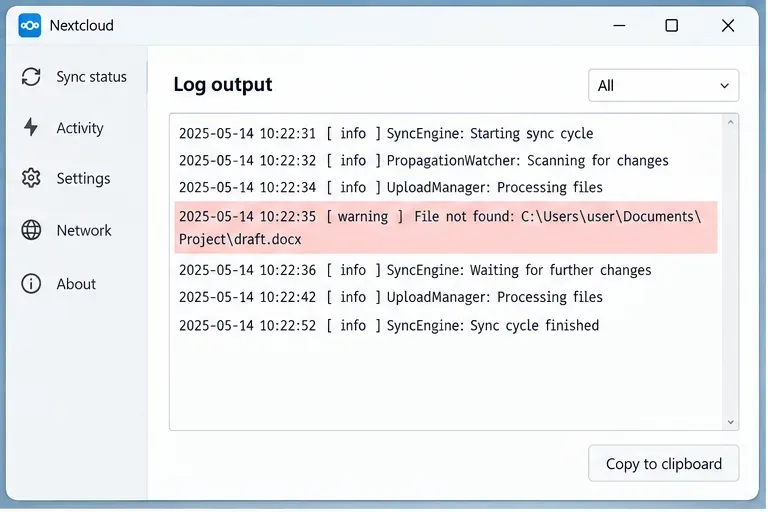
Nextcloud log output with a highlighted file warning; logs are the fastest way to identify the exact path or operation that is repeating.
If the problem survives a restart and update, the client log is the most useful next step. Nextcloud provides two official methods: create a debug archive from settings, or open the log window with the documented keyboard shortcut. The debug archive contains logs and the client database, so treat it as sensitive data and redact or limit what you share.
Look for repeated messages involving the same path, authentication failures, permission errors, “cannot open” messages, connection failures, server HTTP errors, or sync-journal errors. One repeatable error is more actionable than the generic “Processing files” label.
The official Nextcloud troubleshooting documentation explains how to create the debug archive and notes that desktop logs may contain sensitive information.
8. Rebuild the sync connection only after protecting both copies
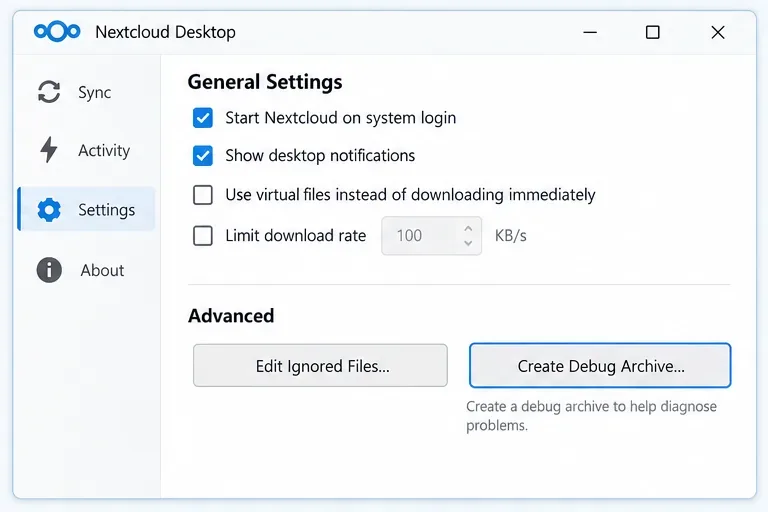
Nextcloud General settings with Edit Ignored Files and Create Debug Archive controls; create an archive before resetting a sync connection or reporting a bug.
If logs point to a damaged sync state, or if the folder relationship remains unusable after the earlier checks, rebuild the folder sync connection as a last resort. First create a debug archive, then verify in the web interface that the server copy contains what you expect. Make a separate backup of any local-only files that have not uploaded.
After that, remove the folder sync connection from the desktop client and add it again, choosing the correct local and server folders. Do not interpret “remove folder sync connection” as permission to delete the local data or the server data directory. A self-hosted Nextcloud server’s data directory is managed by Nextcloud and should not be modified manually.
Advanced users sometimes encounter messages about old or multiple .sync_*.db files. The Nextcloud client source includes guidance for outdated and unused sync databases in specific multi-account situations, but deleting a sync journal is not a universal first-line fix. If you do not have a clear journal-related error, recreating the sync connection with backups is easier to reason about and less likely to hide the original cause.
Which fix should you try first?
What you see
Best next action
Activity or filenames keep changing
Let the current discovery/sync cycle continue.
The same file repeats
Close its application, check permissions, rename it if the filename is incompatible, then retry.
Transfers do not start
Check proxy, VPN, bandwidth limits, server reachability, quota, and disk space.
Only some paths are skipped
Review ignored-file patterns and filename compatibility.
The sync folder is also used by another cloud/sync tool
Separate the folders; do not run both sync engines on the same directory.
You are on an older desktop client
Update to the current stable build before deeper repair.
The client remains stuck after restart and update
Create a debug archive and inspect the repeated error.
The sync state is clearly damaged
Back up local-only files, verify the server copy, then recreate the folder sync connection.
Bottom line
The most reliable way to fix Nextcloud Desktop stuck on “Processing files” is to work from evidence rather than reset everything at once. First verify whether it is still making progress. Then pause/resume, isolate a problematic file, check exclusions and competing sync software, rule out network or storage constraints, update the client, and inspect the logs. Rebuilding the sync connection belongs at the end of the process, after both the local and server copies are protected.
If the log points to a reproducible client bug, capture the client version, operating system, server version, exact error, and a redacted debug archive before reporting it. That gives maintainers enough information to distinguish a local file problem from a desktop-client defect or server-side failure.