Home
» NETWORK ADMIN
»
Fix Nextcloud Preview Generation High CPU Usage: Set Up Preview Generator
Fix Nextcloud Preview Generation High CPU Usage: Set Up Preview Generator
Short answer: Install the Preview Generator app, enable it, run one carefully scoped initial generation, then schedule occ preview:pre-generate during quieter hours. Also cap preview sizes and the number of new previews Nextcloud generates at once. The app moves work away from the moment a user opens a file; it does not impose a hard CPU ceiling, and it can increase disk use.
This setup fits a self-hosted Nextcloud server where thumbnails cause noticeable CPU spikes during browsing, especially on a small server with an established photo or document library. It is less useful if your instance uses server-side encryption: the Preview Generator project lists encryption as a known incompatibility. Managed hosting, Nextcloud AIO, Docker, and package installs also use different command paths, so adapt commands to your deployment. Do not run them from a guessed directory.
The current app instructions recommend installing and enabling the app, running preview:generate-all once, and scheduling preview:pre-generate for later file changes. The first command can be expensive on a large library. Start with one user or folder and one worker. Check the Preview Generator project README and command options and select a release compatible with your Nextcloud version in the Nextcloud App Store.
1. Confirm this is the right fix
First establish when the CPU rises. If it happens when users open photo-heavy folders or documents that need previews, pre-generation may shift much of that work to a scheduled task. If CPU stays high when nobody is browsing, or spikes coincide with a different service, Preview Generator may not address the cause. Check your process monitor and Nextcloud logs before changing settings.
Preview Generator records files that have been added or changed and processes them in a background job. Existing previews make later requests cheaper, but missing previews can still be generated on demand before the scheduled job reaches them. That means the app reduces user-facing bursts when the queue is caught up; it cannot promise zero CPU spikes. It also trades storage space for faster preview delivery. A small library with infrequent browsing may be fine with Nextcloud’s on-demand behavior.
2. Install the compatible app release
A generic cloud admin page shows an image-preview app card switched on, illustrating the install and enable step; the layout is not a version-specific screenshot.
Sign in as a Nextcloud administrator, open the Apps area, find Preview Generator, and install and enable it. Before proceeding, confirm that the App Store offers a stable release for your installed Nextcloud major version. Avoid copying the latest app folder manually over a version that the App Store marks incompatible.
Administrators with shell access can check or enable the app through occ. A typical package installation command is shown below; change the PHP binary and Nextcloud path to match your host. For Docker or AIO, use the supported container command or scheduler instructions for that deployment instead.
In the Nextcloud administration settings, select Cron as the background-job mode and verify that the regular Nextcloud system cron is actually running. The app’s README says its built-in preview background job requires Cron mode; Webcron and AJAX modes are not supported for that long-running job. If your regular cron is broken, installing this app alone will not keep the queue moving.
Do not confuse Nextcloud’s normal cron.php schedule with the app’s optional dedicated preview:pre-generate schedule. Both are separate mechanisms. You can use the app’s built-in background job or a dedicated system cron command. If you choose the dedicated command, the project recommends disabling its built-in preview background job to avoid running both paths for the same queue.
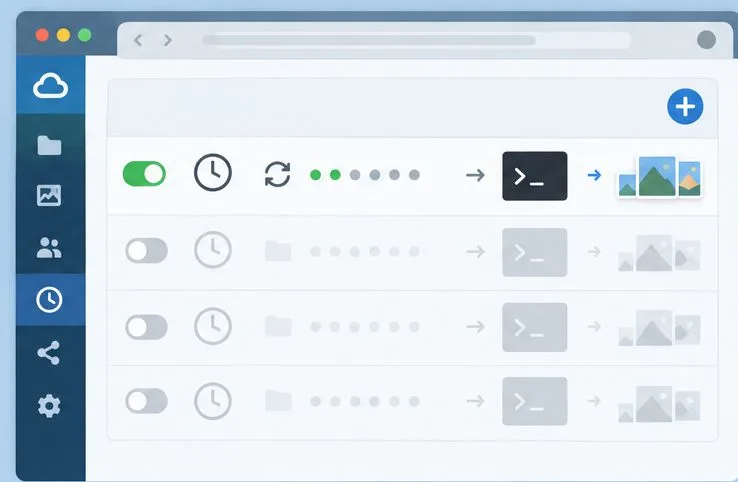
A scheduler page shows one active recurring task that hands preview work to a command window and returns thumbnail results.
4. Lower the preview workload before the first bulk run
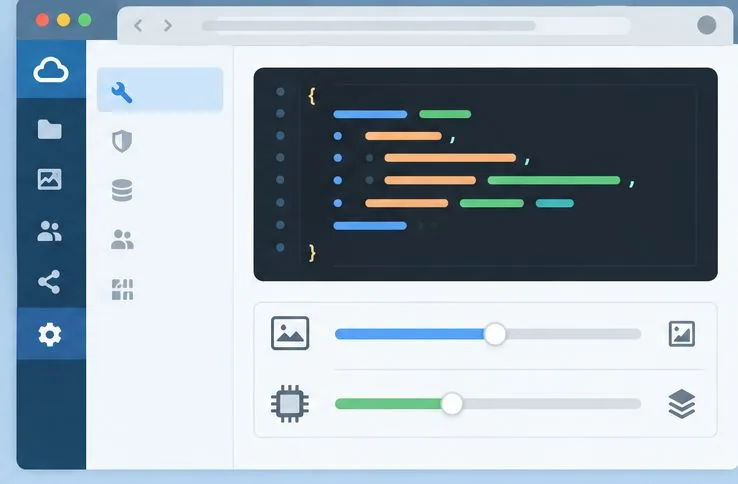
A generic configuration panel pairs code-like settings with image-size and processor controls, illustrating the two limits administrators should tune.
For CPU-bound preview creation, reduce how many new previews run concurrently. In Nextcloud 35’s configuration reference, preview_concurrency_new controls concurrent new preview generation; the documented default is four, and the manual recommends keeping it no higher than the number of CPU cores. On a small host, test a value such as two, or one if the server becomes unresponsive. This limits concurrent work, but a single large image or video can still consume significant CPU.
Preview dimensions matter too. Nextcloud 35 documents default maximum width and height of 4096 pixels. Lowering preview_max_x and preview_max_y in config/config.php can reduce processing and memory needs, at the cost of smaller previews. Back up the configuration file and merge settings into its existing PHP array; do not replace the file with a snippet. For example, an administrator might set both values to 2048 and test the quality in the Files and Photos views.
The app can also generate several size variants. Its README provides a reduced-size profile for common Files, Photos, and Activity use: square sizes 64 256, fill-width-height sizes 256 4096, and empty widthSizes and heightSizes to skip those variant groups. Use those settings only if they fit the apps your users rely on; Memories timelines or other apps may need additional sizes. The project notes that preview sizes must meet its accepted size rules and cannot exceed the configured maximums. Review Nextcloud’s preview size and quality settings and the release-specific configuration reference.
5. Generate existing previews in a small first batch
After the app is enabled and limits are set, run the initial generator against a test folder or one user rather than the whole instance. The app supports filtering by user ID or path, and the command accepts a worker count. Use one worker for a conservative first pass:
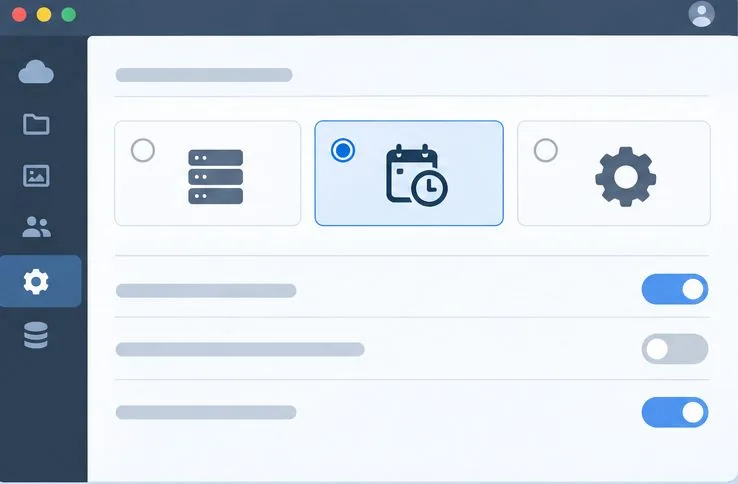
A background-job settings page shows the scheduled-task option selected; the exact labels and available choices vary by Nextcloud release.
Replace alice, the path, and the Nextcloud installation path with real values from your server. The path option uses the form /[username]/files/[folder path]. If you omit the path and user filter, the command may traverse the full library. Run the batch when users are less active, watch CPU, memory, and disk space, and stop to reassess if the server becomes unstable. Do not increase the worker count just to finish faster until you have measured the effect.
6. Schedule newly added or changed files
Once the test batch behaves well, add preview:pre-generate to a system cron schedule. The app’s README gives every ten minutes as one example, not a requirement. Choose an interval that matches upload volume and available idle time. For example, a crontab owned by the web-server account could contain the following line, with paths adjusted for the installation:
Keep Nextcloud’s ordinary cron.php job enabled. For containers and hosted platforms, use the platform’s supported scheduler rather than putting a host path into a container cron entry. If the app is installed with encryption enabled, stop here and consult your administrator or hosting provider; the project currently lists that configuration as unsupported.
7. Monitor the queue and confirm the improvement
A generic monitoring panel combines a CPU graph with queue progress bars for comparing server load and preview backlog.
Run occ preview:queue-stats to inspect the pre-generation queue and stale previews. A queue that shrinks between scheduled runs suggests the worker is catching up. If it grows steadily, users are adding files faster than the configured job processes them; increase the run frequency or allowed job limits cautiously, after checking that the extra CPU load is acceptable. The app exposes limits for job execution time and previews per run. Its README says zero means unlimited, so do not choose zero casually on a resource-constrained host.
Compare CPU peaks before and after rollout at similar times, then open a representative photo folder and a document preview as a normal user. Confirm that thumbnails appear, pages still respond, and CPU use settles after the scheduled batch. A flatter daytime CPU profile with adequate queue progress is a useful result; a permanently growing backlog or slower user sessions means the schedule, size profile, or underlying preview provider needs another look.
A Files-style gallery displays image thumbnails, representing the visual check that requested previews now load.
Important limits and safe cleanup
Some preview types depend on server-side programs: the Nextcloud manual lists FFmpeg for video previews and LibreOffice for office-document previews. Those formats can behave differently from ordinary image thumbnails, and their support depends on the provider configuration. Start by reducing concurrency and testing a narrow file set before changing providers or adding services.
If you change preview dimensions or supported file types and need to discard cached previews, Nextcloud 31 and newer provide occ preview:cleanup for this purpose, according to the project README. It removes all generated preview files, after which Nextcloud creates previews on demand as users access files. This can temporarily bring back the very CPU spikes you are trying to reduce. Take a backup where appropriate, schedule cleanup deliberately, and avoid manually deleting the appdata preview directory as routine tuning. The Preview Generator README also documents a .nomedia file for skipping a folder and its descendants when that is appropriate.
A folder and a hidden-file symbol appear beside a shield and lock, illustrating the encryption limitation and the option to skip a folder.
In practice, Preview Generator is a good fit when slow on-demand previews create visible peak load, you can schedule background work, and you have disk space for cached sizes. Pair it with a modest concurrency limit, preview dimensions that match actual display needs, and a test-first bulk run. If the instance is encrypted, managed without shell scheduling, or CPU-bound for reasons unrelated to preview requests, investigate those constraints before deployment.