Home
» NETWORK ADMIN
»
Fix Nextcloud Talk Video Call Quality and TURN Server Connection
Fix Nextcloud Talk Video Call Quality and TURN Server Connection
Nextcloud Talk call problems are often described as “bad video quality,” but the underlying causes are not all the same. A user may have enough bandwidth and still fail to connect because a firewall blocks peer-to-peer WebRTC traffic. Another call may connect successfully through TURN but feel slower because all media is being relayed. A larger meeting may struggle even with a perfectly working TURN server because the deployment is still using the built-in peer-to-peer topology instead of the High Performance Backend.
The most useful troubleshooting approach is therefore to separate connectivity, media path, and scalability. As of October 6, 2026, Nextcloud's upstream Talk documentation still describes TURN as the fallback when direct WebRTC connectivity is not possible and recommends port 443 for maximum compatibility. It also notes that a TURN server can still be required when the High Performance Backend is in use. See the official Nextcloud Talk TURN documentation and official coturn setup guidance for Talk.
What should you fix first: bandwidth, TURN, or the High Performance Backend?
Use the symptom pattern to choose the next action instead of changing several settings at once.
Symptom
Most likely area
First action
Trade-off
Call works on one network but fails from a corporate or hotel network
Firewall, NAT, or missing TURN fallback
Verify TURN over UDP/TCP and, where needed, TLS on port 443
Relaying improves reachability but consumes TURN bandwidth and may add latency
Two-person calls are fine, larger calls become unstable
Call topology and client upload/CPU load
Evaluate the Nextcloud Talk High Performance Backend
More infrastructure, but better scaling for multi-participant calls
Video connects but is pixelated or freezes
Packet loss, latency, Wi-Fi, uplink capacity, or overloaded endpoints
Test from a wired or known-good network before changing TURN
TURN cannot create bandwidth that is not available
TURN test fails even though coturn is running
Secret mismatch, firewall, NAT mapping, DNS, or relay ports
Check credentials, public IP mapping, and relay range
Opening a large relay range is simpler; narrowing it reduces exposed ports but requires deliberate capacity planning
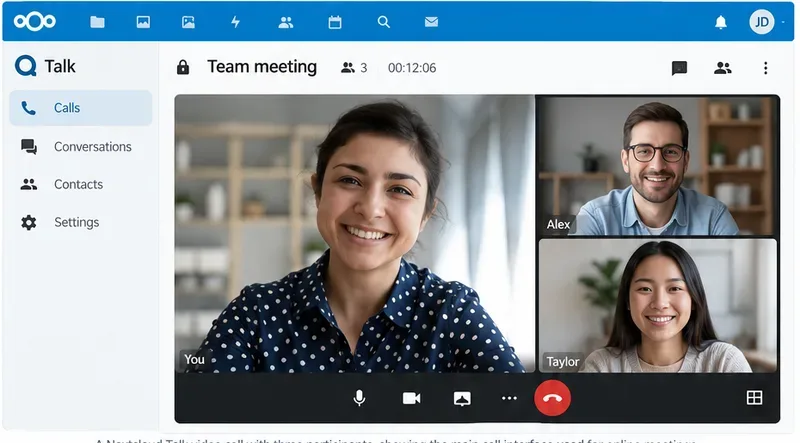
A representative Talk group-call layout. If small calls work but larger calls degrade, investigate topology and endpoint load instead of assuming TURN alone will fix the problem.
Step 1: identify whether the failure is connectivity or media quality
Start with two short tests. First, place a call between two clients on uncomplicated networks, such as two normal broadband connections. Then repeat from a restrictive network such as corporate Wi-Fi, a VPN, or a mobile hotspot. If only the restrictive network fails, TURN is a strong suspect. If both calls connect but video quality is poor, collect network and device evidence before changing the relay architecture.
Nextcloud's documented connection sequence tries direct peer-to-peer connectivity first, uses STUN to discover reachable addresses, and relies on TURN when a direct path cannot be established. That means TURN is primarily a connectivity fallback, not a universal video-quality booster. A relayed path can be more reliable, but it is also longer and shifts media bandwidth onto the TURN server.
Step 2: configure coturn for Nextcloud Talk
For self-hosted deployments, coturn is the most common TURN implementation documented by Nextcloud. Nextcloud recommends shared-secret authentication for this integration. Generate a strong random secret and use the same value in both coturn and the Talk administration settings.
openssl rand -hex 32
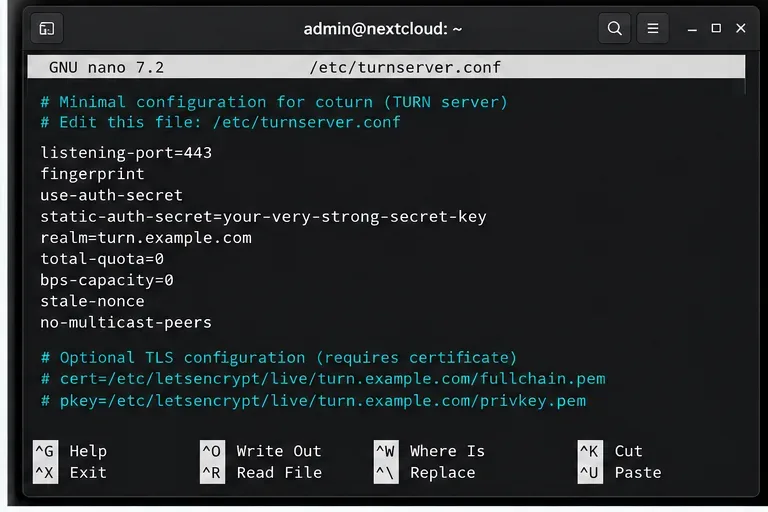
A minimal configuration normally includes a listening port, fingerprinting, shared-secret authentication, a realm, and peer restrictions. The exact file location depends on your operating system and packaging. A representative configuration is:
Older coturn releases may require options that newer releases no longer need, so do not copy an old configuration blindly. The maintained Nextcloud coturn document explicitly labels version-dependent directives. Check your installed coturn version against the current Nextcloud coturn instructions.
If coturn is behind NAT, configure its public-to-private address mapping correctly. Coturn's own configuration reference explains the external-ip mapping and requires relay ports to map consistently through NAT. See the upstream coturn example configuration.
Example coturn configuration elements for Nextcloud Talk: port 443, shared-secret authentication, realm settings, and optional TLS certificate paths.
UDP, TCP, or TLS: which should you enable?
For real-time media, UDP is usually the preferred transport because it avoids TCP retransmission behavior and head-of-line blocking. However, some enterprise and guest networks block UDP entirely. TCP or TURN over TLS can provide a workable fallback through networks that only permit web-like traffic.
For maximum reachability, Nextcloud recommends listening on port 443 and supports TURN/TLS. Using both turn: and turns: improves compatibility, but it also means managing certificates and additional transport paths. If all users are on controlled networks where UDP is known to work, a simpler UDP-first design may be easier to operate. If users regularly connect from hotels, customer sites, locked-down offices, or VPNs, TCP/TLS fallback is usually worth the added configuration.
Step 3: open listener and relay ports correctly
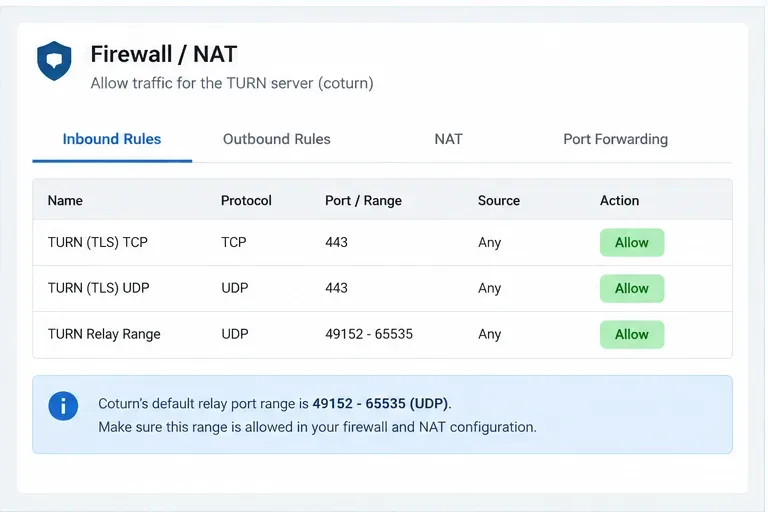
A common mistake is opening only the TURN listener port. The client first contacts coturn on its listener, but coturn also allocates relay endpoints for media. Coturn's upstream defaults use UDP ports 49152-65535 for relay allocations. If that range is blocked by the host firewall, cloud security group, upstream router, or NAT device, authentication may succeed while media still fails.
You can keep the default relay range or deliberately reduce it with min-port and max-port. The trade-off is straightforward: a wide range is operationally simple and offers plenty of allocation capacity; a narrow range is easier to describe in firewall policy but can become a capacity bottleneck if too many concurrent relays need ports. Size a reduced range from expected concurrency rather than choosing an arbitrary small number.
If the TURN host has a private address behind a router, preserve one-to-one port mapping for the selected relay range and set the public address mapping in coturn. If the host has a public IP directly on its interface, the NAT mapping step is unnecessary.
Firewall planning for coturn: permit the TURN listener and the configured relay range. The range shown is coturn's documented default, not a mandatory value.
Step 4: add the TURN server in Nextcloud Talk
Open the Nextcloud administration area and go to the Talk settings. Add the TURN server using the bare host and port, not an http:// or https:// URL. Nextcloud's current Talk documentation says the TURN scheme is selected separately, so the server field should be in the form turn.example.com:443.
Enter the same shared secret configured in coturn and enable the protocols your server actually accepts. If you use TLS, select the corresponding TURN scheme and make sure the certificate matches the TURN hostname. You can also use your own TURN service as the STUN server, which simplifies host management, although keeping STUN and TURN separate can be useful when you want independent failure domains or geographically distributed relays.
Do not expose the shared secret in screenshots, tickets, or public configuration examples. Nextcloud uses it to derive temporary TURN credentials for clients.
Step 5: test ICE candidates, then test from a restrictive network
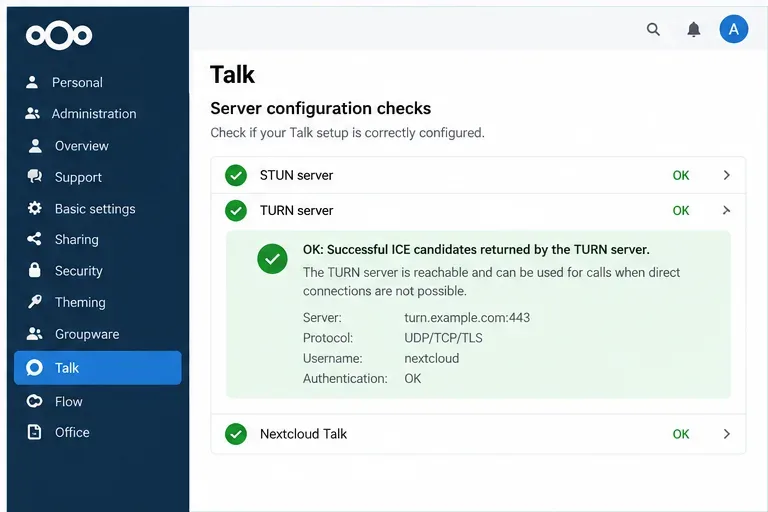
After saving the Talk configuration, use the administration check that verifies whether the TURN server returns usable ICE candidates. A successful result proves that the browser could obtain working candidates from the configured TURN service. It does not prove that every user network, every relay path, and every large call will perform well.
Repeat a real call from at least one restrictive network. This matters because a server-side check can pass while a user network still blocks UDP, DNS resolution, or a particular transport. If UDP fails but TCP/TLS on 443 succeeds, keep the fallback path. If all paths fail, inspect firewall logs, coturn logs, DNS, certificate validity, the shared secret, and NAT mapping.
A successful ICE-candidate check is a strong configuration signal, but real calls from restrictive networks are still necessary to verify end-to-end reachability.
When should you add the High Performance Backend?
TURN and the High Performance Backend solve different problems. TURN relays traffic when clients cannot establish the required WebRTC path. The High Performance Backend changes how multi-participant media is handled so every participant does not have to upload a separate stream to every other participant.
Nextcloud's own Talk interface warns that running without the High Performance Backend is intended only for very small calls, commonly described in the project as about two to three participants. If your problem appears only as participant count grows, adding TURN may make more clients reachable but will not remove the peer-to-peer upload and CPU burden. Review the Nextcloud Talk system requirements and the project's High Performance Backend guidance before scaling group calls.
Even with the High Performance Backend, keep TURN available when users connect from restrictive networks. Nextcloud documents a default WebRTC media range of 20000-40000 for the backend and specifically notes that a client limited to port 443 may still require TURN to relay packets to that backend range.
Self-hosted TURN vs managed TURN
Option
Advantages
Costs and limits
Best fit
Self-hosted coturn
Full control, data path under your administration, predictable configuration
You operate certificates, updates, monitoring, bandwidth, firewall policy, and geographic capacity
Organizations with infrastructure skills or strict control requirements
Managed TURN
Lower operational effort and potentially easier geographic coverage
Ongoing service cost and media may transit a third-party relay provider
Teams that prioritize operational simplicity and multi-region reach
No TURN
Lowest server cost and shortest path when direct WebRTC always works
Calls can fail on symmetric NATs and restrictive firewalls
Controlled environments where client networks are known and tested
Practical tuning checklist
Prefer direct WebRTC when possible. It usually minimizes relay cost and latency.
Provide TURN for reliability. Treat it as a fallback path for difficult NAT and firewall conditions.
Use UDP first and TCP/TLS for compatibility. Port 443 is the most firewall-friendly listener choice recommended by Nextcloud.
Open the relay range, not only the listener. Match firewall and NAT rules to the actual min-port/max-port configuration.
Monitor TURN bandwidth. Relayed calls can move substantial media traffic through the TURN host, so network capacity often matters more than CPU.
Separate scale problems from connectivity problems. For larger meetings, evaluate the High Performance Backend instead of forcing more traffic through TURN.
Validate from real user networks. An ICE test is necessary, but hotel, corporate, VPN, and mobile networks can behave differently.
Bottom line
If Nextcloud Talk works on some networks but not others, configure a properly reachable TURN service and verify the listener, shared secret, NAT mapping, and relay ports. If calls connect but quality is poor, first measure the client network and endpoint load because TURN can add rather than remove latency. If the problem grows with participant count, the more appropriate architectural fix is usually the High Performance Backend, with TURN retained as the compatibility path for restricted networks.