Home
» NETWORK ADMIN
»
Fix Nextcloud WebGUI “Database Error” After an Update: Practical Recovery Guide
Fix Nextcloud WebGUI “Database Error” After an Update: Practical Recovery Guide
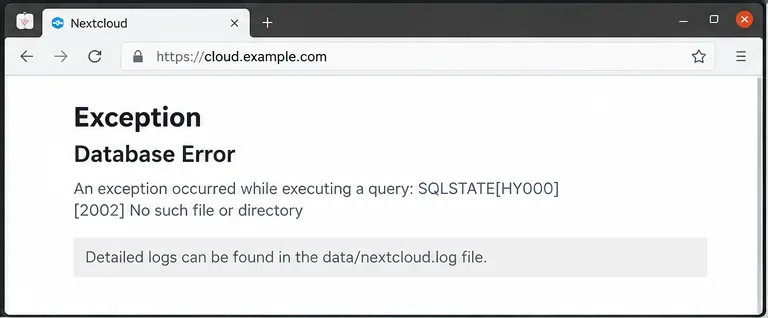
A Nextcloud WebGUI message such as Exception: Database Error immediately after an update usually means the web application can load far enough to reach the database layer, but a query, migration, schema expectation, connection, or app-specific database operation is failing. Do not start by deleting tables, reinstalling Nextcloud, or restoring an old code directory over the new one. The safer sequence is to identify the failing SQL or migration, finish the supported update path, repair only what Nextcloud knows how to repair, and verify the database service and schema before reopening access.
This reference follows the current Nextcloud 35 administration documentation available in October 2026. Commands below assume a common Debian/Ubuntu-style installation at /var/www/nextcloud with the web server user www-data. Adjust the path, PHP binary, container command, or HTTP user for your deployment.
Quick diagnosis: what the error usually points to
What you see
Likely branch
First check
Error appeared immediately after replacing Nextcloud files
Database/app migrations were not completed
occ status and occ upgrade
Log says a table or column does not exist
Incomplete migration, app mismatch, or schema drift
occ upgrade, then schema inspection
Log says connection refused, no such file, or server gone away
Database service, socket, host, credentials, or version problem
Database service and config.php
Error references a third-party app namespace or its tables
A database exception in the WebGUI is a symptom. The useful evidence is the matching log entry and the update state, not the generic browser message alone.
1. Preserve the current state before making database changes
If you still have the pre-update backup, keep it untouched. Nextcloud explicitly recommends a backup before every update, and its built-in updater backup covers the code base but does not back up the database or the data directory. If you do not have a current database backup, create one with your database platform's normal backup tool before attempting manual SQL changes or restores.
Avoid a downgrade as a quick fix. Nextcloud states that downgrading is unsupported and can corrupt data. If rollback becomes necessary, the supported recovery model is a fresh installation of the older version followed by restoration of a matching backup, not copying old program files over a database that has already started migrating. See the Nextcloud built-in updater documentation.
2. Read the exact database exception in the Nextcloud log
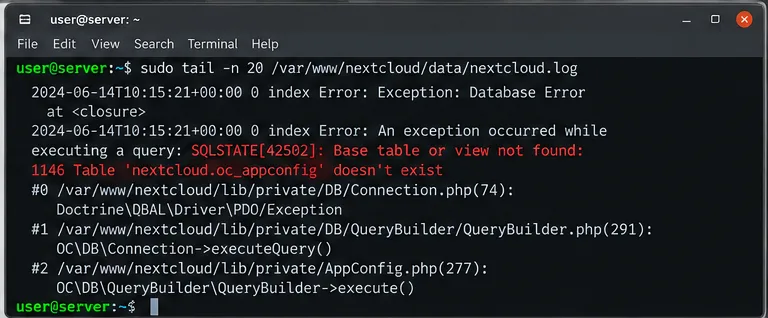
With file logging, the default log is nextcloud.log inside the configured data directory. Nextcloud's troubleshooting guide recommends checking that log and, when relevant, the web server and PHP logs. If the error page shows a request ID, search for that ID to isolate the matching transaction.
Do not reduce the log to the phrase “Database Error.” Capture the SQLSTATE code, the exception class, the failing table or column, and the app or core component named in the stack trace. For example, “table does not exist” is a very different failure from “too many connections” or “MySQL server has gone away.” Nextcloud lists several common SQLSTATE-style failures in its general troubleshooting documentation.
Use the complete log entry to identify whether the failure is a missing schema object, failed connection, or app-specific database query.
3. Check whether the update is actually finished
The built-in updater replaces the Nextcloud code first. Database and app migrations are a separate phase. In command-line mode, the updater can run occ upgrade for you; otherwise the migration still has to be completed afterward. This distinction explains many cases where the updater looked “done” but the normal WebGUI returns a database exception.
cd /var/www/nextcloud
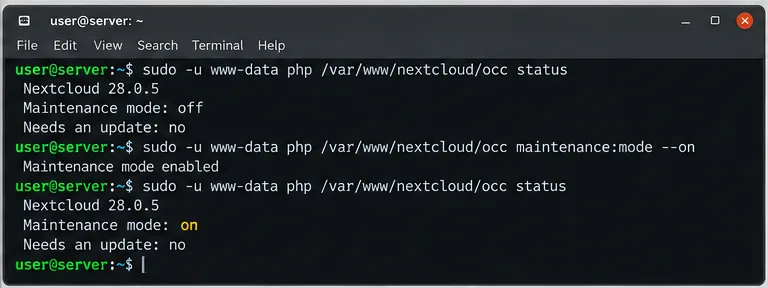
sudo -E -u www-data php occ status
If you need to protect the instance while troubleshooting, enable maintenance mode. Nextcloud describes maintenance mode as the mode intended for upgrades because it prevents new logins and locks active sessions.
Check the installed version and maintenance state before running repair or migration commands, then keep users out while the recovery is in progress.
4. Finish the supported database and app migrations with occ upgrade
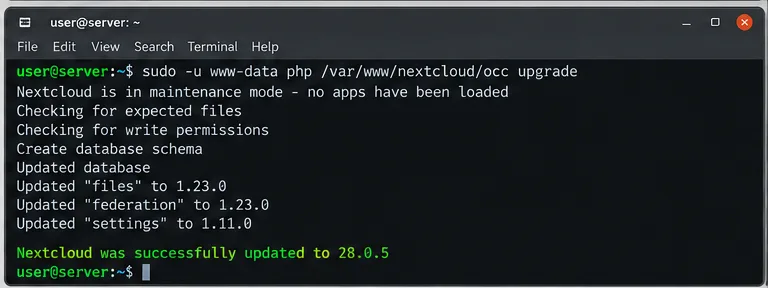
If the code was updated but migrations did not complete, run the upgrade command as the HTTP user:
cd /var/www/nextcloud
sudo -E -u www-data php occ upgrade
Watch the output until the command either reports success or stops on a specific failure. If it fails, fix that prerequisite before repeating the command. Typical blockers include an incompatible app, unsupported PHP/database version, unavailable database service, or permissions that prevent required update work. Do not repeatedly refresh the WebGUI while the migration is failing.
Nextcloud's upgrade documentation also warns not to skip major releases. Upgrade one major version at a time when moving across major versions.
The decisive recovery step for an incomplete update is to let Nextcloud run its own migrations and stop on the first concrete error that needs correction.
5. Run Nextcloud's repair routine after the migration problem is corrected
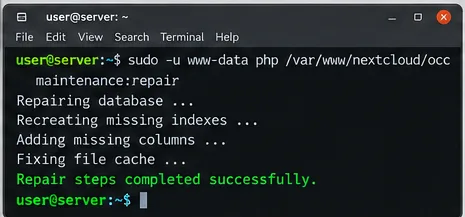
maintenance:repair executes Nextcloud repair steps and is also run automatically during upgrades. Running it manually is reasonable after you have corrected the condition that interrupted the update:
sudo -E -u www-data php occ maintenance:repair
This is safer than inventing SQL statements because the repair steps are supplied by Nextcloud core and apps. It is not a magic replacement for occ upgrade, and it will not fix a dead database server or an unsupported database release. The command is documented in Nextcloud system and maintenance commands.
Run maintenance:repair after correcting the underlying update failure; it executes repair logic provided by Nextcloud and installed apps.
6. Verify the database service, connection settings, and supported version
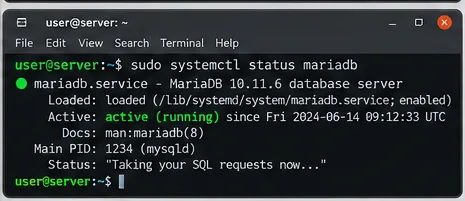
If the log points to connectivity rather than schema, verify that the database service is running and reachable from the Nextcloud PHP environment. On a typical MariaDB host, one useful check is:
sudo systemctl status mariadb
Then review the database settings in config/config.php: database type, host, database name, user, and any socket or port setting. A Unix-socket error can appear as “No such file or directory,” while a remote database can fail because of routing, DNS, TLS, firewall rules, credentials, or the server itself.
Version compatibility matters after a major Nextcloud update. For Nextcloud 35, the official release notes state that MariaDB 10.6 and MySQL 8.0 are no longer supported; the documented minimums are MariaDB 10.11 LTS and MySQL 8.4 LTS. Verify the requirements for your exact Nextcloud major version before upgrading the database independently. See Upgrade to Nextcloud 35.
When the log indicates a connection failure, confirm the database daemon is running before changing Nextcloud schema or app settings.
7. Inspect schema drift and add only the documented missing structures
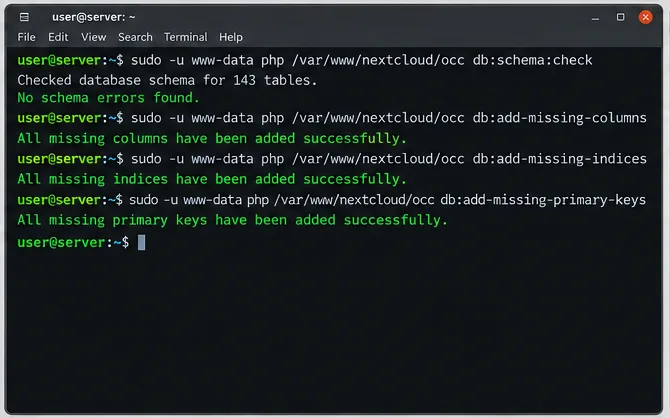
Nextcloud 35 adds db:schema:check, which compares the live schema with the schema expected by the installed core and app migrations. It is read-only: it reports differences without changing the database.
Each supports --dry-run when you want to preview the SQL. These commands should not be used as a substitute for a failed core migration. If db:schema:check reports unexpected objects or column-property differences, review the finding before changing anything; Nextcloud notes that some database-wide defaults are outside the expected-schema model. The authoritative command reference is Nextcloud DAV and database commands.
Use schema inspection first, then apply only Nextcloud-supported missing-schema commands when the output or admin overview indicates they are needed.
8. Isolate third-party app failures before reopening the WebGUI
If the stack trace names a non-shipped app, its migration may be incompatible with the new server version. Nextcloud's troubleshooting guide recommends disabling third-party/non-shipped apps for upgrades and troubleshooting. Use the app commands available in your installed version to disable the specific suspect app from the command line, rerun occ upgrade, and only re-enable the app after confirming a compatible release.
This branch is especially important when core tables look healthy but the exception names a vendor namespace or a table belonging to one app. Removing that app's tables manually is risky because you may destroy data the app still expects.
9. Exit maintenance mode and verify more than the login page
After occ upgrade completes, repair/schema checks no longer show a blocking issue, and the database service is stable, disable maintenance mode:
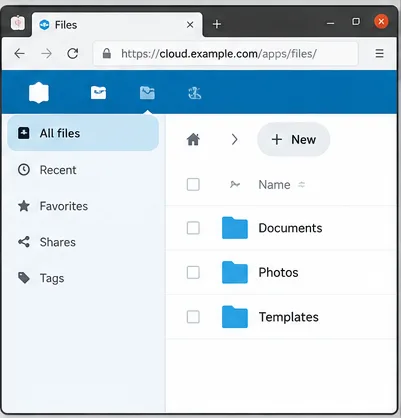
Then verify the instance in layers: load the login page, sign in, open Files, browse a few folders, test one file upload/download, check Administration settings for warnings, and review the newest nextcloud.log entries. Also confirm cron/background jobs are running normally. A recovered homepage alone does not prove that app migrations, file operations, and background tasks are healthy.
After the database and migration checks pass, reopen the WebGUI and verify normal file browsing and basic operations before declaring the update recovered.
Recovery checklist
Keep the pre-update backup and avoid an unsupported downgrade.
Read the full database exception in nextcloud.log, including SQLSTATE and the component named in the trace.
Check occ status and place the instance in maintenance mode during repair.
Run occ upgrade to finish supported core and app migrations.
Correct the first concrete blocker instead of editing database tables blindly.
Run maintenance:repair after the underlying failure is fixed.
Verify database service health, connection settings, and version compatibility.
Use db:schema:check on Nextcloud 35 and the documented db:add-missing-* commands where appropriate.
Disable a failing third-party app if the trace clearly points to it, then retry the upgrade.
Turn maintenance mode off only after CLI checks pass, then test Files, transfers, admin warnings, logs, and background jobs.
When to restore instead of repair
Restore from a known-good, internally consistent backup when the database itself is damaged, migrations partially changed data in a way you cannot safely unwind, or required tables/data were deleted outside Nextcloud. The database, configuration, data directory, and code version must belong to a compatible recovery point. If you have paid Nextcloud support or a business-critical deployment, stop before destructive SQL surgery and escalate with the complete log entry, exact source and target Nextcloud versions, database type/version, PHP version, and the output of the relevant occ command.
The core principle is simple: a post-update “Database Error” is not a reason to guess at SQL. Let the log identify the failure, let occ upgrade finish the intended migrations, use Nextcloud's own repair and schema tools, and validate the database platform before reopening the instance.