Home
» NETWORK ADMIN
»
Fix ownCloud Cron Job Not Running: Set Up a Reliable systemd Timer
Fix ownCloud Cron Job Not Running: Set Up a Reliable systemd Timer
You open ownCloud’s admin page and see that background jobs have not run recently, or cleanup, activity, external-storage, and other queued tasks seem delayed. A common reaction is to edit cron.php or add another crontab entry. On current ownCloud Server documentation, that is not the best starting point: ownCloud recommends the Cron background mode and the occ system:cron command. A systemd timer can provide the scheduling layer instead of traditional crontab on a Linux host.
This guide focuses on a package or bare-metal style installation where ownCloud lives under a path such as /var/www/owncloud. If you use ownCloud’s official Docker image, stop before creating a host timer: ownCloud documents that the image already configures cron internally, controlled by variables such as OWNCLOUD_CROND_ENABLED and OWNCLOUD_CROND_SCHEDULE. See the current ownCloud background jobs documentation.
What is verified, what depends on your server, and what still needs checking
Verified: ownCloud recommends Cron rather than AJAX for reliable background execution, and documents occ system:cron as the command to execute queued background jobs.
Depends on your installation: the ownCloud directory, PHP binary, web-server account, PHP environment, and whether you run a package install, container, appliance, or custom deployment.
Not knowable from a generic guide: why your current job failed. It may be a scheduler problem, but it can also be permissions, a wrong path, a different PHP CLI configuration, database connectivity, file locking, or an application-level background job failure.
Action: do not create a timer until the exact ownCloud command works manually under the same account that the timer will use.
Step 1: Confirm Cron mode and test ownCloud manually
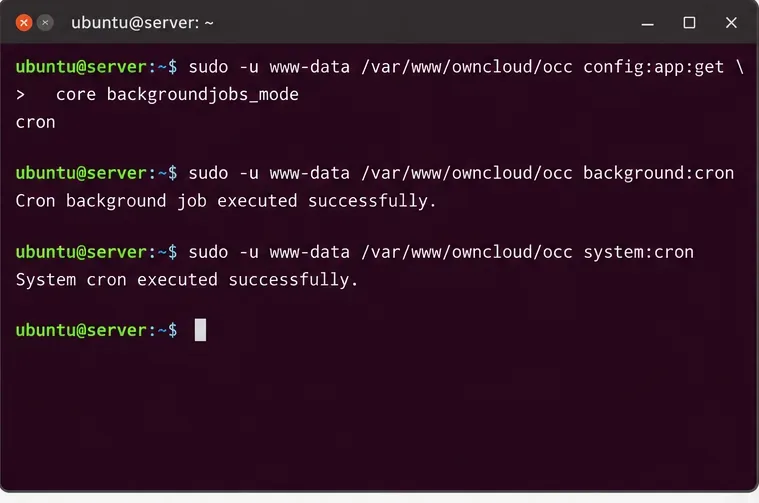
For a typical Apache/Debian-style installation, the web user is www-data. Replace both the user and path if your environment differs.
The first command selects ownCloud’s Cron background-job mode. The second actually runs queued background jobs. ownCloud’s occ command documentation states that system:cron is intended for scheduled execution and that progress output should not be enabled in a non-interactive scheduler.
A manual check should succeed before systemd is involved. The exact output can vary; the important test is the command’s exit status and absence of application errors.
Common misunderstanding: “Cron mode” in ownCloud does not mean you must use the cron daemon specifically. It means ownCloud expects an external scheduler to invoke its background-job runner. A systemd timer can be that scheduler.
Action: if the manual command fails, fix that error first. A timer will only repeat the same failure on a schedule.
Step 2: Find the correct PHP and ownCloud paths
Some installations make occ executable directly; others are more predictable when invoked with the PHP CLI binary. Confirm both:
ownCloud’s documentation explicitly warns that scheduled jobs need to find PHP and therefore shows full paths in cron examples. This matters just as much under systemd because services receive a controlled environment rather than your interactive shell environment.
Action: replace /usr/bin/php, /var/www/owncloud, and www-data in the remaining examples with the values that worked on your host.
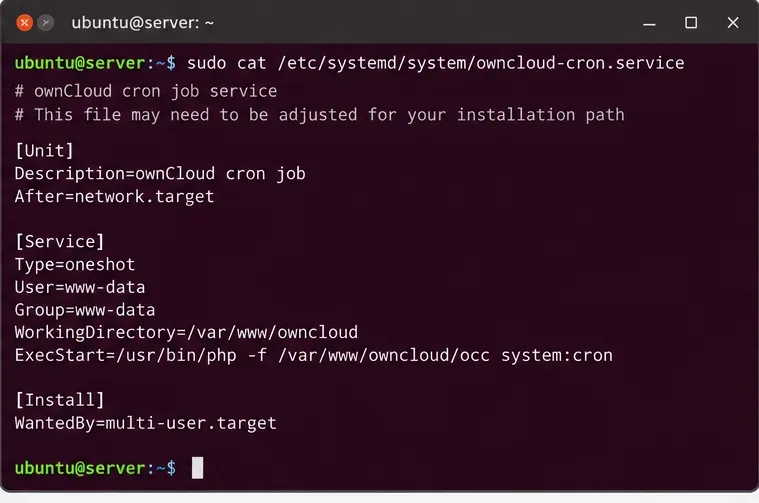
You normally do not need an [Install] section for the service because the timer activates it. Keeping the service as Type=oneshot also makes its lifecycle easy to interpret: it starts, runs the command once, exits, and becomes inactive again.
The systemd service should call the same command that already succeeded manually, using explicit paths and the web-server account.
Common misunderstanding: an inactive oneshot service is not automatically broken. After a successful run, a oneshot service without RemainAfterExit=yes normally becomes inactive.
Action: judge success by the exit code and journal, not by expecting this service to remain “running.”
Step 4: Create the systemd timer
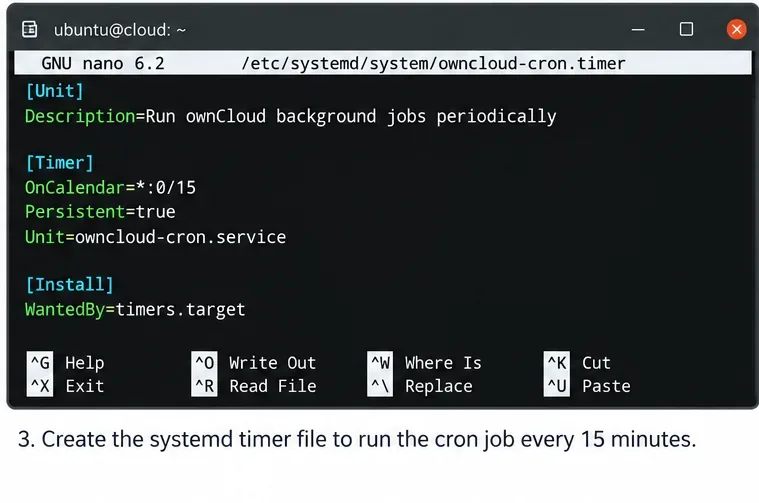
Create /etc/systemd/system/owncloud-cron.timer:
[Unit]
Description=Run ownCloud background jobs every 15 minutes

[Timer]
OnCalendar=*:0/15
Persistent=true
Unit=owncloud-cron.service

[Install]
WantedBy=timers.target
ownCloud’s host-cron documentation recommends a 15-minute schedule. The timer above follows that cadence. Persistent=true is useful with an OnCalendar timer because systemd can trigger a missed calendar activation after the machine becomes available again. Exact behavior still depends on systemd version and how long the machine was down.
A calendar timer can mirror ownCloud’s documented 15-minute cron cadence while keeping scheduling and logging inside systemd.
Action: if you intentionally need a different interval, change it deliberately rather than copying a value from another server. More frequent execution can increase background load; less frequent execution can delay queued work.
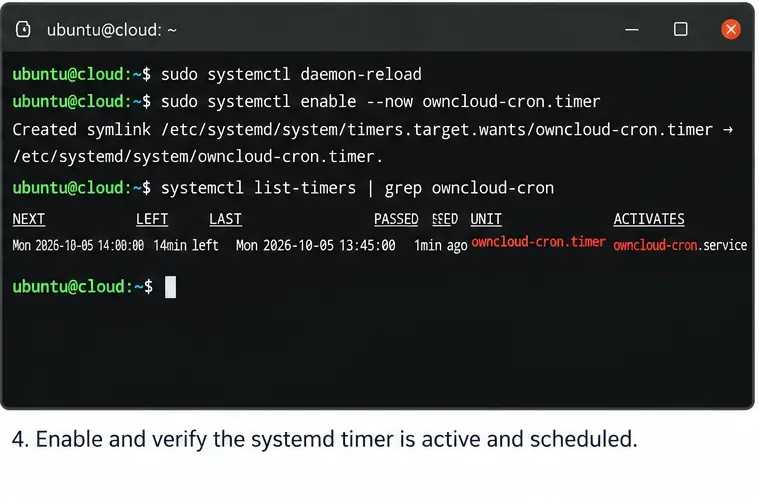
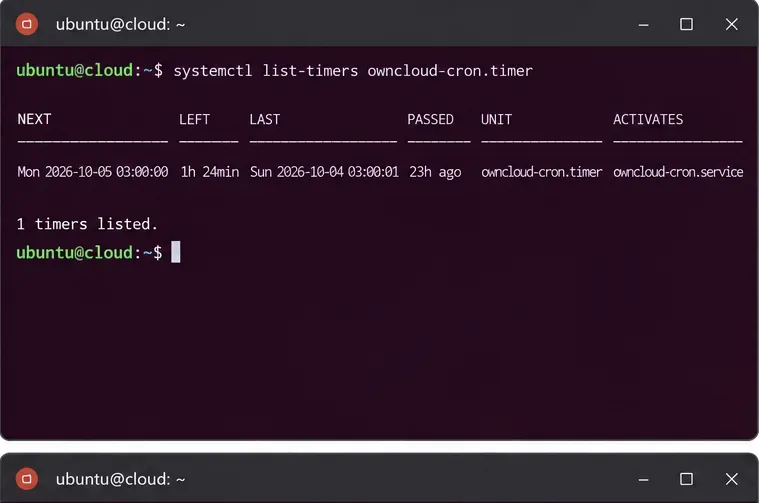
list-timers is the quickest way to confirm that systemd has scheduled a next activation and to see when the timer last fired. This distinguishes “the timer never ran” from “the timer ran but ownCloud failed inside the service.”
The timer list should show both the timer unit and the service it activates, along with timing information.Use the NEXT and LAST columns to verify scheduling instead of assuming the absence of visible web activity means cron is broken.
Action: if NEXT is missing or the timer is not listed, recheck the timer filename, [Install] section, and whether the unit was enabled.
Step 7: Check the service journal, not just the timer
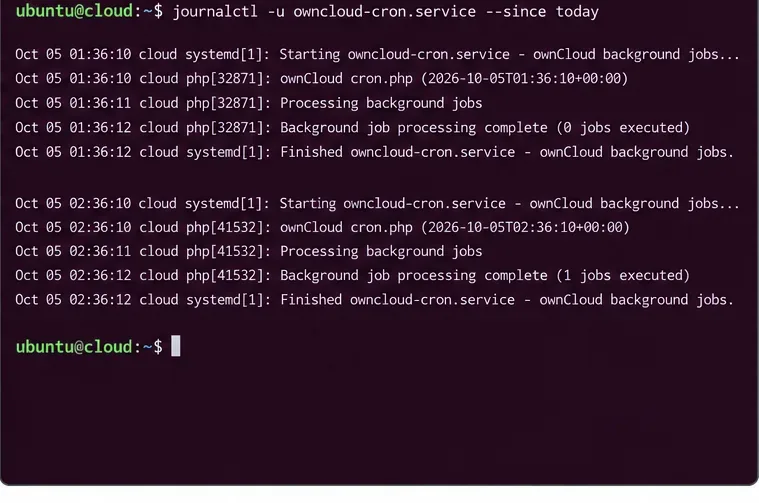
systemd records service output in the journal unless you deliberately redirect it elsewhere. The official journalctl documentation describes filtering journal entries by systemd unit.
The service journal is where scheduler success and ownCloud command failures separate: a timer may fire correctly even when the invoked command returns an error.
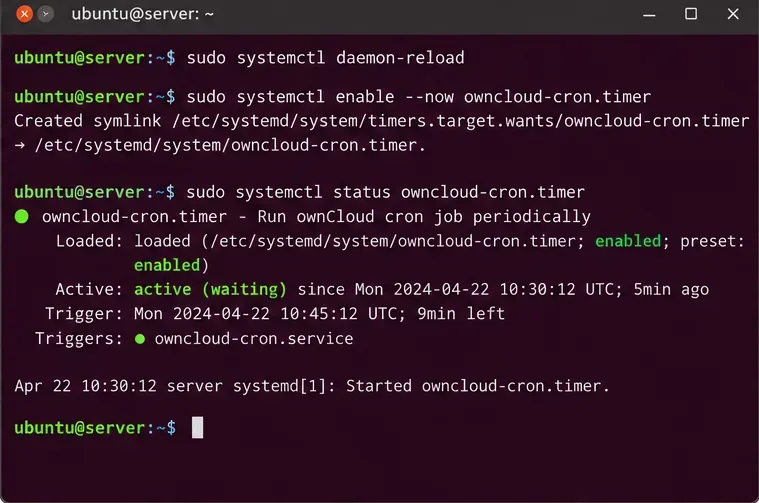
Common misunderstanding: “The timer is active, so ownCloud cron works.” An active timer only proves the scheduler is waiting to fire. You still need a successful service invocation.
Action: look for PHP errors, permission denied messages, missing files, database errors, or a nonzero exit status. Fix the first concrete error rather than repeatedly restarting the timer.
Step 8: Trigger one run on demand and verify ownCloud
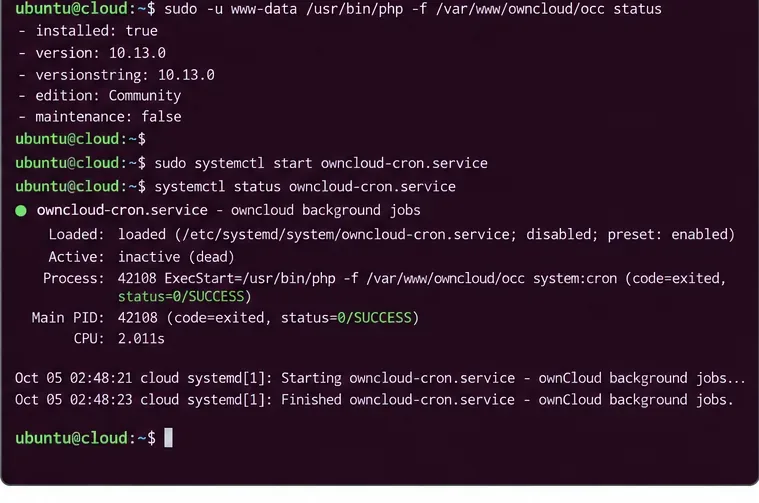
You do not need to wait 15 minutes for a final test:
sudo systemctl start owncloud-cron.service
sudo systemctl status owncloud-cron.service
sudo -u www-data /usr/bin/php -f /var/www/owncloud/occ status
After a successful oneshot run, systemctl status can legitimately report the service as inactive while also showing status=0/SUCCESS. The important result is that the command completed successfully.
A manual service start is a practical end-to-end test of the exact command, user, paths, and PHP environment configured in systemd.
Action: after the manual service test succeeds, wait for at least one scheduled timer activation and confirm a new journal entry appears without manual intervention.
If it still does not run: troubleshoot by layer
Observed symptom
What it proves
Next action
occ system:cron fails manually
The problem is below the scheduler layer
Fix PHP, permissions, ownCloud configuration, database, or application errors first.
Manual command works, but service fails
Your systemd execution environment differs from the shell
Check User=, WorkingDirectory=, full paths, and the journal.
Service works manually, timer has no NEXT run
The service is valid; scheduling is not
Check the timer syntax, reload systemd, then enable and start the timer.
Timer has NEXT/LAST times, but ownCloud jobs still lag
The timer is firing
Inspect service logs and application-level jobs rather than creating another scheduler.
Official Docker image
Host systemd may be the wrong layer
Use the image’s built-in cron configuration documented by ownCloud.
A note about cron.php and older guides
Older ownCloud instructions often invoke cron.php directly. Current ownCloud documentation recommends occ system:cron, and ownCloud release notes explain the migration away from the older direct cron.php approach. See the ownCloud Server release notes.
Action: if you inherited an old crontab or systemd unit that runs cron.php, compare it with the documentation for your installed ownCloud release before keeping it.
Final verification checklist
ownCloud is configured for Cron background jobs.
The exact occ system:cron command succeeds under the intended web-server account.
owncloud-cron.timer is enabled and active (waiting).
systemctl list-timers shows both a next and previous activation after enough time has passed.
The setup does not duplicate cron already supplied by the official ownCloud Docker image or another scheduler.
When those checks all pass, you have verified more than “a timer exists”: you have shown that systemd schedules the job, invokes ownCloud under the right account, and completes the actual background-job runner successfully.