Home
» NETWORK ADMIN
»
Fix ownCloud Desktop Client “CSync Unknown Error” During Sync
Fix ownCloud Desktop Client “CSync Unknown Error” During Sync
Illustrative example: Jordan is syncing a local project folder with the ownCloud Desktop App on Windows. The account had been working normally, but the client suddenly reports CSync Unknown Error and stops completing the sync. The files still exist locally and are visible in the ownCloud web interface. This example is hypothetical; it is used only to show how to apply the documented troubleshooting steps.
The good news is that ownCloud documents a specific first-line fix for this exact message: quit the Desktop App, delete the hidden ._sync_xxxxxxx.db file from the affected sync folder, and restart the app. That database is the local sync journal. Rebuilding it can clear a damaged or inconsistent sync state, but ownCloud warns that deleting it also removes some settings that control which files are downloaded.
As of October 2026, the current ownCloud Desktop App 7.1 documentation still lists this procedure for CSync Unknown Error. Also note the current product split: Desktop App 7.x supports ownCloud Infinite Scale only; administrators using ownCloud Classic Server 10 or 11 should remain on the Desktop App 6 series. Check the official ownCloud Desktop App release notes before making a major-version change.
What “CSync Unknown Error” usually means
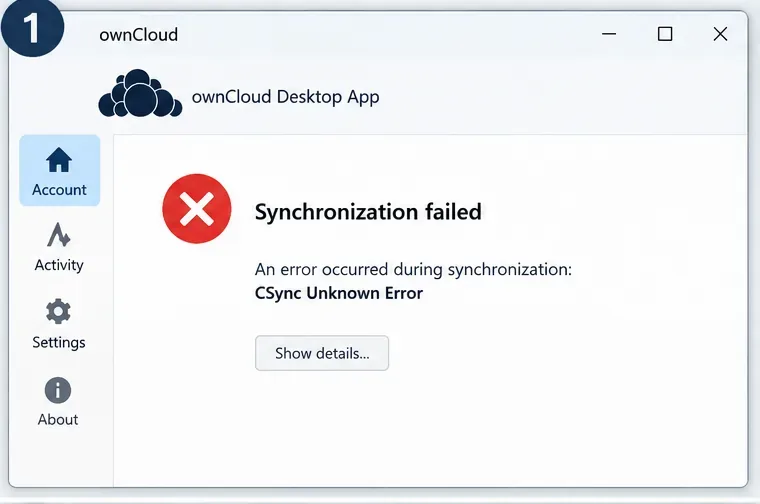
The message is deliberately broad. It does not identify a single server-side failure, bad filename, or permissions problem. ownCloud’s current Desktop App troubleshooting documentation treats it as a sync-state problem first and recommends rebuilding the local sync database before moving on to deeper diagnosis.
That ordering matters. In Jordan’s hypothetical case, the safest first move is not to delete the local project folder, remove the account, or purge server data. The documented repair targets only the hidden sync database used by that sync connection.
Illustrative step 1: confirm that the message is specifically “CSync Unknown Error” before applying the sync-database repair.
Step 1: Quit the ownCloud Desktop App completely
Close the ownCloud Desktop App before touching its sync database. Do not merely minimize the window. Use the application’s quit or exit action so the client is no longer writing to the journal.
In the example, Jordan first waits for any visible activity to stop, exits ownCloud, and confirms that the application is no longer running. This reduces the chance of deleting a database file while the client still has it open.
Step 2: Show hidden files in the affected sync folder
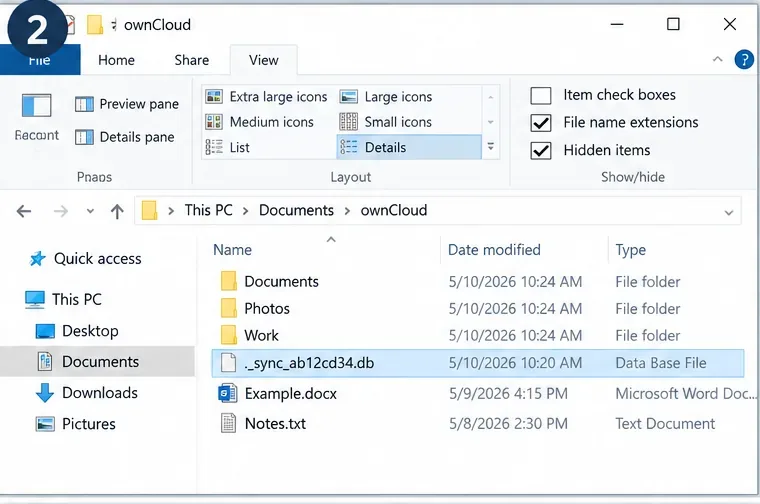
The file ownCloud tells you to remove is hidden. Open the local root of the affected ownCloud sync folder and enable hidden-item display in your file manager. On Windows, File Explorer can show hidden items from its View controls. On macOS or Linux, use the normal hidden-file display method for your file manager.
Look for a filename matching the pattern:
._sync_xxxxxxx.db
The exact characters after ._sync_ vary. Do not delete ordinary documents or folders just because they have a similar name.
Illustrative step 2: enable hidden files and identify the hidden ._sync_….db journal in the affected sync root.
Step 3: Delete only the hidden sync database
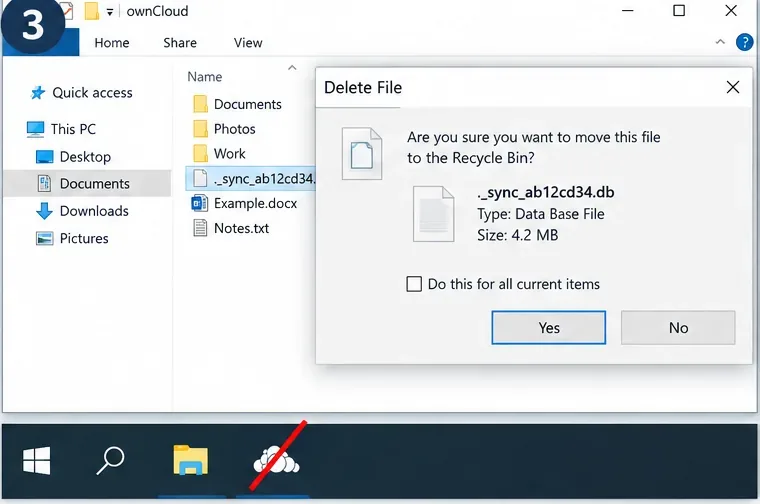
With ownCloud fully stopped, remove the matching ._sync_xxxxxxx.db file. The official troubleshooting page specifically recommends deleting this file and then restarting the Desktop App.
In Jordan’s example, this is the only file removed. The local project data remains untouched. That distinction is important because deleting the whole local sync folder can create an unnecessary recovery problem, while deleting the documented journal file lets ownCloud rebuild its local synchronization state.
Before you proceed: ownCloud warns that this operation can erase some settings that determine which files are downloaded. If you use selective sync or have intentionally excluded large folders, make a note of those choices so you can review them after the restart.
Illustrative step 3: remove only the hidden sync database while the ownCloud Desktop App is not running.
Step 4: Restart ownCloud and let it rebuild the sync state
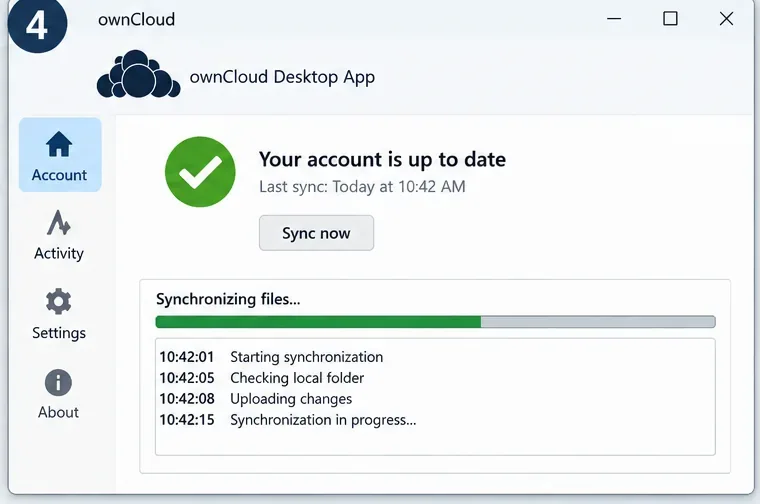
Launch the Desktop App again. It should recreate the local sync database and rescan the relationship between the local folder and the server. Give the client time to complete discovery before deciding that the fix failed, especially when the sync tree contains many files.
Jordan’s hypothetical success criterion is simple: the CSync error does not immediately return, the client begins scanning or synchronizing, and the account eventually reaches an up-to-date state. If selective-sync choices changed, Jordan reviews them before allowing large downloads.
Illustrative step 4: restart the client, allow the sync journal to be rebuilt, and confirm that synchronization can proceed again.
If the error returns, check the underlying sync conditions
Deleting the sync database is the documented fix for the specific CSync error, but it cannot repair every condition that may cause synchronization to fail. If the message returns, use the rebuilt state as a clean starting point and check the following items one by one.
1. Verify that the account and server connection still work
Sign in to the ownCloud web interface in a browser. ownCloud recommends this as the first basic connectivity test. If the web interface is unavailable, credentials fail, or all desktop clients fail while the website still works, ask the administrator to verify the instance, connection URL, and proxy settings.
2. Check free disk space
The ownCloud 7.1 troubleshooting guide states that a download is skipped or aborted if it would reduce free disk space below 250 MB, and synchronization stops completely if remaining free space falls below 50 MB. Free space comfortably above those thresholds before retrying.
3. Check Windows folder permissions when VFS is involved
On Windows with Virtual Files, an access-denied metadata error can occur if the owning user no longer has the expected permissions on the synchronized folder. ownCloud documents that the owning user should have Full Control. If your logs contain WindowsError: ffffffff80070005: Access is denied., review the folder’s security permissions or ask your administrator to do so.
4. Look for filename and path restrictions
A journal rebuild will not make an invalid filename syncable. The official ownCloud filename considerations page notes that Windows disallows characters such as <, >, :, ", \, |, ?, and *, and filenames may not end in a space or dot. Reserved Windows names such as CON, PRN, AUX, NUL, COM1 through COM9, and LPT1 through LPT9 can also cause problems.
For Windows VFS, ownCloud also documents a common 260-character path-component limitation unless the operating system is configured to relax it. If only a deeply nested file fails, shorten the path or follow Microsoft’s long-path configuration guidance linked from ownCloud’s documentation.
5. Do not point two sync engines at the same local directory
ownCloud explicitly warns against synchronizing the same local directory with another sync tool such as OneDrive, Dropbox, rsync, Unison, or Windows Offline Files. Competing applications can change metadata or files underneath each other and, in the worst case, cause data loss. If Jordan had also placed the same directory under another cloud-sync product, the correct fix would be to separate those sync roots rather than repeatedly deleting the ownCloud journal.
Collect logs if rebuilding the database does not solve it
If the CSync error returns after the clean rebuild, capture logs around one reproducible sync attempt. ownCloud says the Desktop App log is often the most useful diagnostic artifact.
In Desktop App 7.1, logging can be opened through Settings → Advanced → Log Settings. The documented keyboard shortcuts are F12 on Windows, Ctrl+L on Linux, and Cmd+L on macOS. Enable logging to a temporary folder, reproduce the problem, then save the files covering the affected time period.
You can also start the app with more verbose logging. For example, on Windows:
Do not publish the resulting logs casually. ownCloud warns that they can contain file and folder names, metadata, server URLs, and other private information. Share them privately with the appropriate administrator or ownCloud support when necessary.
A compact decision path
What you see
Best next action
Exact message: CSync Unknown Error
Quit ownCloud, delete ._sync_xxxxxxx.db, restart, then review download-selection settings.
The error returns immediately
Verify browser login, server URL, proxy, and client/server version compatibility.
Only certain files fail
Check ignored-file rules, forbidden characters, reserved Windows names, and path length.
Windows VFS shows access denied
Check that the owning user has Full Control on the sync folder.
Sync stops as storage fills
Free local disk space and retry.
Cause is still unclear
Capture a reproducible Desktop App log and review it privately.
Version note for 2026
The current release information is worth checking before you “fix” the problem by upgrading. ownCloud Desktop App 7.1.1 was released in September 2026, but the 7.x line is for ownCloud Infinite Scale. ownCloud’s release notes state that users of ownCloud Classic Server 10 or 11 should stay on the 6.x Desktop App line. An incompatible major upgrade can create a different connection problem instead of resolving the CSync error.
Bottom line
For the exact CSync Unknown Error, start with the narrow repair ownCloud itself documents: fully quit the Desktop App, reveal hidden files, delete the affected ._sync_xxxxxxx.db journal, and restart. Treat that as a local sync-state reset, not as permission to delete user data. If the problem comes back, then investigate connectivity, disk space, permissions, filename rules, competing sync software, and logs in that order.