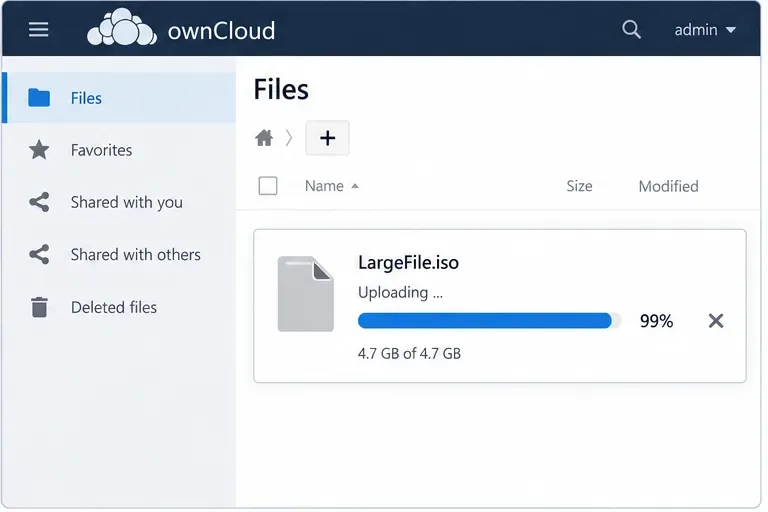
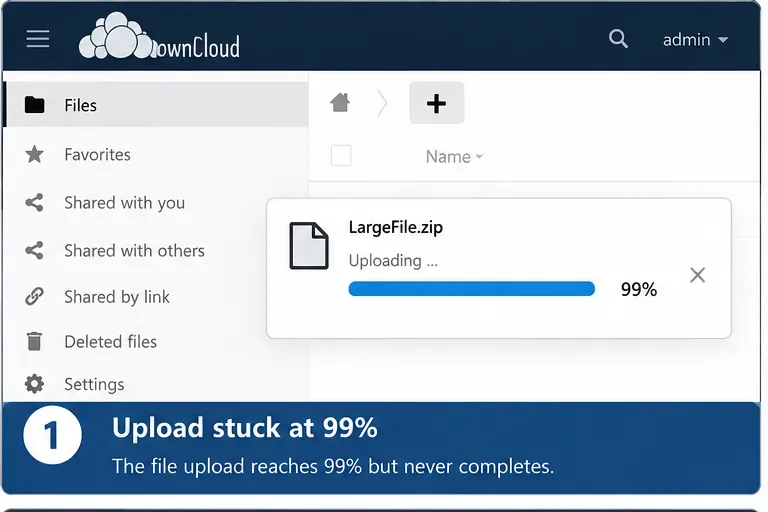
An ownCloud upload that reaches 99 percent and then appears to freeze is usually not solved by repeatedly starting the upload again. At that point, the browser may have already transferred most or all of the file while the server is still completing work such as receiving the last chunk, assembling chunks, moving the completed file into its destination, updating metadata, or releasing locks. The percentage alone does not identify the cause, so the fastest approach is to check the server-side evidence in a fixed order.
This guide uses the current ownCloud Server 11.0 administration documentation available in October 2026. The same ideas apply to many ownCloud Classic deployments, but configuration paths and Docker behavior can differ on older releases. Before changing limits, confirm your installed version and deployment method.
A file can appear stuck at 99 percent even though most data has already been transferred. Treat the percentage as a symptom, then check server-side evidence.
Quick diagnosis checklist
What to check
Why it matters
Strong clue
ownCloud, PHP, and web-server logs
The failure may occur after the browser finishes sending data.
Timeout, storage, WebDAV, locking, 5xx, or permission error at the upload time.
Temporary and upload-directory free space
Chunked uploads need temporary storage before finalization.
Large files fail while small files work, or the filesystem is nearly full.
User quota and destination storage
The final file still needs room in its destination.
Failure happens only for one user, folder, or external-storage target.
PHP upload and time limits
Non-chunked requests and supporting requests can be rejected or time out.
Errors mention request size, execution time, input time, or temporary upload files.
Session lifetime
A session that expires before a long upload finishes can interrupt completion.
Failures correlate with upload duration rather than file type.
Reverse proxy, CDN, or load balancer
An upstream component can impose its own body-size or timeout limit.
Direct access works but the public hostname through the proxy fails.
Transactional file locking
ownCloud locks files while file operations are committed.
Logs contain locking errors, especially under load or on clustered storage.
1. Reproduce once, then inspect the logs immediately
Do one controlled upload with a file that reliably reproduces the problem and note the exact time. Then inspect the ownCloud log, PHP log, and web-server error log around that timestamp. Do not make several configuration changes first; doing so makes it harder to know which layer actually failed.
ownCloud’s official troubleshooting documentation explicitly recommends checking PHP, Apache, and ownCloud logs first. In the standard Docker deployment, ownCloud documents that Apache and PHP output is routed through container stdout/stderr, and suggests following the container logs with docker compose logs owncloud -f.
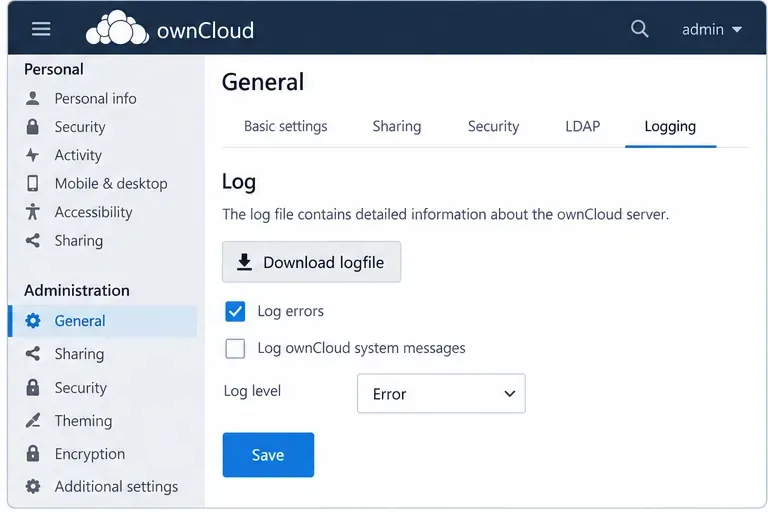
The administration log view is one place to collect evidence before changing upload limits.
You can also obtain the ownCloud log from the Admin interface. The ownCloud log and configuration guide documents the path through Settings > Admin > General and provides an occ configreport:generate option when a fuller configuration report is needed.
What log messages should you look for?
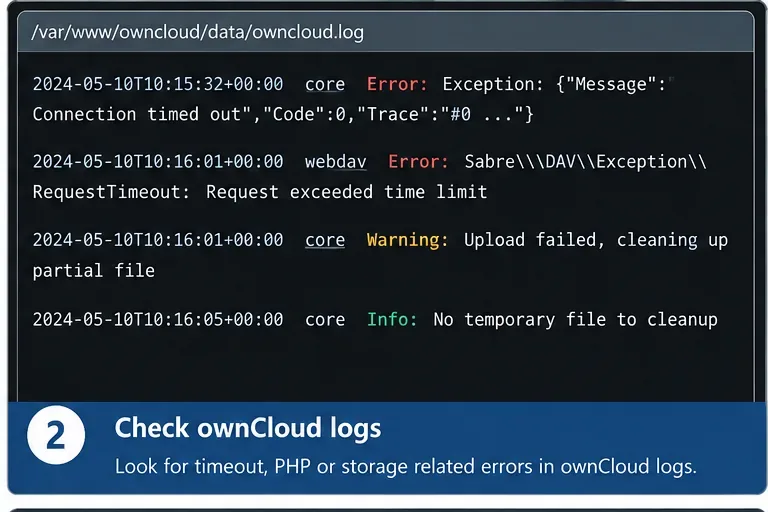
Focus on the first error associated with the failed request, not every warning that follows it. Useful categories include request timeouts, insufficient storage, inability to create or rename a temporary file, permission errors, WebDAV exceptions, HTTP 413/502/504 responses, and file-locking failures. If you temporarily raise ownCloud logging to DEBUG, return it to the normal level afterward; ownCloud notes that verbose logging can affect server performance. See the official logging configuration reference.
Read the log entries from the exact time of the failed upload. The messages shown here are illustrative; diagnose from your own server's actual log.
2. Check free space in both temporary locations and the final storage
This is one of the most important checks for a 99-percent stall. ownCloud Server 11.0 explains that uploads can use more than one temporary area. The PHP upload temporary directory must have space for active chunks, while the user upload directory collects the chunks for a file until the upload completes.
According to the ownCloud big-file upload documentation, temporary PHP space should be planned roughly as concurrent uploads multiplied by chunk size. More importantly for a large single file, the user's upload directory temporarily needs space comparable to the final file size because it holds the chunks until assembly is complete. Once the upload finishes, ownCloud writes the chunks to the final destination and removes them.
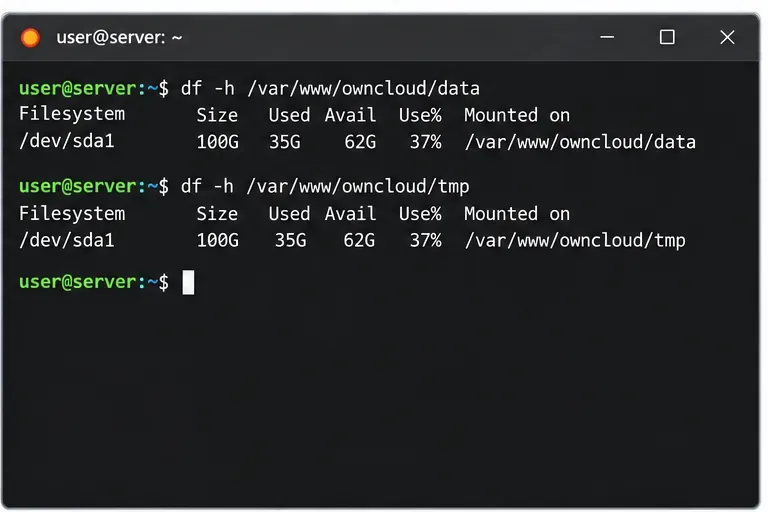
Check free space on the filesystems that contain the ownCloud data directory, PHP temporary directory, and any dedicated chunk-upload directory.
Check the filesystem that contains the data directory, the PHP temporary directory, and any location configured through OWNCLOUD_DAV_CHUNK_BASE_DIR. Also verify the actual destination, especially when the target is external storage. A server can have plenty of free space on / while a separate data volume is full.
Do not manually move files into or out of the ownCloud data directory to “finish” the upload. ownCloud warns that its data directory is exclusive to the application; direct modifications can create sync and database inconsistencies.
3. Confirm quota before increasing technical limits
A user quota can block a large final file even when the upload staging area has enough room. Check the affected user’s quota and, if relevant, the capacity and permissions of an external storage mount. A useful test is to upload the same file to another account or destination with clearly sufficient space. If the failure follows the user or folder rather than the file, quota or storage policy moves higher on the list.
4. Review PHP and ownCloud upload settings
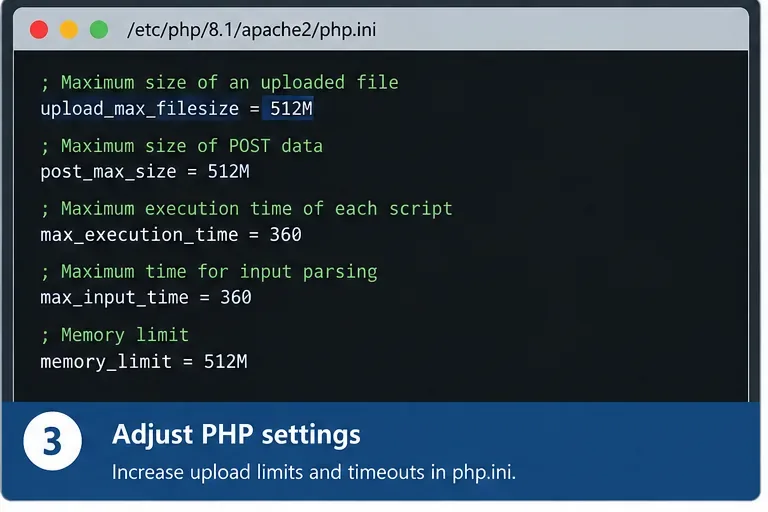
If the logs point to request size or execution limits, review the effective PHP settings rather than assuming the values in a random php.ini file are active. Common directives include post_max_size, upload_max_filesize, upload_tmp_dir, max_input_time, max_execution_time, and memory_limit.
PHP limits should be changed only when the logs or effective configuration show they are constraining the upload. The values visible here are examples, not universal recommendations.
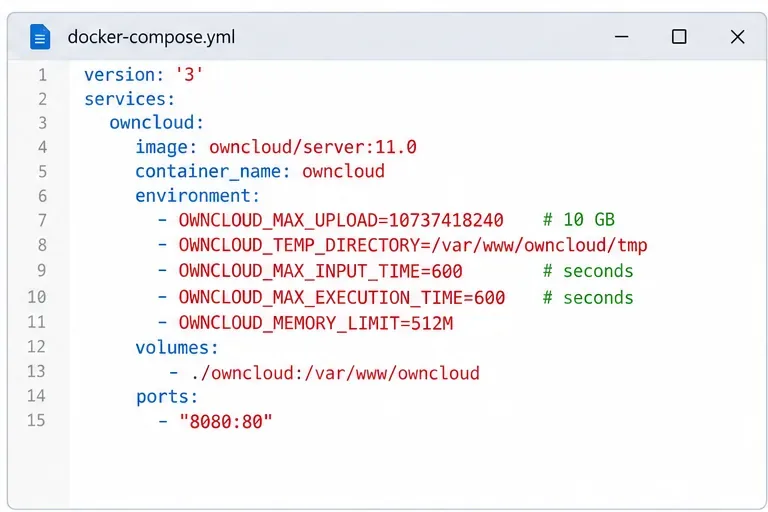
For the supported Dockerized ownCloud Server 11.0 configuration, the documentation maps these to environment variables: OWNCLOUD_MAX_UPLOAD, OWNCLOUD_TEMP_DIRECTORY, OWNCLOUD_MAX_INPUT_TIME, OWNCLOUD_MAX_EXECUTION_TIME, and OWNCLOUD_MEMORY_LIMIT. This is important because ownCloud states that deployments using its Docker configuration should use the provided environment variables instead of relying on older PHP or .htaccess customization patterns.
In Docker deployments, keep upload-related settings in the supported environment-variable configuration and verify the mounted temporary storage has enough capacity. Values shown are illustrative.
Do not simply set every limit to an extremely large number. A better target is a value that accommodates your maximum intended file size and the slowest legitimate connection while preserving operational safeguards.
5. Check session lifetime for slow uploads
ownCloud specifically warns that session_lifetime must not be shorter than the longest expected upload. If you have customized it, set it to at least the number of seconds required by the slowest expected upload, or remove an unnecessary custom value and return to the supported default behavior.
This is particularly worth checking when a 500 MB file finishes but a multi-gigabyte file repeatedly fails after roughly the same amount of elapsed time.
6. Test the reverse proxy or CDN separately
ownCloud’s big-file documentation notes that client-side proxies and services such as Cloudflare can restrict uploads. That means a perfectly configured ownCloud/PHP stack can still fail because another hop limits the request body, buffers a long request, closes an idle connection, or times out while ownCloud assembles the upload.
If your architecture allows a safe administrative test, compare the same upload through the normal public route and through a path that bypasses the reverse proxy or CDN. If the direct path succeeds, inspect that intermediary’s official documentation for request-size, upload timeout, buffering, and WebDAV behavior. Do not weaken TLS or expose the backend publicly just to perform this test.
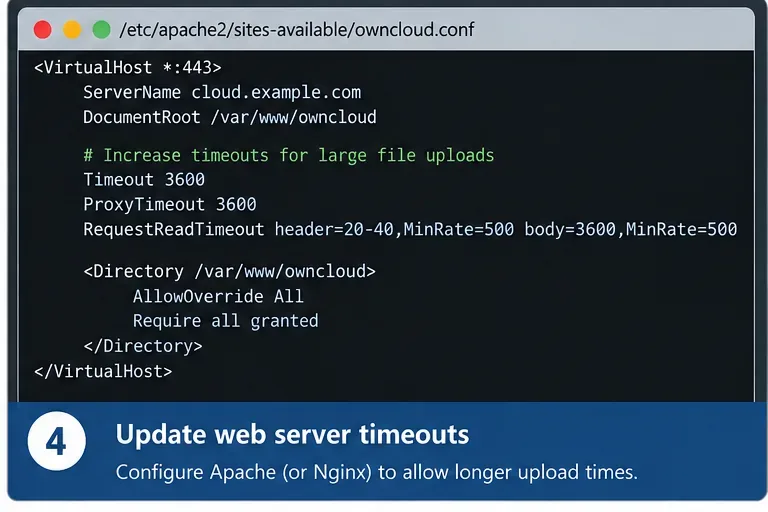
A reverse proxy or web server can impose its own timeout. Use this only as a reminder to inspect that layer; directive names and safe values depend on your actual server stack.
7. Check file locking when uploads fail during finalization
Transactional file locking is enabled by default and protects files from simultaneous mutation. ownCloud documents that it also matters when chunked uploads are being assembled. On busy servers, a locking problem may look like a transfer that completed but could not be committed cleanly.
Review the transactional file-locking documentation before changing this subsystem. ownCloud recommends a memory-cache backend for locking on heavier workloads rather than relying on database locking. In clustered deployments, shared Redis locking is particularly important because every application node must see the same lock state.
There is also a special case documented for very long uploads to public folders when chunking is not in effect. ownCloud states that uploads lasting longer than one hour may require a sufficiently large OWNCLOUD_FILELOCKING_TTL; otherwise Redis garbage collection can remove the lock acquired at the beginning of the operation. Do not change this setting unless your upload path matches that scenario.
8. Retest methodically after each change
After each server-side change, repeat one known test file and record the result instead of changing several layers at once.
After correcting one identified issue, retry with the same file, account, destination, browser, and network path. Then verify three things: the progress reaches completion, the file appears in the destination with the expected size, and the logs do not contain a new error for that request.
A useful progression is a small file, a medium file, and finally the file size that originally failed. If small files always succeed but failures start above a repeatable size, concentrate on storage capacity and size limits. If failures start after a repeatable duration, concentrate on sessions and timeouts. If they happen only through one hostname or network path, concentrate on proxies and load balancers.
What not to do
Do not keep retrying a multi-gigabyte upload without checking logs. Repeated failed chunks consume time and may temporarily consume storage.
Do not modify the ownCloud data directory manually. Use ownCloud, WebDAV, or supported administration tools.
Do not disable file locking as a first fix. Locking protects data integrity; diagnose the backend instead.
Do not assume a PHP setting is effective because it appears in one configuration file. Containers, PHP-FPM, Apache modules, and multiple INI locations can produce different effective settings.
Do not raise every timeout indefinitely. Find the layer that is closing the request and set a limit appropriate for the maximum supported upload.
Practical decision path
If you need a short runbook, use this order: reproduce once; read ownCloud/PHP/web-server logs; check data, temporary, and chunk storage; verify quota; confirm effective upload and time settings; inspect session lifetime; bypass or inspect the reverse proxy/CDN; then investigate transactional locking. This order favors evidence and the highest-probability infrastructure constraints before risky configuration changes.
The important detail is that “99 percent” is not itself an error code. It tells you where the user noticed the problem, not which component caused it. The reliable fix comes from matching the timestamp of the failed upload to storage, timeout, proxy, session, or locking evidence on the server.