Home
» NETWORK ADMIN
»
Fix “PHP Memory Limit Below Recommended Value” in ownCloud 10
Fix “PHP Memory Limit Below Recommended Value” in ownCloud 10
The result you want is not merely “the warning disappeared.” A correct fix means the PHP process that actually serves ownCloud 10 reports a memory limit of at least 512 MB, the ownCloud admin warning clears, scheduled or CLI jobs use an appropriate limit too, and the host still has enough physical memory to run PHP, the web server, the database, and background jobs without heavy swapping.
For ownCloud Classic 10.16, the official Docker environment uses OWNCLOUD_MEMORY_LIMIT=512M as its recommended default. ownCloud's documentation also distinguishes the PHP configuration used by the web server from the one used by php-cli. That distinction is the main reason administrators sometimes change memory_limit, restart a service, and still see the same warning.
This guide starts with the least disruptive checks, then shows Apache, PHP-FPM, CLI, and Docker paths. It also explains when increasing the limit further is justified and when the real problem is insufficient host RAM rather than the PHP setting itself.
What success looks like
Check
Good result
If it fails
ownCloud admin overview
No “PHP memory limit below recommended value” warning
You probably edited the wrong PHP configuration or did not restart the correct service.
Web PHP runtime
memory_limit shows 512M or higher
Find the Loaded Configuration File used by the web request.
CLI / cron runtime
php -r 'echo ini_get("memory_limit");' shows the intended value
Edit the CLI-specific php.ini as well.
Host memory
Enough available RAM; little or no sustained swap pressure
Do not keep increasing PHP limits blindly. Revisit PHP worker counts or host sizing.
Logs
No recurring “Allowed memory size exhausted” errors
Find the workload consuming memory before raising the limit again.
1. Confirm the warning and the value ownCloud sees
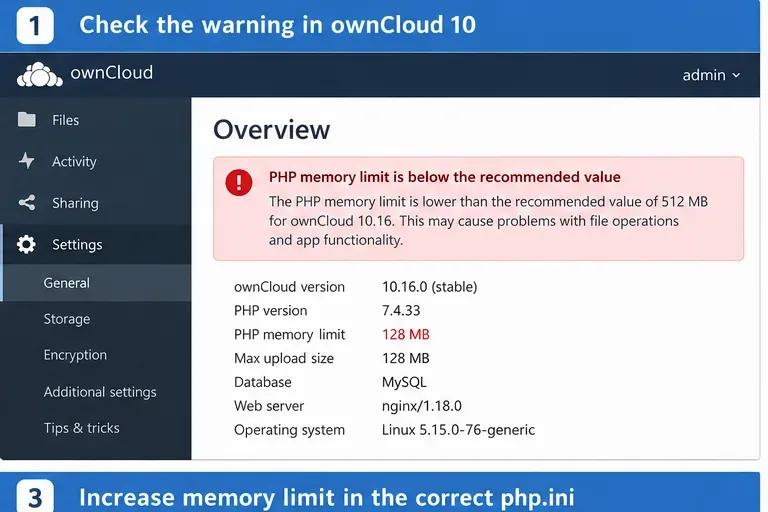
Start from the value visible to ownCloud itself. A 128 MB or 256 MB web-runtime limit is below the 512 MB value used by ownCloud's recommended Docker configuration.
Open the ownCloud administration settings and note the memory-limit warning. Before changing anything, record the ownCloud version, PHP version, web server type, and current memory limit. This gives you a baseline and helps prevent changing the wrong PHP installation on systems with multiple PHP versions.
ownCloud's current 10.16 documentation says server requirements depend heavily on user count, file count, and activity. Its Docker configuration sets OWNCLOUD_MEMORY_LIMIT=512M and recommends keeping that default. This makes 512 MB a sensible baseline for resolving the warning, not a guarantee that every workload will fit within 512 MB.
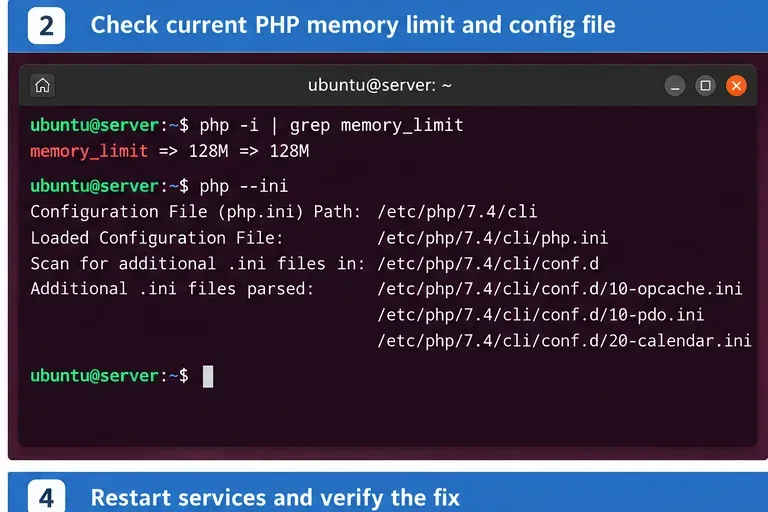
This is useful for occ and cron jobs, but it is not proof of what the web request uses. ownCloud explicitly documents separate configuration paths such as:
3. Find the PHP configuration used by the web request
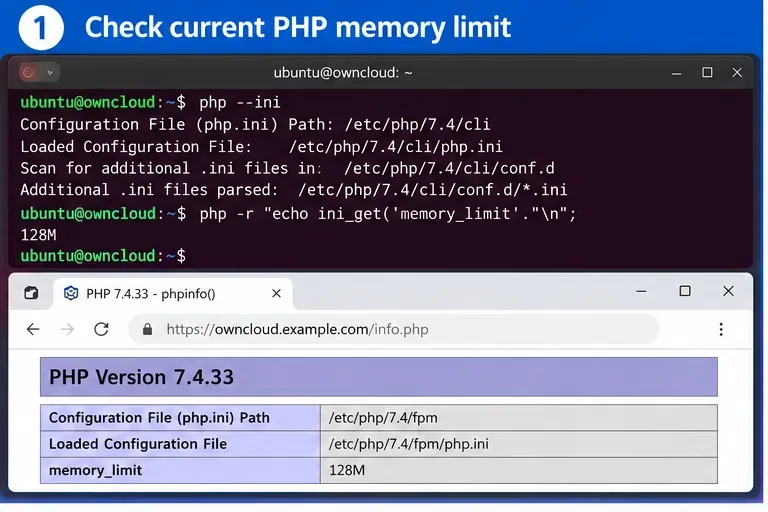
Compare the browser PHP runtime with the CLI runtime. The Loaded Configuration File in the browser is the file that matters for the ownCloud web warning.
The most reliable test is to inspect PHP from the same web stack that serves ownCloud. ownCloud's documentation describes using a temporary phpinfo.php page:
<?php phpinfo(); ?>
Place it temporarily in the web root, open it in a browser, and locate:
Loaded Configuration File
memory_limit
Server API
Then delete the phpinfo file immediately. ownCloud warns that leaving a public phpinfo page exposes sensitive server information.
If the browser says /etc/php/7.4/fpm/php.ini while php --ini says /etc/php/7.4/cli/php.ini, you now know exactly why editing the CLI file did not clear the warning.
4. PHP-FPM: raise the web-runtime limit to 512M
For an Nginx or Apache setup using PHP-FPM, change the FPM php.ini or the applicable pool/site override, not only the CLI file.
On a typical Debian or Ubuntu installation:
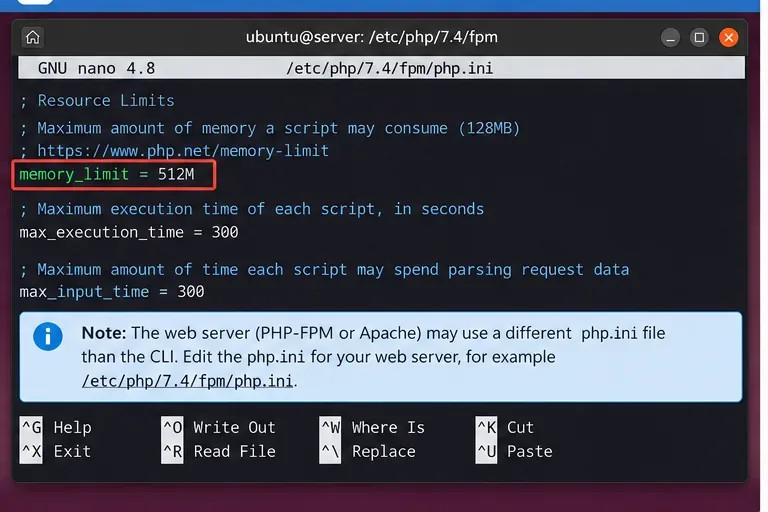
sudo nano /etc/php/7.4/fpm/php.ini
Find:
memory_limit = 128M
and change it to:
memory_limit = 512M
Use your installed PHP version in the path. Then restart the correct FPM service and your web server if needed:
For Apache with proxy_fcgi or another FPM setup, restart PHP-FPM and reload Apache instead.
ownCloud also notes that PHP-FPM does not consume PHP settings from .htaccess. If you rely on per-directory overrides with FPM, use the supported PHP/FPM configuration mechanism for your environment, such as the appropriate php.ini, pool configuration, or .user.ini.
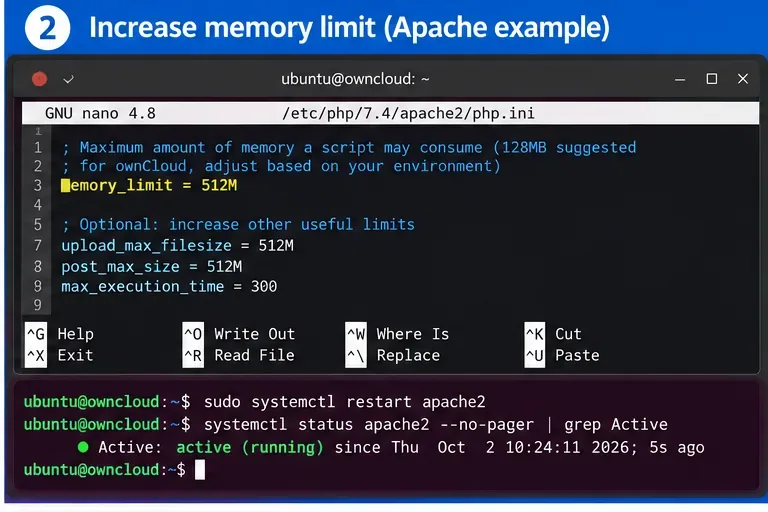
5. Apache with mod_php: edit the Apache PHP configuration
With Apache mod_php, edit the Apache-specific PHP configuration and restart Apache so new worker processes load the new limit.
If Apache loads PHP directly as a module, edit the Apache-specific file:
sudo nano /etc/php/7.4/apache2/php.ini
Set:
memory_limit = 512M
Then restart Apache:
sudo systemctl restart apache2
Do not copy the version number mechanically. Check the version actually loaded by Apache. Systems upgraded across several PHP releases often retain multiple directories under /etc/php/.
The result criterion is simple: after the restart, the web-facing PHP runtime must show the new value. If it still shows 128M, another configuration layer is overriding your edit.
6. Update the CLI limit when occ or cron uses too little memory
The admin web warning is driven by the web runtime, but occ and cron jobs use PHP CLI. ownCloud's documentation calls this out explicitly.
Edit:
sudo nano /etc/php/7.4/cli/php.ini
Set:
memory_limit = 512M
Then verify:
php -r 'echo ini_get("memory_limit"), PHP_EOL;'
You do not need to restart a service for CLI PHP, because each CLI invocation starts a new process. But if your cron job explicitly calls another PHP binary, verify that exact binary rather than assuming /usr/bin/php is the one being used.
ownCloud recommends running occ as the HTTP user, typically www-data on Debian/Ubuntu. Its official occ documentation also warns that occ should use the same PHP version as the web server when multiple versions are installed.
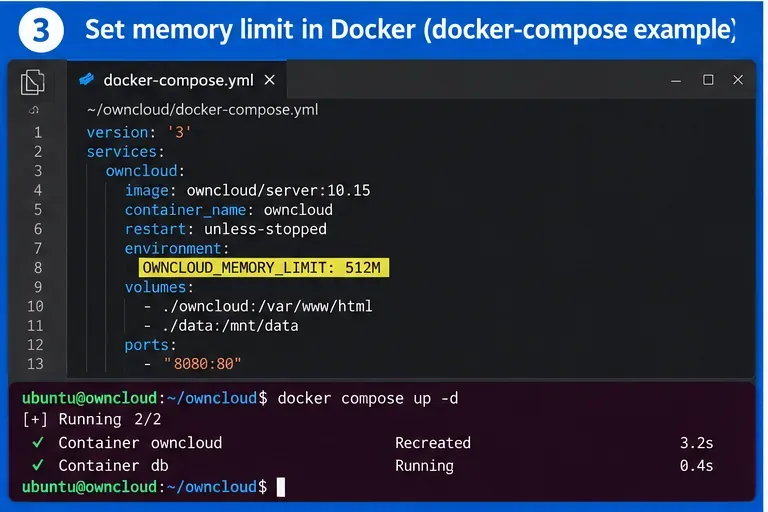
7. Docker: use OWNCLOUD_MEMORY_LIMIT instead of editing files inside the container
For the official ownCloud container, set OWNCLOUD_MEMORY_LIMIT=512M in the container environment and recreate the service so the generated PHP configuration is updated.
For the official ownCloud Docker image, use the documented environment variable:
environment:
  OWNCLOUD_MEMORY_LIMIT: 512M
Then recreate the service:
docker compose up -d
Do not make the primary fix by editing php.ini inside an ephemeral container. Container recreation can discard those changes. The official ownCloud Docker environment documentation defines OWNCLOUD_MEMORY_LIMIT=512M and recommends keeping that default.
If the Docker host itself has a tight memory limit, also inspect container constraints:
docker stats
A PHP limit of 512M does not magically give the container 512 MB of free memory; it only allows an individual PHP request to consume up to that amount. The container and host still need enough memory for all simultaneous PHP workers and other services.
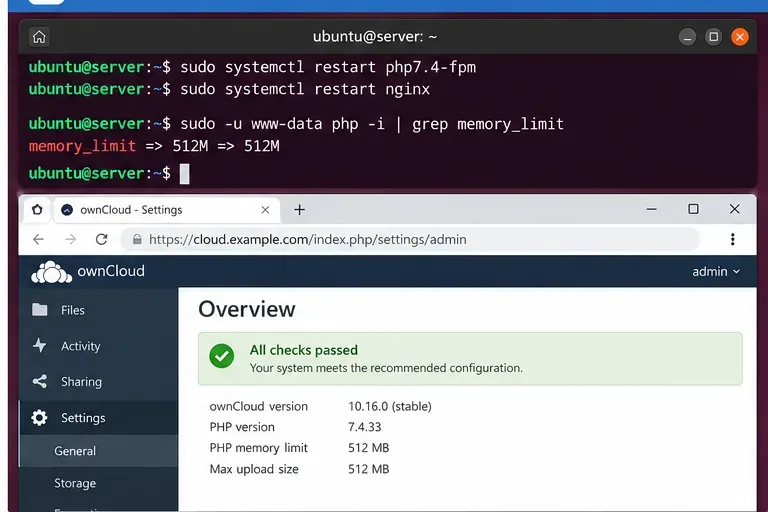
8. Restart the correct service and verify from the same runtime
The fix is complete only when the web runtime reports 512M or more and ownCloud no longer shows the low-memory warning.
After restarting the relevant service, re-check the temporary phpinfo page or the ownCloud admin overview. Then remove the phpinfo page.
If you changed PHP-FPM, check:
sudo systemctl status php7.4-fpm
sudo systemctl status nginx
If you changed Apache:
sudo systemctl status apache2
Refresh the ownCloud admin page. The warning should be gone if ownCloud is now executing with at least the expected limit.
9. Check host RAM before raising the PHP limit beyond 512M
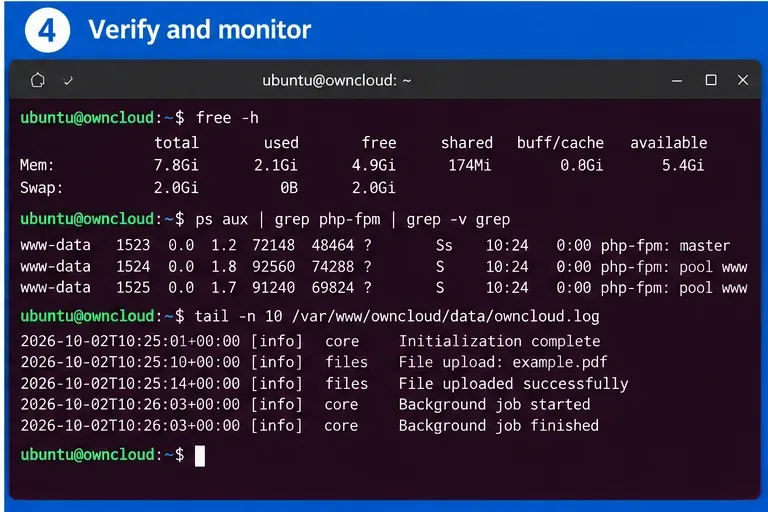
After raising the per-request limit, check total system memory and PHP worker behavior. A higher PHP ceiling can increase worst-case RAM consumption when many workers are active.
Run:
free -h
ps aux | grep php-fpm
vmstat 1
The PHP memory_limit is a per-script ceiling. It is not a reservation and it is not the same as the amount of RAM the server needs. If you have 20 PHP workers and give every request permission to use a very large amount of memory, the theoretical worst case can exceed the machine's RAM by a wide margin.
ownCloud's tuning documentation gives the same general warning for web-server processes: size the number of processes so aggregate memory use stays below available RAM, otherwise the system starts swapping and performance falls. See ownCloud Classic tuning guidance.
If the 512M warning is gone and ordinary operations are healthy, there is no reason to increase the limit just to make the number larger.
10. When 512M still produces “Allowed memory size exhausted”
A cleared recommendation warning and a memory-exhaustion crash are different issues. If the logs contain messages such as:
PHP Fatal error: Allowed memory size of ... bytes exhausted
identify the operation that triggers it. Large scans, encryption jobs, external-storage operations, image processing, or a third-party app can have very different memory profiles.
Check ownCloud's log and the PHP/web-server error log. A standard ownCloud installation writes its own log under the configured data directory, commonly data/owncloud.log. Avoid treating “increase it to 1G” as the automatic next step. First establish whether the same operation repeatedly reaches the ceiling.
If one known administrative job legitimately needs more memory, a targeted CLI override can be safer than globally giving every web request a huge limit:
php -d memory_limit=1G occ <command>
Use this only when the command and memory behavior are understood. It does not fix a web request that runs through PHP-FPM or Apache.
Why the warning may remain after editing php.ini
Symptom
Likely cause
Next check
php -r shows 512M, ownCloud still shows 128M
You changed CLI PHP only
Check browser phpinfo and its Loaded Configuration File.
FPM file says 512M, browser still shows 128M
Pool, .user.ini, or another INI file overrides it
Inspect phpinfo “local” and “master” values and additional parsed INI files.
Value changes only after reboot
Correct service was not restarted
Restart PHP-FPM or Apache explicitly after the edit.
Docker value returns to old setting after recreate
You edited inside the container
Set OWNCLOUD_MEMORY_LIMIT in Compose or the deployment environment.
Warning disappears but server begins swapping
PHP concurrency exceeds host memory
Reduce worker count, optimize workload, or add RAM.
Do not confuse memory_limit with upload limits
memory_limit, upload_max_filesize, and post_max_size solve different problems. Raising PHP memory does not automatically let users upload larger files. ownCloud's 10.16 configuration notes separately state that post_max_size should be configured to at least 512 MB for the documented minimum and explain that upload limits need their own settings.
If the actual symptom is “large uploads fail,” inspect upload_max_filesize, post_max_size, proxy/web-server body-size limits, timeouts, and temporary-disk capacity. Do not use a higher memory_limit as a substitute for those controls.
Final checklist
Confirm the warning and current value in ownCloud.
Identify whether ownCloud uses Apache mod_php or PHP-FPM.
Find the web runtime's Loaded Configuration File.
Set the web PHP memory_limit to at least 512M.
Update CLI PHP too if occ or cron uses a lower limit.
For Docker, set OWNCLOUD_MEMORY_LIMIT=512M in the deployment environment.
Restart or recreate the service that actually serves PHP.
Verify the value from the web runtime, not only from CLI.
Confirm the ownCloud warning is gone.
Monitor host RAM and swap before increasing the limit beyond 512M.
Bottom line
The clean fix for “PHP memory limit below recommended value” in ownCloud 10 is to make the PHP runtime that actually serves ownCloud use a 512 MB or higher limit, then verify that result from the same runtime. The most common failure is editing /etc/php/.../cli/php.ini while ownCloud is running through PHP-FPM or Apache with a different configuration file.
Stop once the warning is gone, routine operations are healthy, and the host has comfortable memory headroom. If PHP still exhausts 512 MB during a specific operation, switch from “raise the number” to workload diagnosis: inspect the failing command, apps, logs, concurrency, and physical RAM. A larger limit can be appropriate, but only when the workload justifies it and the server can safely support it.