Home
» NETWORK ADMIN
»
Fix the ownCloud Apache AllowOverride All Warning Safely
Fix the ownCloud Apache AllowOverride All Warning Safely
If ownCloud reports that Apache’s AllowOverride All setting is missing, add it to the Apache <Directory> block that matches your ownCloud installation path, test the configuration, and reload Apache. On a typical Debian or Ubuntu installation, the setting belongs in the active ownCloud virtual host or in the matching directory block in Apache’s configuration. Do not enable overrides across the entire server just to clear one warning.
In ownCloud Server (Classic), Apache must be allowed to read the installation’s .htaccess rules. Those rules support URL rewriting and help protect sensitive paths. A missing or ineffective rule can therefore affect both clean URLs and the security check for the data directory. This guide applies to ownCloud Server using Apache HTTP Server; it does not apply to Nginx, ownCloud Infinite Scale, or a hosting setup where Apache configuration is controlled by a provider.
Quick reference
Goal
Check or setting
Allow ownCloud’s per-directory rules
AllowOverride All in the matching <Directory> block
Confirm Apache can parse the change
sudo apachectl -t should report Syntax OK
Activate the configuration
sudo systemctl reload apache2 on Debian or Ubuntu
Check clean URLs
Ensure mod_rewrite is enabled if your configuration needs it
Confirm the warning is gone
Reload ownCloud’s Administration overview after testing the affected URL
What the warning means
Apache’s AllowOverride directive decides whether directives in .htaccess files are allowed to affect requests. Apache only honors AllowOverride inside a <Directory> section; placing the line at the top level of a virtual host or in an unrelated block will not enable it for the ownCloud files. A broader <Directory> rule, a more specific rule, or another enabled virtual host may also mean that the setting you edited is not the one serving the request.
ownCloud’s current Server 10.16 installation guidance shows AllowOverride All in the directory block for the ownCloud document root. “All” permits the override classes supported by Apache modules in that scope. Keep that permission limited to the ownCloud directory, rather than changing Apache’s global filesystem policy. The Apache manual also describes AllowOverrideList for administrators who want to allow particular directives only, but a narrow list requires careful compatibility testing against the ownCloud version and its shipped .htaccess rules.
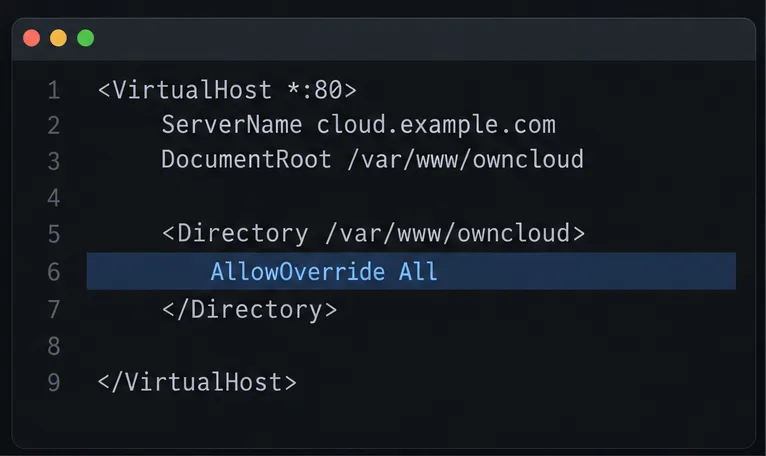
An example virtual host places AllowOverride All inside the directory block for /var/www/owncloud.
Before changing Apache
Confirm the product is ownCloud Server (Classic), and identify the exact filesystem path of its web root. A URL such as /cloud may map through an Apache Alias to a different on-disk directory.
Find the active virtual host and configuration file. On Debian or Ubuntu, common locations include /etc/apache2/sites-available/ and /etc/apache2/apache2.conf. On RHEL-family systems, Apache configuration commonly lives below /etc/httpd/. Hosting panels and containers can use other paths.
Back up the file before editing and preserve any existing TLS, proxy, access-control, and ownCloud directives.
Check whether another AllowOverride None or directory rule applies to the same path. Do not edit a default site file that is not enabled for the ownCloud hostname.
Fix a self-managed Apache server
1. Edit the active configuration
On Debian or Ubuntu, open the virtual host that serves the ownCloud hostname, for example:
Within that file, find or add a <Directory> section for the actual ownCloud installation directory. This minimal example shows the relevant placement; keep any additional directives already required by your server:
<Directory /var/www/owncloud/>
    Options +FollowSymlinks
    AllowOverride All
    Require all granted
</Directory>
Replace /var/www/owncloud/ with your real path. If Apache maps a URL with Alias, configure the filesystem directory that contains the ownCloud files, not merely the URL path. ownCloud’s Apache installation guide includes additional configuration notes; use the example that matches your ownCloud release and PHP setup.
2. Check modules and syntax
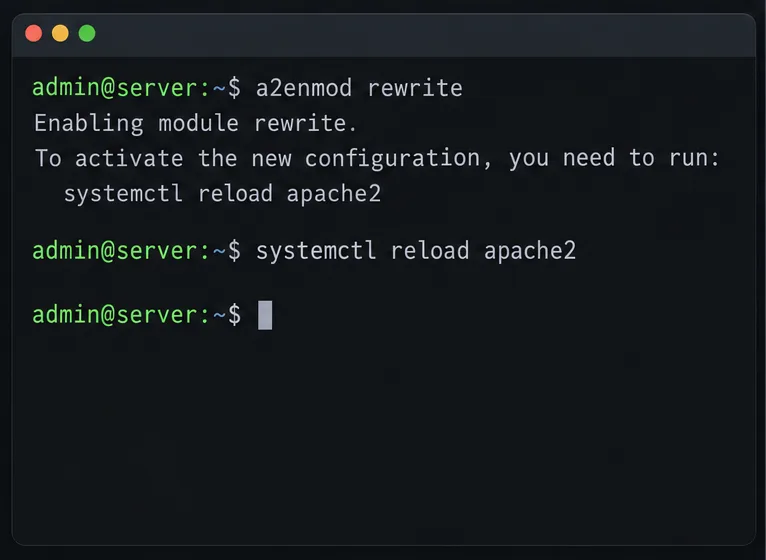
For clean URLs without index.php, ownCloud documents mod_rewrite and mod_env as prerequisites. On Debian or Ubuntu, enable the rewrite module if it is not already active:
sudo a2enmod rewrite
sudo apachectl -t
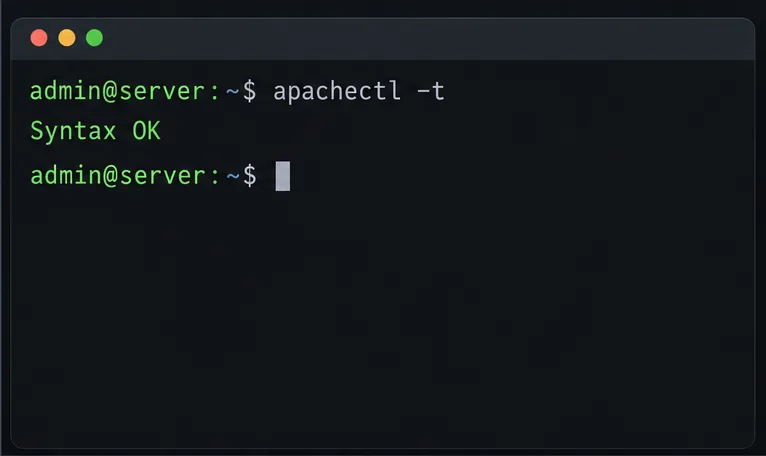
The configuration test should end with Syntax OK. If it reports an error, fix that error before reloading. A successful syntax check proves Apache can parse its configuration; it does not prove that the correct virtual host is active or that the running process has loaded the edited file.
The Apache configuration test should return Syntax OK before you reload the service.
3. Reload Apache and test ownCloud
On Debian or Ubuntu, reload Apache after the syntax check succeeds:
sudo systemctl reload apache2
For RHEL-family systems, the service is commonly named httpd, so use the matching service name and distribution’s configuration-test command. Do not copy Debian-specific commands to another system without confirming its service layout.
Open the ownCloud hostname in a browser and test a page that previously needed rewriting. If the server uses a path prefix such as /cloud, test the prefixed URL too. A redirect loop, 403 response, or Apache 500 error means the configuration still needs investigation; check the Apache error log and ownCloud log rather than repeatedly changing unrelated directives.
Enable mod_rewrite only when required, then reload the Apache service after a successful syntax check.
If the warning remains
Symptom
Next check
Warning stays after reload
Confirm the edited virtual host is enabled and serves the hostname; inspect apachectl -S and check for a lower-level or more specific directory rule.
Clean URLs still include index.php
Check that mod_rewrite is enabled, the ownCloud directory has the intended override permission, and ownCloud’s rewrite base matches its URL path.
Admin page says the data directory may be publicly accessible
Verify the data directory is outside the web root where possible. Otherwise confirm the shipped data-directory .htaccess exists, is readable, and is honored by Apache; do not treat clearing the warning as a substitute for protecting the directory.
Apache returns 500 or reports “not allowed here”
Read the Apache error log. A directive in .htaccess may not be permitted by the active override classes, or a required module may be unavailable.
Running in a container or managed host
Inspect the image’s documented Apache setup or the provider’s control panel. A host-level Apache file may not be the server that handles requests.
If ownCloud reports that its .htaccess file cannot be updated, check ownership and write permissions against ownCloud’s upgrade and hardening guidance before changing them. Avoid making the entire installation writable by the web server as a shortcut. The ownCloud documentation notes that configuration details vary by installation, and that PHP-FPM does not use PHP settings from .htaccess; settings for that case belong in .user.ini. That PHP distinction does not itself replace Apache’s need to process the ownCloud rewrite and access rules.
Verification checklist
The <Directory> path exactly matches the ownCloud files on disk.
The matching block contains AllowOverride All, and no active conflicting rule takes precedence.
sudo apachectl -t returns Syntax OK.
Apache has been reloaded using the correct service name.
The ownCloud login page and a previously affected URL load over HTTPS as expected.
The Administration overview no longer shows the same warning after refresh, and the data directory remains inaccessible from the public web.
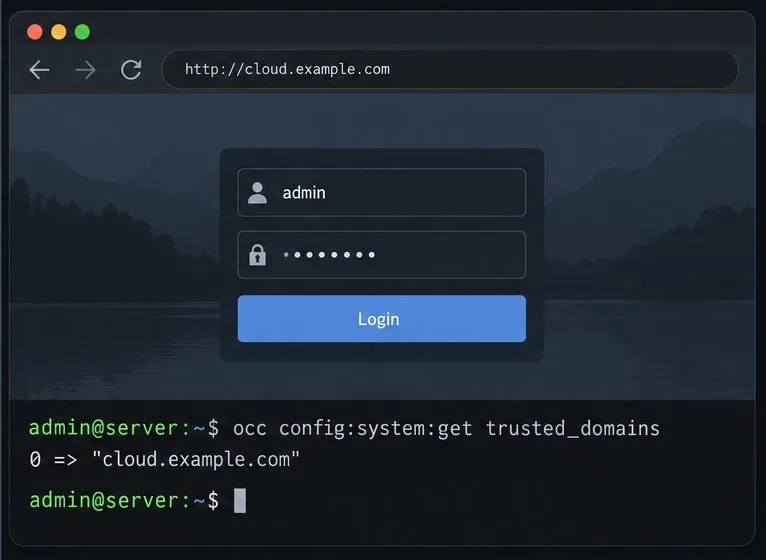
An example ownCloud sign-in page at the configured hostname; confirm the actual warning status in your own Administration overview.