Start by deciding what kind of blank page you actually have
An ownCloud “white screen of death” is a symptom, not a diagnosis. The best fix depends on whether the browser received a server error, received valid HTML but failed to load JavaScript or CSS, or reached a reverse proxy that could not reach ownCloud at all.
That distinction matters because the trade-offs are very different. Disabling a third-party app is relatively low risk when a PHP exception names that app. Changing file ownership across an entire installation is much more invasive and should not be the first response to a JavaScript error. Likewise, restarting every service may briefly hide a problem without telling you whether it came from PHP, a proxy, an upgrade, or an app.
This guide covers ownCloud Classic. As of the current ownCloud Classic 11 documentation, version 11 is supported as a Docker-based deployment, with the operating system, PHP runtime, database, and Apache inside the ownCloud-provided containers. Older 10.x installations may still use a traditional web-server and PHP-FPM layout. Use the command branch that matches your deployment. See the ownCloud Classic 11 system requirements.
1. Is the blank page returning HTTP 500, or is the browser failing after HTTP 200?
Open the browser developer tools and inspect both the Network and Console tabs. Also test the endpoint from a terminal:
curl -I https://cloud.example.com/
curl -sS -o /dev/null -w '%{http_code}\n' https://cloud.example.com/
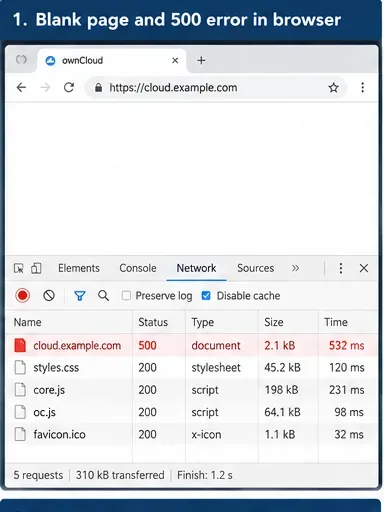
Caption: A server-side 500 response points toward ownCloud, PHP, the database, or the web stack rather than a simple browser-rendering problem.
If the main document returns 500 or 502/503, prioritize server and proxy logs. If the main document returns 200 but JavaScript bundles fail with 404, 403, or script exceptions, prioritize asset paths, reverse-proxy rewriting, themes, cache, or app compatibility. If only one browser is affected, test a private window and another supported browser before changing the server.
2. Did the problem start after an ownCloud or PHP upgrade?
This is one of the highest-value questions because it can immediately narrow the fault domain. ownCloud's current release notes state that ownCloud Classic 11 raised the minimum PHP version to PHP 8.3, and ownCloud Classic 11 is Docker-only. A legacy ownCloud 10.x installation follows different PHP compatibility rules, so do not copy PHP advice from another major release.
For a traditional ownCloud 10.x installation, run the command from the ownCloud directory:
sudo -u www-data ./occ status
php -v
For ownCloud Classic 11, run OCC through the Compose deployment:
docker compose exec owncloud occ status
docker compose exec owncloud php -v
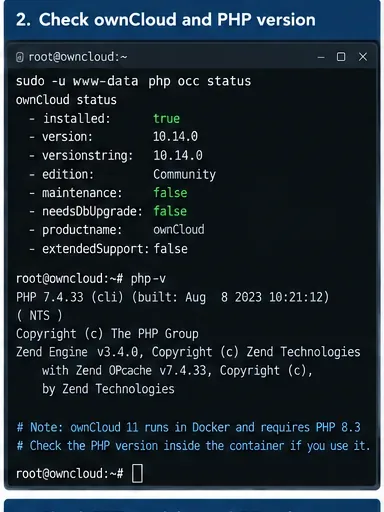
Caption: Checking the installed ownCloud and PHP versions is especially important when the white screen began immediately after an upgrade.
Compare the result with the release notes for the version you actually run. The official ownCloud release notes are the right source for current minimum versions and breaking changes. A downgrade is not a safe generic fix: ownCloud documentation warns that downgrading is unsupported because it can corrupt data.
3. Which log gives you the first concrete error?
Logs are usually more useful than trial-and-error configuration changes. ownCloud's administration manual recommends the ownCloud log for diagnosing problems; by default, the log is stored in the configured data directory unless a different logfile is set.
On a traditional installation, examples include:
tail -n 100 /path/to/owncloud/data/owncloud.log
journalctl -u php-fpm --since "15 minutes ago"
journalctl -u apache2 --since "15 minutes ago"
journalctl -u nginx --since "15 minutes ago"
On ownCloud Classic 11, inspect the Compose services instead:
docker compose logs --tail=200 owncloud
docker compose ps
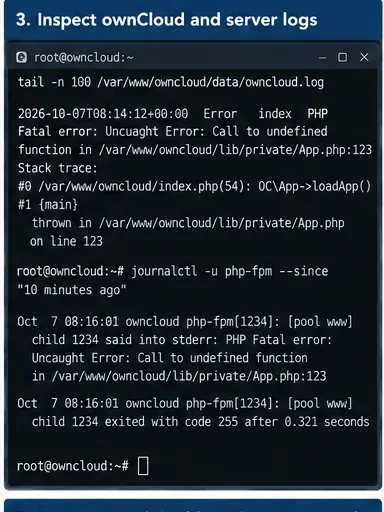
Caption: A PHP fatal error or stack trace that names an app or class gives a much safer troubleshooting target than changing unrelated server settings.
Look for the first fatal exception around the failed request, not only the final cascade of errors. Common categories include a missing PHP class, an incompatible app, database connection failure, unreadable configuration, missing code files, or an exception during an unfinished upgrade.
ownCloud's logging documentation says DEBUG logging can help during diagnosis but produces substantial output and can affect performance. If you temporarily raise the log level, return it to a less verbose value after collecting the evidence. See ownCloud logging configuration.
4. Should you disable a third-party app?
Choose this path when the error names a non-core app, when the blank page started after installing or updating an app, or when the failure appeared during an ownCloud upgrade. ownCloud's troubleshooting guidance explicitly recommends disabling third-party apps for troubleshooting and before upgrades.
List apps first. On ownCloud 10.x:
sudo -u www-data ./occ app:list
sudo -u www-data ./occ app:disable APP_ID
On ownCloud 11:
docker compose exec owncloud occ app:list
docker compose exec owncloud occ app:disable APP_ID
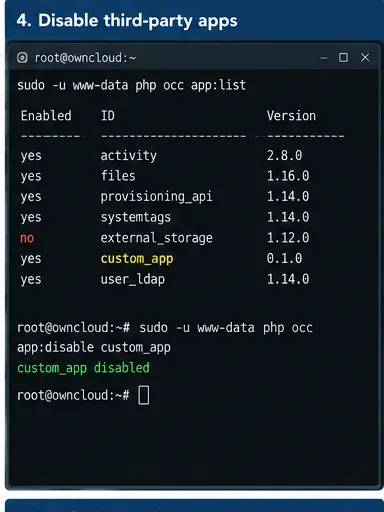
Caption: Disabling only the app implicated by logs is less disruptive than disabling many components or changing the full web stack.
The trade-off is functionality: users lose that app until it is updated or re-enabled. This is usually preferable to disabling core ownCloud services. The OCC documentation also notes that several core apps cannot be disabled, including DAV, FederatedFileSharing, Files, and Files_External. Review the official general troubleshooting guidance and the OCC command reference.
5. When are permissions worth fixing?
Permissions are a strong suspect when the log contains Permission denied, a recent deployment copied app/config files as the wrong user, or an upgrade replaced files with incorrect ownership. They are a weak suspect when the only evidence is a browser-side JavaScript error.
Put the system into maintenance mode before disruptive repair work. For ownCloud 11:
docker compose exec owncloud occ maintenance:mode --on
For a traditional 10.x deployment:
sudo -u www-data ./occ maintenance:mode --on
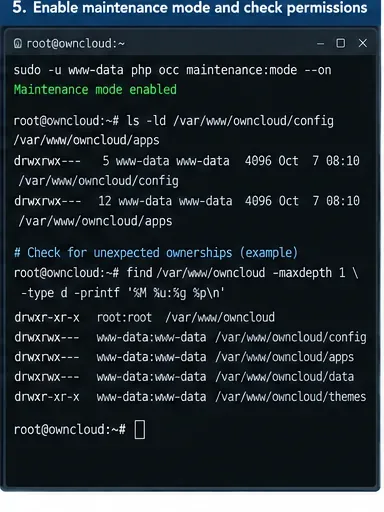
Caption: Maintenance mode reduces user activity while you investigate ownership or file-permission errors that are already supported by log evidence.
Do not run a blanket recursive chmod 777 or copy permission recipes from an unrelated release. The current ownCloud 11 manual documents specific ownership and modes for manually added files in Docker-mounted apps and config directories: ownership www-data:root, app files 0644, app directories 0751, and added config files 0644. It also documents 0640 for manually changed .htaccess and .user.ini. Use the ownCloud 11 manual-upgrade documentation as the release-specific reference.
6. Should you change PHP modules, OPcache, or memory settings?
Only when logs or compatibility checks point there. This path has a wider blast radius than disabling one bad app. A missing required PHP extension can prevent code from running, while a malformed PHP configuration can affect every PHP application on the host.
For a legacy host-managed PHP stack, inspect what the web runtime actually loads:
php -m
php --ini
php -r 'phpinfo();' | grep opcache.enable
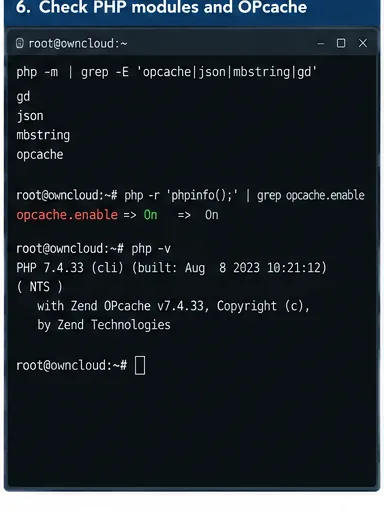
Caption: PHP module and OPcache checks are useful when server logs name missing extensions or runtime incompatibility, but they should not be the first change without evidence.
For ownCloud 11, the official image manages the PHP runtime, so changing host PHP packages is generally the wrong layer. ownCloud documents OPcache as enabled by default in its Docker image. See the ownCloud memory caching documentation.
If you suspect stale OPcache after replacing PHP files manually on a legacy installation, restarting PHP-FPM or the relevant web/PHP service can clear process-local opcode cache. The trade-off is a short interruption and cold-cache performance afterward. Do this after correcting the underlying files, not as a substitute for identifying the error.
7. Was an upgrade interrupted or are core files inconsistent?
If the white page appeared during or immediately after an upgrade, first check the upgrade state. ownCloud's own upgrade documentation recommends using OCC for the upgrade and repair path rather than manipulating the database manually.
For ownCloud 11:
docker compose exec owncloud occ status
docker compose exec owncloud occ upgrade
docker compose exec owncloud occ maintenance:repair
docker compose exec owncloud occ integrity:check-core
For ownCloud 10.x, use the equivalent OCC commands under the web-server user:
sudo -u www-data ./occ status
sudo -u www-data ./occ maintenance:repair
sudo -u www-data ./occ integrity:check-core
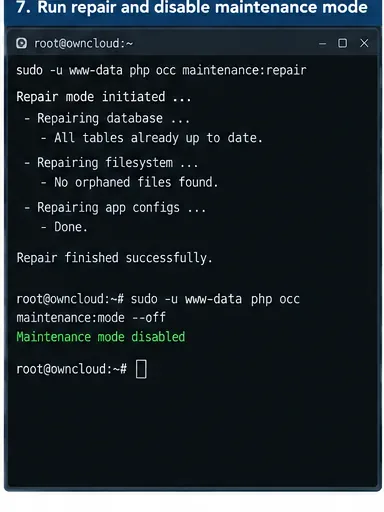
Caption: OCC repair is appropriate for an interrupted or inconsistent upgrade, while integrity checks can identify modified or missing signed core files.
Code-integrity results need interpretation. ownCloud documents INVALID_HASH, FILE_MISSING, and EXTRA_FILE as distinct conditions. Do not edit signature.json to make warnings disappear. Current ownCloud 11 documentation also makes third-party app signing mandatory for installation, updates, and enabling. See the ownCloud code-signing documentation.
8. How should you verify the fix?
A good recovery is not merely “the page is no longer white.” Verify the entire request path:
- The main ownCloud page returns the expected HTTP status rather than 500/502/503.
- Browser developer tools show no recurring fatal JavaScript error or missing core bundle.
- The ownCloud log does not immediately record a new fatal exception for the same request.
occ status reports an installed instance and no unexpected upgrade requirement.- Maintenance mode is disabled after maintenance is complete.
- A test user can log in and open the Files page.
For ownCloud 11:
docker compose exec owncloud occ maintenance:mode --off
docker compose exec owncloud occ status
curl -I https://cloud.example.com/
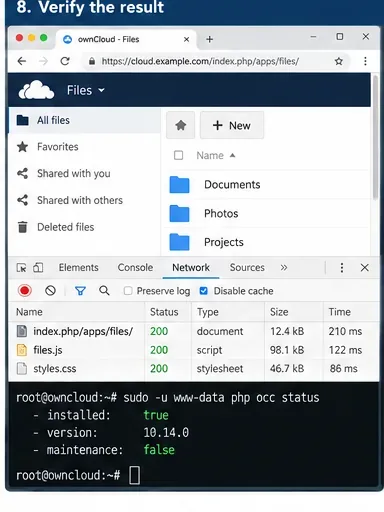
Caption: Recovery should be confirmed at both layers: the ownCloud interface loads, and server-side status and HTTP checks remain healthy.
Which fix gives the best risk-to-benefit trade-off?
| Evidence you have | Best first choice | Trade-off |
|---|
| Only one browser shows the blank page | Private window, supported second browser, browser console | Lowest risk; does not address a real server fault if all users are affected |
| Main document is HTTP 500 | ownCloud, PHP/container, web-server, and database logs | Fastest path to root cause; requires shell or platform log access |
| Error names a third-party app | Disable only that app with OCC | Usually low operational risk, but that app's functionality is temporarily unavailable |
| Problem began immediately after upgrade | Check supported version matrix, upgrade state, app compatibility, OCC repair | More controlled than rollback; may require a maintenance window |
| Logs say Permission denied after copied files | Correct only documented ownership/modes for the affected release | Precise when evidence exists; blanket recursive permission changes can create security and upgrade problems |
| Core integrity check reports modified/missing files | Restore correct release files or follow supported upgrade/restore procedure | Preserves integrity; avoid manually patching many core files in place |
| HTTP 200 but JS/CSS fails | Browser Network/Console, proxy paths, theme/app assets, cache | Avoids unnecessary database/PHP changes; may require proxy configuration access |
What not to do when ownCloud shows a white screen
- Do not enable PHP
display_errors on a public production site just to expose stack traces to the browser; use server logs instead.
- Do not recursively set the entire ownCloud tree to world-writable permissions.
- Do not downgrade ownCloud as a quick rollback unless you are restoring a supported backup into a compatible environment.
- Do not delete the data directory, app data, database tables, or cache directories at random.
- Do not disable every app at once when one named app can be isolated.
- Do not edit signed core files or
signature.json merely to suppress integrity errors.
When should you escalate instead of continuing to experiment?
Stop making changes when the logs indicate database corruption, encryption-key problems, repeated core integrity failures after a clean restore, or an upgrade state that cannot be completed with the documented OCC workflow. Also escalate when the blank page affects a production cluster and you cannot isolate a single node without risking data consistency.
Before opening a support case, ownCloud recommends collecting a configuration report and relevant logs. For ownCloud 10.x, the documented command is:
sudo -u www-data ./occ configreport:generate > config_report.txt
Use the corresponding OCC execution method for your deployment, and review the output for secrets before sharing it outside your organization. The ownCloud log and configuration collection guide explains what support engineers typically need.
Official references









