Home
» NETWORK ADMIN
»
Fix “The PHP OPcache Is Not Properly Configured” Nextcloud Warning
Fix “The PHP OPcache Is Not Properly Configured” Nextcloud Warning
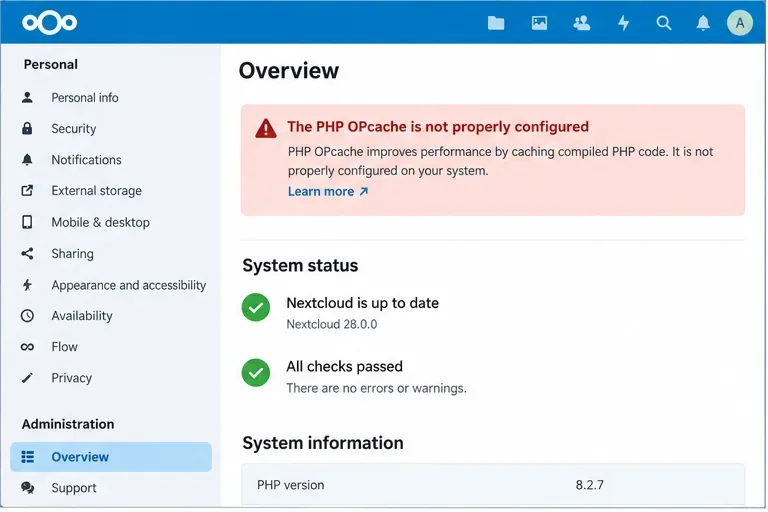
If Nextcloud reports “The PHP OPcache is not properly configured”, the right fix is not to paste a large tuning block from an old forum post. First identify which OPcache limit or setting Nextcloud is objecting to, then change the PHP configuration actually used by your web server.
In the current Nextcloud 35 administration documentation, OPcache is treated as an important PHP performance layer. Nextcloud says its admin panel raises a related warning when an OPcache size limit exceeds 90% of its allocated capacity. It also requires cached code comments to be preserved. PHP’s own manual documents the relevant directives and their defaults. Those facts give you a safer way to tune OPcache: increase only the constrained resource, keep required behavior enabled, and avoid changes that complicate upgrades unless you have a reason for them.
The warning should be treated as a diagnostic clue: identify the specific OPcache constraint before changing memory or file-count limits.
What the Nextcloud OPcache warning usually means
OPcache stores compiled PHP bytecode in shared memory so PHP does not have to parse and compile the same application files on every request. Nextcloud describes this as a performance feature, and PHP has bundled Zend OPcache in core since PHP 5.5.
The warning can appear for more than one reason. The most common cases are that an OPcache capacity is close to full, OPcache is disabled for the web SAPI, or a required behavior such as preserving comments has been changed. Nextcloud’s current tuning guide states that a sizing warning is shown when an OPcache size limit exceeds 90% of its allocation, and it explicitly requires opcache.save_comments = 1.
Choose the fix based on the warning, not a one-size-fits-all block
Situation
Best first change
Tradeoff
OPcache memory is above Nextcloud’s warning threshold
Increase opcache.memory_consumption moderately
Uses more shared RAM, but reduces cache churn
Interned strings are nearly full
Increase opcache.interned_strings_buffer
Consumes additional shared memory; raising unrelated limits gives no benefit
Cached script/file slots are near capacity
Increase opcache.max_accelerated_files
A larger hash table uses more memory
OPcache is disabled
Set opcache.enable=1 for the web PHP configuration
Normal and recommended for Nextcloud; verify the correct SAPI
opcache.save_comments was disabled
Set opcache.save_comments=1
No meaningful Nextcloud-specific reason to disable it; Nextcloud requires comments preserved
PHP currently lists defaults of 128 MB for opcache.memory_consumption, 8 MB for opcache.interned_strings_buffer, and 10,000 for opcache.max_accelerated_files. Those defaults are reference points, not universal Nextcloud targets. A small personal server may be fine close to them, while a larger installation with many apps can need more headroom.
Step 1: Confirm which PHP configuration Nextcloud actually uses
This is the step that prevents many failed fixes. Nextcloud documents that the web server and command-line PHP can load different configuration files. On Debian- and Ubuntu-style systems, common paths include /etc/php/<version>/fpm/php.ini, /etc/php/<version>/apache2/php.ini, and /etc/php/<version>/cli/php.ini.
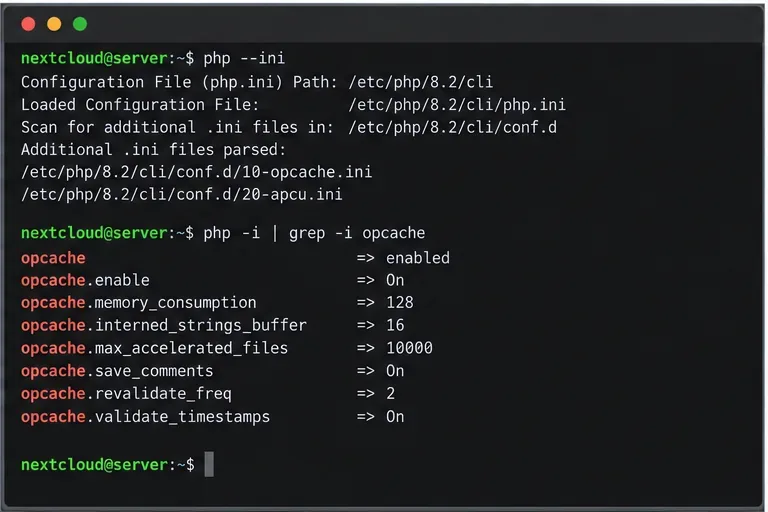
Run php --ini to see the CLI configuration, but do not assume it is the same file used by PHP-FPM or Apache. For the web SAPI, use a temporary phpinfo() page only if you can protect and remove it immediately, or inspect your PHP-FPM pool/service configuration and distribution-specific module files.
Recommendation: if Nextcloud runs behind Nginx or Apache with PHP-FPM, modify the FPM OPcache configuration. If Apache uses mod_php, modify the Apache PHP configuration. Keep the CLI configuration aligned when background jobs need the same behavior, but remember that the browser warning is generated by the web request path.
Step 2: Edit the smallest set of OPcache directives that solves the problem
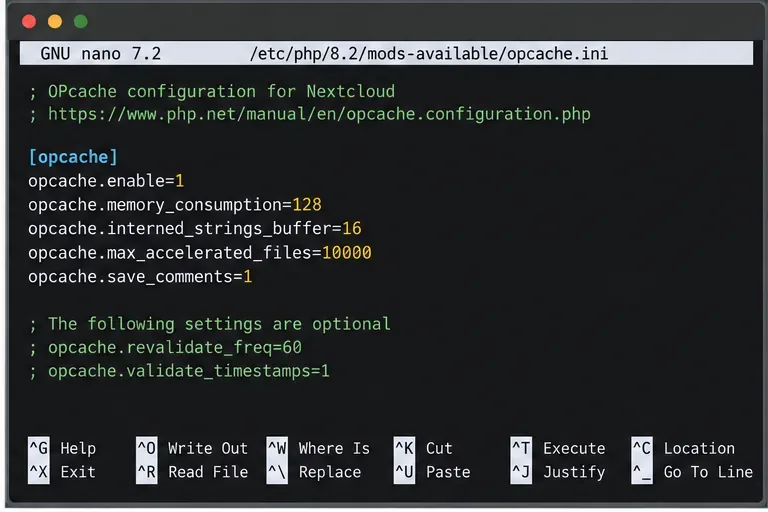
Edit the OPcache configuration used by the web SAPI. Increase only the resource that is constrained instead of copying an oversized preset blindly.
A conservative example for a modest server is shown below. Treat the numeric values as starting points, not guarantees:
If Nextcloud specifically says OPcache memory is almost full, moving from 128 MB to 256 MB can be a reasonable incremental change when the server has enough free RAM. If the warning instead points to interned strings or cached scripts, raise that limit rather than memory alone. On a memory-constrained VPS, jumping straight to 512 MB may reduce the RAM available to PHP-FPM workers, the database, Redis, and the operating system.
What about revalidation settings?
Nextcloud’s current tuning guide says PHP defaults to checking cached scripts for changes every two seconds, and it makes no recommendation to change that default for everyone. Raising opcache.revalidate_freq can reduce filesystem checks, but the tradeoff is operational: application upgrades and edits to config.php can take longer to become visible. Disabling timestamp validation entirely is more aggressive and can leave old code active until OPcache is manually cleared or PHP is restarted.
For most administrators trying only to clear the warning, leave opcache.validate_timestamps and opcache.revalidate_freq at their normal behavior unless you understand the deployment workflow. Nextcloud specifically warns that unusual behavior after upgrades can result from stale cached code when revalidation has been changed.
Step 3: Restart the correct PHP service
After changing an INI file, restart or reload the PHP process that serves Nextcloud. Typical examples are systemctl restart php8.2-fpm for PHP-FPM or a restart/reload of Apache when mod_php is in use. Replace the version and service name with what your system actually runs.
This matters even more if you changed revalidation behavior. Restarting the correct service guarantees that the new OPcache configuration is loaded and removes ambiguity about stale bytecode.
Step 4: Verify the values, but verify the web SAPI too
CLI checks are useful for finding INI files and confirming syntax, but the web SAPI can load a different configuration.
Useful command-line checks include:
php --ini
php -i | grep -i opcache
These commands can confirm that PHP recognizes the directives, but they only prove the CLI configuration. If the Nextcloud warning remains, compare the web SAPI’s loaded configuration with the CLI result. This is especially important on systems that maintain separate cli, fpm, and apache2 INI trees.
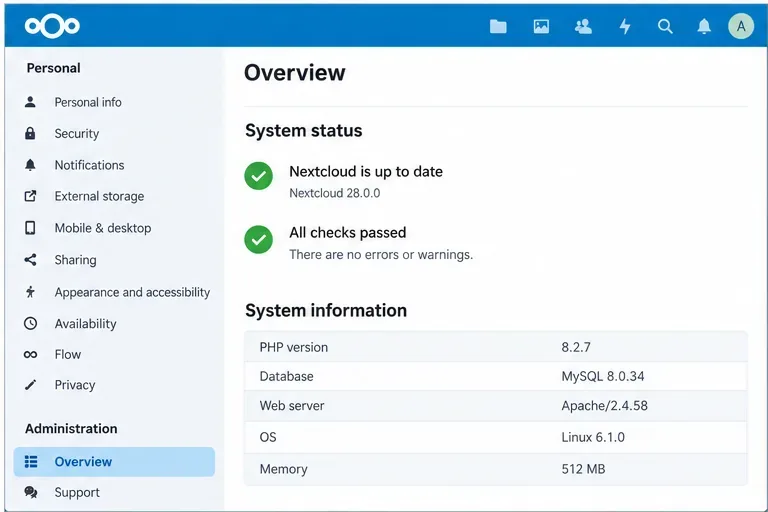
Step 5: Recheck Administration > Overview
After reloading PHP, refresh Administration > Overview. The OPcache warning should disappear once the web SAPI is using adequate limits and required settings.
Refresh the Nextcloud administration overview after the PHP service restart. If the warning disappears, the configuration is being read by the right SAPI and the reported threshold is no longer exceeded.
If it remains, do not keep increasing values at random. Check four things in order: whether you edited the correct INI file, whether another later-loaded INI file overrides your setting, whether the relevant PHP service was restarted, and whether the warning names a different OPcache resource than the one you increased.
How much OPcache memory should you allocate?
There is no single best value. The useful target is enough headroom that the cache is not continually approaching its limits, without starving the rest of the stack. For a small VPS, start conservatively and watch memory pressure. For an instance with many apps or a larger PHP code footprint, 256 MB or more may be justified when actual OPcache usage shows 128 MB is insufficient. On a large server, memory sizing should be considered together with PHP-FPM worker counts and other shared services.
The practical comparison is simple: more OPcache memory can reduce cache evictions and recompilation, but less OPcache memory leaves more RAM for concurrent PHP workers and databases. Choose based on measured usage and the warning Nextcloud reports, not on the largest number your server can accept.
Common mistakes that make the warning persist
Editing CLI PHP only: the browser still uses PHP-FPM or mod_php.
Raising the wrong limit: more memory does not fix a full accelerated-files table.
Forgetting the restart: the running PHP process may still have the old INI values.
Disabling opcache.save_comments: Nextcloud requires comments to be preserved.
Copying outdated tuning snippets: old guides may recommend aggressive revalidation settings that create upgrade problems.
Recommended approach by server type
Small personal Nextcloud server: keep revalidation defaults, preserve comments, and increase only a limit that actually exceeds the threshold. This minimizes RAM use and operational surprises.
Busy multi-user server: monitor OPcache consumption and allow more headroom where the admin warning indicates pressure. Coordinate OPcache memory with PHP-FPM worker sizing so one optimization does not create system-wide swapping.
Managed hosting or container image: first determine where PHP settings are meant to be overridden. Editing a file inside an ephemeral container may disappear after a redeploy, while a provider may expose custom INI values through its control panel or environment configuration.
Final check
A correct fix has three parts: Nextcloud’s web PHP process has OPcache enabled, required behavior such as opcache.save_comments=1 remains intact, and the specific OPcache resource that was near capacity now has reasonable headroom. Once those conditions are true and PHP has been reloaded, the warning should clear without resorting to excessive memory allocations or risky cache-validation changes.