Home
» NETWORK ADMIN
»
Fix the “WebDAV Interface Is Broken” Error in ownCloud
Fix the “WebDAV Interface Is Broken” Error in ownCloud
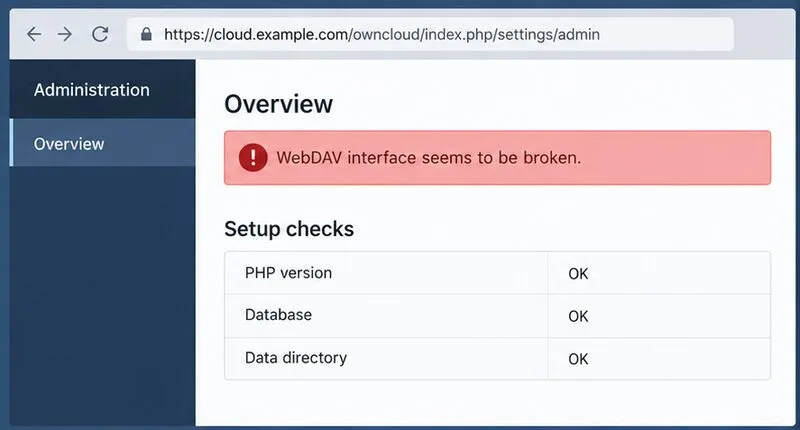
If ownCloud loads in a browser but its admin page says the “WebDAV interface is broken,” file uploads, desktop sync, and the Files app may also fail. The warning is a symptom, not a diagnosis: the DAV endpoint may be unreachable, rewritten incorrectly, blocked by a proxy or security rule, or inaccessible when ownCloud calls its own public URL.
This guide applies to ownCloud Classic Server installations. ownCloud Infinite Scale has a different architecture and deployment model, so do not apply Classic Server Apache settings to an Infinite Scale deployment. The official pages linked below cover ownCloud Server 10.15 and 10.16, plus Classic Server 11.0; the checks use documented WebDAV routes and Apache requirements, while the exact admin warning can vary by release.
Illustration note: The interface and terminal images below are schematic examples. Hostnames, status lines, and displayed values are placeholders, not a captured installation or a claim that a test was run.
What does the WebDAV warning mean?
WebDAV is the HTTP-based interface ownCloud uses to list and manage files for sync clients and related file operations. A browser login only confirms that the web interface responds. It does not confirm that a WebDAV request reaches ownCloud with its path, method, authentication headers, and HTTPS connection intact.
Start by identifying whether the failure is external or only in ownCloud’s self-check. A sync client error and a failed authenticated WebDAV request point toward the DAV route or authentication. If clients work but the admin warning remains, test whether the server itself can resolve and reach the public hostname, including its TLS certificate.
Step 1: Record the exact URL and test WebDAV directly
Use the same hostname and installation path that users enter in a browser. For a root-domain installation, the current Classic Server DAV route commonly follows this form:
If ownCloud is installed below a path, include that path before /remote.php, for example https://example.com/owncloud/remote.php/dav/files/USERNAME/. Use your own account name and URL. Do not test an invented hostname or assume that every installation uses the same subdirectory.
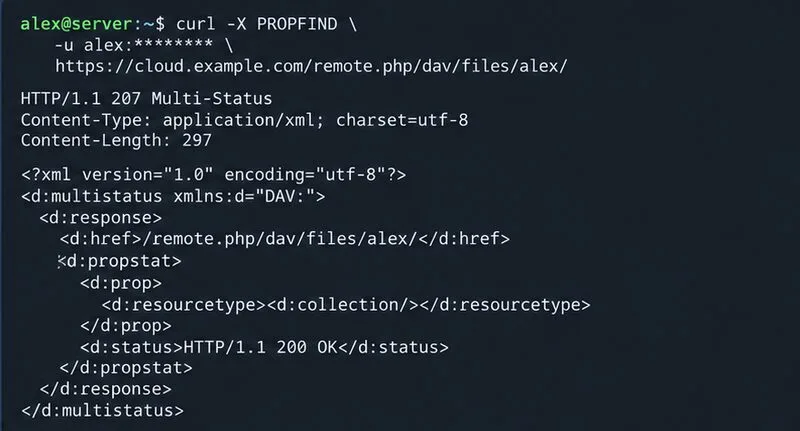
From a client machine, send an authenticated PROPFIND request. With cURL, passing only the username prompts for the password instead of placing it in the command:
A valid authenticated WebDAV response commonly uses HTTP 207 Multi-Status. A 401 may simply mean the credentials were not accepted; a 404 often points to the wrong route or a proxy path rewrite; a 403 suggests an access rule, WAF, or server policy; and a 301 or 302 can indicate a redirect that the client or self-check does not follow as expected. Read the response headers and server logs before changing configuration. Redact usernames, cookies, tokens, and public IPs before sharing command output.
A schematic admin overview showing a WebDAV warning; the displayed status values are examples.An example of the kind of 207 Multi-Status response an authenticated PROPFIND check may return.
Step 2: Check whether the server can reach its own public URL
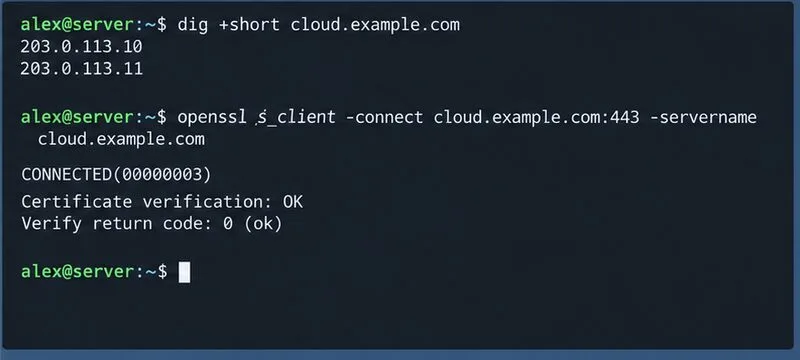
Some setup checks make a request from the ownCloud server back to its configured public address. Run basic DNS and HTTPS checks from that server, not only from your laptop:
The hostname should resolve to an address reachable from the server, and the HTTPS request should complete without a certificate-name, trust-chain, or connection error. If DNS points the server back through a firewall that does not support NAT reflection (also called hairpin NAT), an external client may work while the internal self-check fails. Split DNS, an internal route to the reverse proxy, or a provider-side network adjustment may be appropriate; make the narrowest change that matches your network design.
A trusted-domain entry is a host allowlist for incoming ownCloud requests. Add only hostnames users actually use, following the documented configuration procedure. Do not add arbitrary internal addresses as a guess. The overwrite.cli.url setting controls the URL used by command-line/background contexts in some configurations; it is not a substitute for fixing DNS, routing, or TLS. Confirm what the warning actually says before changing either setting.
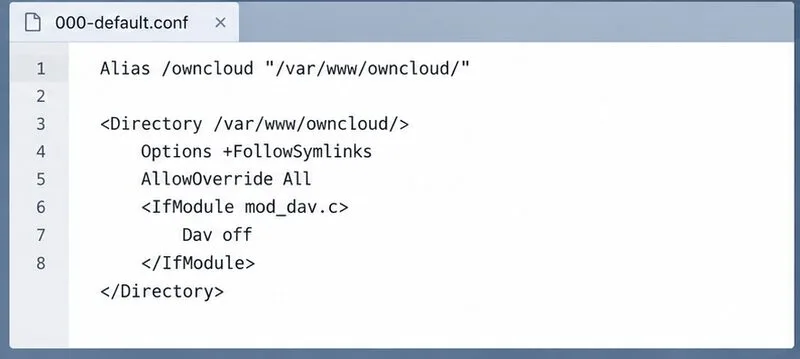
An example Apache configuration view highlighting the directory override setting; verify the actual path and directives for your installation.
Step 3: Verify Apache rewrite and directory settings
For Apache installations, ownCloud’s manual configuration guide calls for mod_rewrite, AllowOverride All for the ownCloud directory when relying on the shipped .htaccess, and a DAV-related Apache setting that avoids having Apache’s own DAV module take over the application route. Compare your virtual host and directory block with the official guide rather than pasting a whole sample over a customized site.
On Debian or Ubuntu, inspect the loaded rewrite module and Apache configuration syntax:
If rewrite is absent, enable it with sudo a2enmod rewrite, then validate the configuration again and reload Apache only after the syntax check passes. Confirm that the <Directory> path matches the actual ownCloud web root and that overrides are not disabled higher in the configuration. Avoid manually replacing ownCloud’s generated .htaccess with a generic rewrite recipe; custom rules can break application routes or be lost during upgrades.
Step 4: Check reverse proxies, WAF rules, and authentication headers
If the endpoint works when called directly against the web server but fails through the public URL, inspect the reverse proxy or load balancer. Make sure it preserves the complete /remote.php/dav/ path, forwards the expected Host and HTTPS information, and allows WebDAV methods such as PROPFIND, OPTIONS, PUT, and MOVE where required. A proxy that strips an installation prefix or sends DAV requests to a different backend can make the web UI appear healthy while file operations fail.
Review proxy, Apache/Nginx, and ownCloud logs at the time of a failed request. A web application firewall or ModSecurity rule can reject a method or request body. Identify the exact rule ID and create a narrow exception for the affected ownCloud route or request, then retest. Do not turn off the WAF globally just to clear a warning. If DAV authentication fails only behind a FastCGI/PHP handler, verify that the authorization header is passed to PHP; the ownCloud configuration notes document this class of issue.
Step 5: Validate TLS and redirects
WebDAV clients depend on valid HTTPS just as browsers do. Check that the certificate is valid for the hostname, includes the needed intermediate certificates, and is trusted by the server environment that runs ownCloud’s self-check. A browser may hide or separately trust a certificate problem that cURL or PHP reports. Do not disable certificate verification as a fix.
Check for redirect loops, unexpected HTTP-to-HTTPS redirects, or a redirect from the DAV route to a login page or generic homepage. A redirect may be normal for a browser’s base URL, but the DAV request should ultimately reach the application endpoint with its method and Authorization header preserved. If a proxy terminates TLS, confirm that ownCloud receives the correct forwarded protocol and host according to the proxy’s documented configuration.
An example DNS and certificate check from the server that must connect back to the public hostname.
Verify the fix from both sides
After each targeted change, repeat the same checks rather than changing several layers at once:
From a client, authenticate to the documented DAV URL and confirm the response is an expected WebDAV response, typically 207 Multi-Status for PROPFIND.
From the ownCloud host, confirm the public hostname resolves and HTTPS reaches the instance without a TLS validation error.
Check the ownCloud admin overview again and inspect the logs for new DAV, proxy, or authentication errors.
Test a small file upload, rename, and download in the web interface or a supported sync client.
If client requests work but the warning remains, focus on the server’s own DNS, routing, certificate trust, and configured public URL. If both the self-check and clients fail, focus first on the endpoint path, rewrite rules, proxy routing, request methods, and authentication forwarding. When the server is managed by a hosting provider, send support the timestamp, sanitized HTTP status, requested path, and matching log entry; do not send passwords or secret-bearing configuration.