Home
» NETWORK ADMIN
»
Fix Zimbra Admin Console 404 Not Found After SSL Renewal
Fix Zimbra Admin Console 404 Not Found After SSL Renewal
Illustrative example, not a real incident: Jordan administers a fictional Zimbra server at mail.example.com. After renewing its SSL/TLS certificate, Jordan opens a saved Admin Console bookmark and gets a “404 Not Found” page. The renewal may be related, but a 404 does not by itself prove the certificate is invalid. The address may be reaching the wrong port, proxy, hostname, or URL route.
For this example, Jordan’s safest order is to confirm the intended Admin Console URL, test the direct and proxied endpoints separately, check Zimbra service status and deployed certificates, and only then redeploy or restart a component if the evidence points there. Use your installation’s version-specific instructions: Zimbra ports and certificate procedures can vary by release and by whether the server uses Zimbra Proxy, a separate load balancer, or an external reverse proxy.
What does a 404 after SSL renewal tell you?
A browser’s explicit HTTP 404 response usually means that an HTTP server answered the request but did not find a matching resource or route. That makes the hostname, port, URL path, virtual host, and proxy route important checks. It is different from a browser certificate warning or a TLS handshake failure. However, a reverse proxy or web application firewall can itself return a 404 when a host or route does not match, so the status alone does not identify which layer is responsible.
Zimbra documents the direct Admin Console on TCP port 7071 by default. If Zimbra Proxy is configured to proxy the Admin Console, its documented default proxy port is 9071; it is optional and may be customized. The standard webmail address on port 443 is not automatically the same endpoint as the direct Admin Console. Check the Zimbra Administration Console URL guidance and Zimbra’s port reference against your own configuration.
How should you troubleshoot the error?
1. Confirm the exact Admin Console address
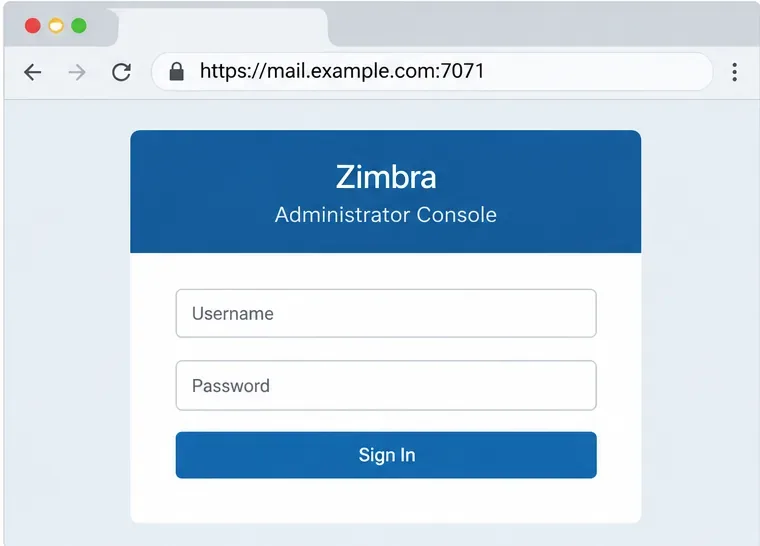
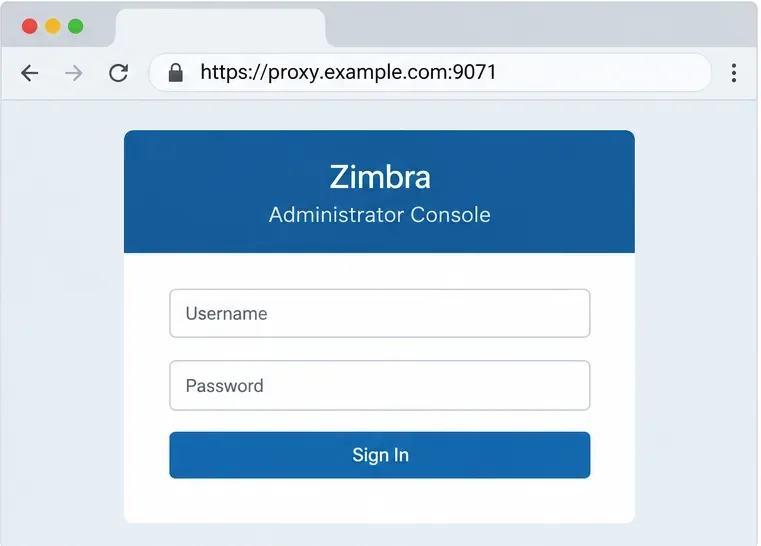
Use the hostname and port configured for your deployment rather than assuming that your webmail URL is also the Admin Console URL. For a typical direct connection, Zimbra documents a URL in the form https://server.example.com:7071. An administrator who has enabled Zimbra Proxy for the console may instead use the proxy hostname and port, typically https://proxy.example.com:9071. Do not add an assumed /admin path: use the address specified by your installation or administrator documentation.
Illustrative example: the browser is pointed to the fictional server’s direct Admin Console port, 7071.Illustrative example: port 9071 is shown as a separate proxy route, used only when Admin Console proxying is configured.
In Jordan’s hypothetical case, the old bookmark points to the public webmail hostname on port 443. Jordan would compare it with the documented or configured admin endpoint. A 404 on the webmail host does not establish that Zimbra’s Admin Console itself is down. If port 7071 is intentionally blocked from the public Internet, test it only from an authorized network or locally; do not open it publicly just to test. Zimbra’s proxy guidance recommends restricting direct access to 7071 when administrators use the proxy endpoint.
2. Compare the direct and proxy routes
Test one route at a time, using the correct hostname, scheme, and port. If direct access on 7071 works from a permitted network but the proxy route on 9071 returns 404, focus on the proxy’s Admin Console configuration and hostname routing. If the direct route also fails, check the mailbox server and the certificate deployed to its Admin Console service. If both Zimbra routes work but the public URL still returns 404, investigate the external load balancer, reverse proxy, CDN, or web application firewall in front of Zimbra.
Use this comparison as a diagnostic, not as a command to enable new network access. A blocked direct port may be an intentional security control. Zimbra’s Admin Console Proxy setup guide describes the optional 9071 listener and notes that the mailbox server’s Admin Console normally remains on 7071.
3. Check Zimbra services and proxy logs
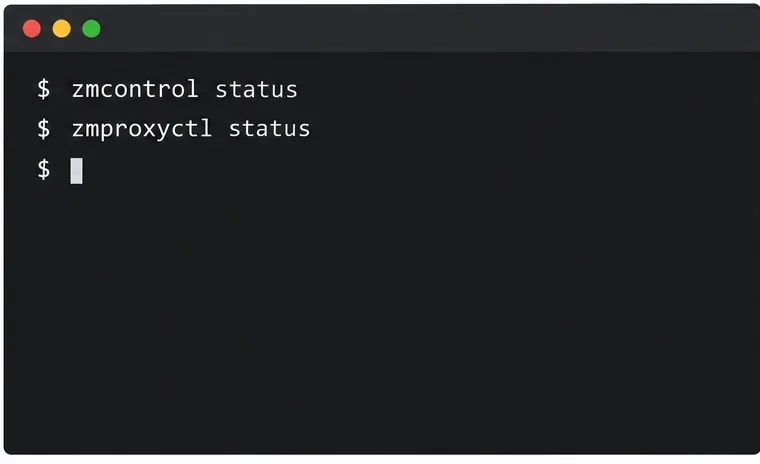
Log in to the Zimbra host using the administrative account appropriate for your installation, then check service status. The following status commands are read-only:
su - zimbra
zmcontrol status
zmproxyctl status
zmcontrol status reports Zimbra component status. zmproxyctl status is useful when Zimbra Proxy is installed; if the command is unavailable or your topology has no Zimbra Proxy, skip it and check the actual component serving the URL. A stopped mailbox or proxy component can explain a failed route, but do not restart the entire server simply because one URL returns 404.
Check service status first; the commands shown are diagnostic and do not modify the server.
For a proxied request, Zimbra identifies /opt/zimbra/log/nginx.access.log and /opt/zimbra/log/nginx.log as useful proxy logs. Compare the request time and requested host/path with the response recorded there. If the request never appears in Zimbra’s proxy logs, the 404 may be coming from an upstream load balancer or another front-end service. See the Zimbra Proxy Guide and its troubleshooting section.
4. Verify which certificate each endpoint presents
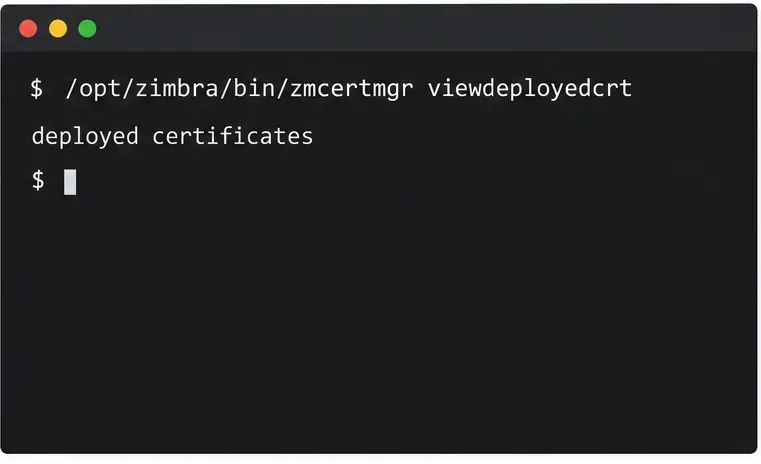
A certificate renewed on disk is not necessarily the same certificate currently loaded by every Zimbra service. From the Zimbra host, run the certificate manager’s deployed-certificate check using the syntax supported by your installed release:
/opt/zimbra/bin/zmcertmgr viewdeployedcrt
Use Zimbra’s certificate manager to inspect certificates installed for local services, including proxy and mailbox services where available.
Review the certificate details for the service handling the failing route, including the validity dates and the hostname or subject alternative names. If the browser reaches port 443 through an external TLS terminator, inspect the certificate and routing configuration there as well; Zimbra may not be the component presenting that public certificate. In a multi-server deployment, check the relevant proxy and mailbox nodes. Zimbra notes that viewdeployedcrt reports the local server, so a check on one node is not proof that every node has the renewed certificate.
If the correct certificate is deployed and the only symptom is an HTTP 404, continue investigating the path and proxy routing instead of repeatedly renewing the certificate. If the deployed certificate is stale, invalid, or mismatched to the private key or chain, follow the certificate deployment path for your exact Zimbra version.
5. Redeploy a certificate only when the check shows it is needed
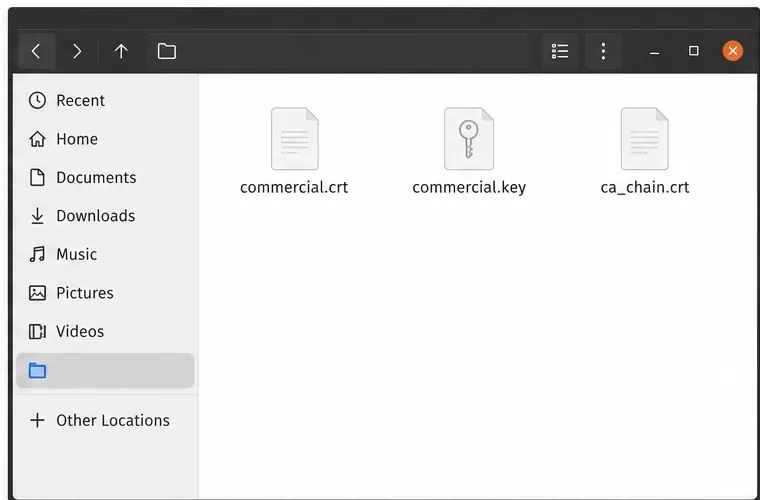
Before changing certificates, confirm that you have the matching private key, the renewed server certificate, and the complete CA chain from your provider. Keep the private key protected. In Jordan’s fictional example, the files are named commercial.key, commercial.crt, and ca_chain.crt; substitute the actual paths on your server. The filenames below are examples, not files that Zimbra creates automatically.
Example certificate bundle components: server certificate, matching private key, and CA chain.
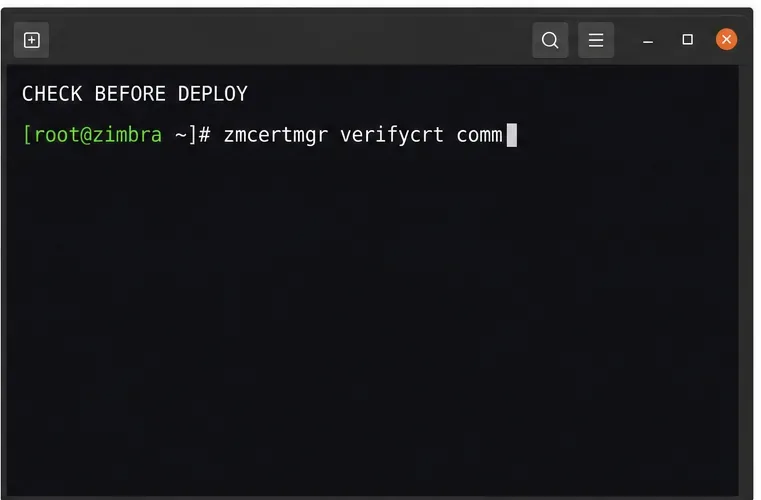
For a commercial certificate, Zimbra documents verifying that the certificate matches the key and chain before deployment. Adapt the command to your paths and the user privileges required by your release:
/opt/zimbra/bin/zmcertmgr verifycrt comm \
  /opt/zimbra/ssl/zimbra/commercial/commercial.key \
  /tmp/commercial.crt \
  /tmp/ca_chain.crt
Validate the certificate, key, and chain before deploying; this image shows only the command prefix, not a completed check.
Proceed only if the verification output confirms the key matches and the certificate chain is valid. If verification fails, stop and correct the key, certificate, or intermediate chain. Do not deploy a mismatched certificate to see whether it fixes a 404.
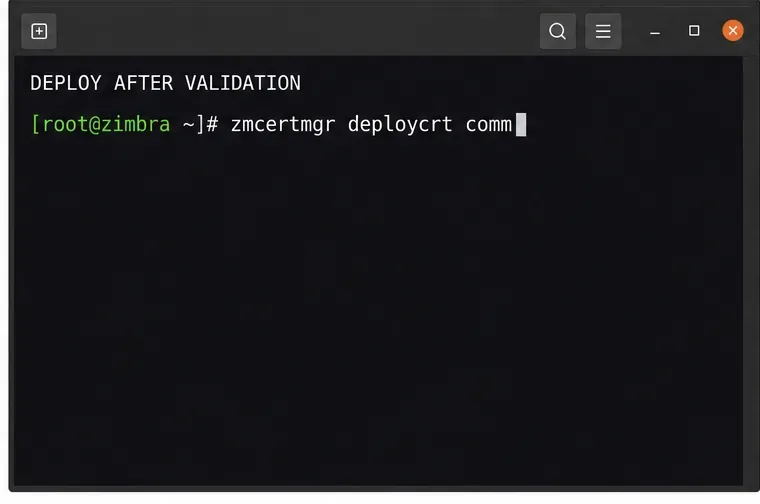
When verification succeeds, the documented commercial-certificate deployment pattern is:
/opt/zimbra/bin/zmcertmgr deploycrt comm \
  /tmp/commercial.crt \
  /tmp/ca_chain.crt
Deploy only after verification succeeds; the shown command prefix is illustrative, not a completed deployment.
These commands are not universal renewal instructions. Zimbra’s certificate documentation has release-specific privilege notes, and a multi-node deployment requires the certificate to be installed and verified on the nodes that serve the relevant traffic. Review Administration Console and CLI Certificate Tools and, for a Let’s Encrypt-based setup, the current Zimbra Let’s Encrypt certificate instructions. Do not copy commands from an older release without checking them against your installed build.
6. Restart the affected service, then test both endpoints
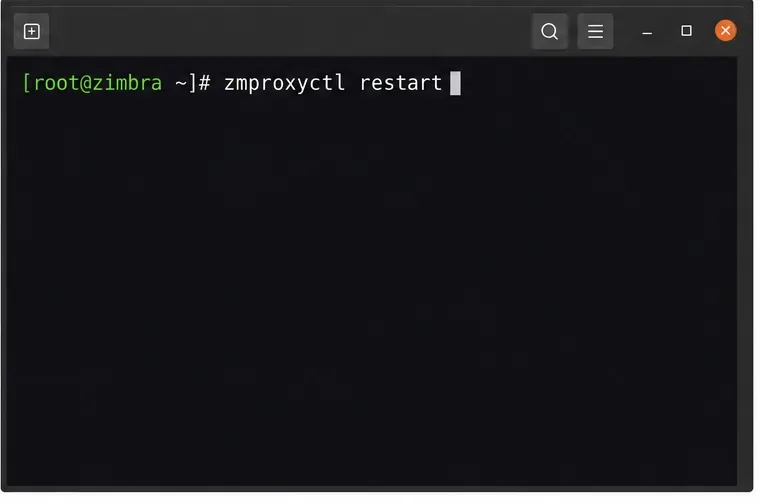
Certificate deployment notes from Zimbra call for services to be restarted so they load the new certificate. Choose the narrowest restart supported by your topology and release. If only the Zimbra Proxy certificate or generated proxy configuration needs to be reloaded, the proxy service command is:
zmproxyctl restart
Restart the proxy only when it is the affected component and a proxy restart is appropriate for your deployment.
A full zmcontrol restart affects the Zimbra services on that host and may interrupt mail access. Use it during a maintenance window when the certificate deployment procedure for your version requires it, and plan for every affected node. Zimbra’s certificate guide documents a full service restart in its single-server commercial-certificate flow; its proxy guide explains that a proxy restart regenerates proxy configuration before starting the proxy again. Do not run both restart paths automatically.
After the selected service is back, test the same URLs again: first the intended direct or proxy Admin Console address from an authorized network, then the public or load-balanced URL. Confirm that the expected login page loads, the browser presents the renewed certificate for the hostname, and the relevant logs no longer show a route or upstream error for that request. In Jordan’s fictional example, the check is whether the saved bookmark now targets the configured endpoint—not whether a made-up test result was achieved.
When should you investigate outside Zimbra?
If Zimbra’s direct and configured proxy endpoints both answer correctly but the public URL still returns 404, the likely fault is in an external front end or its virtual-host rule. Check the reverse proxy’s upstream hostname and port, TLS termination settings, forwarded host header, and URL rewrite rules. If the public certificate terminates outside Zimbra, renewing Zimbra’s internal certificate alone will not update that outer listener.
For a response served by Zimbra Proxy, compare the timestamp and status in nginx.access.log with details in nginx.log. For a response absent from those logs, inspect the external proxy or load balancer. Avoid editing generated Zimbra NGINX files directly; Zimbra’s proxy service regenerates its configuration when restarted, so persistent changes should follow supported proxy configuration methods for the installed version.
How do you know the repair is complete?
The bookmark uses the configured hostname, scheme, port, and route.
The intended Admin Console endpoint responds from an authorized network; an intentionally blocked direct port remains blocked.
Zimbra’s relevant services report running, and the deployed certificate matches the hostname and current validity period.
The proxy or external front end returns the expected Admin Console page rather than a 404.
Logs show the request reaching the expected component, and no other node still presents the old certificate.
The official Zimbra documentation consulted for this guide identifies 7071 as the default direct Admin Console port and 9071 as an optional proxy Admin Console port. Since a 404 can be produced at different layers, use those defaults as diagnostic clues and verify the actual values in your Zimbra version and topology.