A Zimbra server can appear healthy until users suddenly hit a browser warning such as “certificate expired,” mail clients refuse an SSL/TLS connection, or an administrator discovers that the certificate date has passed. The fastest safe response is not to replace every certificate component immediately. First determine what expired, then renew the smallest necessary part.
Zimbra’s current Tech Center procedure for a single-server self-signed deployment uses zmcertmgr to create and deploy certificates. Importantly, Zimbra states that creating a new Certificate Authority (CA) is optional for an ordinary self-signed certificate renewal; you do not need to replace the CA every time the server certificate expires. The official references used for this guide were checked on October 6, 2026: Regenerate Self-Signed SSL Certificate — Single-Server and Administration Console and CLI Certificate Tools.
Why an expired Zimbra certificate causes real service problems
Zimbra uses TLS certificates across services such as the web interface, proxy, LDAP, and mail protocols. Once a certificate is outside its validity period, clients can reject the connection even though the underlying Zimbra processes are still running. A browser warning is therefore only one symptom. Depending on your topology and client policy, you may also see failed secure IMAP/POP/SMTP connections, proxy errors, or LDAP/TLS problems.
There are two different expiration cases to distinguish:
Only the server certificate is expired. This is the easier case. Keep the existing Zimbra CA if it is still valid, generate a new server certificate, deploy it, and restart services.
The Zimbra CA itself is expired. Recreate and deploy the CA, then create and deploy a new server certificate signed by that CA. In a multi-server deployment, CA consistency across nodes matters, so do not treat a multi-node environment like a single server.
Before making changes, take a current backup or snapshot appropriate to your environment. Certificate regeneration is normally straightforward, but a backup gives you a recovery point if the server has older customizations, manually installed certificates, or a mixed topology.
Step 1: Confirm that the deployed certificate is actually expired
Switch to the Zimbra account and inspect the certificate currently deployed to local services:
su - zimbra
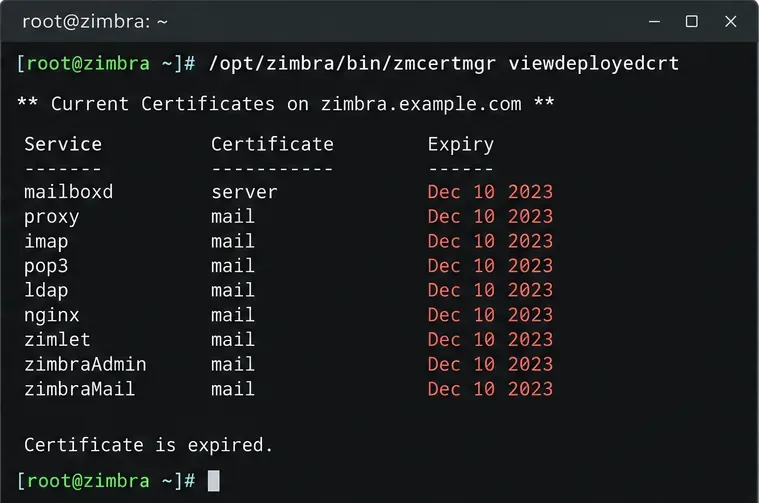
/opt/zimbra/bin/zmcertmgr viewdeployedcrt
Review the validity dates and the certificate subject. If the certificate is still within its validity period, investigate hostname mismatch, an untrusted self-signed CA, an old certificate still served by a proxy, or incorrect server/client time instead of regenerating certificates unnecessarily.
Example terminal view of an expired deployed certificate. Actual service names and output formatting vary by Zimbra release.
You can also check the certificate a remote client actually receives on HTTPS. Replace mail.example.com with the hostname users connect to:
This remote check is useful when viewdeployedcrt looks correct but browsers still see an old certificate, because it tests the certificate presented over the network rather than only the files on disk.
Step 2: Check service state and decide whether the CA also needs renewal
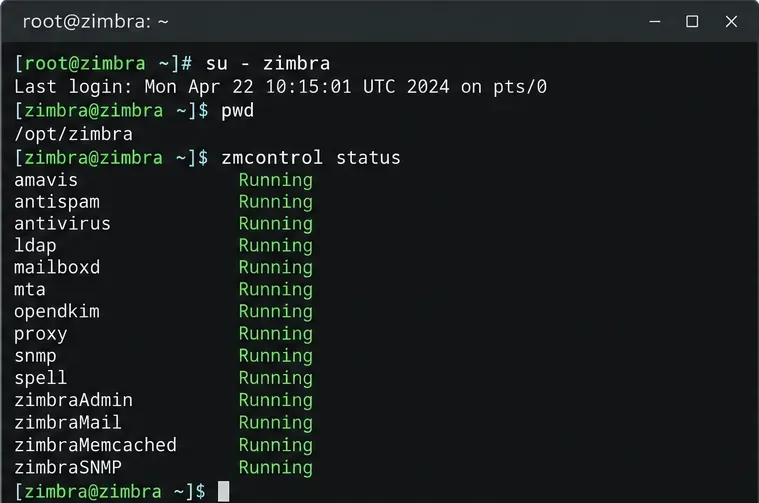
Before changing certificates, confirm the current Zimbra service state so you have a baseline:
zmcontrol status
Record the service state before certificate work so you can compare it after the restart.
If the server certificate alone is expired and the Zimbra CA is still valid, skip CA recreation and go directly to the server-certificate commands in the next section. This minimizes changes to the trust chain. Zimbra’s single-server documentation explicitly says that creating a new CA is optional and is not required every time you renew a self-signed certificate.
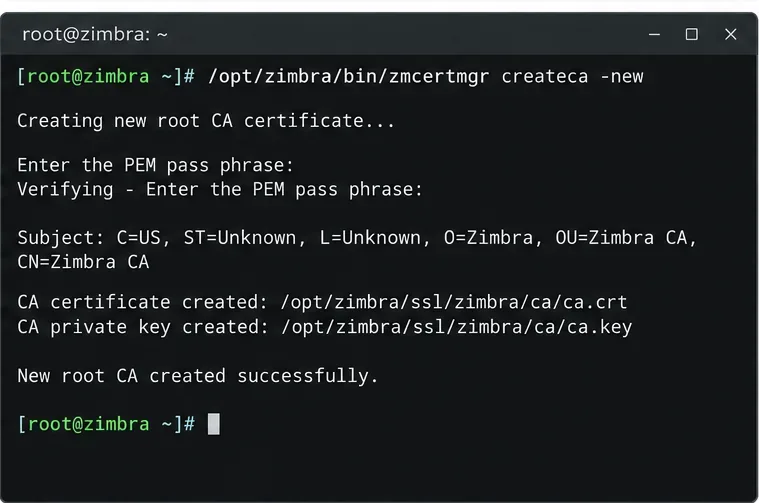
If the CA has expired, or you have a documented reason to replace it, create a new one:
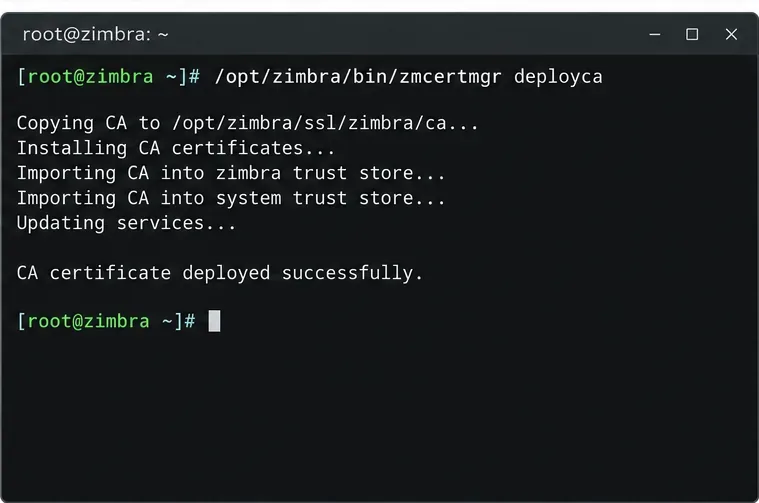
The createca -new command is for replacing the Zimbra CA when needed, not a mandatory step for every routine leaf-certificate renewal.After creating a replacement CA, deploy it before creating the new self-signed server certificate.
Step 3: Generate and deploy a new self-signed server certificate
For a straightforward single-server renewal, Zimbra documents the following sequence. The example creates a certificate valid for 365 days:
If clients connect through more than one DNS name, generate the certificate with the required Subject Alternative Names rather than assuming the default hostname is sufficient. Zimbra’s certificate tool supports -subjectAltNames. For example:
Use names that really resolve to this Zimbra service and that your users or integrations actually use. A certificate can be unexpired yet still fail validation if the requested hostname is not covered by its subject/SAN values.
Do not use this self-signed procedure to overwrite a commercial/publicly trusted certificate by accident. If your server is supposed to use a commercial certificate, stop here and follow Zimbra’s commercial-certificate deployment procedure instead.
Step 4: Verify deployment, restart Zimbra, and test from the client side
Confirm that Zimbra has deployed the new certificate:
/opt/zimbra/bin/zmcertmgr viewdeployedcrt
Then restart Zimbra so the services load the new certificate:
zmcontrol restart
After the restart completes, run:
zmcontrol status
/opt/zimbra/bin/zmcertmgr viewdeployedcrt
The result you want is simple: the expected services are running, and the deployed certificate now has a future expiration date. Finally, repeat the remote OpenSSL test against the hostname users actually access. That proves what is being served on the network after the restart.
If the browser still shows the old or expired certificate
Do not immediately regenerate another certificate. Work through the remaining layers in order:
Confirm DNS and hostname. Make sure you are testing the same hostname covered by the new certificate and reaching the intended Zimbra server.
Check the proxy path. Zimbra’s certificate troubleshooting documentation notes that a proxy can continue to present an old certificate in some cases. Inspect the certificate presented remotely, not only the local certificate files. See Zimbra Certificate errors.
Check client trust. A renewed self-signed certificate can be valid by date while still being untrusted by browsers or mail clients. Expiration and trust are separate issues.
Check system time. A badly incorrect clock on the server or client can make an otherwise valid certificate appear not yet valid or expired.
Check the CA. If the leaf certificate is new but the issuing Zimbra CA is expired, replace the CA and regenerate the server certificate from the new CA.
Multi-server Zimbra needs a different level of care
For a multi-node installation, use the multi-server procedure rather than blindly repeating single-server commands on every host. Zimbra documents creating/deploying the CA and then deploying the self-signed certificate across nodes with deploycrt self -allserver; it also warns that viewdeployedcrt only reports the local server. The official reference is Regenerate Self-Signed SSL Certificate — Multi-Server.
CA mismatch between an LDAP master and replicas can create TLS and replication problems. If you operate a multi-server topology, verify the CA chain on every affected node and follow the documented deployment order.
Self-check: how to know the fix is complete
Before closing the incident, verify all of the following:
zmcontrol status shows the expected Zimbra services running.
zmcertmgr viewdeployedcrt shows a certificate whose expiration date is in the future.
A remote openssl s_client check returns the same new certificate dates for the public/internal hostname users actually use.
The certificate subject or SAN covers that hostname.
Webmail and the mail protocols your environment uses can establish TLS connections.
If you intentionally replaced the Zimbra CA, clients or internal systems that pin or trust the old CA have been updated as required.
For a routine single-server expiration, the least disruptive path is usually to keep a still-valid Zimbra CA, create a new self-signed server certificate, deploy it, restart services, and verify the certificate from outside the server. Replace the CA only when it is expired or there is another clear reason to rotate it. That approach fixes the immediate outage while avoiding unnecessary trust-chain changes.