Home
» NETWORK ADMIN
»
Fix Zimbra “DB Error: DB Failure / Corruption” in Mailbox Logs: Safe Diagnosis and Recovery
Fix Zimbra “DB Error: DB Failure / Corruption” in Mailbox Logs: Safe Diagnosis and Recovery
“DB Error: DB Failure” in a Zimbra mailbox log is a symptom, not a diagnosis. It may point to a stopped database, a failed connection, exhausted disk space, too many connections, or actual table or InnoDB corruption. The safe fix depends on the surrounding log lines and the affected server. Start with read-only checks, protect the data, and do not run a generic repair command just because the word “corruption” appears.
This guide uses common Zimbra paths and commands documented in Zimbra’s Tech Center. Some related wiki pages are marked archived or unfinished, so confirm every command and recovery procedure against your exact Zimbra edition and release using the official Zimbra documentation index. The examples below do not assume a specific release.
What does a DB failure in mailbox.log actually mean?
Zimbra’s mailbox database stores mailbox metadata, such as folders, tags, message state, and pointers to message files. Search indexes are stored separately, and message content is stored in the message store. A database error therefore does not automatically mean that every email file is corrupt. Nor is an index error by itself proof of database damage. Zimbra describes these separate stores in its server architecture reference.
The decisive clue is usually the underlying database error that appears near the mailbox exception, especially in /opt/zimbra/log/mysql_error.log. Zimbra’s troubleshooting notes identify mailbox.log and mysql_error.log as useful starting points, with zmmailboxd.out providing mailbox service startup details. See Zimbra’s log troubleshooting reference.
What should you do before trying a fix?
Record the first occurrence time, time zone, server hostname, affected account or accounts, and the full exception plus nearby lines. Redact passwords, message content, and personal data before sharing logs.
Determine the scope: one mailbox, many mailboxes on one store, or users across multiple stores. A single-account symptom does not justify a cluster-wide database restart.
Check that a recent, usable backup exists and identify the release-specific restore procedure. If errors are repeating or users are actively affected, avoid repeated restarts and writes until the database state is understood.
Use a maintenance window for checks that scan database tables. Even an integrity check can add I/O and slow mailbox service.
How do you diagnose it safely?
1. Check the service state
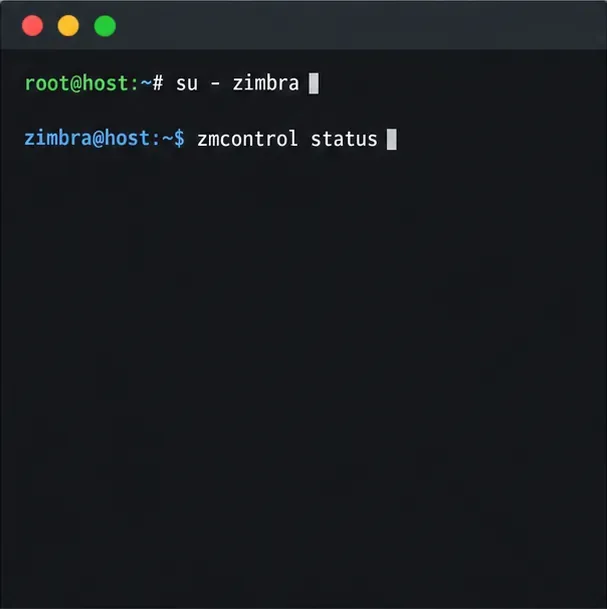
On the mailbox server, switch to the Zimbra account and check service status. Run commands as the account shown in each prompt; do not paste a prompt symbol such as $ as part of the command.
A terminal shows the account switch and zmcontrol status command used to check Zimbra service state; it displays no server results.
su - zimbra
zmcontrol status
Note whether mailbox is running and whether the reported problem is local to one mailbox server. A stopped mailbox process is not enough to conclude the database is corrupt. Zimbra’s mailbox troubleshooting page also lists service status and database login/configuration as separate checks; that page is marked archival, so use it as background and follow documentation for your release.
2. Compare mailbox and database logs at the same time
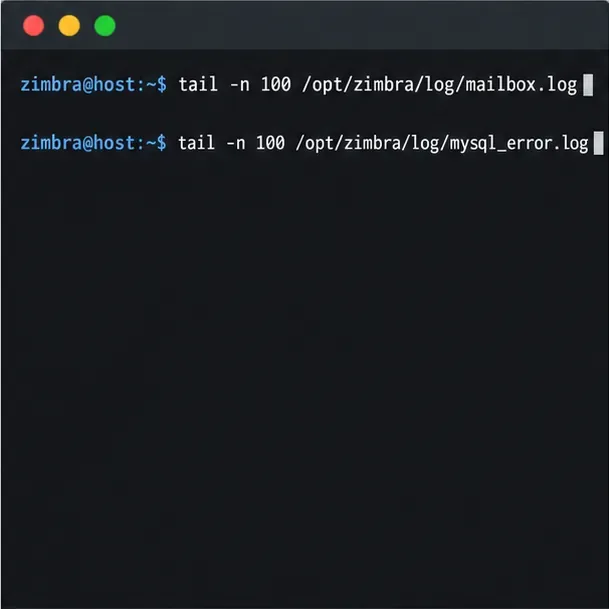
Read the same time window in both logs. The first error in the sequence is often more useful than the final “system failure” line.
The terminal shows commands for reading the latest lines from mailbox.log and mysql_error.log, where related events can be compared by timestamp.
Look for the underlying database message, database or mailbox-group name, repeated timestamps, startup failures, or a matching OS error. Treat these phrases as clues, not as automatic fixes:
Log clue
What it may indicate
Next safe action
Too many connections or MySQL error 1040
Connection capacity is exhausted; that is not proof of corruption.
Check concurrent load and the Zimbra version-specific connection settings before changing limits. Zimbra’s error 1040 note documents this as a distinct condition.
Access denied, socket unavailable, or cannot connect
Credentials, service state, socket path, or configuration may be wrong.
Verify the database service and configuration with the supported tools for this release; do not reset passwords by editing files from an unrelated version guide.
No space left, read-only filesystem, or I/O errors
Storage or filesystem trouble can prevent database writes and startup.
Check free space, inodes, mount state, and system logs before any restart or repair.
Repeated InnoDB assertion, page, tablespace, or checksum errors
Possible underlying database corruption or storage damage.
Preserve the current data and backup state, then use a supported restore or vendor-assisted recovery plan.
Missing table or schema/version mismatch
A failed upgrade, wrong database target, or schema issue may be involved.
Compare server release and upgrade history; do not create, drop, or rename tables manually.
3. Check disk capacity and operating-system errors
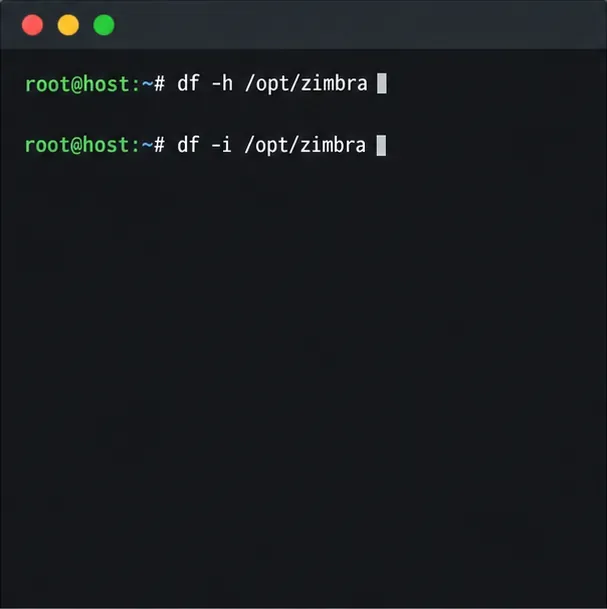
Full data or log volumes, exhausted inodes, or failing storage can look like a database failure. Run non-destructive checks on the store host:
The terminal shows df checks for available filesystem space and inodes on the Zimbra path; no capacity results are shown.
df -h /opt/zimbra
df -i /opt/zimbra
Check the operating system journal or system log for disk I/O, filesystem, or out-of-memory errors in the same time range. If a volume is full, free or add space using your normal storage procedure. Do not delete database files, InnoDB logs, or active Zimbra logs to make room; that can make recovery harder or destroy evidence.
4. Run an integrity check only after reviewing impact
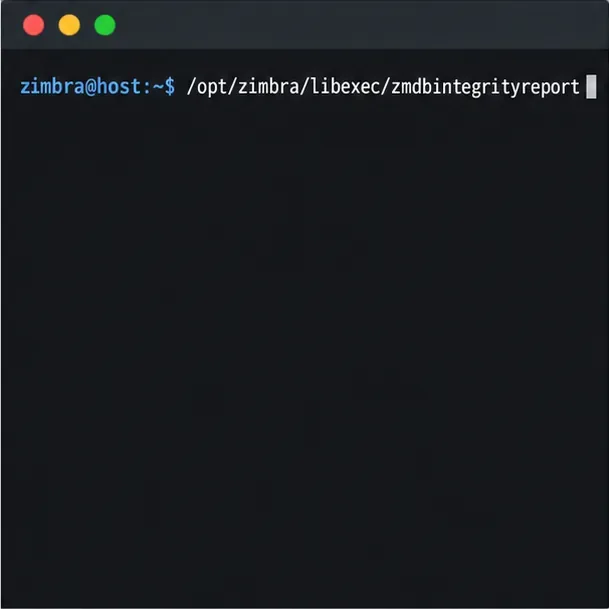
If Zimbra’s database service is reachable and the logs do not already show a clear connection or storage issue, an administrator can consider the standard integrity report during a low-traffic maintenance window:
The terminal shows the standard integrity-report command, without the auto-repair option; it does not show a report result.
su - zimbra
/opt/zimbra/libexec/zmdbintegrityreport
Zimbra’s integrity-report reference describes this as a database check and warns that it can add I/O and increase mailbox latency. It also documents an -r option as attempting automatic table repair. Do not add -r as a routine next step: the page is marked work in progress, and the right action depends on the database engine, table type, product release, and backup status. A report that mentions only a known harmless log-table locking message should be interpreted according to the note on that page; do not treat every “Database errors found” header as equal.
Which fix matches the evidence?
Database service is stopped, but no corruption evidence appears: address the specific startup, configuration, credential, or resource error first. Once corrected, use the service recovery procedure for your release and deployment topology. Avoid repeated blind restarts.
Too many connections: investigate load, stuck clients, and service capacity. Do not label it database corruption or copy an old recommendation to raise limits without checking current sizing and release guidance.
Disk or filesystem problem: stabilize storage and confirm the filesystem is healthy. If the database logged failed writes or InnoDB errors, treat this as a possible integrity incident even after space is restored.
Integrity report flags tables: save the exact output, table/database names, timestamps, and relevant logs. Back up or snapshot the database volume using a supported method before any write operation. Have an administrator follow the vendor-supported repair or restore procedure for the installed Zimbra version.
One account remains affected while the DB engine is healthy: investigate its mailbox metadata, message store, or index separately. Avoid manually editing SQL rows or deleting files to “rebuild” the account.
For suspected InnoDB corruption, the safest repair is usually a release-specific recovery from a verified backup or a support-guided recovery, not a generic REPAIR TABLE, database reinitialization, or copied command sequence. Some old Zimbra wiki recovery articles include destructive steps and are explicitly archived; do not apply them to a current system without direct confirmation from Zimbra Support and a tested backup.
How can you confirm the issue is resolved?
After the approved corrective action, confirm that the database and mailbox services remain up, that new entries no longer show the same underlying database error, and that the affected account can perform ordinary mail operations. Re-run the standard integrity report only if appropriate for your load window and version. Confirm the backup job completes and preserve the logs and repair record. If the problem returns, report the exact Zimbra version/build, single-server or multi-server layout, mailbox scope, first failure time, relevant log excerpts, disk status, integrity-report output, and backup timestamp to your administrator or Zimbra support channel.
Key point: diagnose the database error behind the mailbox exception before changing data. “DB Failure” alone cannot tell you whether the fix is a credential correction, a capacity change, a storage repair, or database recovery.