Home
» NETWORK ADMIN
»
Fix Zimbra High CPU Usage by ClamAV or FreshClam
Fix Zimbra High CPU Usage by ClamAV or FreshClam
When a Zimbra server suddenly slows down, administrators often see clamd or freshclam near the top of top and assume the antivirus service is stuck. That can happen, but the two processes do different work: freshclam downloads and verifies signature updates, while clamd scans files and messages. A busy mail queue, a database reload, a failed update loop, or a second antivirus daemon can all look like “ClamAV using too much CPU.” Identify which process is hot before restarting anything or changing antivirus settings.
This guide walks from low risk checks to service recovery. Commands and paths below reflect common Zimbra installations; the exact bundled ClamAV path and supported recovery steps vary by Zimbra Collaboration version. Confirm them against your installed release before making changes.
1. Confirm which ClamAV process is consuming CPU
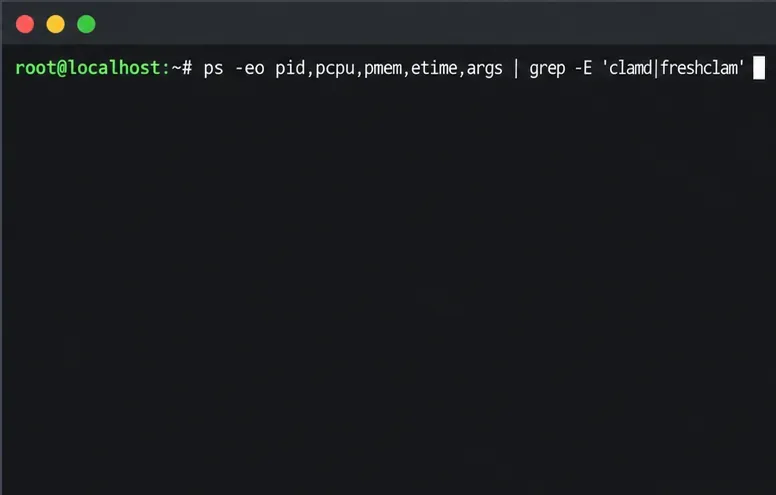
Start by recording the process name, CPU use, elapsed time, and command path. Run this as root or with an account allowed to inspect system processes:
Then watch the suspected process for at least a short interval with top -p PID, replacing PID with the number from the first command. A single reading is not enough to diagnose a sustained problem: ps reports a snapshot, while top helps you see whether CPU use remains high or falls after a scan or update finishes. Also note whether the path belongs to Zimbra, commonly under /opt/zimbra, or to a separate operating-system package.
A terminal command filters the process list so you can identify whether clamd or freshclam is active.
If freshclam spikes briefly and exits or returns to idle after a successful update, that is different from a process that stays busy. If clamd is the sustained consumer, message scanning or database loading is a more likely starting point. Do not kill either process just because one sample is high; first check the logs and whether mail is still flowing.
2. Read the antivirus logs before changing settings
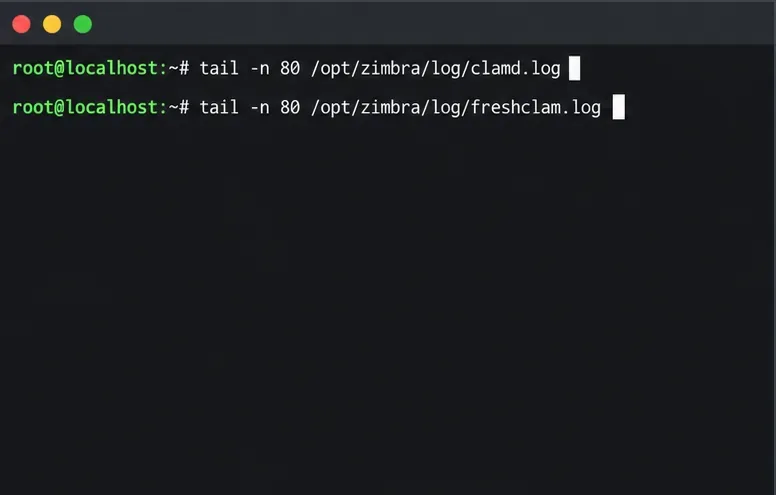
Zimbra’s log reference lists antivirus logs under its log directory. On many installations, inspect the recent entries with:
Look at timestamps alongside the CPU spike. In clamd.log, repeated scan requests or database-load messages can connect the CPU use to mail activity or a signature reload. In freshclam.log, a completed update followed by a quiet period suggests routine update work; repeated connection failures, retries, checksum errors, or an update that never completes call for closer investigation. Check the Zimbra mail log around the same time as well, because a surge in incoming messages or attachment traffic can increase scans.
Use the two log commands to compare scanner activity with signature update activity.
Use Zimbra’s log file reference to confirm the log locations for your release. ClamAV’s FreshClam troubleshooting guide explains common updater errors, including DNS, download, and rate-limit problems. A warning that an engine is older than ClamAV’s latest upstream release does not by itself prove a corrupt database; Zimbra packages a tested engine with a ZCS release.
3. Check for a duplicate updater, low disk space, or a workload surge
Before tuning anything, rule out common causes that can keep the service busy:
Duplicate processes: Check for more than one clamd or freshclam process. A separately installed OS-level ClamAV service or a custom cron job may be starting a second copy alongside Zimbra’s managed service. Do not disable a service until you confirm which product owns it and what starts it.
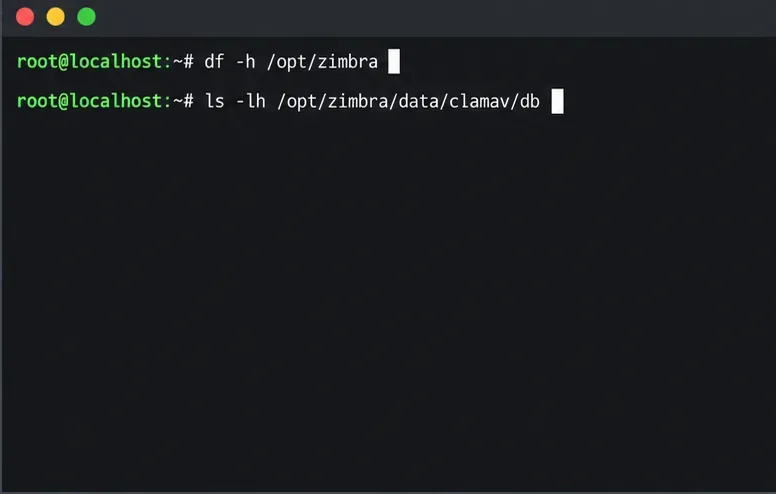
Disk pressure: Check available space and inodes with df -h /opt/zimbra and df -i /opt/zimbra. A full filesystem can prevent temporary update or log writes and cause retries. Do not remove signature files by hand to make space.
Mail volume: Compare the CPU spike with incoming message volume, attachment size, queued mail, and any recent bulk delivery. A scan-heavy burst can raise clamd use even when the service is healthy.
Update connectivity: If freshclam keeps failing, verify the host’s DNS resolution, clock, outbound connectivity, and any required proxy settings. Correct the underlying network or proxy problem instead of repeatedly starting manual update jobs.
Check free space and the signature database directory before attempting database recovery.
ClamAV documents how FreshClam’s configuration controls update behavior and logging in its configuration manual. Zimbra also documents a virus-definition update frequency attribute, but its value and configuration should be checked for your own ZCS version. Do not reduce update frequency as a quick CPU fix: stale signatures weaken protection, while a bad DNS or proxy path will continue to fail regardless of the schedule.
4. Apply the least disruptive fix that matches the evidence
If clamd is busy during a mail burst
Let the current work drain while monitoring CPU and mail delivery. If the same pattern recurs, correlate it with message size, compressed attachments, and inbound volume, then review server capacity and your organization’s attachment-scanning policy. Avoid adding undocumented ClamAV limits or excluding file types without assessing the security impact and checking which controls Zimbra supports in the installed release.
If freshclam repeatedly fails
Fix DNS, proxy, firewall, clock, or outbound network access indicated by the log. Ensure only Zimbra’s intended updater is running. Do not schedule frequent manual invocations or download signature databases with ad hoc scripts; ClamAV identifies FreshClam or cvdupdate as supported update methods, and Zimbra’s packaged integration should remain the source of truth for a Zimbra server.
If the database appears damaged or clamd will not start
Errors such as a malformed database, checksum failure, or failed database load need a version-aware recovery. Zimbra’s ClamAV definition reset procedure has different instructions for different ZCS generations, including different FreshClam binary paths. Read the full procedure for the exact version you run before moving or rebuilding any database files. Keep a copy of the existing database until recovery is confirmed, and never apply commands from an old release guide blindly.
Do not replace Zimbra’s ClamAV binaries with a standalone upstream build as a first-line performance fix. Zimbra’s documentation warns that out-of-cycle engine changes may be unsupported; use the appropriate ZCS patch or upgrade path if the bundled engine itself needs updating.
Restart the antivirus service only after checking the cause
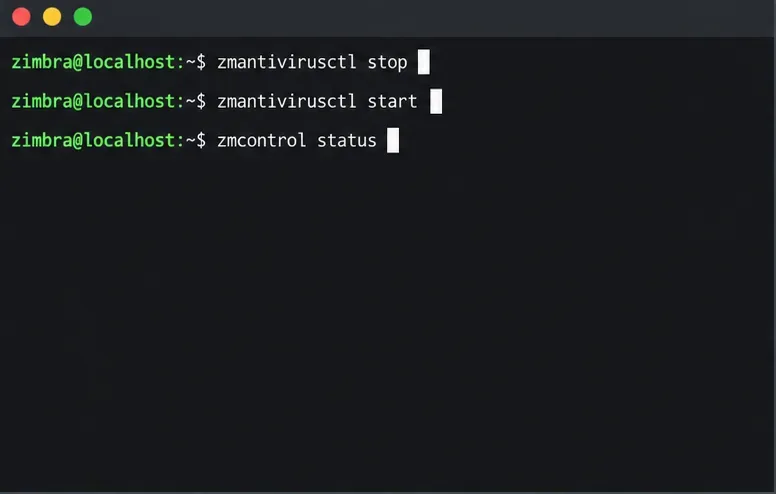
If the service remains stuck after the underlying issue is corrected, a controlled antivirus restart may clear a stale process or reload the repaired database. Schedule it when a brief interruption to scanning is acceptable, and follow the command sequence for your ZCS release. The Zimbra procedure documents zmantivirusctl stop and zmantivirusctl start, run as the zimbra user:
su - zimbra zmantivirusctl stop zmantivirusctl start zmcontrol status
Do not use a full zmcontrol stop for a ClamAV-only issue unless your maintenance plan requires it. If the antivirus service fails to return to running, preserve the relevant logs and use Zimbra’s release-specific troubleshooting or support channel rather than looping restarts.
The documented antivirus service commands and status check appear at a zimbra user prompt.
5. Verify that CPU use and mail scanning have returned to normal
After the correction or restart, repeat the process check and watch the CPU trend rather than relying on one instantaneous value. Confirm that clamd is present, freshclam is not trapped in repeated retries, and zmcontrol status reports antivirus as running. Review new log entries for successful database loading and the absence of recurring update or scan errors. Finally, verify that normal test messages are delivered and handled according to your organization’s mail-security policy.
A good recovery has three observable signs: the responsible process no longer consumes sustained CPU after its work completes; the logs stop repeating the same error; and Zimbra’s mail flow and antivirus service status remain healthy. If CPU stays high, collect a timestamped process snapshot, the matching clamd.log, freshclam.log, mail-log entries, disk-space results, and your ZCS version. That evidence helps distinguish a real scanner defect from heavy mail volume or a broken update path without weakening malware scanning as a guess.
Version note: Guidance checked October 6, 2026. Zimbra’s Tech Center includes both current references and older, release-specific troubleshooting pages; verify commands and paths against the documentation for your installed ZCS release.