Home
» NETWORK ADMIN
»
How to Backup and Restore Individual Mailboxes in Zimbra CE
How to Backup and Restore Individual Mailboxes in Zimbra CE
For Zimbra Open Source Edition (CE/FOSS), export the individual mailbox with zmmailbox to a ZIP archive with metadata, then import that archive into a temporary mailbox and verify it before restoring anything to the live account. This provides a practical per-mailbox content export and recovery path. It is not the same as a point-in-time server backup: Zimbra’s built-in zmbackup/zmrestore workflow is documented as Network Edition functionality, and a mailbox export does not back up LDAP, server configuration, certificates, or the complete Zimbra installation.
The commands below follow Zimbra’s published command-line and REST export documentation. Run them on a Zimbra server as the zimbra operating-system user, substitute your real mailbox and backup paths, and test with the exact Zimbra build in use. The official administration guide distinguishes ZIP and TGZ contents: for a broad mailbox export, use ZIP with meta=1; TGZ’s default contents omit calendars and tasks.
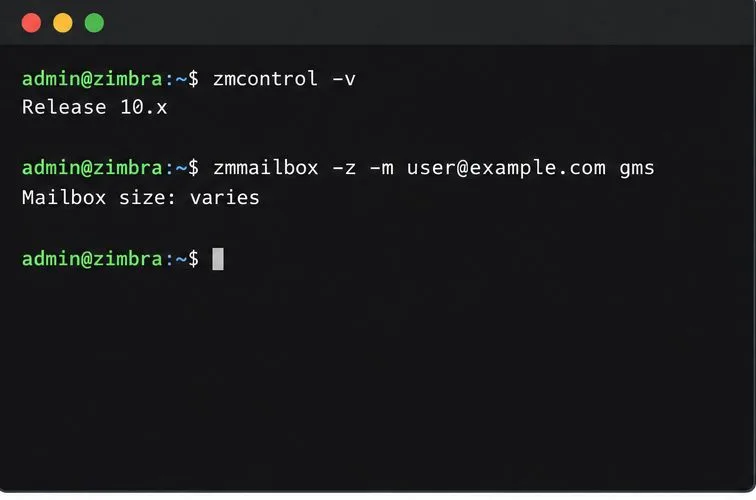
Check the Zimbra build and the target mailbox size before exporting. Exact screens and command output vary by Zimbra release; these views are illustrative.
What this method backs up
zmmailbox calls Zimbra’s REST export/import functions for one selected mailbox. With ZIP metadata enabled, the archive can include mail, folders, contacts, calendars, tasks, and other mailbox items as supported by the installed release. Verify the coverage table and options in the matching Zimbra Administrator’s Guide before you rely on it for compliance or migration.
Method
Best fit
Important limit
ZIP with meta=1
Individual mailbox-content export with broader item coverage
Does not capture server configuration or provide point-in-time incremental recovery
TGZ default export
Mail and selected mailbox data when that narrower coverage is acceptable
Zimbra’s current administrator guide lists Calendar and Tasks as excluded from TGZ defaults
Network Edition backup tools
Scheduled full/incremental backups and account-level point-in-time restore
Those zmbackup/zmrestore tools are Network Edition features
If your goal is full server disaster recovery, pair mailbox exports with a separately tested, version-appropriate full-server and LDAP backup plan. A ZIP file alone cannot rebuild a Zimbra server.
Before you start
Confirm the installation and version with zmcontrol -v. Check whether the server uses a community/FOSS build or a licensed Network Edition build before choosing its backup tools.
Identify the exact mailbox address and check its size. The gms command below reports mailbox size; allow enough space for the archive and a second copy.
Choose a backup directory with restricted permissions. Prefer a separate filesystem or backup host so a disk failure on the mail server does not destroy both copies.
Schedule the export during a low-activity window for a large or busy mailbox. The timeout option -t 0 tells zmmailbox not to apply its normal command timeout; it does not make the export atomic or protect against interruption.
Do not store the only copy of an unencrypted archive in a broadly accessible directory. Apply encryption at the filesystem or backup-storage layer and restrict who can read the file.
Export one mailbox from Zimbra CE
1. Check the build and mailbox size
Open a root shell or use an approved administrative session, then switch to the zimbra account. Confirm the version and query the mailbox you intend to export. For example:
su - zimbra
zmcontrol -v
zmmailbox -z -m alice@example.com gms
Use the real address, such as alice@example.com. Confirm it is the correct account before proceeding; the -m argument selects the mailbox the command will read or modify.
2. Prepare a restricted destination
As root, create a backup directory owned by the Zimbra account, then return to the Zimbra shell. Adjust the path to your storage layout:
The directory mode limits access to the Zimbra account. Keep the eventual backup copy on a separate protected system or storage target as part of your normal backup procedure. Do not make the only archive copy inside the live mailbox store.
3. Export as ZIP with metadata
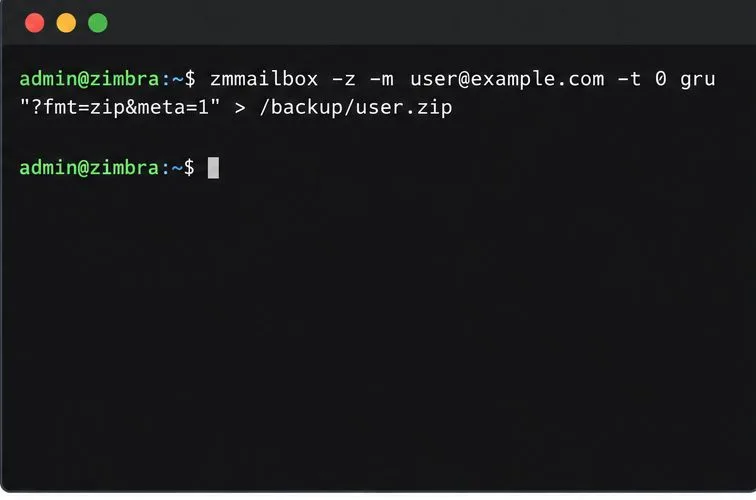
Run the mailbox export and redirect its output to a dated archive filename:
gru is the documented abbreviation for getRestURL. The quoted query requests ZIP format with metadata. The -t 0 option removes the command timeout, which Zimbra recommends for large mailbox exports. Keep the quotes around the query so the shell does not treat the ampersand as a background operator.
Wait for the command to return to the prompt and check its exit status before moving the archive. If the mailbox is very large, check free space and server logs rather than assuming a short command means the export is complete. Do not let another process overwrite a same-named backup.
Use the ZIP format with metadata for a broader mailbox-content export. Exact screens and command output vary by Zimbra release; these views are illustrative.
4. Test the archive and confirm the file
First check that the export exists and has a plausible nonzero size:
ls -lh /srv/zimbra-mailbox-backups/alice-2026-10-07.zip
unzip -t /srv/zimbra-mailbox-backups/alice-2026-10-07.zip
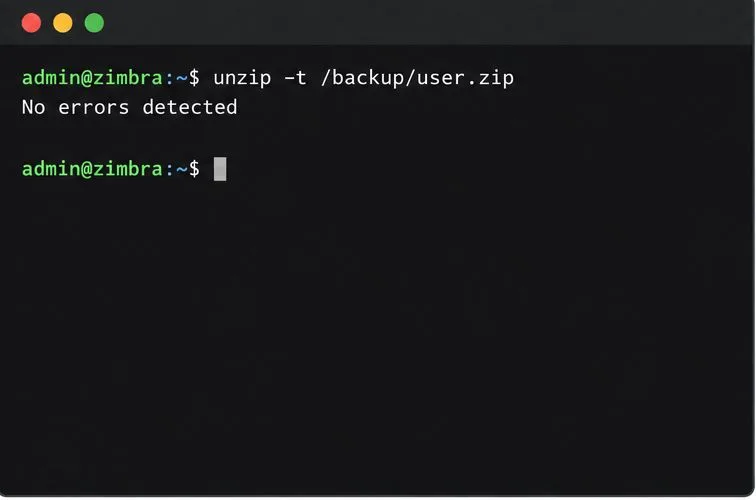
A successful unzip -t confirms the ZIP container can be read without a detected structural error. It does not prove every message or calendar item is present, so also inspect the archive in a restore test. Record a checksum if your backup process uses one; keep the checksum with the copy it is intended to verify.
Test the ZIP container before treating the archive as a usable backup. Exact screens and command output vary by Zimbra release; these views are illustrative.
5. Protect and copy the archive
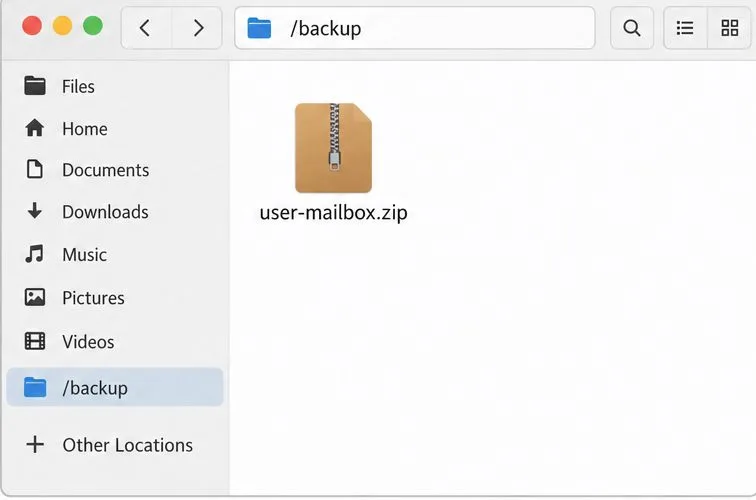
Copy the file to a separate backup destination using your approved secure transfer or backup system. Store it with a clear mailbox identifier, Zimbra version, and export date. Apply encryption at rest and access controls on the backup destination; the ZIP export itself should not be assumed to be encrypted. Keep more than one recovery copy according to your retention policy, and periodically test a copy from the off-server location rather than only the file left on the mail host.
Store the archive in a protected backup location separate from the live mail store. Exact screens and command output vary by Zimbra release; these views are illustrative.
Restore the mailbox safely
6. Create a temporary recovery mailbox
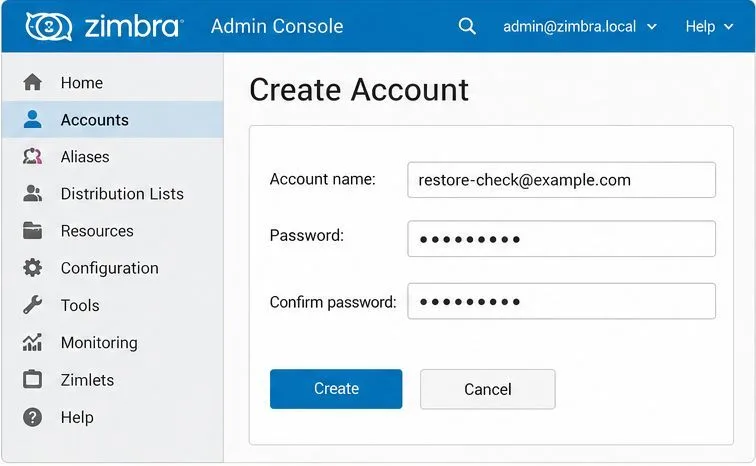
Before importing into a live mailbox, create an unused temporary account on a test or recovery Zimbra server running a compatible build. Use a controlled password and restrict access. You can create the account through the Admin Console or with your normal provisioning process. A staging mailbox lets you inspect the archive without mixing its contents into the production account.
Copy the archive onto that Zimbra server and make sure the zimbra user can read it. The destination account must exist before you call postRestURL.
Create a separate recovery mailbox for a safe restore test. Exact screens and command output vary by Zimbra release; these views are illustrative.
7. Import into the recovery mailbox
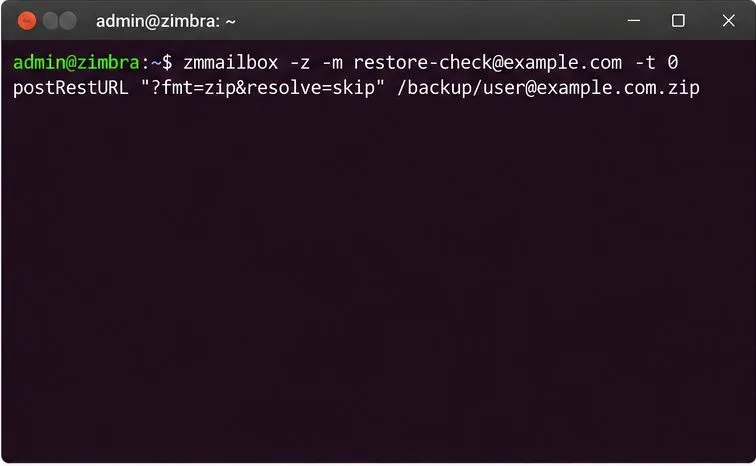
Use postRestURL with the recovery account as the target and resolve=skip for conservative duplicate handling:
Here, restore-check@example.com is the temporary account. Zimbra documents skip as the default conflict choice: duplicate items are skipped. On an empty staging mailbox, this provides a straightforward first restore test. Import behavior and supported item types can vary across releases, so use the target build’s documentation and inspect the result.
Import into the recovery mailbox first and use skip conflict handling for the test. Exact screens and command output vary by Zimbra release; these views are illustrative.
8. Verify the restored data before recovery
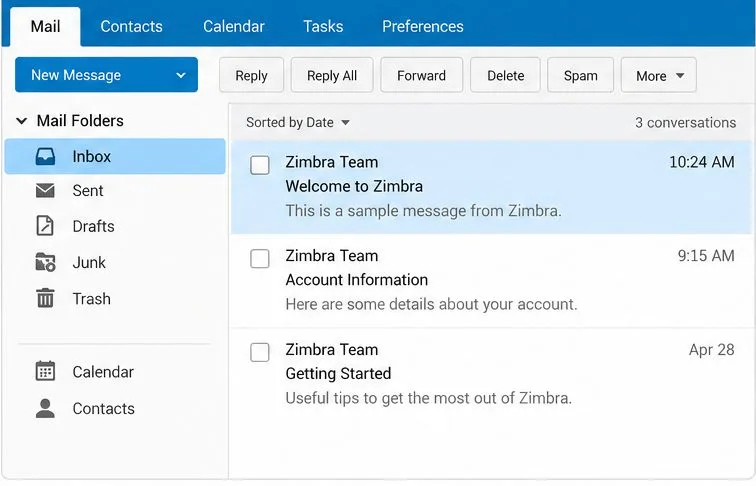
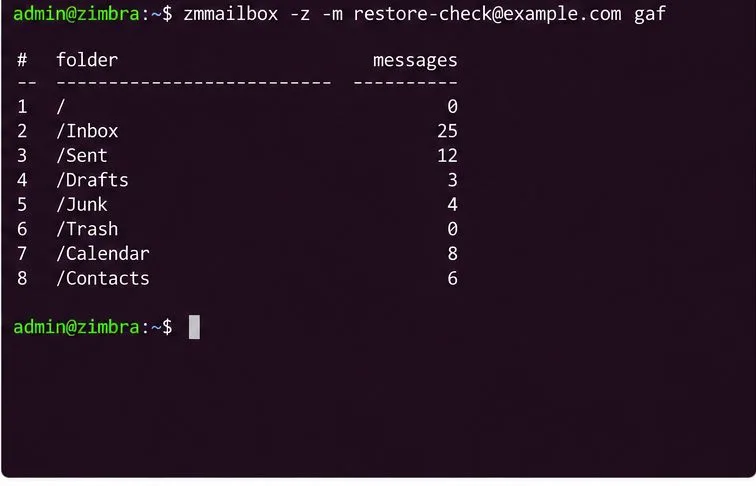
Open the staging account in the Zimbra Web Client. Check a sample of recent and older messages, folder names, contacts, calendar entries, tasks, and any other data that matters for this account. Then list its folders and message counts from the CLI:
/opt/zimbra/bin/zmmailbox -z -m restore-check@example.com gaf
/opt/zimbra/bin/zmmailbox -z -m restore-check@example.com gms
Compare what you see with the intended mailbox and export date. The counts will not necessarily match one-for-one if users continued working after the export, deleted items were excluded by export defaults, or the target release handles some item types differently. The important check is that the archive opens and the expected representative content is usable in the client.
Inspect restored folders and sample items in the Zimbra web client. Exact screens and command output vary by Zimbra release; these views are illustrative.Compare folder names and message counts after the restore test. Exact screens and command output vary by Zimbra release; these views are illustrative.
Importing into the original mailbox
If you need to merge an export back into the existing mailbox, replace the staging address in the command with the original mailbox address and keep resolve=skip for a non-destructive merge attempt. It is designed to skip duplicate items and import items not already present; it does not roll the mailbox back to an earlier point in time or remove newer content.
Do not casually use resolve=reset or resolve=replace on a live account. Zimbra documents reset as deleting the existing destination folder contents before import; when the destination is the mailbox root, this can clear the mailbox. Replace deletes and recreates matching items. Test the exact command on a disposable account first, and take a fresh backup before any production import. If a clean point-in-time rollback is required, use the licensed Network Edition restore workflow or a carefully planned server-level recovery procedure appropriate to your build.
Common issues and recovery checks
The export file is empty or unexpectedly small: check the command’s exit status, free disk space, mailbox permissions, and Zimbra mailbox logs. Run the export again to a new filename after resolving the cause.
The archive fails unzip -t: do not import it. Re-export to a new file and verify available storage and any interrupted shell, SSH, or backup transfer.
Calendar or tasks are missing: check whether the export used ZIP with meta=1. Zimbra’s format table distinguishes ZIP from default TGZ content.
The import reports duplicates or leaves newer data in place: that is expected with skip-style merging. Use a separate staging account to inspect the archive and choose specific recovery items rather than applying a reset to the live mailbox.
The command times out on a large mailbox: verify that -t 0 is present and monitor the server until the process completes. Avoid terminating an active export or import unless you have assessed its state.
You need server-wide recovery: mailbox export does not include LDAP, domain/account provisioning, system configuration, certificates, or a consistent copy of the full message store. Follow a separate, tested full-server backup plan.
References and release documentation checked October 7, 2026. Because archive formats and CLI behavior can change, verify the matching documentation for your installed Zimbra version before running a restore on a production mailbox.