Start by deciding what you actually need to remove
A Zimbra server that is running short on disk space can make log cleanup feel urgent, but /opt/zimbra/log/audit.log is not just disposable diagnostic output. Zimbra documents it as the audit trail for authentication events and administrative activity. That means the best cleanup method depends on whether you need immediate space, historical evidence, or a longer-term retention fix.
The safest default is to leave the active audit.log file alone and deal with older rotated copies first. If you are subject to an internal retention policy, legal hold, or compliance requirement, archive those files to another filesystem before deleting anything. If the active file itself has become abnormally large, you can clear it, but that should be treated as an emergency measure because it removes current audit history and can introduce a small race window if the server keeps writing while you copy it.
Zimbra's own logging documentation places audit.log under /opt/zimbra/log and describes Log4j as the component responsible for rotating files such as audit.log and mailbox.log. Other Zimbra logs may instead use the operating system's logrotate configuration, so do not assume every file in the directory follows the same mechanism. See the official Zimbra log-file reference and Zimbra log rotation notes.
Compare the cleanup options before you act
| Approach | Disk space recovered | Audit history retained | Operational risk | Best fit |
|---|
| Delete old rotated audit logs | High when many generations exist | No, unless backed up first | Low if you verify filenames first | Most routine cleanup jobs |
| Compress old rotated logs | Moderate to high | Yes | Low | Systems that still need local history |
| Move old logs to separate storage | High on the Zimbra filesystem | Yes | Low to moderate | Compliance or long retention |
| Truncate the active audit.log | Immediate, potentially large | No unless copied first | Higher | Emergency space recovery only |
| Change pruning or retention behavior | Prevents recurrence | Depends on policy | Moderate if misconfigured | Recurring growth problems |
Step 1: Measure the problem before deleting anything
First confirm that audit logs are actually responsible for the pressure. Run these as root:
df -h /opt
du -sh /opt/zimbra/log
ls -lh /opt/zimbra/log/audit.log*
The first command tells you how full the filesystem containing /opt is. The second shows the overall Zimbra log footprint. The third exposes the active audit file and any rotated generations. If the audit files are only a small fraction of the filesystem, clearing them may not solve the real problem; mailbox stores, backups, database files, or another log family may be consuming the space instead.
Also record your installed version before changing behavior:
su - zimbra -c 'zmcontrol -v'
This matters because Zimbra documentation spans multiple product generations, and exact Log4j syntax, generated configuration, and pruning jobs can differ. Do not copy a retention value from an old wiki example and assume it is your current default.
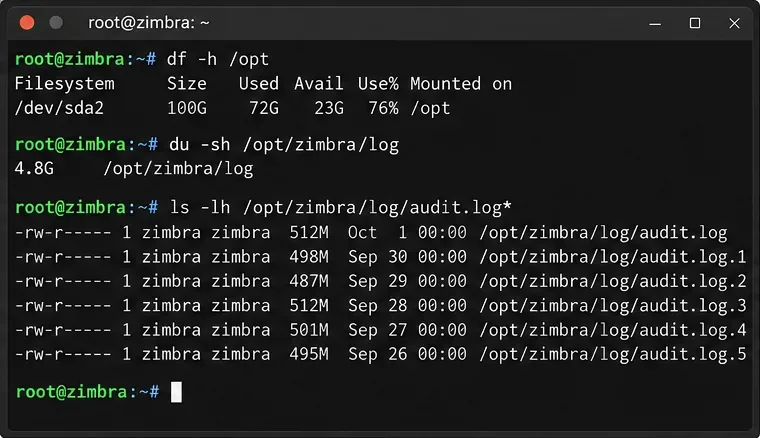
Check filesystem usage, total Zimbra log size, and individual audit-log generations before deciding what to remove.
Step 2: Check how this server rotates and prunes logs
Zimbra documents two relevant mechanisms: Log4j for files including audit.log, and the operating system's logrotate for several other Zimbra logs. It also notes that Zimbra's own crontab may contain log-maintenance tasks. Review the live configuration instead of guessing:
su - zimbra
crontab -l
exit

grep -n "audit.log" /opt/zimbra/conf/log4j.properties
grep -n "audit.log" /opt/zimbra/conf/log4j.properties.in
If one of those files does not contain the expected setting on your release, inspect the surrounding logging configuration rather than forcing an older example into place. Generated files can also be overwritten after service restart or configuration regeneration. Zimbra's logging notes specifically distinguish temporary edits to the generated properties file from persistent changes made in the corresponding .in template.
For servers with unexpectedly high audit volume, check whether additional logging was intentionally enabled. Zimbra 10.0.6 release notes document the zimbra_additional_logging local configuration attribute, which can add more failed or otherwise useful authentication events to audit.log. Do not disable useful security logging merely to save space; if volume is legitimate, a better answer is usually retention, compression, or centralized log storage. See the official Zimbra 10.0.6 release notes.
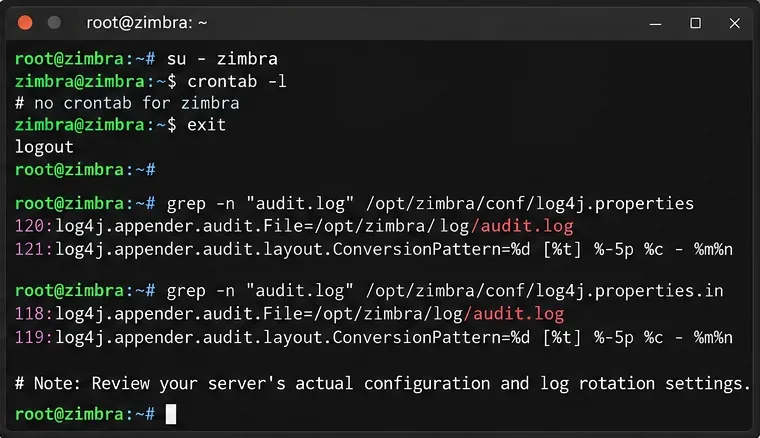
Review the server's actual crontab and Log4j configuration before changing retention or rotation behavior.
Step 3: Prefer archiving or deleting rotated logs first
For most administrators, old rotated audit logs are the best first target. Use find in report-only mode before you delete anything. The following example lists rotated audit logs older than 30 days; 30 days is only an example threshold, not a Zimbra-prescribed retention period:
find /opt/zimbra/log -maxdepth 1 -type f -name 'audit.log.*' -mtime +30 -print
If those files are no longer required, delete only the reviewed rotated files. If you need to retain them, copy or archive them to a different filesystem first. Using another mount is important when the Zimbra partition is already nearly full, because creating a compressed archive on the same full filesystem can temporarily consume even more space.
mkdir -p /mnt/backup/zimbra-audit-logs
cp --preserve=mode,ownership,timestamps   /opt/zimbra/log/audit.log.OLD_GENERATION   /mnt/backup/zimbra-audit-logs/
Repeat for the exact filenames you reviewed. Verify the backup before removing the source. Avoid broad patterns such as rm -f /opt/zimbra/log/audit.log*; that pattern also matches the active file.
If you want to retain old logs locally but reduce their footprint, compress only rotated files:
gzip /opt/zimbra/log/audit.log.OLD_GENERATION
Whether compression is worthwhile depends on your current rotation setup. Some deployments may already compress historical logs as part of maintenance. Check what actually exists before adding another layer.
Zimbra's historical logging guidance also warns that audit logs may contain sensitive data. Treat archives with the same access controls as the live logs. See the official Zimbra logging guidance.
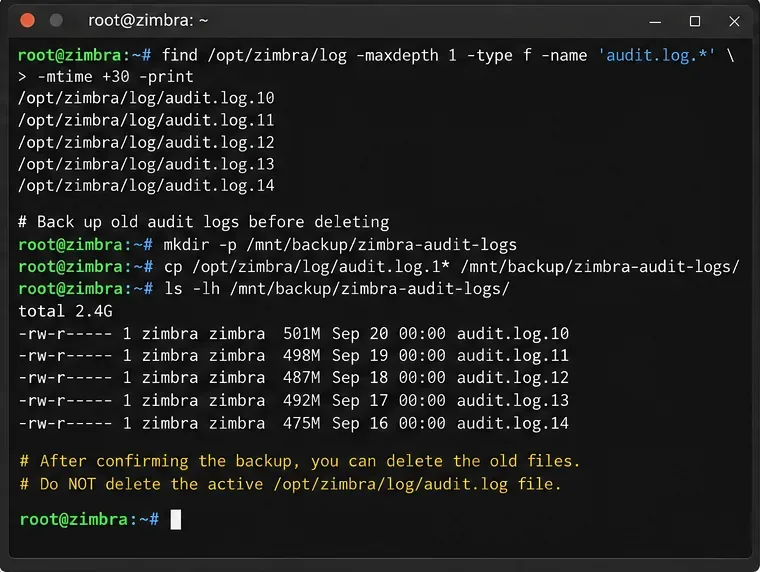
List old rotated files first, copy required history to separate storage, and only then remove the reviewed generations.
When truncating the active audit.log is justified
If rotated files are not the problem and the active audit.log itself is consuming critical space, truncation can recover space immediately. It is also the option with the clearest tradeoff: current audit history is destroyed once the file is truncated.
A safer emergency procedure is to briefly stop mailboxd, copy the active file to another filesystem, truncate the original in place so ownership and permissions are preserved, and start mailboxd again:
su - zimbra -c 'zmmailboxdctl stop'

cp --preserve=all /opt/zimbra/log/audit.log   /mnt/backup/audit.log.$(date +%Y%m%d-%H%M%S)

truncate -s 0 /opt/zimbra/log/audit.log

su - zimbra -c 'zmmailboxdctl start'
This introduces mailbox service downtime, so it is not the right choice for every environment. Copying the live file without stopping mailboxd avoids downtime but creates a race in which entries written after the copy and before truncation may be lost. If disk pressure is not severe, cleaning rotated files and correcting retention is preferable.
Do not use rm on the active log as your first response. A process can continue writing through an open file descriptor even after the directory entry is deleted, so the expected disk space may not be reclaimed immediately. Truncating the existing inode is more predictable when an emergency clear is truly necessary.
Step 4: Verify both disk recovery and continued logging
After cleanup, confirm the result instead of relying on the absence of errors:
df -h /opt
du -sh /opt/zimbra/log
ls -lh /opt/zimbra/log/audit.log*
tail -n 20 /opt/zimbra/log/audit.log
su - zimbra -c 'zmcontrol status'
A good outcome has three signs: free space increased on the intended filesystem, audit.log still exists and receives new events, and the relevant Zimbra services remain running. If df still reports a full filesystem while du has dropped sharply, check for deleted files that are still held open by running processes before deleting more data.
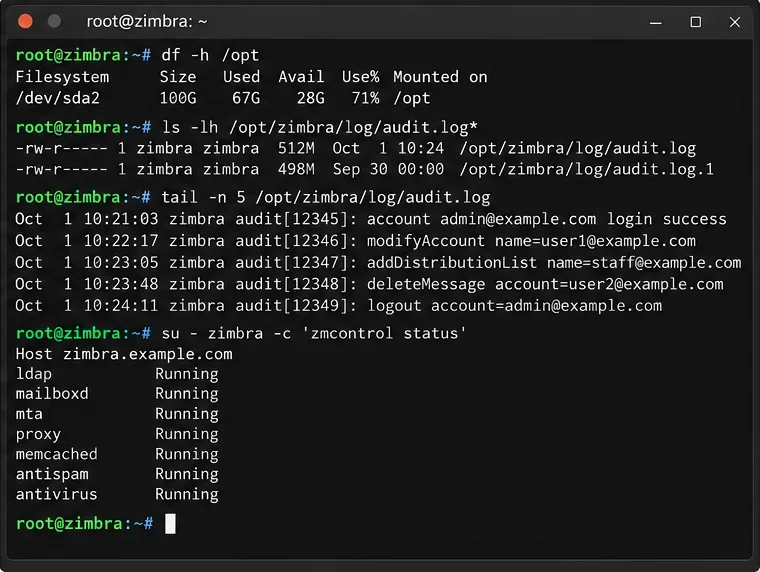
Verify recovered space, recent audit activity, and service health after cleanup.
Choose the long-term fix based on why the logs grew
If growth is normal but retention is too long
Adjust the retention or pruning process only after documenting your required history period. Inspect the existing Zimbra crontab and Log4j configuration, then make the smallest version-appropriate change. Keep a copy of the original configuration and test that the next rotation actually creates the expected files.
If authentication noise is driving volume
Investigate the source rather than simply deleting faster. Repeated login attempts, misconfigured clients, monitoring probes, or intentionally expanded authentication logging can all increase audit volume. Because audit.log is useful for security investigation, reducing the underlying noise is usually better than suppressing the evidence.
If you must retain months of audit history
Move or ship logs to storage designed for retention. Centralized logging, object storage, or a dedicated log filesystem separates compliance history from the capacity required by the mail platform. Zimbra's log-file documentation explicitly discusses centralized logging candidates, including audit.log.
What not to do
- Do not delete
audit.log* with an unreviewed wildcard.
- Do not assume
/etc/logrotate.d/zimbra controls the active audit log on every release; Zimbra documents Log4j as the rotation mechanism for audit.log.
- Do not compress or archive onto the same nearly full filesystem unless you have confirmed there is enough temporary space.
- Do not shorten retention without checking organizational, legal, or security requirements.
- Do not edit generated Log4j files permanently without understanding whether Zimbra will regenerate them from a template.
Final check
If old rotated logs were the main consumer, the preferred outcome is simple: the active audit log remains intact, historical files are either archived or removed according to policy, and the filesystem has recovered enough headroom to operate normally. If space immediately starts disappearing again, stop treating cleanup as the solution and investigate the write rate, authentication activity, rotation configuration, and any additional logging settings. That distinction—one-time cleanup versus recurring growth—is what determines whether you have actually fixed the problem.









