Home
» NETWORK ADMIN
»
How to Configure a Custom Domain Name for Jitsi Meet Docker
How to Configure a Custom Domain Name for Jitsi Meet Docker
The shortest path to a custom domain for Jitsi Meet Docker is to point a DNS hostname at the Docker host, set PUBLIC_URL to the final HTTPS URL, configure trusted TLS for that same hostname, and make sure WebRTC media can still reach Jitsi Videobridge. For a direct Internet-facing installation, the official Docker setup supports built-in certificate automation through ENABLE_LETSENCRYPT, LETSENCRYPT_DOMAIN, and LETSENCRYPT_EMAIL.
This guide uses meet.example.com as a concrete example and assumes the standard docker-jitsi-meet project. Replace the example hostname, email address, and documentation-only IP address with your own values. The configuration described here was checked against the official Jitsi Docker handbook and current project env.example on October 7, 2026.
What you need before changing the domain
A custom domain works best when the hostname is decided before you request a certificate. For example, if users should open https://meet.example.com, DNS, PUBLIC_URL, and the TLS certificate should all use meet.example.com. Mixing jitsi.example.com in one place and meet.example.com in another is a common reason for certificate warnings or redirects to the wrong host.
A domain you control.
A server with Docker Engine and Docker Compose.
A public IP address, or a reverse proxy that already owns ports 80 and 443.
Firewall access for the web ports and Jitsi media traffic.
The existing docker-jitsi-meet directory and its .env file.
The official Jitsi Docker handbook states that PUBLIC_URL must be set to the real domain for a production deployment. It also documents 80/TCP, 443/TCP, and 10000/UDP as the core external ports for the standard direct setup. See the Jitsi Docker self-hosting guide.
Step 1: Point the custom hostname to the Jitsi server
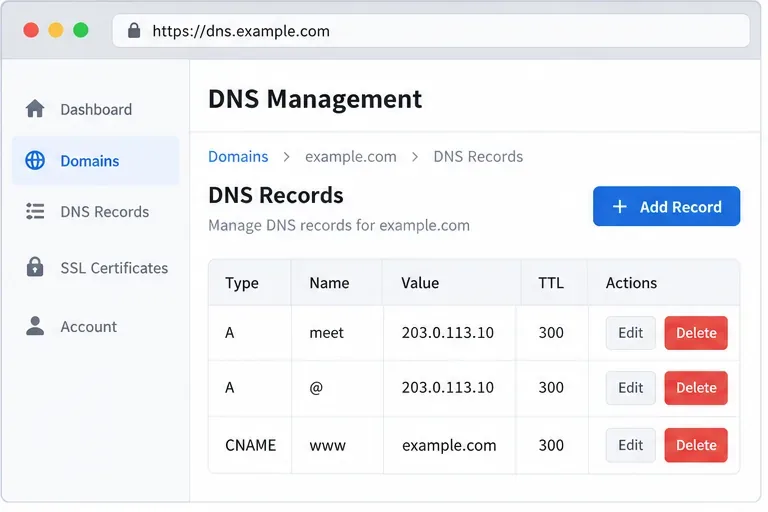
Create an A record for the hostname you want to use. In this example, meet.example.com points to the server's public IPv4 address. If your server has stable IPv6 connectivity, you may also add an AAAA record that points to its public IPv6 address.
Type: A
Name: meet
Value: YOUR_PUBLIC_IPV4
TTL: 300
Do not copy 203.0.113.10 from the illustration into a real deployment; that address is reserved for documentation. If you use a DNS provider with a proxy/CDN mode, start with ordinary DNS-only resolution unless you have confirmed that the proxy supports the Jitsi traffic pattern you intend to use.
Example DNS configuration for the meet subdomain. Replace the illustrated address with the actual public IP of your Jitsi host.
Step 2: Set PUBLIC_URL and HTTPS values in .env
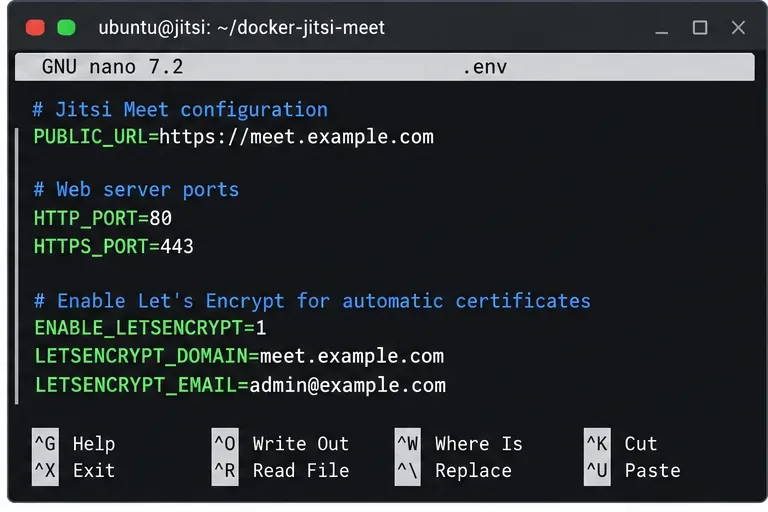
Open the .env file in the directory where you cloned or extracted docker-jitsi-meet. For a direct deployment where the Jitsi web container will listen publicly on ports 80 and 443, the important settings are:
PUBLIC_URL is not just cosmetic. Jitsi uses it while building effective configuration, so leaving it at localhost or at an old hostname can produce broken links and inconsistent behavior. The current project sample also notes that if you deliberately use a non-standard HTTPS port, that port belongs in PUBLIC_URL.
The official sample currently identifies ZeroSSL as the default ACME server and allows LETSENCRYPT_ACME_SERVER="letsencrypt" when you specifically want Let's Encrypt. If your existing installation already obtains a trusted certificate successfully, keep the ACME setting that matches your working environment rather than changing providers without a reason.
The key .env values must use the same public hostname that users will type into their browsers.
Step 3: Open the required firewall ports
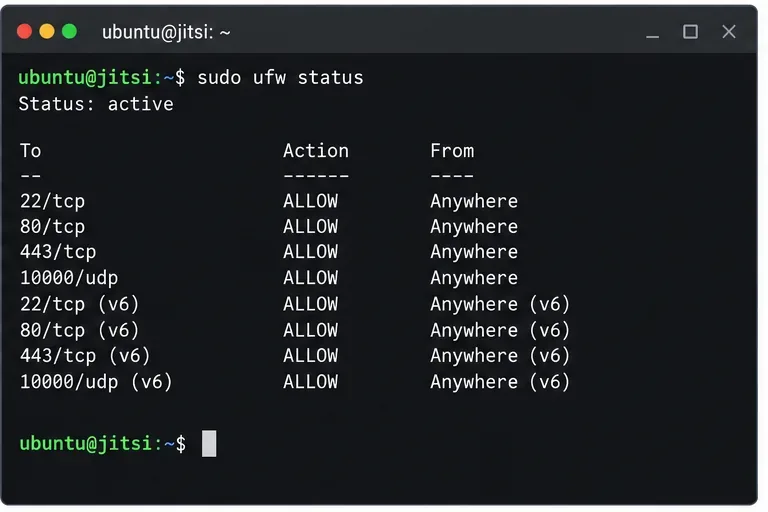
For the direct Internet-facing Docker deployment described above, allow 80/TCP, 443/TCP, and 10000/UDP. Keep your SSH management port open as well. On an Ubuntu host using UFW, a minimal example is:
The web ports serve the site and certificate challenge. UDP 10000 is the default Jitsi Videobridge media port. A page can load perfectly while meetings still fail or lose audio/video if the media port is blocked, so checking only HTTPS is not enough.
If your host is behind NAT, also review JVB_ADVERTISE_IPS. The official handbook explains that this variable controls the address Jitsi Videobridge advertises for media and is required in many LAN or NAT deployments. A typical public Internet example is:
JVB_ADVERTISE_IPS=YOUR_PUBLIC_IPV4
Firewall verification should include the Jitsi Videobridge UDP media port, not only the website ports.
Step 4: Restart the Docker stack with the new domain
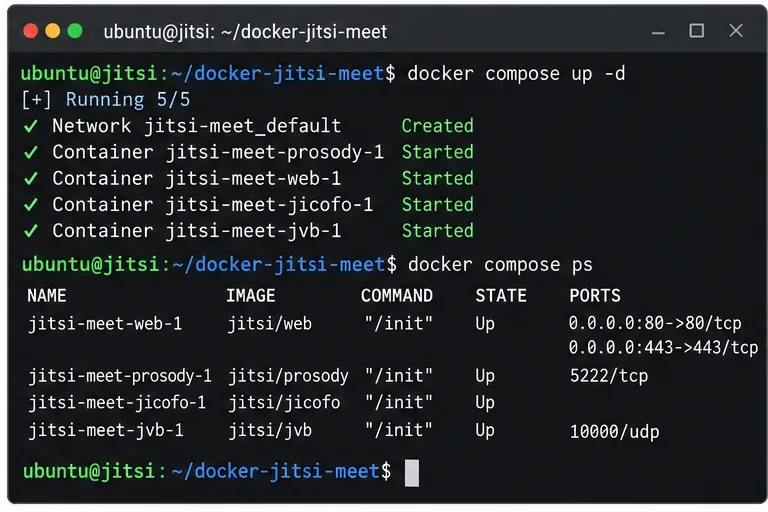
Save .env, then recreate the containers so the environment changes are applied:
docker compose down
docker compose up -d
docker compose ps
A simple restart is not the best choice after changing environment variables because the existing container definition may still contain the previous environment. Recreating the stack makes the new PUBLIC_URL, port values, and certificate settings explicit.
If you are starting from a fresh copy of the project, follow the official quick-start steps first, including generation of the required passwords and creation of the configuration directories. Recent Jitsi container releases run services as an unprivileged user and require writable storage and temporary directories, so a completely fresh install should follow the directory commands in the current handbook rather than an old third-party tutorial.
After changing .env, recreate the stack and confirm the core Jitsi containers are running.
Step 5: Confirm DNS and HTTPS from outside the server
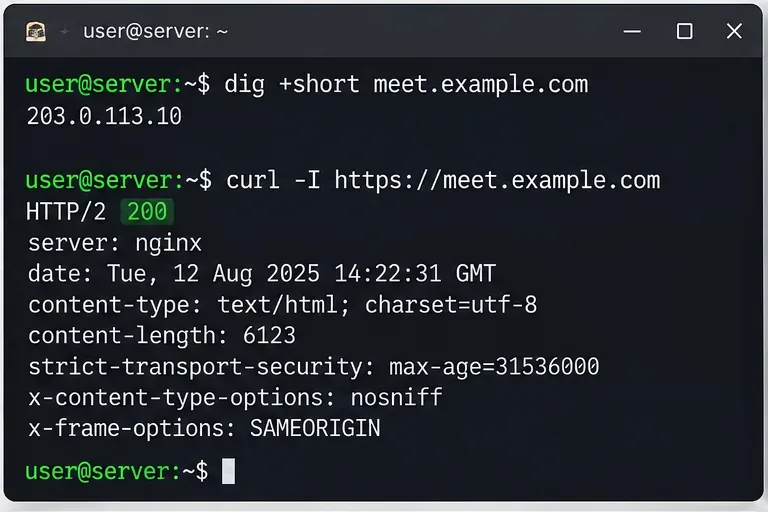
Once DNS has propagated, check that the hostname resolves to the expected public address:
dig +short meet.example.com
Then test the HTTPS endpoint:
curl -I https://meet.example.com
A successful response proves that DNS, TCP 443, and the web service are working together. It does not yet prove that multiparty media works, so this is an intermediate check rather than the finish line.
If dig returns an old address, wait for the DNS TTL or correct the record. If DNS is correct but curl times out, inspect cloud security groups, the host firewall, router/NAT rules, and whether another service already occupies port 443.
DNS resolution and a successful HTTPS header request provide a quick first verification of the custom hostname.
Step 6: Check certificate issuance and web logs
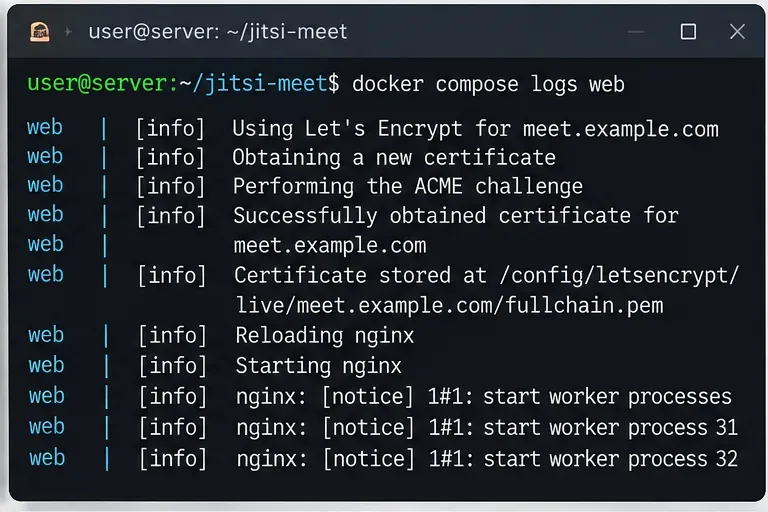
If the browser still shows a certificate warning, inspect the web container logs instead of repeatedly deleting configuration and requesting another certificate:
docker compose logs --tail=200 web
Look for ACME validation errors, port binding failures, or a hostname mismatch. The Jitsi handbook warns about certificate-authority rate limits and recommends preserving the configuration storage that contains issued certificates. During repeated setup experiments, staging can be useful, but after switching away from staging the handbook notes that old staging certificate material may need to be cleared from the web storage before requesting a production certificate.
If you already have a trusted certificate from another source, Jitsi also supports mounting an existing full chain and private key into the web service rather than enabling the built-in ACME flow. Follow the certificate-mount example in the official existing-certificate section.
Use the web container logs to diagnose certificate or nginx startup problems instead of repeatedly requesting new certificates.
Step 7: Open the custom domain in a browser
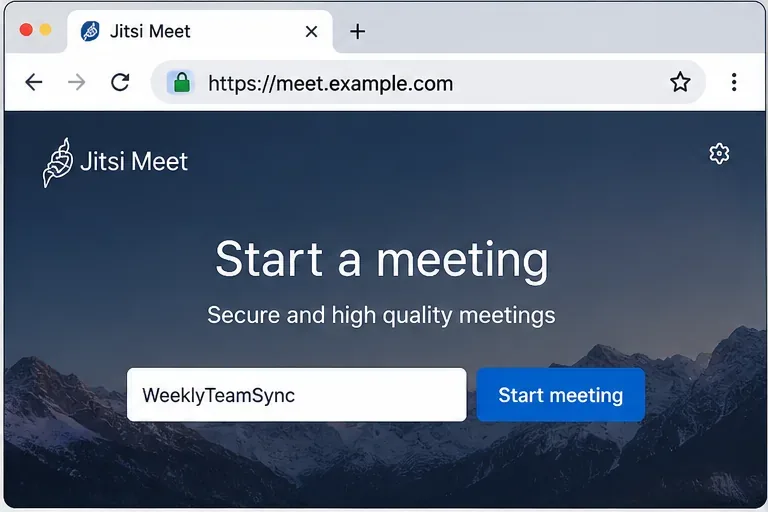
Visit https://meet.example.com in a modern browser. You should see the Jitsi landing page under your chosen hostname with a valid TLS indicator. Create a test room with a temporary name.
Use HTTPS for real meetings. The official Docker guide specifically warns that direct HTTP access can cause browser WebRTC APIs such as microphone and camera access to fail. HTTPS is therefore part of the functional configuration, not merely a security badge.
The landing page should load from the final HTTPS hostname before you begin media testing.
Step 8: Test a real call, not just the home page
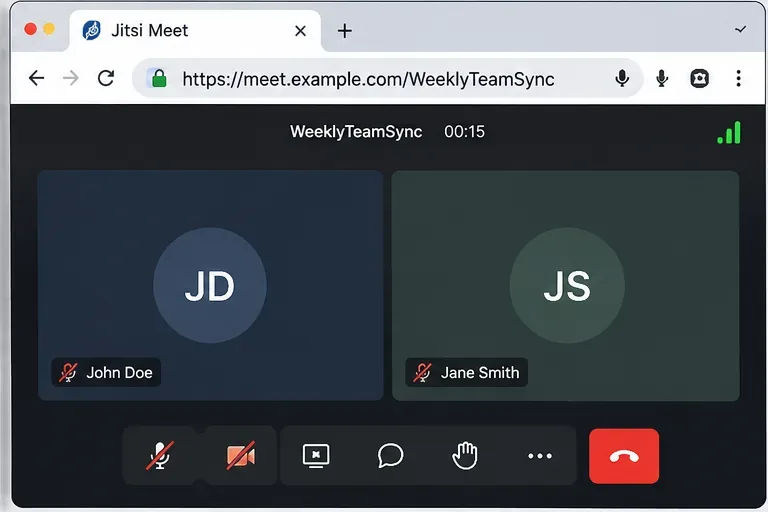
Join the same room from two separate devices or networks if possible. Confirm that each participant can send and receive audio and video. A two-browser test is important because an installation can serve the website correctly while the Videobridge address or UDP path is still wrong.
For installations behind NAT, a common symptom is that the first connection appears normal but media fails as more participants join. In that case, re-check JVB_ADVERTISE_IPS, the public NAT mapping, and UDP 10000. The Jitsi handbook explicitly notes that the Videobridge media address remains relevant even when HTTP traffic is handled by a reverse proxy.
A successful two-participant call is a better end-to-end test than merely confirming that the Jitsi home page loads.
When you should use a reverse proxy instead
The direct configuration above is appropriate when the Jitsi web container can own public ports 80 and 443. If the same server already runs Nginx, Apache, Caddy, Traefik, or another proxy on those ports, do not try to bind Jitsi to them at the same time.
For a same-host reverse proxy, the official Jitsi Docker guide recommends disabling HTTPS inside the Jitsi container, avoiding public exposure of its internal web ports, and forwarding requests to the container's HTTP ingress. The proxy must also support WebSocket forwarding for /xmpp-websocket. A typical Jitsi-side environment is:
Then terminate the trusted certificate at your reverse proxy. This is the better fit when one proxy manages certificates for several applications. It is not a reason to change the externally visible PUBLIC_URL; users should still see the final HTTPS domain.
Troubleshooting custom-domain failures
The old domain still appears after editing .env
Recreate the containers with docker compose down followed by docker compose up -d. Also verify that you edited the .env file used by the Compose project you are actually starting.
HTTPS certificate validation fails
Confirm that the DNS A/AAAA records point to the server receiving the challenge and that public port 80 is reachable when using the built-in direct certificate flow. Check docker compose logs web for the exact ACME error before making another request.
The page loads, but participants have no audio or video
Check UDP 10000 and, for NAT deployments, set the correct JVB_ADVERTISE_IPS. Remember that the reverse proxy handles web traffic; it does not replace the Videobridge media path.
The browser works but the mobile app refuses the server
Check the certificate chain. The Jitsi Docker handbook notes that the mobile apps do not work with the default self-signed certificate. Use a publicly trusted certificate or an infrastructure design where the app receives a trusted chain.
Final verification checklist
meet.example.com resolves to the intended public address.
PUBLIC_URL=https://meet.example.com matches the browser URL exactly.
The TLS certificate is trusted and covers meet.example.com.
Ports 80/TCP and 443/TCP are reachable for the direct setup.
UDP 10000 reaches the Jitsi Videobridge host.
JVB_ADVERTISE_IPS is correct when the server is behind NAT or needs explicit advertised addresses.
docker compose ps shows the required containers running.
A two-participant test sends audio and video successfully.
Once those checks pass, the custom domain is not only pointing at Jitsi—it is configured for the parts that actually matter in a real meeting: HTTPS, signaling, and media transport.