Home
» NETWORK ADMIN
»
How to Configure an External TURN Server for Jitsi behind NAT
How to Configure an External TURN Server for Jitsi behind NAT
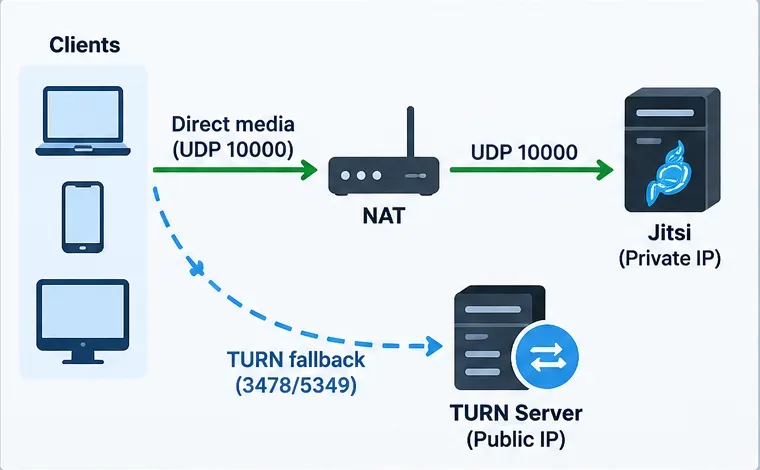
The most important point: an external TURN server should be configured as a fallback for clients that cannot establish a usable WebRTC path because of NAT or restrictive firewalls. It is not a replacement for the Jitsi Videobridge (JVB) in normal multiparty meetings. If your Jitsi server itself is behind NAT, you must still make JVB reachable from the Internet, normally on UDP 10000, or configure the bridge's advertised public address correctly.
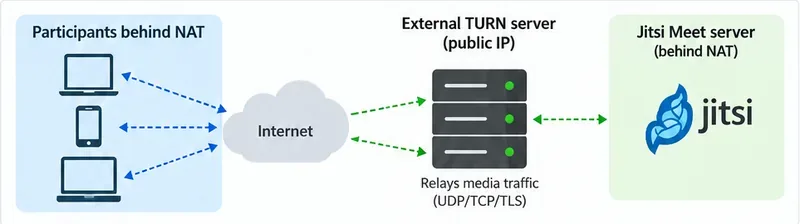
For current Jitsi deployments, the cleanest design is usually a publicly reachable coturn host with a DNS name such as turn.example.com, time-limited credentials supplied by Prosody through XEP-0215, and TURN over UDP/TCP plus TURN over TLS for restrictive networks. Jitsi's current TURN documentation explicitly recommends dynamic credentials instead of embedding a permanent username and password in browser configuration. See the official Jitsi TURN setup documentation.
Jitsi media should use the normal bridge path when possible, while the external TURN server provides a fallback for clients on restrictive networks.
When an external TURN server is the right solution
Use TURN when some participants can open the Jitsi web page but cannot establish reliable media, especially from corporate networks, hotel Wi-Fi, campuses, mobile carriers, VPNs, or other environments that block or heavily filter UDP. TURN is also useful for one-to-one Jitsi calls when peer-to-peer connectivity cannot be established directly.
Do not treat TURN as the first fix for a misconfigured Jitsi Videobridge. The official Jitsi Debian/Ubuntu guide says that when the server is behind NAT, the router must forward the required ports and the bridge may need an explicit local-to-public address mapping. By default, the important Jitsi-facing ports are TCP 443 and UDP 10000. Review the current Jitsi self-hosting guide for Debian/Ubuntu before adding TURN.
Symptom or requirement
What to check first
Two users fail to connect directly on restrictive networks
TURN is a strong candidate.
Three or more participants have no audio/video
Verify JVB UDP 10000 and its public address before blaming TURN.
Users on normal home networks work, but corporate users fail
Add TURN/TLS, preferably reachable on TCP 443 if your network design allows it.
You want credentials that are not permanently exposed in JavaScript
Use Prosody external services with a shared secret and short-lived credentials.
Step 1: Prepare a public TURN host and DNS
The simplest topology is a separate VM or server with a public IP address. Create an A or AAAA record such as turn.example.com that resolves to that host. A dedicated hostname is especially useful if you later offer TURN over TLS because the certificate must match the hostname clients use.
If the TURN host is itself behind NAT, coturn needs to know the public address it should advertise. Coturn supports an external-ip mapping, including public/private pairs such as external-ip=203.0.113.10/192.168.1.10. Its documentation also notes that relay ports must be mapped consistently through NAT. Refer to the official coturn example configuration.
A separate public TURN host is usually easier to expose consistently than a TURN service hidden behind the same private network as Jitsi.
Step 2: Install coturn
On a supported Debian or Ubuntu system, install coturn from the distribution repository:
sudo apt update
sudo apt install coturn
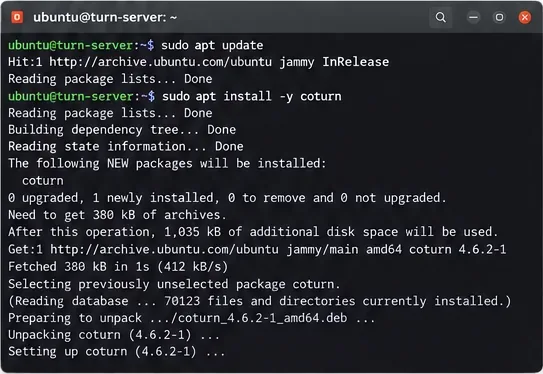
Package versions vary by operating-system release, so do not copy a version number from a screenshot or another server. After installation, confirm that the service unit exists and that the package has installed turnserver.
Install coturn with the package manager on the dedicated TURN host; the exact package version depends on the Linux release.
Step 3: Configure coturn for shared-secret authentication
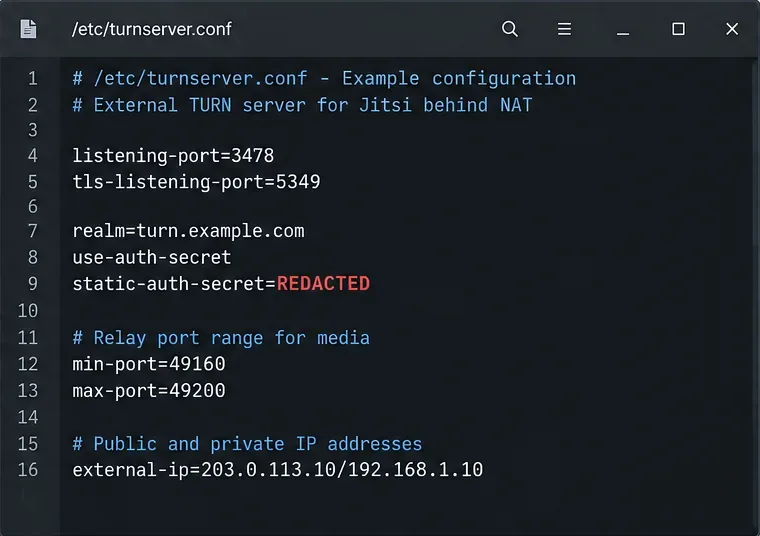
For Jitsi, a practical production setup uses coturn's shared-secret mechanism so Prosody can generate temporary TURN credentials. Use the same secret on both sides. A minimal starting point looks like this:
If the TURN host is behind NAT, add the appropriate external-ip mapping. If you enable TURN over TLS, configure cert and pkey with a trusted certificate for turn.example.com. The official coturn container documentation explains that TURN uses a relay-port range for media and that the range can be narrowed with min-port and max-port. See the official coturn Docker documentation for the same relay-port behavior.
Typical coturn settings include the listener ports, a shared secret, a relay-port range, and an external IP mapping when the TURN host is behind NAT.
Step 4: Open the listener and relay ports
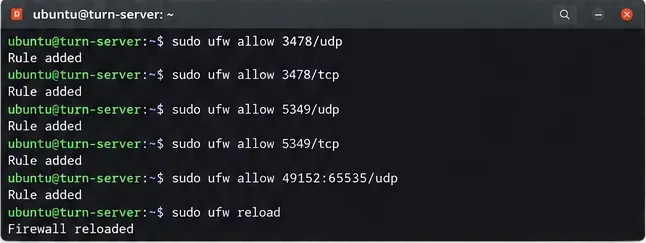
A common failure is opening only 3478 or 5349 while forgetting the relay range. Coturn's listener accepts the initial TURN connection, but relayed media uses allocated relay ports. If you chose 49160-49200, allow that same range through the host firewall, cloud security group, and any upstream NAT.
If you need the widest compatibility with locked-down corporate networks, Jitsi's TURN guide describes serving TURN over TLS on TCP 443. That can require a dedicated TURN hostname and, when web HTTPS shares the same public address, TLS SNI multiplexing. Do not blindly move TURN to 443 unless you understand what already owns that port.
The firewall must allow both the TURN listener and the relay-port range selected in coturn.
Step 5: Configure Jitsi to advertise the external TURN service
On a current Debian/Ubuntu Jitsi package deployment, Prosody uses mod_external_services to publish STUN/TURN information to clients. Jitsi's own Prosody example uses an external_service_secret plus an external_services table with secret = true. The shared secret must match coturn's static-auth-secret.
external_service_secret = "REPLACE_WITH_THE_SAME_LONG_RANDOM_SECRET";

external_services = {
    { type = "stun", host = "turn.example.com", port = 3478 },
    { type = "turn", host = "turn.example.com", port = 3478,
       transport = "udp", secret = true, ttl = 86400, algorithm = "turn" },
    { type = "turns", host = "turn.example.com", port = 5349,
       transport = "tcp", secret = true, ttl = 86400, algorithm = "turn" }
};
Keep the existing modules and site-specific settings in your Jitsi-generated Prosody file; do not replace the whole file with the snippet above. The exact file name normally follows your deployment domain under /etc/prosody/conf.d/. The upstream Jitsi configuration example can be checked in the official Jitsi repository.
If you are using the official Docker deployment, prefer its documented environment variables instead of hand-editing generated Prosody files. Current Docker documentation exposes TURN_CREDENTIALS, TURN_HOST, TURN_PORT, TURN_TRANSPORT, TURNS_HOST, and TURNS_PORT. Review the current Jitsi Docker self-hosting guide because variable defaults can change between releases.
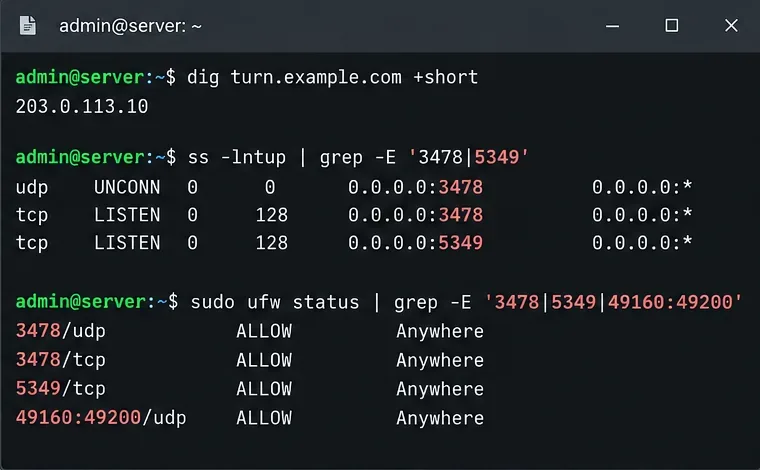
Before changing Jitsi, verify that the TURN hostname resolves and that coturn is actually listening on the expected transport ports.
Step 6: Restart and validate the services
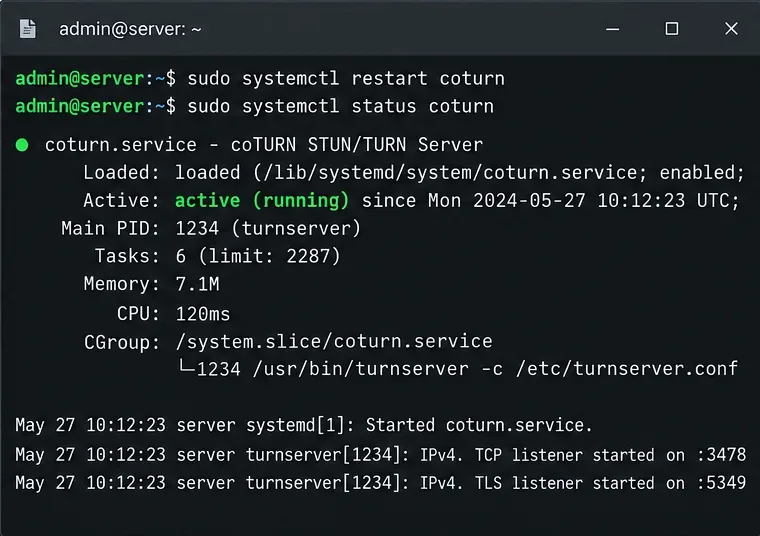
After changing coturn, restart it and check its status:
sudo systemctl restart coturn
sudo systemctl status coturn
sudo ss -lntup | grep -E '3478|5349'
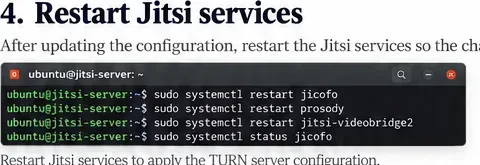
After changing the Prosody configuration, validate its syntax if your Prosody package provides the checker, then restart Prosody. Depending on what you changed in Jitsi, restarting the relevant Jitsi services can also be appropriate:
A clean coturn service status only proves the daemon is running. It does not prove that credentials match, the relay range is reachable, or a browser can obtain a relay candidate.
Use service status and listener checks as a first validation step; timestamps and process IDs will differ on your server.Restart only the Jitsi services affected by your configuration changes, then test with a fresh browser session.
Step 7: Test that TURN can actually relay media
Testing from the same LAN is not enough. Use at least one client on a different network, ideally a mobile connection or a network that is known to restrict UDP. In browser WebRTC diagnostics, look for an ICE candidate of type relay. A relay candidate means the browser successfully obtained TURN credentials and created a TURN allocation.
Also watch coturn logs while the test user joins. You should see authenticated allocations and relay traffic when TURN is selected. If you see authentication failures, compare the coturn static-auth-secret with the Prosody or Docker TURN credential secret. If allocations succeed but media still fails, check the relay-port firewall and NAT mapping.
Do not force TURN merely to prove that the server exists unless you have a controlled test reason. Under normal conditions, ICE chooses the best working path. A successful deployment can therefore have many meetings that never need TURN.
Step 8: Keep JVB NAT configuration separate from TURN troubleshooting
This is the point that prevents the most wasted troubleshooting time. A Jitsi server behind NAT still needs the bridge's public reachability configured correctly. The current Jitsi quick-start guide says the bridge normally auto-configures itself, but if larger calls fail, you can add a static mapping under ice4j.harvest.mapping in /etc/jitsi/videobridge/jvb.conf:
Forward UDP 10000 from the public edge to the JVB host and make sure the public address is the one remote clients can actually reach. TURN may help clients on restrictive networks, but it should not be used to hide a broken JVB NAT mapping.
The desired architecture keeps JVB directly reachable for normal media while TURN remains a fallback for networks that cannot use the direct path.
Quick troubleshooting checklist
TURN hostname does not resolve: fix DNS before testing Jitsi.
3478/5349 listen locally but not remotely: inspect host firewall, cloud firewall, router NAT, and provider filtering.
Credentials fail: verify the shared secret is identical in coturn and the Jitsi/Prosody configuration.
Relay candidate appears but media fails: verify the configured relay-port range is open end-to-end.
Only multiparty calls fail: check JVB UDP 10000 and JVB public-address advertisement.
Only corporate networks fail: add or verify TURN over TLS, often on TCP 443 where appropriate.
Docker changes disappear after restart: configure the supported .env variables rather than editing generated files inside containers.
What a correct result looks like
A healthy setup has three observable behaviors. First, ordinary users can reach the Jitsi Videobridge directly without TURN when their networks allow it. Second, users on restrictive networks can receive temporary TURN credentials and obtain a relay ICE candidate. Third, coturn shows authenticated allocations only when needed, rather than carrying every meeting by default.
That combination gives you a useful fallback without turning the TURN server into an unnecessary bandwidth bottleneck. It also keeps troubleshooting clean: JVB NAT problems stay JVB problems, while TURN solves the narrower issue of WebRTC connectivity when direct routes are blocked.