Home
» NETWORK ADMIN
»
How to Configure Bridges in Matrix: WhatsApp, Telegram, and Discord
How to Configure Bridges in Matrix: WhatsApp, Telegram, and Discord
To bridge Matrix with WhatsApp, Telegram, or Discord, run a compatible bridge service beside your homeserver, register that service as a Matrix application service, and then link or authorize the external account. Each network needs its own bridge configuration and credentials. A running process alone does not prove that a room is bridged: test a message in both directions after setup.
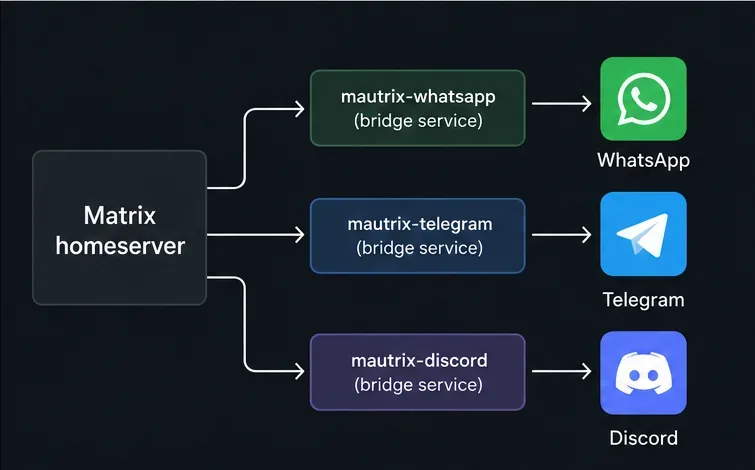
One Matrix homeserver can connect to three separately configured bridge services.
Should you self-host the bridges or use a public instance?
Self-hosting gives you control over where the bridge runs, how logs and credentials are stored, and which users may connect. It also means you maintain three services, update them, protect their databases, and troubleshoot connectivity. A public bridge can be faster to try, but its operator controls availability, access policy, and data handling. Check the bridge's current documentation and support room before choosing an instance; availability and features can change.
These connections are not equivalent to native support from the messaging services. Bridged features may differ from network to network, and voice/video calls, reactions, edits, threads, read receipts, history, or group administration may be incomplete. Test the features your community actually depends on before moving important conversations.
What do you need before installing anything?
A Matrix homeserver that supports application services and administrator access to register them. The examples below use Synapse; other homeservers have their own registration process.
A reachable network path between the homeserver and each bridge. In Docker, localhost inside one container means that container itself; use a shared Docker network and the bridge service's network name when the homeserver must reach another container.
A separate configuration, registration file, persistent data location, and secret store for each bridge. Follow the current project instructions for supported databases, runtime versions, and container images; requirements differ and change.
For WhatsApp, a phone with the account you intend to link. For Telegram, an account already signed in through an official Telegram client. For Discord, a Discord application/bot and permission from a server owner or administrator.
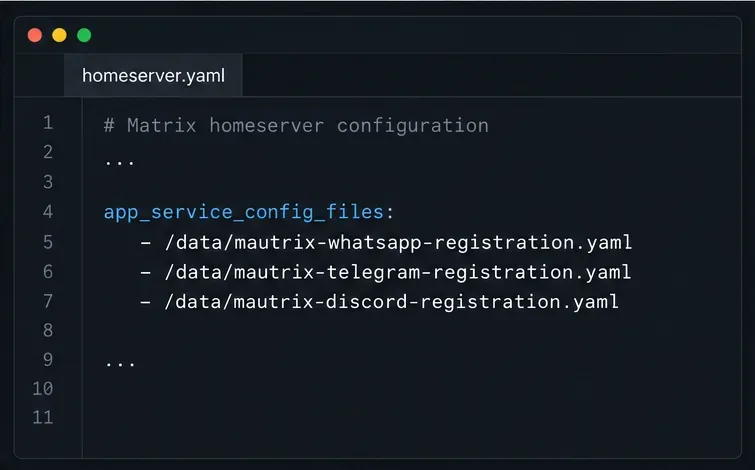
Synapse reads each bridge registration file from the path configured under app_service_config_files; the paths shown are examples.
How do you register a bridge with Synapse?
Deploy one bridge at a time. Start with a current release and its sample configuration. Set the homeserver address, public server name, bridge listener address, database, and storage paths according to that project's guide. Avoid sharing one database between unrelated bridge services.
Generate its registration file. The bridge's setup process creates a registration YAML file containing application-service identity and authentication tokens. Treat those tokens like passwords: restrict file permissions, do not commit them to Git, and do not paste them into public rooms, screenshots, or support posts.
Make the file visible to Synapse. Copy or mount the registration file where the Synapse process can read it. Add its path beneath app_service_config_files in Synapse's homeserver.yaml. Add a separate list entry for each bridge; do not overwrite another service's entry. The mautrix appservice registration guide describes this flow and notes that Synapse must be restarted after the registration list changes.
Restart and inspect logs. Restart Synapse after a registration change, then start the bridge. If Synapse fails to start, check YAML indentation, the in-container file path, and read permissions first. If the bridge starts but cannot connect, check the homeserver URL, network route, TLS certificate, and listener address.
For Docker deployments, the bridge's configured application-service address must be reachable from the homeserver container. The mautrix initial configuration notes explain why a container name on a shared network may work where localhost does not. Discord's project also documents its own registration workflow and sample configuration in the upstream README.
How do you connect a WhatsApp account?
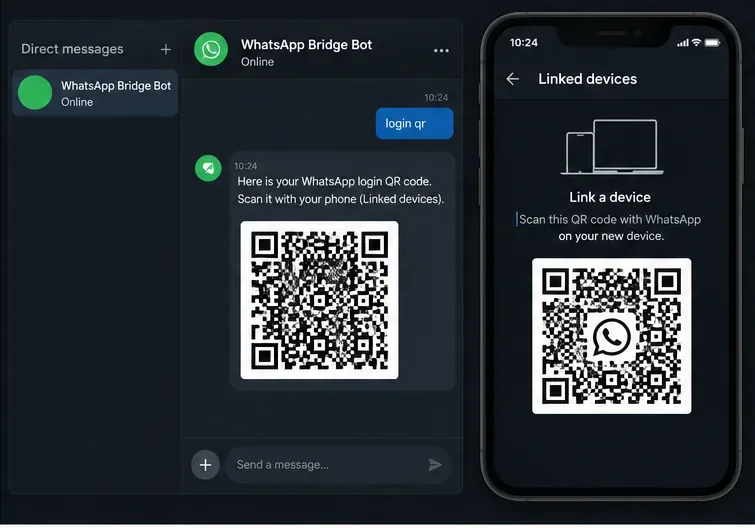
After mautrix-whatsapp is registered and running, open a private Matrix chat with its bridge bot and send login qr. Open WhatsApp on the phone that owns the account, go to Linked devices, and scan the code presented by the bridge. The bridge documentation also describes a phone-number pairing-code option; use the method currently supported by your installed release. Do not copy a login code or QR image into a public room.
The WhatsApp bridge authentication flow asks you to link the bridge as a device from the WhatsApp account on your phone.
Keep the phone and account available during pairing, and confirm the bridge reports a successful login before opening portal rooms. This links an account through a companion-device style session; it does not turn the bridge into an official WhatsApp Business API integration. WhatsApp may change device-linking behavior, so follow the current mautrix-whatsapp authentication instructions. A bridge may sync only the history that the external service makes available to a linked device and that the bridge implements.
How do you connect Telegram?
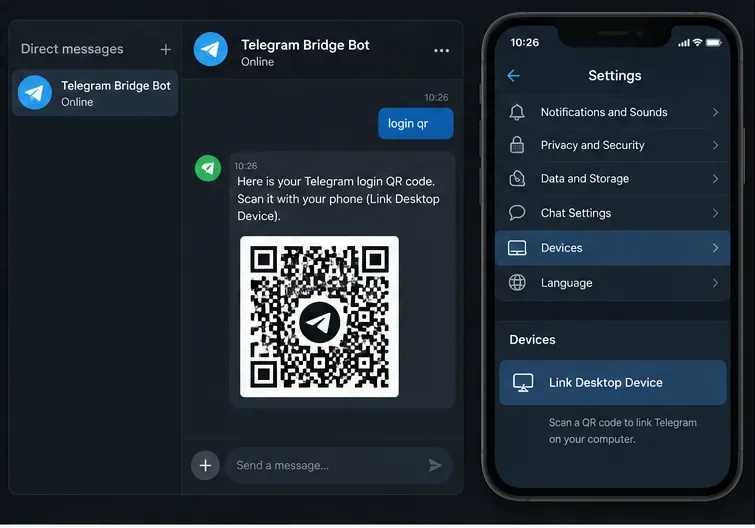
Start a private chat with the mautrix-telegram bot. The bridge supports QR login and a six-digit login code sent to an already signed-in Telegram client; it does not register a new Telegram account. For QR login, open Telegram on your phone, go to Settings > Devices > Link Desktop Device, then send login qr to the bridge bot and scan its code. Follow the bot prompts if your Telegram account has two-step verification enabled.
Telegram's Link Desktop Device screen is used to authorize the bridge session; menu labels can vary by app version.
Use an account that is already established and follow Telegram's own login rules. The bridge maintainers warn that Telegram may treat new accounts using third-party clients as suspicious; that is a platform-side risk, not something a Matrix administrator can guarantee away. Review the mautrix-telegram authentication guide before logging in, and keep any one-time code or password inside the private bot chat.
How do you configure Discord?
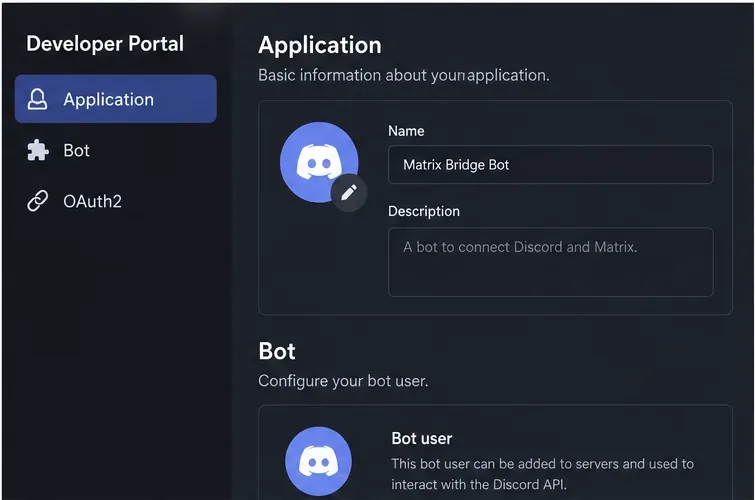
The matrix-appservice-discord project uses a Discord application and bot. Create the application in the Discord Developer Portal, create/configure its bot user, and set the bot credentials in the bridge's configuration using the project's current sample. Do not expose the bot token. Run the bridge's documented authorization-link command or flow, then have a Discord server owner authorize the bot for the intended server with only the permissions the bridge requires.
Discord setup begins with an application and bot; the exact fields and authorization options follow Discord's current portal and the bridge's sample configuration.
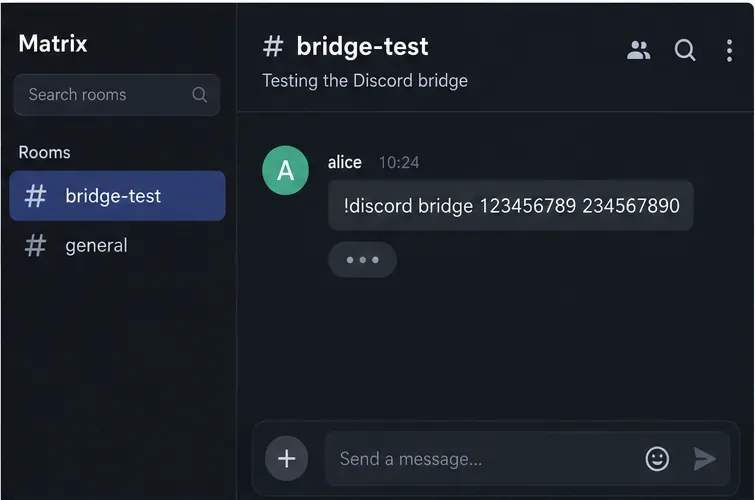
For a specific channel, obtain its server and channel IDs using Discord's supported developer tools, invite the Matrix-side bridge bot to the Matrix room, and use the bridge's documented room command. The upstream README gives an example in the form !discord bridge ServerID ChannelID; an administrator approval step may be required to complete the link. Do not use IDs from the illustration: replace them with the actual identifiers, and confirm the command and permissions against the README for your installed release.
The Discord room command associates a Matrix room with a Discord server and channel; substitute real IDs and follow any approval prompt.
Discord is especially dependent on bot permissions and server policy. If the bot can join but messages do not flow, check that the channel is visible to it, required message permissions are granted, and the bridge has completed any administrator confirmation. The project labels itself beta in its README, so confirm current project status and supported behavior rather than assuming every Discord feature is mirrored.
How can you verify the bridge works?
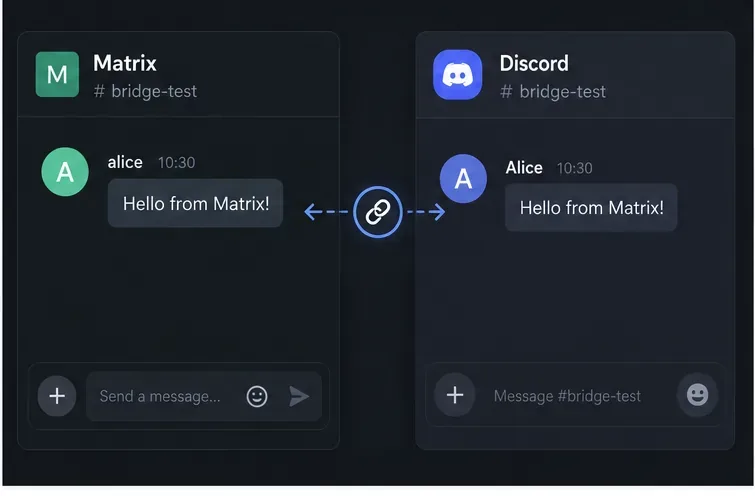
Use a small private test room and a low-risk channel first. Send a unique plain-text message from Matrix and confirm it appears on the remote service; then reply from the remote side and confirm the reply appears in Matrix. Check attribution, reply threading, attachments, edits, and reactions separately if they matter to your use case. A green process status only says the program is running: it does not establish that login succeeded, the bot has channel access, or the room-to-channel mapping is correct.
A useful end-to-end check is to send a test message in each direction and verify its counterpart appears in the linked room.
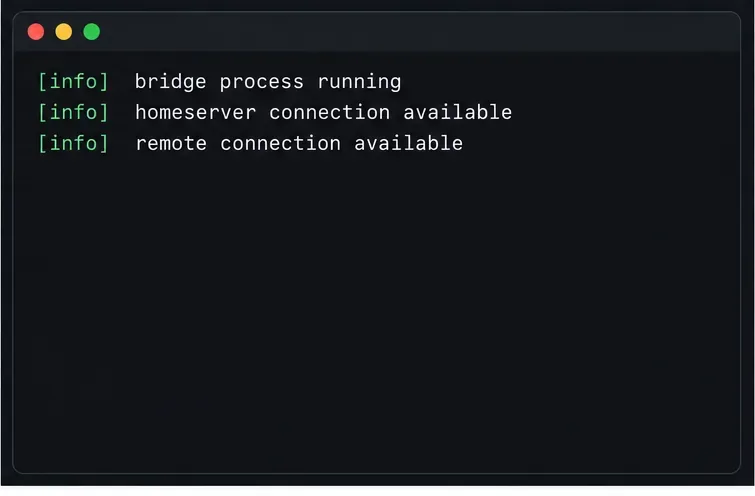
When a test fails, compare the exact time of the message with the bridge and homeserver logs. Redact access tokens, phone numbers, Discord IDs where sensitive, and contact names before sharing logs. For container deployments, also check that the registration file is mounted inside Synapse, the bridge endpoint resolves on the shared network, and no firewall blocks the configured listener.
Use bridge and homeserver logs to check process health and connectivity; these example status lines are not a captured diagnostic result.
What should you know about encryption and privacy?
Application services receive events in the namespaces and rooms they are configured to handle. Do not assume an encrypted Matrix room is automatically readable by every bridge. Some mautrix bridges support end-to-bridge encryption, which must be deliberately configured and has its own key-management requirements; consult the mautrix end-to-bridge encryption guide and verify support for the specific bridge. Discord bridge encryption capabilities may differ. If a bridge cannot handle the room's encryption mode, use a suitable unencrypted test room or choose a bridge with documented support rather than weakening a production room by guesswork.
Finally, remember that message content and account credentials pass through software you operate or a public bridge operator operates. Limit who can invite bridge bots, protect databases and backups, rotate a token if it leaks, and review the bridge's current privacy and security guidance. Recheck upstream documentation before upgrades: configuration keys, login flows, dependencies, and platform policies can change independently.
Quick decision checklist
Choose a bridge instance whose operator and access policy you trust.
Register every bridge separately and protect each generated token.
Verify the homeserver can reach the bridge address after deployment.
Link WhatsApp/Telegram accounts privately and authorize the Discord bot with a server administrator.
Test messages in both directions, then test only the extra features you need.
Confirm encryption support, history behavior, and maintenance status before relying on the bridge for sensitive or essential communication.