Home
» NETWORK ADMIN
»
How to Configure Keycloak as the IDP for ownCloud Infinite Scale
How to Configure Keycloak as the IDP for ownCloud Infinite Scale
This guide connects ownCloud Infinite Scale (oCIS) to Keycloak using OpenID Connect (OIDC), the identity layer built on OAuth 2.0. Keycloak authenticates users; oCIS trusts the signed identity and access information Keycloak issues. The browser-based sign-in uses HTTPS redirects, while oCIS also needs to reach Keycloak’s discovery and signing-key endpoints.
As of October 6, 2026, ownCloud’s current administration documentation describes these settings under Infinite Scale 9.0. The official Keycloak deployment example is a useful starting point, but its Compose file and realm export can change. Pin compatible image versions and review the files you deploy instead of copying an unversioned example blindly.
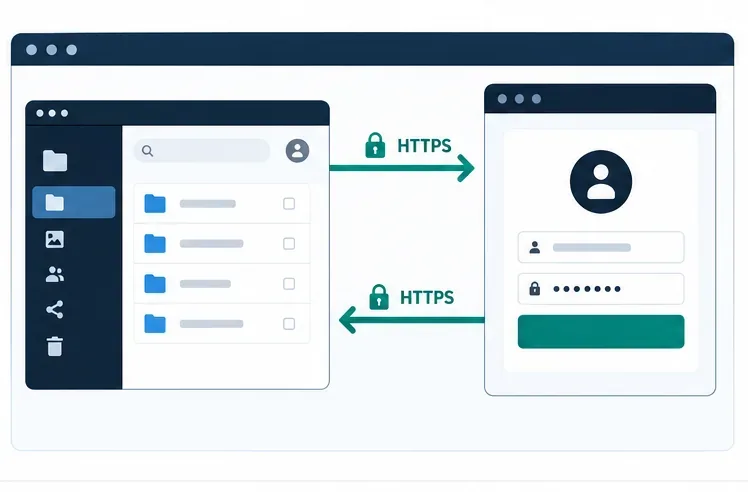
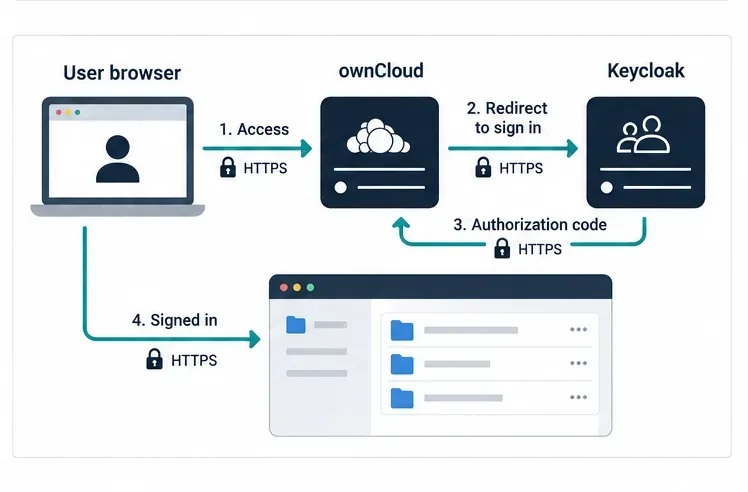
The browser starts at ownCloud, follows the secure sign-in flow to the identity provider, and returns after authentication.
What you need before configuring OIDC
Prepare the public HTTPS address for oCIS, such as https://cloud.example.com, and the public HTTPS address for Keycloak, such as https://sso.example.com. Both names must resolve correctly from users’ browsers. The oCIS server must also be able to reach Keycloak’s OIDC metadata and public signing keys. If a reverse proxy fronts either service, configure its public hostname and forwarded headers consistently.
A working ownCloud Infinite Scale deployment and administrator access to its environment or Compose configuration.
A working Keycloak realm and administrator access. A realm is a Keycloak namespace for users, clients, roles, and identity settings.
A TLS certificate trusted by the browser and by the server that validates Keycloak’s TLS certificate. Production use should not disable certificate verification.
A decision about account matching: connect existing oCIS users to stable identity claims, or enable first-login account provisioning with the required write-enabled user backend.
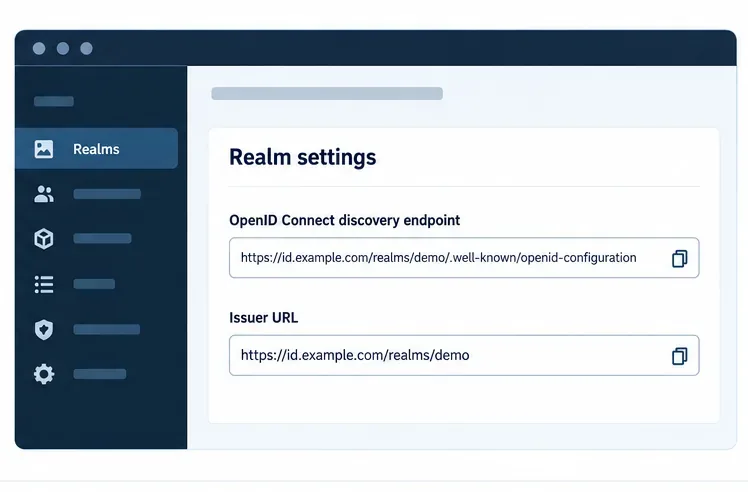
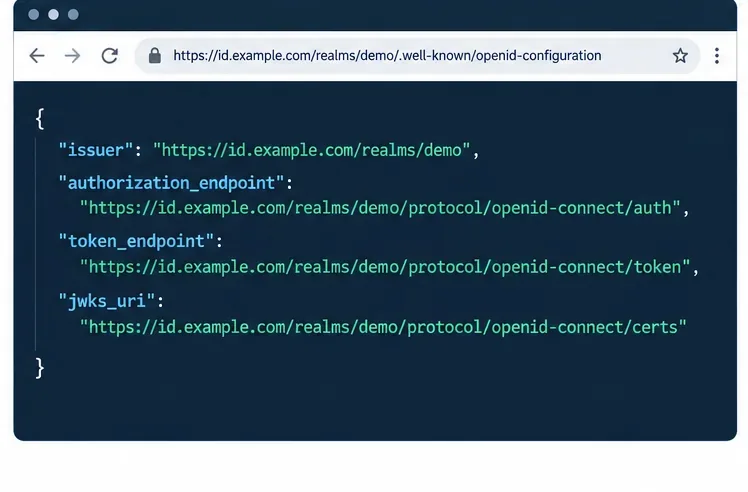
The realm issuer is the base URL; append /.well-known/openid-configuration to inspect the discovery metadata.
1. Find the exact Keycloak issuer
In Keycloak, the OIDC issuer is normally the realm URL, not the admin-console URL and not the discovery-document URL. For a realm named team, it may look like https://sso.example.com/realms/team. Older installations or deployments with a path prefix can differ, so do not construct the value from memory. Open the realm’s discovery document at https://sso.example.com/realms/team/.well-known/openid-configuration and copy the value of its issuer property exactly.
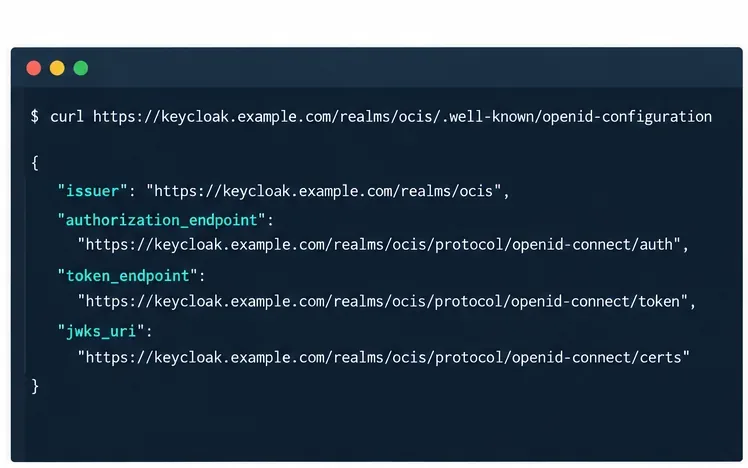
From a server that can reach Keycloak, you can inspect the document with:
Check that the returned issuer uses the same scheme, host, path, and realm name that you will configure in oCIS. OpenID Connect validates issuer identity exactly; a reverse-proxy hostname mismatch or an extra slash can break login.
Run a discovery request from a host that can reach Keycloak and compare the returned issuer exactly with OCIS_OIDC_ISSUER.
2. Register an OIDC client for ownCloud Web
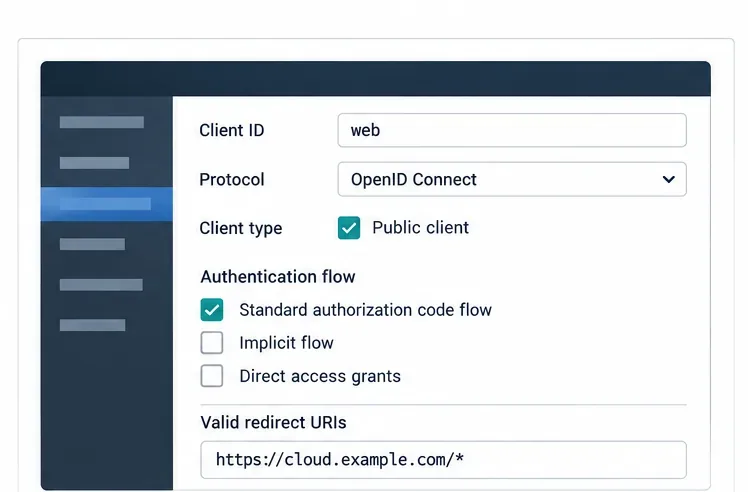
A client is the application registration Keycloak uses to decide which service can request sign-in. Create or adapt an OpenID Connect client in the realm used for oCIS. Use a client ID such as web, or a custom value, and make sure it matches the WEB_OIDC_CLIENT_ID value in oCIS. The official ownCloud example uses web as its default.
For a browser-based client, use the standard authorization code flow and a public-client configuration consistent with the official example realm. Enter the exact HTTPS redirect and post-logout redirect patterns required by your deployment. A narrow hostname pattern such as https://cloud.example.com/* is easier to audit than a broad wildcard across every host. Add only the web origins your deployment needs. Do not create a client secret for a public browser client and then embed it in frontend configuration.
For ownCloud Web, align the public client ID and allowed redirect URI with your ownCloud hostname.
3. Check the claims and scopes
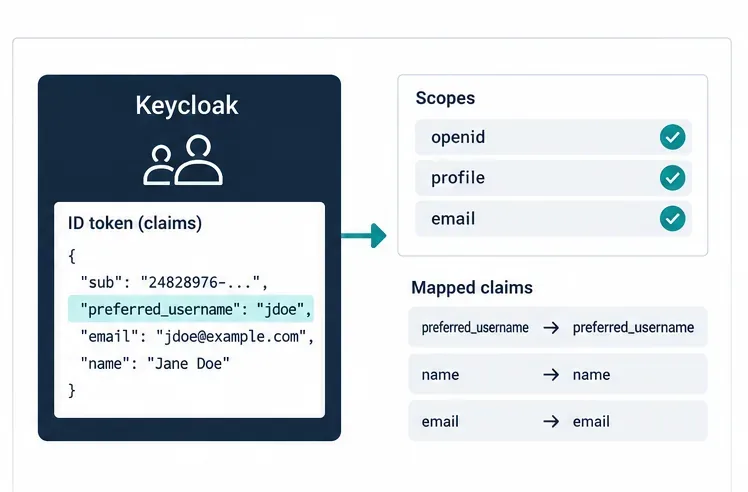
OIDC claims are identity attributes carried in a token or returned by the user-info endpoint. At minimum, choose the username claim carefully. The ownCloud proxy defaults to preferred_username for resolving a user, and the Keycloak example configures the web client with standard profile and email scopes. Verify that your own realm actually returns the claims you use; claim availability depends on client scopes and protocol mappers.
For existing accounts, the configured claim must map to the corresponding stable ownCloud user attribute. A changed username or email can cause account matching problems if you use it as the permanent identifier. The sub claim is guaranteed unique and stable per identity provider, but it may not match a pre-existing username. Test account mapping with a non-admin account before opening access to all users.
Confirm the ID token or user-info response includes the stable username claim ownCloud is configured to resolve.
4. Point Infinite Scale to Keycloak
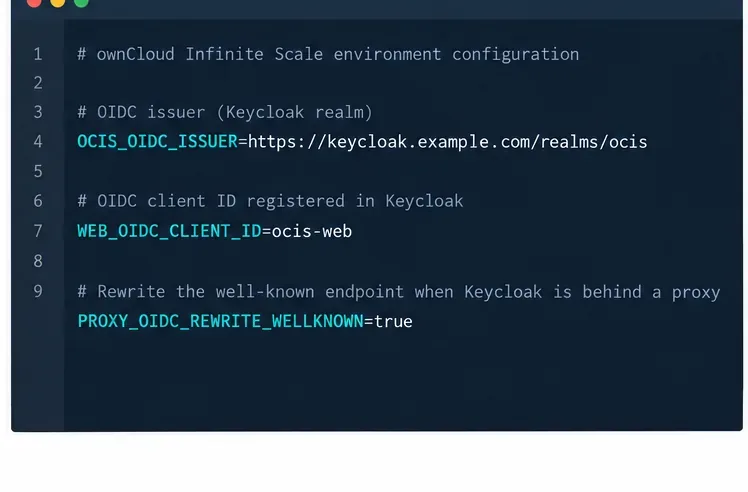
Set the following values in the environment for the oCIS deployment. The sample assumes HTTPS and a Keycloak realm at /realms/team. Use your own URLs. This YAML-style block is illustrative; Docker Compose, Kubernetes, systemd, and other deployment methods express environment variables differently.
OCIS_OIDC_ISSUER selects the external identity provider. PROXY_OIDC_REWRITE_WELLKNOWN=true makes the proxy rewrite the OpenID Connect discovery endpoint to the configured issuer; ownCloud documents this as necessary for its desktop and mobile clients to discover the provider. WEB_OIDC_CLIENT_ID must match the Keycloak client. Excluding idp follows ownCloud’s Keycloak example so the embedded provider is not started as the active login provider.
Keep the issuer and client ID in deployment configuration. The example client ID must match the one registered in Keycloak.
If you want oCIS to create accounts on first successful login, set PROXY_AUTOPROVISION_ACCOUNTS=true and configure the Graph service with a write-enabled user backend. Set PROXY_USER_OIDC_CLAIM and PROXY_AUTOPROVISION_CLAIM_USERNAME to the same claim; for the username attribute, ownCloud documents PROXY_USER_CS3_CLAIM=username for this flow. Automatic provisioning is optional and should be tested separately from authentication. Do not turn it on unless the incoming claims are unique and mapped as intended.
5. Allow the identity provider in the content security policy
Infinite Scale uses a Content Security Policy (CSP) to control which external origins its web client may contact. ownCloud’s documentation says an external identity provider such as Keycloak requires a suitable CSP definition. If the login button appears but the browser blocks a request, check the browser console for CSP errors. Configure the policy through PROXY_CSP_CONFIG_FILE_LOCATION and allow only the Keycloak origin and directives your deployment needs. Restart the proxy or deployment after changing the file. Do not solve a connection issue by allowing every origin.
6. Restart and verify the complete flow
Apply the environment changes and restart the oCIS deployment using the method you already use to manage it. There is no universal restart command: a Compose project, Kubernetes workload, and systemd service have different controls. Then check each link in the chain:
Open the Keycloak discovery URL and confirm it returns JSON with an issuer, authorization_endpoint, token_endpoint, and jwks_uri.
Open the ownCloud Web URL in a private browser window. Confirm the browser is redirected to the expected Keycloak realm.
Sign in with a test account and confirm the browser returns to the same ownCloud hostname without a redirect loop.
Check that the intended user—not a newly created duplicate—appears in Infinite Scale and can access only the expected resources.
Test sign-out, then repeat with a second account. If desktop or mobile clients are in scope, test their discovery and sign-in separately.
The discovery document publishes the issuer and the endpoints ownCloud needs to complete OIDC authentication.After Keycloak authenticates the user, the browser returns to ownCloud, which validates the OIDC response before opening files.
Common failures and what they usually mean
Symptom
First check
Issuer mismatch or invalid token
Compare OCIS_OIDC_ISSUER character for character with the discovery document’s issuer value.
Redirect URI error at Keycloak
Check the client’s valid redirect and post-logout URLs against the real public ownCloud URL, including HTTPS and path.
Login works in a browser but not in a desktop or mobile client
Confirm PROXY_OIDC_REWRITE_WELLKNOWN=true and inspect the discovery response served at the ownCloud URL.
Browser console reports blocked requests
Review the CSP and permit the Keycloak origin with the required directives.
User signs in but sees an account error or duplicate
Check the username claim, its value in the token or user-info response, and the mapping to the existing account.
TLS or discovery requests fail from the server
Verify DNS, reverse-proxy routing, certificate chain trust, and that the oCIS host can reach Keycloak.
Production checklist
Pin tested ownCloud and Keycloak versions instead of relying on a floating latest tag.
Use HTTPS for both public services and preserve certificate verification. ownCloud documents the insecure TLS override as unsuitable for production.
Protect Keycloak administrator credentials, back up the Keycloak database and realm configuration, and restrict Keycloak administration access.
Keep redirect URIs and web origins limited to the actual ownCloud hostnames.
Document the chosen identifier claim and the consequences of changing usernames, realm names, issuer URLs, or client IDs.
Test recovery access before switching a production instance, and retain a planned rollback of the previous configuration.