Home
» NETWORK ADMIN
»
How to Configure LDAP and Active Directory Authentication in Nextcloud
How to Configure LDAP and Active Directory Authentication in Nextcloud
If your Nextcloud sign-in should use the same directory accounts as your organization, enable the built-in LDAP user and group backend and configure it to connect to LDAP or Active Directory (AD). The safest setup uses a dedicated directory account for searches, encrypted transport, a deliberately limited user scope, and a test login before rollout.
The walkthrough below follows the Nextcloud 35 Administration Manual, checked October 7, 2026. Nextcloud releases and hosting packages can label or place controls differently. The interface images are visual guides to the documented settings, not evidence from a live server; use your installed version’s labels and administrator manual.
What changes when Nextcloud uses LDAP or Active Directory?
Nextcloud checks eligible users against the directory, so people can sign in with their LDAP or AD credentials without separate local Nextcloud passwords. The LDAP backend can also expose directory groups. Nextcloud reads directory information; it does not manage, edit, or delete directory accounts. Your LDAP administrator remains responsible for those accounts and group memberships.
This is useful when an organization already manages accounts centrally. It adds a dependency: Nextcloud must be able to reach the directory and validate its TLS certificate. A directory outage, network rule, or certificate problem can disrupt directory sign-ins, so keep a tested Nextcloud administrator account and an operational path to the server while configuring the integration.
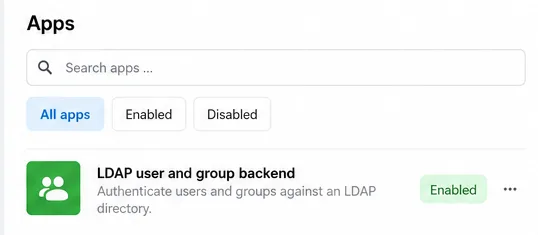
The Apps settings show the LDAP user and group backend marked Enabled before its server connection is configured.
What should you prepare before connecting?
Directory endpoint: the LDAP or AD hostname, the permitted encrypted connection method, and its port. Nextcloud accepts an LDAPS hostname such as ldaps://directory.example.com; port 636 is the usual LDAPS default.
Search account: a dedicated service account whose directory permissions allow the searches Nextcloud needs. Use only the access required for lookup. Keep its password in the protected admin interface and do not paste it into a ticket or public log.
Base distinguished name (DN): the directory subtree to search, for example dc=example,dc=com. Ask your directory administrator for the correct DN rather than guessing from an email domain.
Scope and test identities: decide which people and groups should be visible, and identify one allowed test account and, if possible, one account that should be excluded.
PHP LDAP support: for a manually installed server, confirm the LDAP PHP extension is enabled for the PHP runtime serving Nextcloud. Many Linux distributions package it as php-ldap. Turnkey installations may already bundle the required modules; follow that package’s documentation.
Use LDAPS or another TLS-protected LDAP transport approved for your directory. Install the issuing certificate chain on the Nextcloud host and make sure PHP’s LDAP library trusts it. Do not solve certificate errors by turning off certificate validation in production.
How do you enable the LDAP backend and enter the server details?
Sign in with a Nextcloud administrator account. Open Apps and enable LDAP user and group backend if it is not already enabled.
Open the administration settings and select the LDAP user and group backend section. Start on the Server tab. A new configuration may require a successful server test before the other tabs become available.
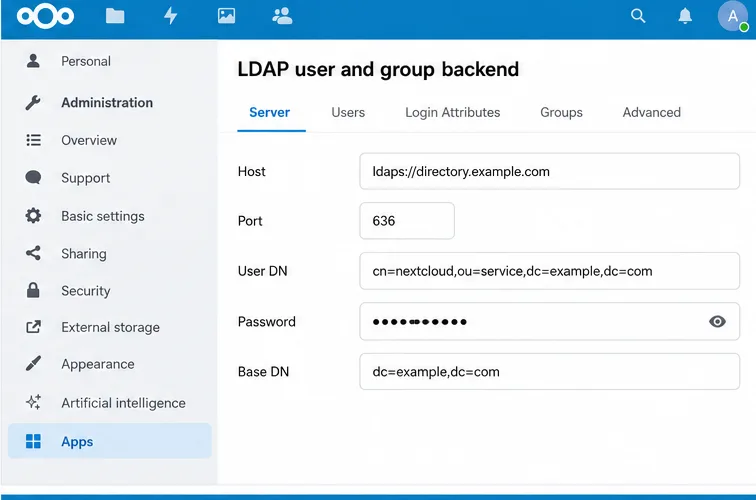
Enter the directory host. For an encrypted LDAPS connection, a typical value is ldaps://directory.example.com. Enter the correct port if Nextcloud does not detect it automatically; 636 is the typical LDAPS port. Follow your directory team’s settings if your organization uses another secure LDAP arrangement.
Enter the search account’s full User DN and password. Nextcloud’s manual recommends using a dedicated LDAP system user for this purpose. Leave the credentials blank only if your directory explicitly permits anonymous searches.
Enter the Base DN, such as dc=example,dc=com. If users or groups live in separate branches, you can refine their base trees in advanced settings after the basic connection works.
The Server tab holds the LDAPS host, port, search account credentials, and directory Base DN used for lookup.
Nextcloud can auto-detect values such as the port and Base DN, and its setup process can recognize common Active Directory settings. Treat detection as a starting point: verify that the displayed Base DN and returned users match the intended directory scope.
Which users can be listed, and which users can log in?
These are related but separate decisions. The Users tab controls which directory users appear in Nextcloud’s user listings. The Login Attributes tab controls which directory attribute Nextcloud compares with the name a person enters at sign-in. A user being discoverable does not by itself prove that the login attribute is configured as you intend.
On the Users tab, begin with Nextcloud’s detected object classes and user filter. If you want to limit access to a directory group, use the group selection or a raw LDAP query supported by your directory. For example, an AD-style filter might be (&(objectCategory=person)(objectClass=user)(memberOf=CN=Nextcloud Users,OU=Groups,DC=example,DC=com)). Replace the group DN and base with your real directory values; do not paste this example unchanged.
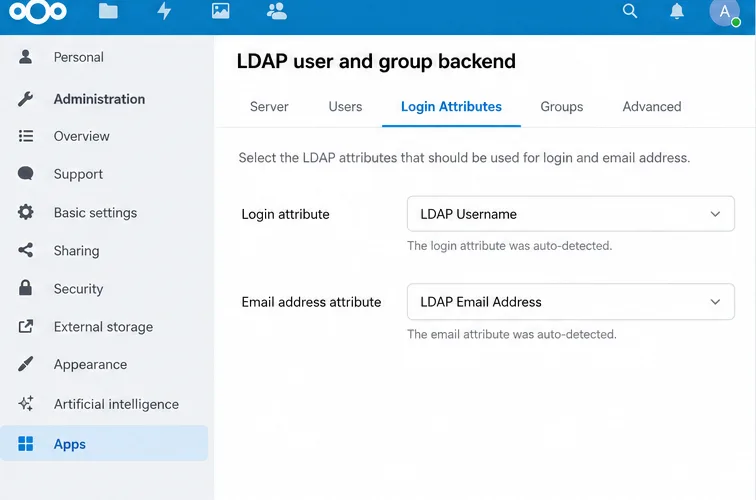
On Login Attributes, select the organization’s intended login identifier. For Active Directory this is commonly the account name attribute, often sAMAccountName; some organizations may permit email-address sign-in too. Keep the choices consistent with your policy and test the exact username format staff will use. On the Groups tab, select which directory groups should be available to Nextcloud. Group discovery and permission to log in are not always the same scope.
The Login Attributes tab controls which directory attributes can match a username entered on the Nextcloud sign-in page.
Should you change advanced settings before testing?
Usually, no. First confirm the basic connection and directory scope. The Advanced tab includes connection, directory, special-attribute, and profile options; change only the settings required by your environment.
Pay special attention to identity mapping. Nextcloud assigns each LDAP user a stable internal username, normally derived from the directory UUID, and maps that identity to the directory entry. The internal username can be used in home-folder names and service URLs. Changing UUID or internal-username rules after accounts have been mapped can make Nextcloud treat people as different users and complicate access to existing files. Decide on these values before production, and do not clear LDAP mappings on a live server.
For a first rollout, avoid enabling LDAP password changes unless you have specifically configured the directory permissions and encrypted transport for that operation. Nextcloud documents additional requirements for password changes, including write permissions and TLS. Ordinary LDAP authentication does not require giving the search account permission to change user passwords.
How do you test the connection and save it?
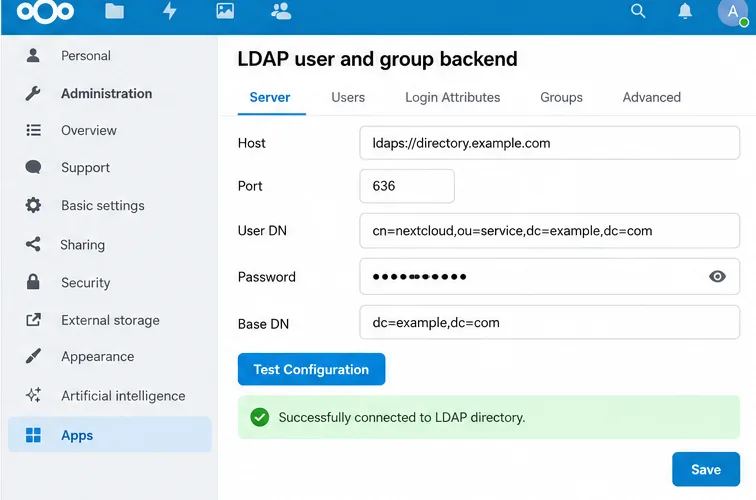
On the Server tab, choose Test Configuration. The test uses the values currently in the form; Nextcloud says you do not have to save first.
If the test succeeds, save the configuration. Nextcloud’s documentation warns that the configuration must be active; a disabled configuration can produce a misleading “wrong password” result even when the other values are correct. A successful test normally activates it automatically.
Open the Nextcloud Users page and confirm that the expected directory users and groups appear. Compare the result with the access scope you intended.
Test a real sign-in using an allowed account, then verify that an excluded account cannot sign in if you configured an allow-list. Confirm that expected groups can be used in sharing and that the account’s display name and email address are correct.
A successful Test Configuration result confirms that Nextcloud can connect and bind with the current server settings; save and verify users afterward.
What if the test fails or users do not appear?
Symptom
What to check
Connection timeout or cannot contact server
Check DNS from the Nextcloud host, routing and firewall rules, the hostname, and the LDAP port. Confirm the directory is listening on the selected secure endpoint.
Certificate or TLS error
Install the directory certificate chain where the server’s PHP LDAP stack can trust it. Check the system LDAP CA configuration and, for LDAPS, that the port matches the endpoint. Keep certificate verification enabled.
Bind or invalid credentials
Verify the search account’s full DN, password, and permission to search the configured subtree. Confirm the configuration is active before treating a login failure as a bad user password.
Connection succeeds but the Users page is empty
Review the Base DN, user object class, user filter, and any group restrictions. A filter can be syntactically valid and still match no intended accounts.
Users appear but cannot sign in
Check Login Attributes and the exact login identifier users enter. Also confirm the account is within the login filter and the LDAP configuration is active.
Nested AD groups do not grant access
Nextcloud documents that enabling nested groups alone may not be enough for user listing and login. The user and login filters may also need Active Directory’s matching rule in chain; coordinate the exact filter with your directory administrator.
For a command-line diagnostic, Nextcloud provides LDAP commands when the LDAP backend app is enabled. Run occ ldap:show-config to find the configuration ID, then test it with occ ldap:test-config s01, replacing s01 with the ID shown on your server. On a typical Linux installation the command may look like this:
Adjust the web-server user and Nextcloud path for your installation. Treat diagnostic output as sensitive because configuration details may identify your directory structure.
Final rollout check
The Nextcloud server can reach the LDAP endpoint using the organization’s approved encrypted transport.
The service account can search only what it needs, and the certificate validates successfully.
The visible user list and login filters match the intended access group.
A permitted test account can sign in with the planned identifier, and an excluded account is rejected.
The internal username and UUID behavior are settled before users begin storing production data.
A local administrator account and a documented recovery path remain available.