Home
» NETWORK ADMIN
»
How to Configure S3 Object Storage for ownCloud Infinite Scale
How to Configure S3 Object Storage for ownCloud Infinite Scale
ownCloud Infinite Scale can use S3-compatible object storage for file blobs while keeping file metadata on a POSIX-compliant filesystem. That split is the first concept to understand: S3 is not a drop-in replacement for every local data directory. In the supported s3ng layout, object storage holds the binary file content, while metadata remains on POSIX storage such as a local filesystem or NFS.
This guide follows the current ownCloud Infinite Scale storage documentation available in October 2026. It is written for administrators who are new to the s3ng driver and want a configuration they can understand before adapting it to Docker Compose, systemd, Kubernetes, or another deployment method.
S3 is an object-storage API originally introduced by Amazon. An S3-compatible service stores data as objects inside a bucket and exposes operations through HTTP-based APIs. ownCloud Infinite Scale uses the s3ng storage driver to place file blobs in such a bucket.
POSIX storage means a filesystem that provides the filesystem behavior Infinite Scale expects for metadata. With s3ng, metadata does not move into the S3 bucket. ownCloud explicitly documents that blobs go to S3 while metadata remains on POSIX storage.
This distinction prevents a common mistake: pointing Infinite Scale at a bucket and assuming the whole server state now lives there. It does not. Your backup and recovery plan must cover both the POSIX-side metadata and the S3-side blobs.
Step 1: Prepare the bucket, metadata storage, credentials, and network path
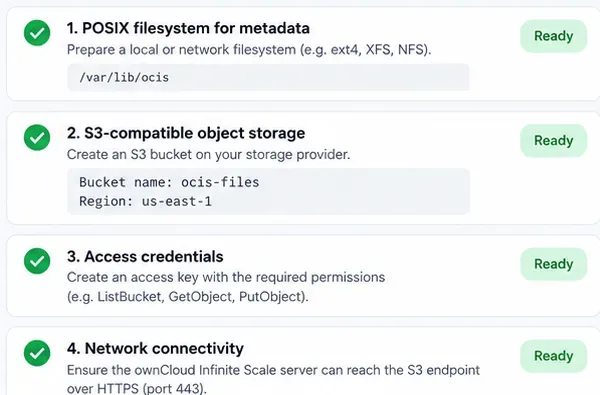
Before changing Infinite Scale, prepare four things:
A dedicated S3 bucket.
A POSIX-compliant path for s3ng metadata. For a multi-node deployment, ownCloud recommends thinking carefully about shared storage; NFS is commonly used when multiple Infinite Scale instances need access to the metadata path.
An access key and secret key with only the bucket permissions Infinite Scale requires.
Network reachability from the Infinite Scale host or container to the S3 endpoint, normally over HTTPS.
Before editing the Infinite Scale configuration, prepare the POSIX metadata path, the S3 bucket, credentials, and network connectivity.
Do not make the bucket public. Infinite Scale authenticates to the bucket with credentials; public access is neither required nor desirable. Also avoid reusing a broad administrator credential when a dedicated service identity can be created.
If you use Amazon S3, the endpoint and region follow AWS conventions. If you use another S3-compatible provider, confirm its endpoint format, region behavior, TLS requirements, and policy syntax in that provider's documentation. ownCloud specifically warns that behavior such as encryption details may differ between providers.
Step 2: Enable the s3ng driver and supply the S3 connection settings
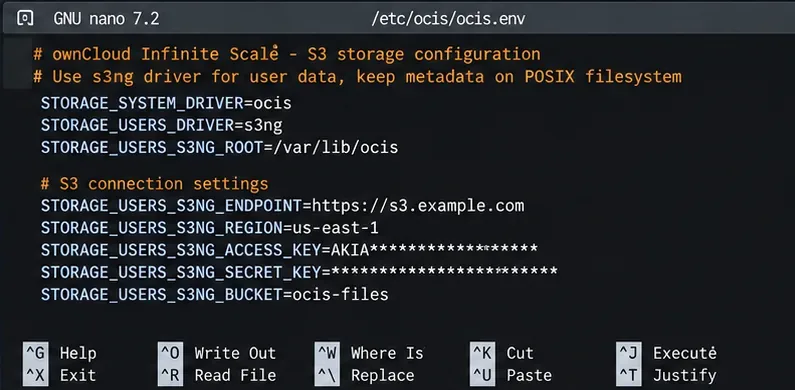
The core storage setting is STORAGE_USERS_DRIVER=s3ng. The Storage-Users service is the Infinite Scale component responsible for user file storage. The official configuration also keeps the system storage driver on the normal ocis backend.
A minimal environment-variable set looks like this:
The essential s3ng environment variables connect the Storage-Users service to S3 while preserving metadata on POSIX storage.
The example values are placeholders. Use the endpoint, region, bucket, and credentials issued by your provider. Do not commit the secret key to a public Git repository. In container orchestration, prefer the platform's secret-management mechanism rather than embedding credentials directly in a Compose file or manifest.
Your deployment method determines where these variables go. A Docker Compose deployment may place them under the Infinite Scale service's environment section or load them from an environment file. A systemd deployment can use an environment file or unit configuration. Kubernetes commonly injects them through a Secret and Deployment or StatefulSet. The variable names are the important part; the surrounding syntax depends on your platform.
Step 3: Grant the bucket permissions Infinite Scale needs
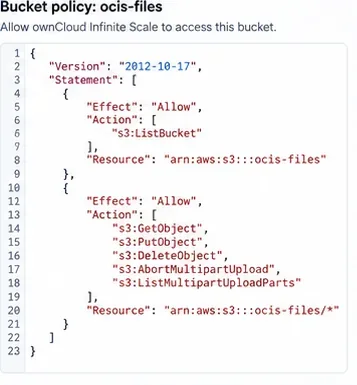
A bucket policy is an Identity and Access Management (IAM) rule that controls which actions an authenticated identity may perform against a bucket and its objects. ownCloud publishes a required policy pattern for the s3ng driver.
Replace bucket-name in the following policy with your real bucket name:
The policy structure must allow bucket listing plus the object and multipart-upload operations required by the s3ng driver. Use the exact policy from the official documentation for your deployment.
Do not solve an access-denied error by granting s3:* over every bucket in the account. Start with the documented bucket-scoped permissions, then adapt only when your S3 provider requires a provider-specific equivalent.
Step 4: Restart Infinite Scale and verify the storage path
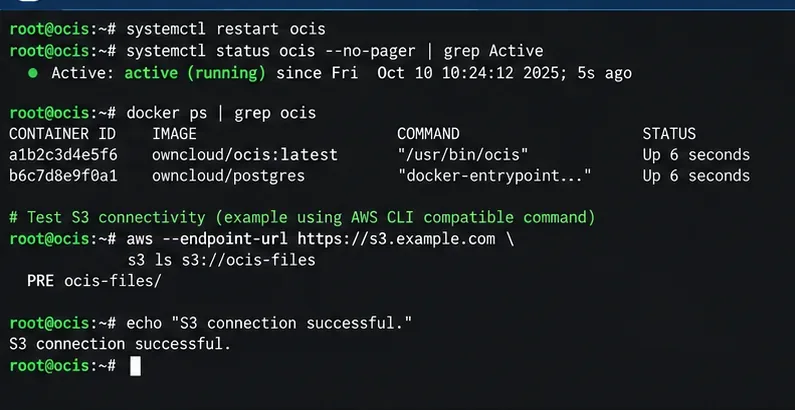
Apply the configuration using the normal restart procedure for your deployment. For example, a systemd installation may use systemctl restart ocis, while a Compose deployment would recreate or restart the affected service containers. Check logs immediately after startup for authentication, DNS, TLS, region, or permission errors.
After applying the configuration, restart the relevant Infinite Scale services and verify that the host can reach and authenticate to the intended bucket.
A bucket listing with your S3 provider's CLI proves that the host and credentials can reach the bucket, but it does not by itself prove that Infinite Scale is correctly writing blobs. The better end-to-end test is to start Infinite Scale, upload a small file through the ownCloud web interface, download it again, and review the service logs for errors.
If your installed Infinite Scale version includes the blobstore maintenance command documented by ownCloud, you can also use ocis storage-users blobstore check. ownCloud describes this command as an upload/download/delete round-trip against the configured blobstore. Check the official blobstore verification documentation for the version-specific syntax.
Do not expect original filenames to appear as normal S3 objects
One of the easiest misconceptions to make is to browse the bucket and expect a familiar user-folder tree such as Documents/report.pdf. Infinite Scale treats S3 as a blob store, not as a user-facing filesystem. The documented s3ng key format is based on space IDs and blob IDs, while the human-readable namespace is reconstructed from metadata.
That means you should not manually rename, reorganize, or delete objects inside the bucket just because their keys look unfamiliar. Manage user files through ownCloud. Direct bucket manipulation can break the relationship between metadata and blobs.
Large uploads: check the multipart part size before production
S3 uses multipart upload to split large objects into parts. ownCloud documents STORAGE_USERS_S3NG_PUT_OBJECT_PART_SIZE for controlling the part size. The documented default is 16 MiB when no explicit value is supplied.
Amazon S3 permits at most 10,000 parts in one multipart upload. With a 16 MiB part size, that corresponds to roughly 160 GiB before the part-count limit becomes a problem. If your users regularly upload larger files, calculate the required part size before go-live rather than waiting for a large transfer to fail.
The trade-off is straightforward: larger parts support larger maximum files with fewer requests, but they also change memory, buffering, retry, and transfer characteristics. ownCloud also notes that incoming file data needs temporary storage while being buffered, so capacity planning must include more than just the remote bucket.
Common problems and what to check first
Symptom
Likely area
First check
Access denied
Credentials or bucket policy
Confirm the access key, secret key, bucket ARN, and required actions.
Bucket not found
Bucket name, endpoint, or region
Verify the exact bucket name and provider-specific endpoint/region combination.
TLS or certificate error
HTTPS trust
Confirm the endpoint certificate is valid and trusted inside the Infinite Scale host/container.
Small files work but very large files fail
Multipart sizing
Review STORAGE_USERS_S3NG_PUT_OBJECT_PART_SIZE and your provider's multipart limits.
Files disappear after restoring only S3
Incomplete backup
Restore POSIX metadata and S3 blobs as one consistent data set.
Backup S3 blobs and POSIX metadata together
With s3ng, the bucket is only one half of the storage state. ownCloud's backup documentation says a distributed S3 setup must include configuration, system data, metadata, and blobs. The restore documentation likewise requires those data sets to be restored consistently.
For a production service, document the metadata mount, bucket, credentials or role, configuration files, and backup procedure in the same runbook. Test recovery before relying on the design. The relevant official references are the ownCloud backup guide and restore considerations.
Recommended starting point
For a first deployment, keep the design simple: use one dedicated S3 bucket for blobs, one persistent POSIX metadata path, a dedicated service identity with the documented bucket permissions, HTTPS to the object-storage endpoint, and the default multipart settings unless your expected file sizes require a change.
After configuration, validate three layers separately: network and credential access to the bucket, Infinite Scale startup without storage errors, and an actual upload/download through ownCloud. Once those checks pass, move on to monitoring, backups, lifecycle rules, and performance tuning. That sequence makes troubleshooting much easier because each test answers a different question instead of treating “S3 works” as a single all-or-nothing result.