Element Web gives self-hosters several useful ways to make the client feel like part of their organization, but the supported path has changed. The important update for current deployments is that Element Web v1.12.30, released in late September 2026, removed the legacy Module and Customisation API path that older guides may still reference. At the same time, the official configuration and theming documentation continues to support branding through config.json, custom themes, branded authentication assets, embedded pages, and the newer Module API for deeper behavior changes.
That distinction matters. If you only need your organization name, login logo, login background, footer links, default colors, and a branded home or welcome page, you usually do not need to fork Element Web. If you want to rearrange core UI components or inject custom application logic, configuration alone is not enough.
The examples below use the current snake_case configuration style recommended by Element. The official configuration reference warns that older camelCase compatibility is intended to disappear, so new deployments should avoid building new branding around legacy key names. See the official Element Web configuration documentation, the official theming documentation, and the official release history.
What you can customize without rebuilding Element Web
Element's supported configuration covers more branding than many administrators need. The main controls are:
| Goal | Supported approach |
|---|
| Change the product name shown in the app | brand |
| Choose the default light, dark, or custom theme | default_theme |
| Replace the authentication header logo | branding.auth_header_logo_url |
| Change the login/welcome background | branding.welcome_background_url |
| Add login footer links | branding.auth_footer_links |
| Change room list and timeline colors | setting_defaults.custom_themes |
| Provide your own welcome or in-app home page | embedded_pages |
| Change UI behavior beyond configuration | Use the current Module API or maintain a fork |
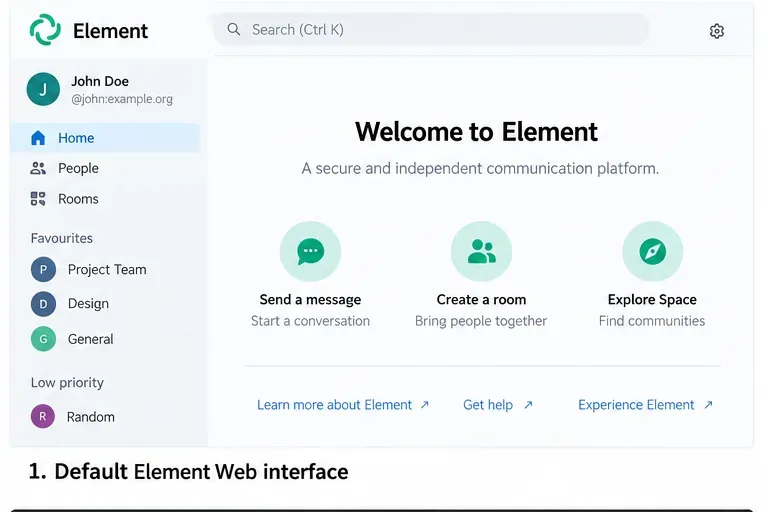
Before changing deployment branding, record the current Element Web appearance so you can compare the result after reloading the new configuration.
Step 1: Start from the deployment's config.json
Element Web reads configuration from config.json, or from a domain-specific file named config.$domain.json. According to the official documentation, the domain-specific file is tried first and is not merged with the fallback file: one complete configuration is used or the other.
If you are building Element Web yourself, the project documentation recommends copying config.sample.json and customizing the copy. For a packaged or containerized deployment, edit or mount the configuration file according to the packaging method you already use. Keep a backup before changing it.
Start with the smallest branding change possible:
{
  "brand": "Acme Chat",
  "default_theme": "light"
}
The brand value replaces “Element” in a number of application strings and locations. It does not turn Element Web into a fully white-labeled product; Element's own documentation explicitly says complete re-branding/private labeling is not supported through these configuration options alone.
Step 2: Brand the sign-in and welcome experience
The authentication screen is the most visible place to make a self-hosted deployment feel intentional. Element currently documents four branding properties: a background image, a link target for a linked brand logo, the authentication header logo, and footer links.
{
  "brand": "Acme Chat",
  "branding": {
    "welcome_background_url": "https://chat.example.com/assets/login-background.jpg",
    "logo_link_url": "https://www.example.com/",
    "auth_header_logo_url": "https://chat.example.com/assets/acme-logo.svg",
    "auth_footer_links": [
      {
        "text": "Privacy",
        "url": "https://www.example.com/privacy"
      },
      {
        "text": "Support",
        "url": "https://www.example.com/support"
      }
    ]
  }
}
Use stable HTTPS URLs that your Element Web users can reach without authentication. A logo or background hosted behind another login wall may fail to load before the Matrix user has signed in. Also keep the logo readable on both high-density and smaller screens rather than uploading a huge raster file and relying on the browser to shrink it.
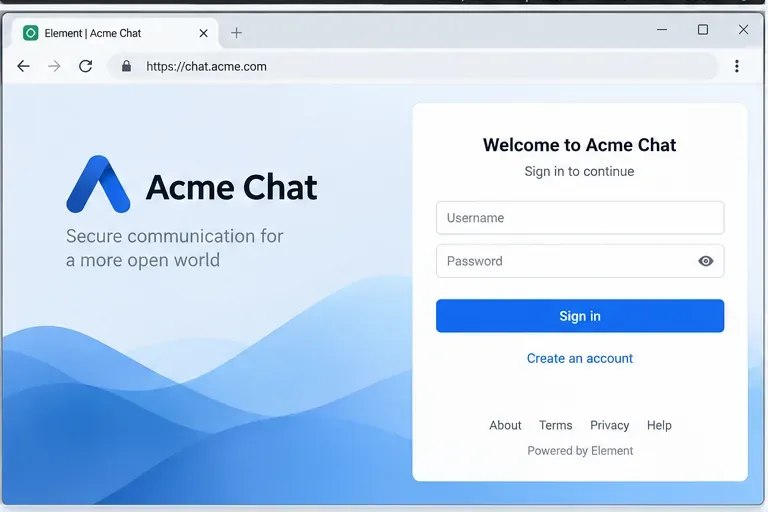
A branded authentication page can change the header logo, background, and footer links while leaving the underlying Element Web login flow intact.
Step 3: Create a supported custom theme
For colors and fonts inside the client, use Element's custom theme format rather than maintaining a collection of fragile CSS selectors. The theming documentation supports runtime custom themes through setting_defaults.custom_themes. A custom theme receives an internal name in the form custom-{theme.name}; that is the value to use in default_theme.
This compact example changes the main accent, sidebar, room-list, and timeline colors using keys documented by Element:
{
  "default_theme": "custom-Acme Light",
  "setting_defaults": {
    "custom_themes": [
      {
        "name": "Acme Light",
        "is_dark": false,
        "colors": {
          "accent-color": "#2563eb",
          "primary-color": "#1d4ed8",
          "warning-color": "#dc2626",
          "sidebar-color": "#0f172a",
          "roomlist-background-color": "#f8fafc",
          "roomlist-text-color": "#172033",
          "roomlist-text-secondary-color": "#64748b",
          "roomlist-highlights-color": "#ffffff",
          "roomlist-separator-color": "#e2e8f0",
          "timeline-background-color": "#ffffff",
          "timeline-text-color": "#172033",
          "timeline-text-secondary-color": "#64748b",
          "timeline-highlights-color": "#f1f5f9"
        }
      }
    ]
  }
}
The same theme object can also define fonts. Element's current theming documentation additionally exposes a compound object for overriding semantic tokens from the Compound design system. That route is useful when newer interface components use Compound tokens instead of older color variables, but it should be approached conservatively: override only documented semantic tokens and retest after upgrades.
If you create both light and dark custom themes, give them different names and set is_dark correctly. A dark theme should not be created by simply lowering every RGB value; verify text contrast, selected-room states, secondary text, warning colors, focus outlines, message composer controls, and notification badges.
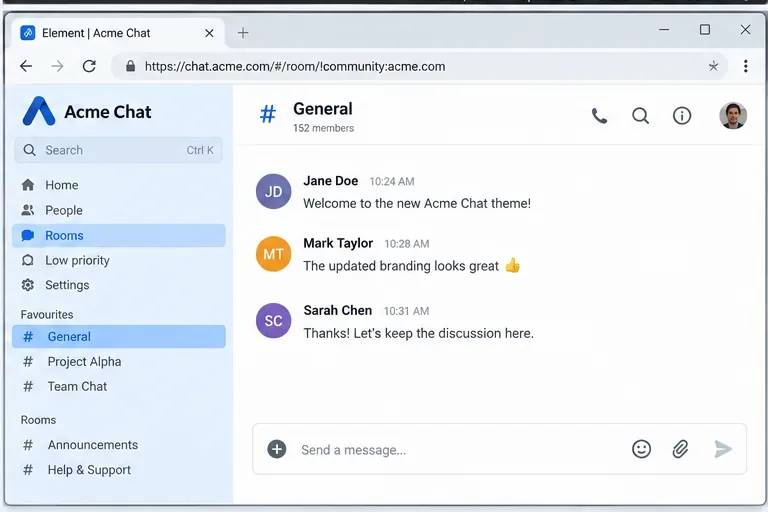
A light custom theme can align the room list, highlights, and application identity with an organization's visual system without replacing core Element Web screens.
Step 4: Customize home content, then reload and verify
Element Web can also point to externally hosted HTML for its welcome and home experiences. The documented embedded_pages object supports welcome_url and home_url. A separate login_for_welcome flag can make the login form act as the welcome page; when that flag is true, the normal welcome_url path is disabled.
{
  "embedded_pages": {
    "welcome_url": "https://chat.example.com/assets/welcome.html",
    "home_url": "https://chat.example.com/assets/home.html"
  }
}
Use embedded pages for organization-specific onboarding, acceptable-use information, internal documentation links, or a concise service status message. Treat them as web content: keep dependencies minimal, serve them securely, and make sure they remain available independently of the Matrix homeserver.
After changing config.json, reload Element Web. The official docs state that a browser refresh is sufficient for web deployments, while Element Desktop must be fully exited—including any tray process—and restarted. If your changes appear inconsistently, check caching before assuming the JSON is wrong. Element's web deployment README specifically says /config.*.json, /i18n, /version, and /index.html should not be cached, and recommends revalidation of the root page. See the official Element Web deployment README.
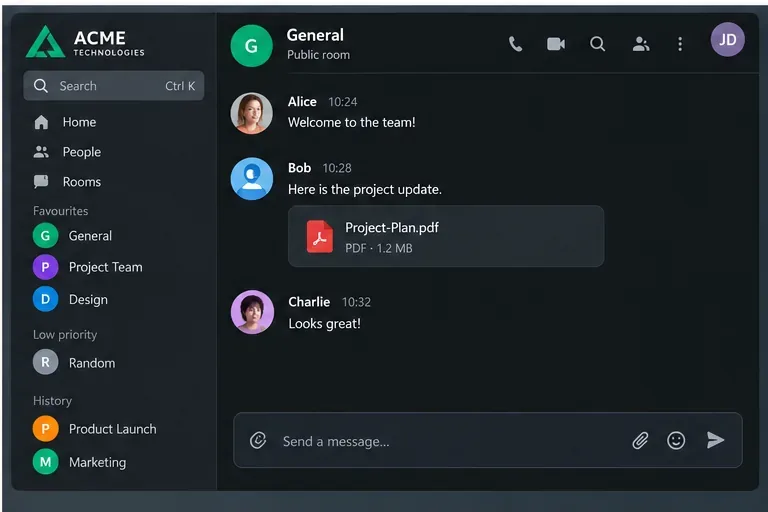
Test both light and dark branding states if you provide both. Check navigation, room highlights, text contrast, attachments, and the message composer—not just the login screen.
When config.json is not enough
Older tutorials may tell you to replace modules through customisations.json or depend on legacy customisation points. That is no longer a safe foundation for a new deployment. The official customisations documentation marks that mechanism deprecated, and the September 2026 v1.12.30 release notes record removal of the legacy Module & Customisation API.
For deeper application behavior, work with Element Web's current module system described in the project README, or maintain a fork if the change truly requires source-level control. A fork gives maximum freedom but also makes every Element Web upgrade your responsibility. That tradeoff is rarely worthwhile if your requirement is only logo, color, wording, welcome content, or a home page.
One related edge case is social-link preview artwork. The official config documentation notes that the og:image value lives in static index.html, rather than config.json. If you need that image changed, it becomes a build-time or static-file customization instead of a runtime branding setting.
Verification checklist
- Open the login page in a private browser window and confirm the authentication logo, background, and footer links load without an existing session.
- Confirm the app displays the intended
brand value after login.
- Verify the selected default theme loads for a new browser profile, not only for an account that previously changed its appearance setting.
- Check room-list text, selected rooms, secondary labels, timelines, message composer controls, warnings, and focus states for readable contrast.
- If you use a custom home or welcome page, test it when the external page is unavailable so you understand the failure mode.
- Inspect the browser network panel and confirm the expected
config.json is fetched after deployment; stale reverse-proxy or CDN caching is a common reason a correct configuration appears not to work.
- After every Element Web upgrade, retest custom themes and any Module API integrations against the new release before rolling them to all users.
Bottom line
For most self-hosted Element Web branding, stay with the supported configuration layer: brand, branding, default_theme, setting_defaults.custom_themes, and embedded_pages. That keeps upgrades much simpler than patching React components or relying on legacy customization hooks. Move to the Module API or a maintained fork only when your requirement genuinely changes application behavior rather than appearance.









