The most reliable way to customize the current ownCloud Web interface is to create a supported theme JSON file and point ownCloud Infinite Scale to that theme. You do not need to rebuild the Web frontend just to change the brand name, logos, favicon, login background, or common interface colors. In the current Infinite Scale theming model, those elements are supplied through a theme definition, while design tokens control colors and other visual values.
This guide is written for ownCloud Infinite Scale (oCIS) and its modern ownCloud Web frontend. It is not a guide for the older ownCloud Server 10/11 PHP theming system, which uses an app-based theme structure and different configuration. ownCloud's stable Infinite Scale 8.2 documentation and the 9.0 development documentation both describe the same runtime approach: provide a custom themes directory with WEB_ASSET_THEMES_PATH, then select a theme JSON file with WEB_UI_THEME_PATH. See the official ownCloud Web custom theming documentation.
What you can customize without rebuilding ownCloud Web
A normal organization theme can cover the visual changes most administrators actually need. The theme JSON can define the product name and slogan, paths to logos and a favicon, the login-page background, and Web design tokens such as brand, primary, background, text, border, and file-type colors. This is preferable to editing compiled frontend files because the theme remains a separate deployment asset and can be managed alongside your server configuration.
| Branding goal | Where it belongs | Typical value |
|---|
| Product name and slogan | common | Company Cloud, company tagline |
| Top-bar, login, and favicon images | clients.web.defaults.logo | Paths under your theme assets folder |
| Login background | clients.web.defaults.loginPage.backgroundImg | JPEG or other supported browser image asset |
| Brand and UI colors | clients.web.themes[].designTokens.colorPalette | Hex, RGB/RGBA, or other valid values used by the shipped theme |
Step 1: Create a separate theme directory and assets folder
Start by keeping your custom theme separate from the built-in ownCloud assets. A simple layout is a theme directory containing themes.json plus an assets folder for your logos, favicon, and login image. The exact host path is your choice; what matters is that the directory is mounted or otherwise exposed to the oCIS Web service through WEB_ASSET_THEMES_PATH.
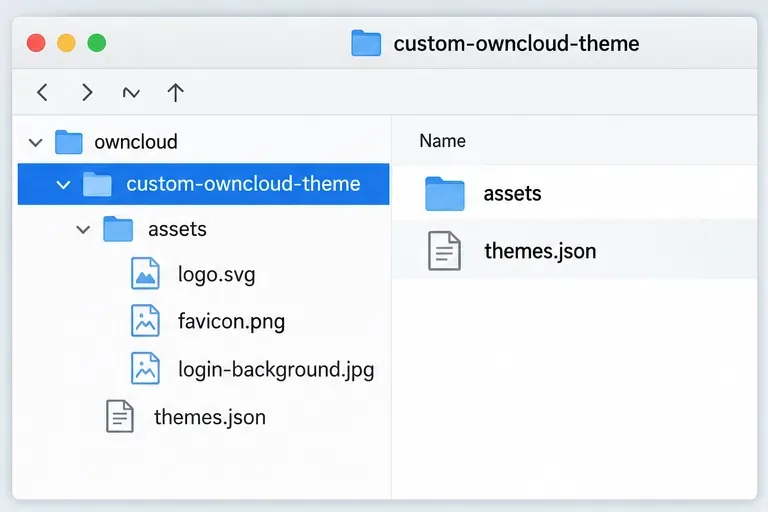
Example file layout for a custom ownCloud Web theme. The theme definition and image assets are kept together in a dedicated directory.
For example, a host-side structure could look like this:
/srv/owncloud/themes/
└── acme/
    ├── themes.json
    └── assets/
        ├── logo.svg
        ├── logo-white.svg
        ├── favicon.png
        └── login-background.jpg
Use image assets that remain readable in the context where they appear. A dark logo that works on a white page may disappear against a dark top bar, so it is often useful to provide separate light and dark logo variants. Also keep the login background relatively simple behind the sign-in controls. Branding should improve recognition without reducing legibility.
Step 2: Define the brand name, logo paths, favicon, and login background
The theme JSON is the center of the customization. The common section contains shared brand text such as the name and slogan. Under clients.web.defaults, you can define the default Web logos and the login background. ownCloud's documented schema uses separate logo keys for topbar, favicon, and login.
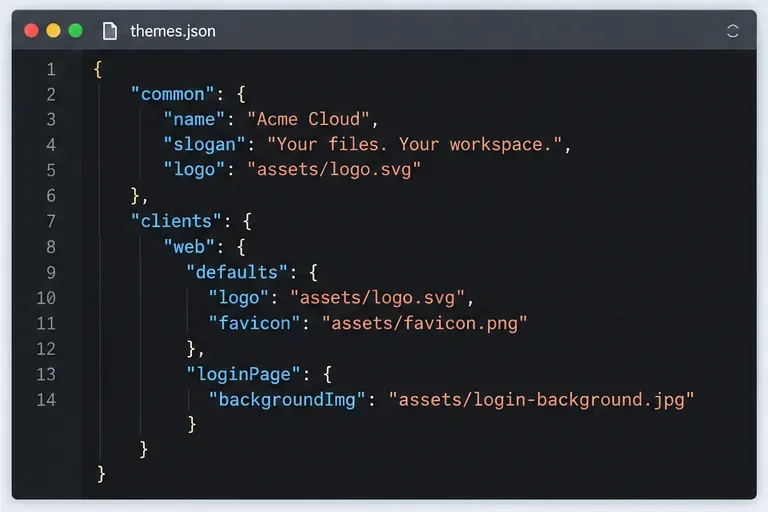
Editor-style illustration of the branding portion of a theme file. Use the documented object structure in the example below rather than treating the illustration as copy-and-paste code.
A minimal starting point can be based on the supported structure below. Keep paths consistent with the URL path by which the Web service exposes your theme assets:
{
  "common": {
    "name": "Acme Cloud",
    "slogan": "Your files. Your workspace.",
    "logo": "themes/acme/assets/logo.svg",
    "urls": {
      "accessDeniedHelp": "",
      "imprint": "",
      "privacy": "",
      "accessibilityStatement": "",
      "universalAccessEasyLanguage": "",
      "universalAccessSignLanguage": ""
    }
  },
  "clients": {
    "android": {},
    "desktop": {},
    "ios": {},
    "web": {
      "defaults": {
        "appBanner": {},
        "logo": {
          "topbar": "themes/acme/assets/logo-white.svg",
          "favicon": "themes/acme/assets/favicon.png",
          "login": "themes/acme/assets/logo-white.svg"
        },
        "loginPage": {
          "backgroundImg": "themes/acme/assets/login-background.jpg"
        },
        "icons": {
          "universalAccess": "",
          "universalAccessEasyLanguage": "",
          "universalAccessSignLanguage": ""
        }
      },
      "themes": []
    }
  }
}
Do not assume that every key can be omitted safely just because the JSON parser accepts the file. ownCloud notes that some mandatory theme keys are injected at runtime, but a syntactically valid theme can still be semantically wrong. A good production practice is to start from the theme template shipped in the version of Infinite Scale you actually run, make only the branding changes you need, and keep the rest of the structure aligned with that release.
Step 3: Change theme colors with design tokens
Color customization belongs in a theme entry under clients.web.themes. Each theme can identify whether it is dark with isDark, provide a human-readable name, and override design tokens. The colorPalette is where the visible brand colors are normally adjusted.
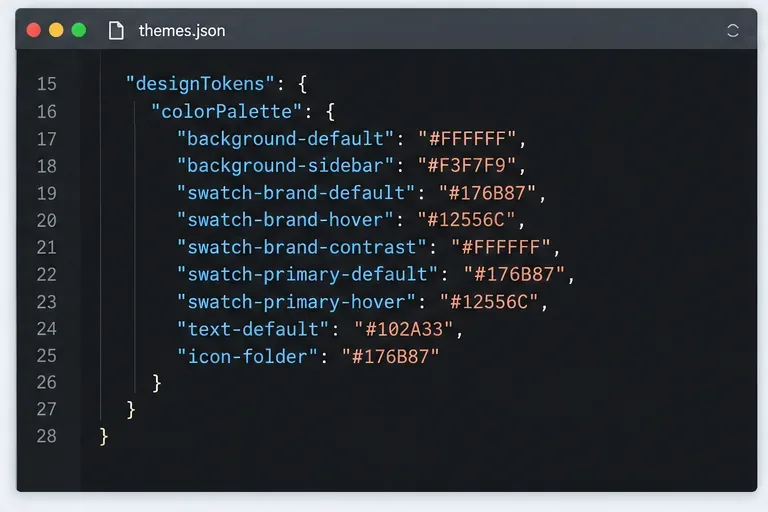
Example of the kinds of color tokens used by ownCloud Web. Change a focused set first, then verify contrast and hover states before expanding the palette.
For a light corporate theme, you might start with a small set of tokens instead of changing every available color:
{
  "isDark": false,
  "name": "Acme Light",
  "logo": {
    "topbar": "themes/acme/assets/logo-white.svg",
    "favicon": "themes/acme/assets/favicon.png",
    "login": "themes/acme/assets/logo-white.svg"
  },
  "designTokens": {
    "colorPalette": {
      "background-default": "#ffffff",
      "background-sidebar": "#f5f7fa",
      "background-hover": "#eef4fb",
      "border": "#d8e0e8",
      "swatch-brand-default": "#176B87",
      "swatch-brand-hover": "#12556C",
      "swatch-brand-contrast": "#ffffff",
      "swatch-primary-default": "#176B87",
      "swatch-primary-hover": "#12556C",
      "swatch-primary-contrast": "#ffffff",
      "text-default": "#102A33",
      "text-inverse": "#ffffff",
      "text-muted": "#526873",
      "icon-folder": "#176B87"
    }
  }
}
The important trade-off is consistency versus completeness. Changing only swatch-brand-default may give you a quick visual result, but hover, contrast, sidebar, border, and text tokens may still reflect the default theme. On the other hand, overriding dozens of tokens without testing can create unreadable combinations. For most deployments, begin with the brand, primary, contrast, background, text, and border values, then expand only where the default values visibly conflict with your design.
Pay particular attention to contrast. If you choose a light brand color, pair it with a dark contrast token rather than forcing white text onto it. Test keyboard focus, hover states, disabled controls, dark mode if you provide one, and high-contrast modes if they matter to your users.
Step 4: Mount the custom theme and point ownCloud to themes.json
Once the directory and JSON file are ready, configure the Web service so it can read them. The two relevant environment variables are WEB_ASSET_THEMES_PATH, which tells ownCloud where the custom theme root is located, and WEB_UI_THEME_PATH, which selects the theme JSON file to load.
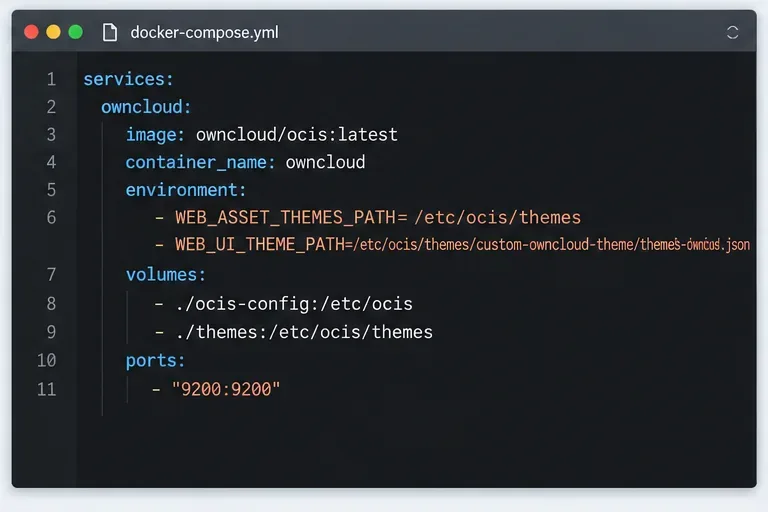
Docker Compose-style illustration of mounting a custom theme directory and configuring the two ownCloud Web theming environment variables. Adapt paths to your actual deployment.
A Docker Compose deployment might use a pattern like this:
services:
  ocis:
    image: owncloud/ocis:<your-tested-version>
    environment:
      WEB_ASSET_THEMES_PATH: /etc/ocis/themes
      WEB_UI_THEME_PATH: /etc/ocis/themes/acme/themes.json
    volumes:
      - ./themes:/etc/ocis/themes:ro
The image tag above is intentionally a placeholder. For production, use the exact oCIS version you have tested rather than copying a floating tag from an example. After changing the environment or mounted files, restart or recreate the affected oCIS service according to your deployment method so the new configuration is read.
ownCloud documents an important fallback behavior: if no custom theme is provided, or loading the theme fails, the standard Infinite Scale theme is used. That fallback is useful because a missing path does not necessarily leave the interface unusable. However, it also means that seeing the default ownCloud appearance after a restart can be a diagnostic clue that your custom theme was not loaded.
How to verify that the branding actually loaded
Do not stop after the login page changes. A complete check should cover the places where users will actually see your brand. Open the site in a fresh browser session or private window to reduce the chance that a cached asset hides the current state.
- Confirm that the login page uses the expected logo and background.
- After signing in, confirm that the top-bar logo is correct and remains readable on its background.
- Check the browser tab for the custom favicon.
- Open the file area and verify primary buttons, hover states, sidebar colors, folder icons, and text contrast.
- If you provide light and dark themes, switch between them and verify both independently.
- Check at least one narrow browser width so a wide logo does not crowd the responsive top bar.
When the custom theme does not appear
The default ownCloud theme still loads
First verify the paths inside the running container or service, not just on the host. WEB_ASSET_THEMES_PATH must refer to the theme root as seen by the Web service, and WEB_UI_THEME_PATH must refer to the actual JSON file in that environment. A host path that was never mounted into the container cannot be read by ownCloud.
The JSON loads but an image is missing
Check the asset path inside themes.json, filename case, and whether the file exists under the custom themes directory. Browser developer tools can help distinguish a broken asset request from a theming problem. If the theme colors load but one logo does not, the theme itself may be valid while that asset path is wrong.
The page is branded but colors look inconsistent
This usually means only part of the palette was overridden. Add the related hover and contrast tokens, then test again. Do not solve a single unreadable button by broadly changing unrelated text or background tokens; make the smallest coherent change and verify it across the interface.
A theme works on one release but looks wrong after an upgrade
Theme tokens and frontend behavior can evolve. Before upgrading a production environment, compare your custom theme against the template and documentation for the target oCIS release. ownCloud's Web custom configuration documentation also explains the distinction between supported configuration/custom assets and supplying fully custom compiled Web assets.
Should you edit compiled Web assets instead?
Usually not for ordinary branding. A custom theme is the better fit when your goal is to change names, logos, backgrounds, and design tokens while staying close to the supported Web UI. Fully custom compiled assets make sense only when you are developing or distributing a genuinely modified frontend that cannot be expressed through theming or supported asset overrides. That approach carries a higher maintenance cost because you are responsible for keeping your custom build compatible with future ownCloud Web changes.
A practical production checklist
- Keep custom theme files outside the built-in application directories.
- Start from the theme structure documented for your installed oCIS version.
- Use separate logo variants when light and dark surfaces require them.
- Override a focused set of design tokens first, including hover and contrast values.
- Mount the theme directory read-only when possible.
- Set both
WEB_ASSET_THEMES_PATH and WEB_UI_THEME_PATH to paths visible inside the service.
- Restart or recreate the Web/oCIS service after deployment changes.
- Verify login, top bar, favicon, file area, responsive layout, and any dark/high-contrast themes you expose.
- Re-test the theme before each major ownCloud Infinite Scale upgrade.
For current Infinite Scale deployments, this theme-file approach gives administrators a clean separation between application code and visual identity. The key is to treat the theme as a versioned deployment asset: use the schema supported by your ownCloud release, keep your image paths predictable, change colors through design tokens rather than ad hoc frontend edits, and verify the result across the full Web interface instead of judging success from one screen.









