Home
» NETWORK ADMIN
»
How to Disable Telemetry and Data Logging in Jitsi Meet
How to Disable Telemetry and Data Logging in Jitsi Meet
If you host Jitsi Meet, you can switch off the app’s analytics handlers and block its optional third-party requests in config.js. That reduces client-side telemetry, but it does not turn off web-server, Docker, Prosody, Jicofo, or Videobridge logs. Those are separate data paths, managed by the server operator. If you are joining a meeting on meet.jit.si or another hosted service, you cannot change its server-side settings yourself.
As of October 6, 2026, the current Jitsi configuration reference still documents the analytics.disabled and disableThirdPartyRequests controls. No recent product change requires a different procedure. The steps below apply to a self-hosted web deployment; mobile SDKs, embedded integrations, and third-party hosting panels may expose different controls.
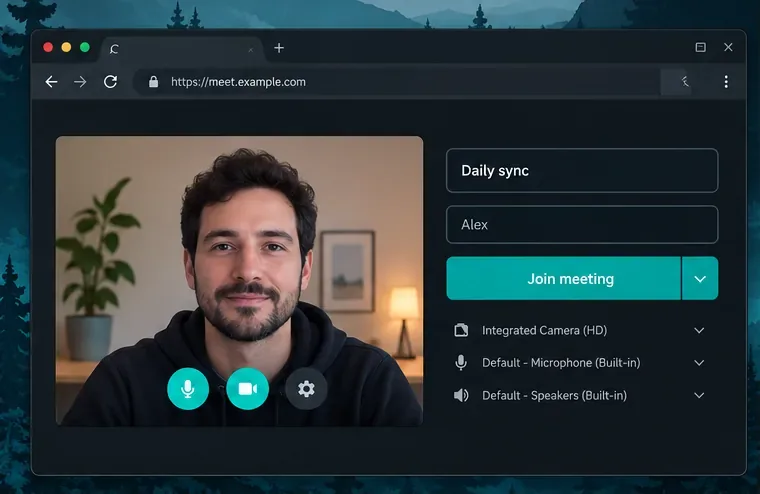
A meeting lobby is the user-facing client; its analytics options are controlled by the host’s served configuration.
What “telemetry” and “logging” mean in Jitsi Meet
Jitsi’s web client can load analytics handlers or connect to configured external statistics services. The configuration includes an analytics-wide disable flag and options for services such as rtcstats. A separate privacy setting, disableThirdPartyRequests, stops third-party requests and causes avatars to be generated locally; Jitsi notes that external stats integrations will not function when it is enabled.
WebRTC still needs to exchange signaling and media traffic for a meeting to work. Disabling analytics does not hide a user’s network address from the meeting infrastructure, remove a participant from the room, prevent a host from recording, or erase data already collected. Server access logs and diagnostic logs are also independent from browser analytics. Jitsi’s log-analyser guide describes a separate stack that can collect component logs through OpenTelemetry and Loki, which illustrates why one client setting cannot disable every log.
1. Confirm who controls the deployment
For a Jitsi server you administer, locate the web configuration file. On common Debian or Ubuntu package installations, it is typically /etc/jitsi/meet/<your-domain>-config.js. With Docker, the host file is commonly mounted into the web container as its config.js; use the path and volume mapping in your own Compose setup. Make a backup before editing and preserve the file’s existing structure.
If you only use a public or vendor-hosted meeting, there may be a client option to limit your own information, but the host decides server logging, retention, and analytics. Ask the provider for its current privacy and retention details when those settings matter.
2. Disable client analytics and external requests
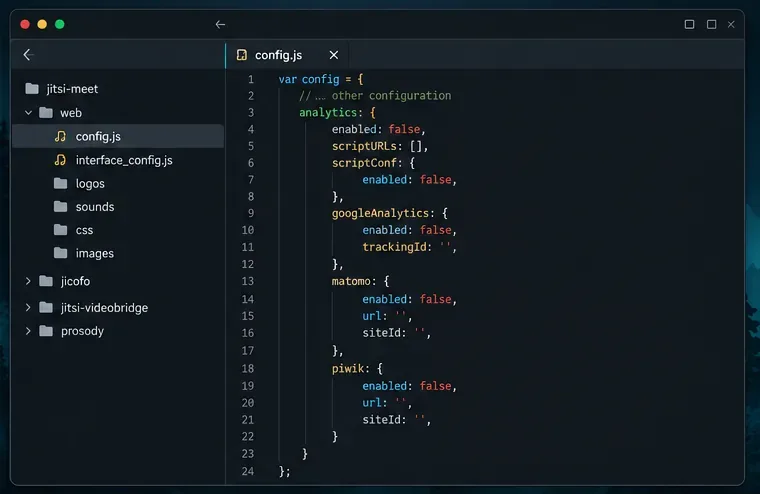
In the existing top-level config object, merge these entries into the matching places. Do not paste a second copy of an existing key or replace the whole configuration file:
The analytics options are nested under analytics; the other four entries belong at the top level. If your file already contains an analytics object, edit that object rather than adding another. Remove any custom analytics script URLs and service endpoints you intentionally configured, or leave the array empty as shown. The explicit rtcstats values make the intended state clear, while analytics.disabled is the main switch for analytics handlers.
Jitsi’s advanced user guide also documents disableThirdPartyRequests: true as a configuration option. It can affect features that depend on external services, including externally hosted avatars or statistics integrations. Test the meeting functions your organization uses before deploying the change widely.
The relevant settings belong in the existing config.js object; the code editor view is illustrative, not a screenshot of a particular installation.
3. Apply the change and check the served configuration
Save the file and follow the deployment’s normal procedure for reloading or restarting the web component. For Docker, that often means recreating or restarting the web service after confirming the host-mounted configuration is the file you edited; package-based deployments may serve the file directly. Jitsi’s installation differs by package, version, and local modifications, so do not restart every component by habit.
Open the meeting page in a private browser window or clear the site cache, then inspect the configuration actually delivered to the browser. In developer tools, load https://your-domain/config.js and confirm that it contains the values you set. If the old values appear, check the domain-specific filename, container volume mount, reverse-proxy cache, and whether the browser is reaching the intended server.
4. Review server-side logging separately
Now inventory the logs that still exist. Typical locations include reverse-proxy access and error logs, Docker’s container output, and logs from Prosody, Jicofo, and Jitsi Videobridge. If you installed the optional log-analyser stack, inspect its OpenTelemetry Collector and Loki configuration as well. Jitsi’s log-analyser documentation describes that collector-and-storage path separately from client analytics.
Choose an operational policy instead of assuming all logs can be disabled safely. You might reduce verbosity, restrict access to logs, shorten retention, or turn off an optional log shipping pipeline. Keep enough diagnostic information to investigate outages and abuse, and avoid collecting room names, email addresses, IP addresses, or full signaling data unless there is a defined need. Apply retention at the actual storage layer—such as the proxy, container runtime, or log backend—because the client’s config.js does not set those retention periods.
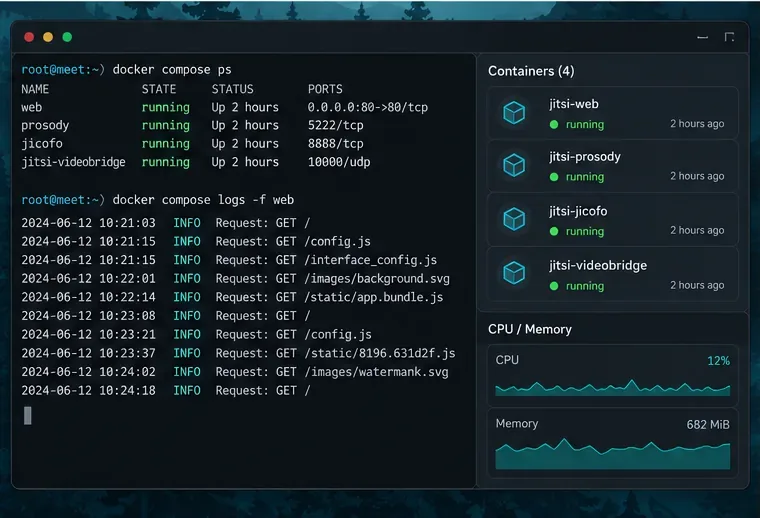
Container and web-server logs remain a separate administrative concern after browser analytics are disabled.
5. Verify behavior without treating a quiet network panel as proof
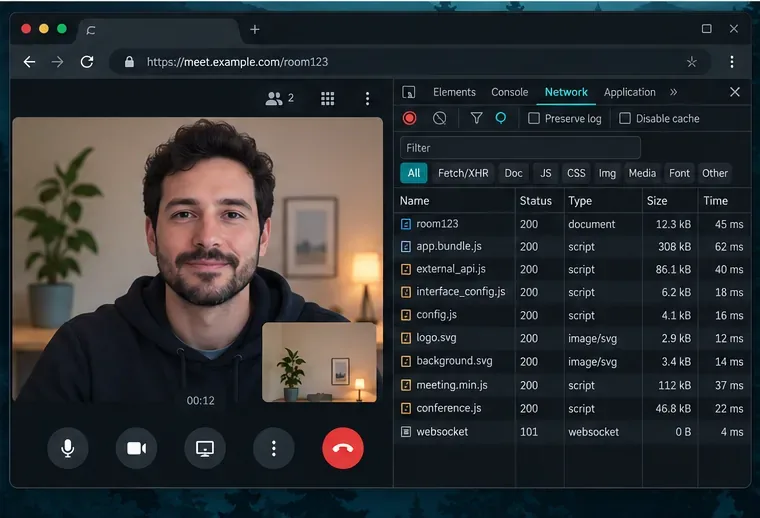
Join a test room from a fresh browser session and confirm that audio, video, chat, and screen sharing still work. In the browser’s Network panel, review requests to third-party analytics or statistics hosts while the meeting starts and runs. Some requests are necessary for the meeting itself, and blocking every unfamiliar hostname can break signaling, media setup, avatars, or other integrations. Compare destinations against your own configuration and deployment design; the absence of a visible request in one test does not prove that no server logs are written.
Use the Network panel to look for configured external analytics requests while preserving the connections required for the call.
If unwanted traffic remains, check for another source: a custom analytics script, a reverse-proxy-injected tag, an iframe parent page, a browser extension, or a hosting provider’s own instrumentation. If the issue is server logs rather than client analytics, check the relevant service and storage configuration instead.
What this change can and cannot guarantee
These settings are useful for stopping Jitsi Meet’s configured client analytics and optional third-party requests on a server you control. They do not provide anonymity, disable every network connection, or automatically remove historical data. They also do not control telemetry added by a modified build, an embedding website, or the hosting provider. Review the configuration for the exact Jitsi version you deploy and recheck it after upgrades, since configuration names and integrations can change.