Home
» NETWORK ADMIN
»
How to Enable Activity Log Auditing in ownCloud Enterprise
How to Enable Activity Log Auditing in ownCloud Enterprise
Turning on ownCloud’s file activity feed does not, by itself, create an administrator audit trail. For ownCloud Server Enterprise, the relevant component is the Enterprise-only Auditing app. It records a broader set of user and administrator actions in the server logging system, where you can route those records to a dedicated file and, if needed, a log analysis platform.
This guide follows the ownCloud Server classic deployment documented for version 11.0. The menu labels and configuration methods can vary by release and packaging. ownCloud Infinite Scale (oCIS) uses a separate audit service, so do not apply these Server instructions to an oCIS deployment.
What does ownCloud auditing record?
The Auditing app can log events such as user sign-ins and sign-outs, file creation, deletion and movement, trash and version operations, sharing and permission changes, group and user management, comments, tags, user setting changes, app enablement or disablement, impersonation, and OCC command execution. Entries include common fields such as time, user, request details, remote address, app, message, and a unique action name. The exact event fields vary by action.
Auditing is different from the Activity app. Activity is a user-facing stream of file and folder events. Auditing is intended for administrative review, compliance workflows, and analysis of security-relevant events. Enable the Enterprise Auditing app when you need a server-side record; use Activity when users need a convenient feed of changes to content.
Before you enable auditing
Confirm that the deployment is ownCloud Server Enterprise and that the Auditing app is available to the instance.
Use an ownCloud administrator account to enable the app. A system administrator may also need shell or container access to set logging configuration.
Choose a dedicated log destination with enough disk space. Confirm the web server or container can write to it, and decide who is permitted to read it.
Set a retention and rotation policy before enabling a high-volume audit stream. Audit records can include user IDs, IP addresses, file paths, client details, and sharing metadata.
Step 1: Enable the Auditing app
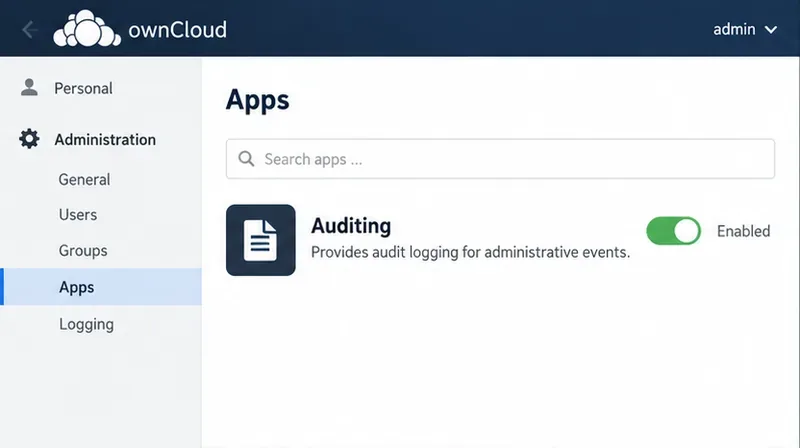
Sign in as an ownCloud administrator and open the Apps area in the administration interface. Find Auditing and enable it. If the app is absent, check the Enterprise entitlement, your server release, and the ownCloud Marketplace or vendor support channel for the compatible app package. Do not assume the standard Activity app is a substitute.
Illustrative Apps view: the Auditing row is enabled, which is the first step in turning on the Enterprise audit app.
Step 2: Route audit messages to a dedicated file
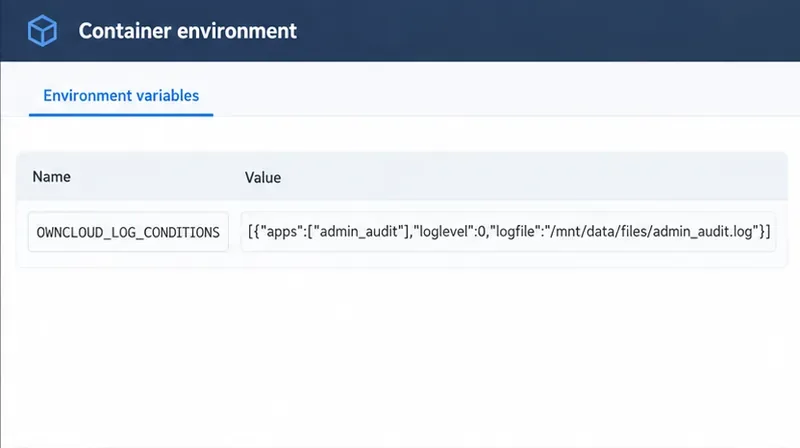
ownCloud recommends separating audit messages from the general server log. A dedicated file makes it easier to set permissions, retention, and collection rules for audit data. The current Server 11.0 documentation gives a container environment-variable example. Adjust the destination to a path that exists in your deployment and is writable by the ownCloud service:
This condition directs messages from the admin_audit app to the named file. In the documented example, routing audit messages to a separate file bypasses the global log-level filter and records messages regardless of their level. The path shown is associated with a Docker-mounted data volume; it is an example, not a universal path. Persist the environment change using the configuration method for your deployment and restart or recreate the service only as required by your container orchestration process.
For installations configured through config.php, ownCloud’s app configuration reference also documents the log.conditions key. Adapt the path to your host’s actual data directory and preserve existing configuration entries rather than replacing the whole array:
If you keep audit output in the normal ownCloud log instead of routing it separately, ownCloud’s Auditing guide says the server log level must be set to 1 (INFO) or 0 (DEBUG), or audit messages may not be written. A separate-file condition avoids relying on the global log level, but it does not remove the need to monitor available disk space.
Illustrative configuration view of the documented OWNCLOUD_LOG_CONDITIONS setting; use the path that is valid and writable in your own deployment.
Step 3: Verify a real event reaches the file
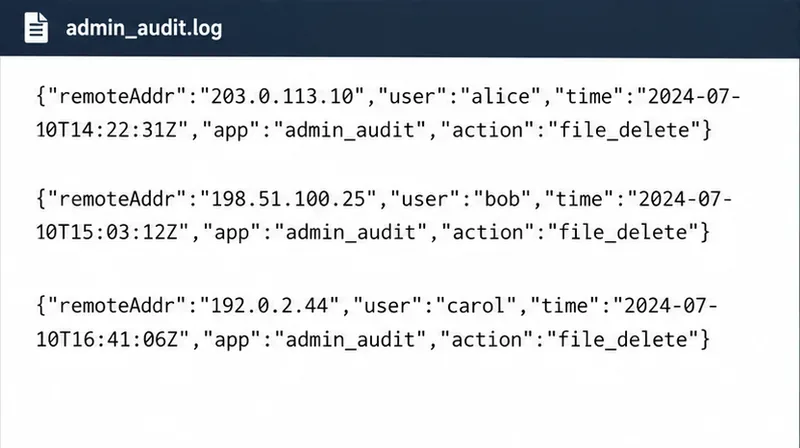
After enabling the app and applying the logging configuration, generate one controlled event that your policy permits—for example, create or delete a temporary test file in a designated test account. Then inspect the configured audit log on the server. A typical entry is structured data rather than a human-oriented activity timeline. Look for the event time, actor, application, action, and relevant details. File operations may also include a path, owner, or file identifier; other event types have their own fields.
Check that a newly generated action appears after the configuration change, that its timestamp is sensible for the server’s time zone, and that the action and user match the test. Avoid using a sensitive production file to test deletion logging. If nothing appears, confirm the Auditing app is enabled, the log destination is correct and writable, the environment variable or PHP configuration was actually loaded, the server log level is adequate when using the default log, and the action type is among those recorded by your installed Auditing app version.
Example audit record structure. ownCloud documents common fields including time, user, app, remoteAddr, and an action identifier; event-specific fields vary.
Step 4: Protect, retain, and review the audit file
Audit logging is useful only when records remain available and access is controlled. Restrict file and directory permissions to the operating-system accounts and audit roles that need access. Plan for log rotation or collection so that a busy instance cannot fill its storage. Decide how long to retain records based on your internal policy and legal obligations; ownCloud does not set a universal retention period for every organization.
For stronger separation of duties, keep the audit file outside the ordinary web-accessible file area where practical, and define which system administrators and auditors can read or administer it. ownCloud documents an Auditor role and describes separating audit logs from general ownCloud logs, including configurations where the system administrator cannot access the audit file. That outcome depends on how the host permissions and deployment are configured, so verify it with your security team rather than assuming that a separate filename creates separation by itself.
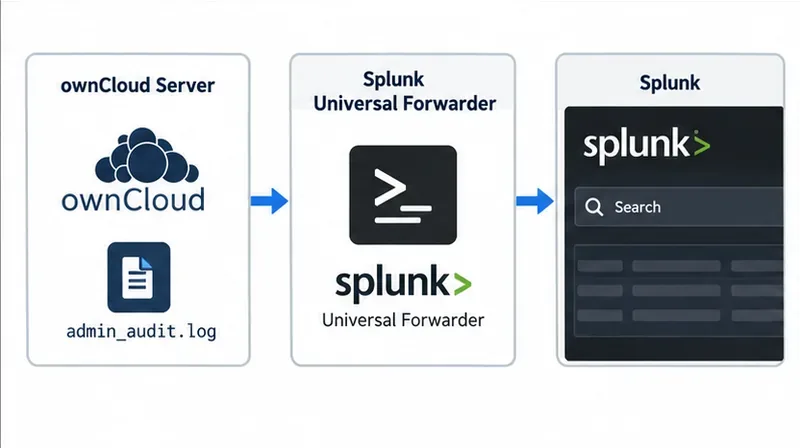
If you use Splunk, ownCloud’s Auditing documentation describes monitoring admin_audit.log with the Splunk Universal Forwarder and parsing the output as JSON. The documentation includes sample inputs.conf and props.conf settings. Treat the forwarder and receiving system as part of the audit boundary: protect credentials, encrypt transport where supported by your logging architecture, confirm events arrive, and alert on gaps or ingestion failures.
Log collection overview: ownCloud’s documentation describes forwarding the dedicated audit log to Splunk for searching and analysis.
Optional: limit which group names appear in entries
By default, audit context can include users related to an event and the groups to which those users belong. The OWNCLOUD_ADMIN_AUDIT_GROUPS setting can limit which group names are included. Use it only when a deliberate filtering policy is appropriate; reducing group context may also make later investigations less informative. Review the resulting records and your privacy requirements before applying a filter.
Common setup problems
No audit records appear: confirm the Enterprise Auditing app is enabled. If using the standard log, check that the global level is INFO (1) or DEBUG (0). If using a separate file, check the app condition and writable path.
The expected file is missing: the documented Docker path assumes a mounted volume. Check the effective container configuration, volume mapping, and service-user permissions.
Records appear in the wrong place: inspect the active OWNCLOUD_LOG_CONDITIONS or log.conditions configuration and avoid duplicate or conflicting rules.
The feed looks incomplete: Activity and Auditing are different apps, and the audit app’s coverage depends on event type and version. Verify a known event supported by the installed version before concluding that logging is broken.
Command-line events are absent: ownCloud includes CLI-triggered events by default. Check whether admin_audit ignore_cli_events has been set to yes.
Final verification checklist
The deployment is ownCloud Server Enterprise, and the compatible Auditing app is enabled.
The configured destination exists, is writable by ownCloud, and is not exposed as ordinary user content.
A permitted test action creates a matching record with a plausible timestamp and actor.
Permissions, rotation, retention, and access responsibilities are documented.
If logs are forwarded externally, the receiving system shows recent events and monitoring can detect interruptions.