Home
» NETWORK ADMIN
»
How to Enable HTTPS Redirection in Zimbra Proxy Server
How to Enable HTTPS Redirection in Zimbra Proxy Server
Use the Zimbra proxy attribute zimbraReverseProxyMailMode to redirect web requests from HTTP to HTTPS. Set it to redirect on every Zimbra Proxy node, then restart the proxy service and verify the HTTP response has a Location: https://... header. Before doing this, make sure the public HTTPS hostname already resolves to your proxy or load balancer and presents a valid certificate.
This setting is for web access through Zimbra Proxy. It does not by itself configure mailstore HTTPS, install a certificate, or guarantee that every mail application follows a redirect. If you need HTTP requests rejected outright, consider HTTPS-only proxy mode instead of redirection.
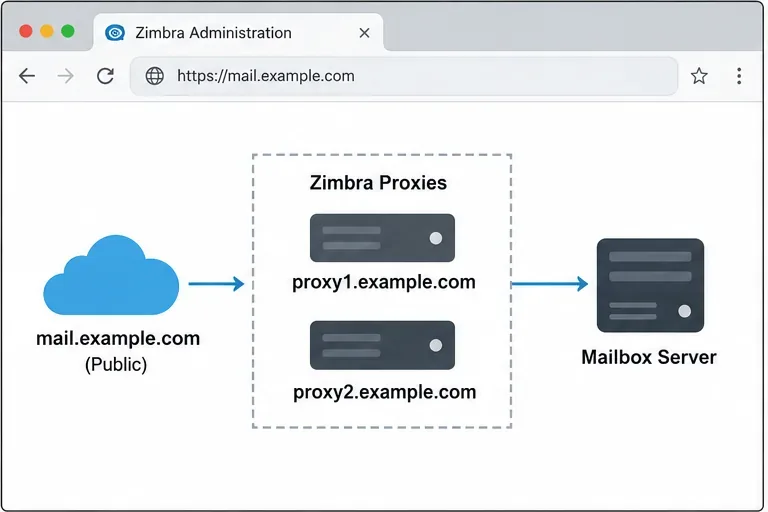
A sample topology: the public mail hostname reaches the proxy tier before requests are passed to a mailbox server.
Choose the behavior that fits your deployment
Proxy mail mode
What happens to HTTP
When to use it
redirect
The proxy returns an HTTP 302 response directing the client to HTTPS.
Useful when people still enter an HTTP URL and should be sent to the secure web address.
https
The proxy serves the web client over HTTPS; it does not provide the same HTTP-to-HTTPS redirect flow.
Prefer this when clients should never start a session over HTTP.
both or mixed
These are separate proxy modes with different HTTP/HTTPS behavior.
Use only when the deployment specifically needs the documented behavior; do not assume they enforce an HTTP redirect.
Zimbra’s security guidance warns that some clients, including ActiveSync clients, may not honor an HTTP redirect and could send credentials in the initial unencrypted request. Redirection is therefore helpful for browser convenience, but it is not a substitute for HTTPS-only access when all clients must avoid HTTP. If you choose redirect mode, protect the HTTP listener at the network edge as appropriate and communicate the HTTPS URL to users.
Before changing proxy behavior, confirm that the public webmail hostname opens over HTTPS and displays a trusted lock indicator.
Before you change the proxy
Confirm the scope. This procedure changes web traffic handled by Zimbra Proxy. Your deployment must already have the proxy service enabled and working.
Check the public endpoint. The hostname users visit, such as mail.example.com, must resolve to the public proxy or load balancer. HTTPS must already work on the expected hostname and port.
Check the certificate. Install and validate the certificate chain for the public hostname before redirecting users. A redirect to HTTPS with a broken or mismatched certificate only moves the failure to the next request.
Identify every proxy node. In a load-balanced environment, note each proxy server’s Zimbra server name. Changes applied to one proxy do not automatically configure another.
Plan a maintenance window if needed. Restarting the proxy service can briefly interrupt connections through that node. In a redundant deployment, apply the change one node at a time and monitor service health.
Use the Zimbra account for the administrative commands below. Replace proxy1.example.com with the exact Zimbra server name for your proxy node, and replace mail.example.com with the public webmail hostname. Do not paste the example names literally into a production system.
Enable HTTP-to-HTTPS redirection
1. Record the current proxy mode
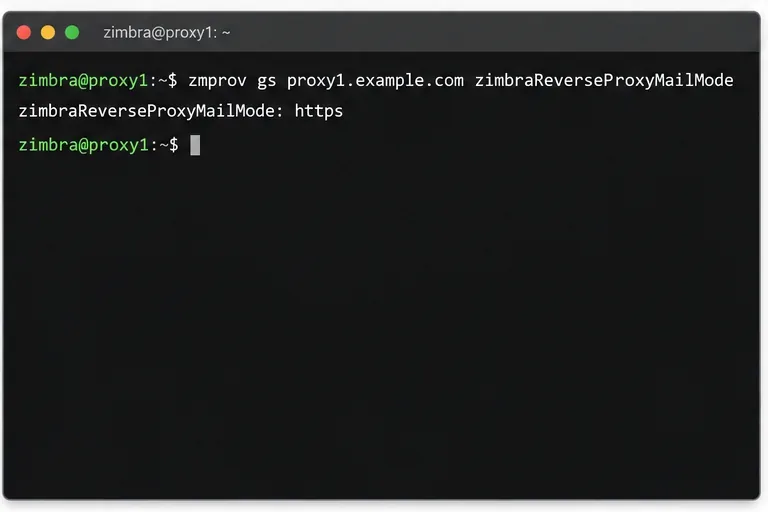
On a Zimbra host with the command-line tools available, query the proxy’s current setting:
Record the output so you can compare it after the change or restore the previous mode if necessary. The gs command reads server attributes; ms, used below, modifies them.
The sample command reads the current mail mode on one proxy node; your server may show a different value.
2. Set the proxy mode to redirect
Set the attribute on the proxy server object:
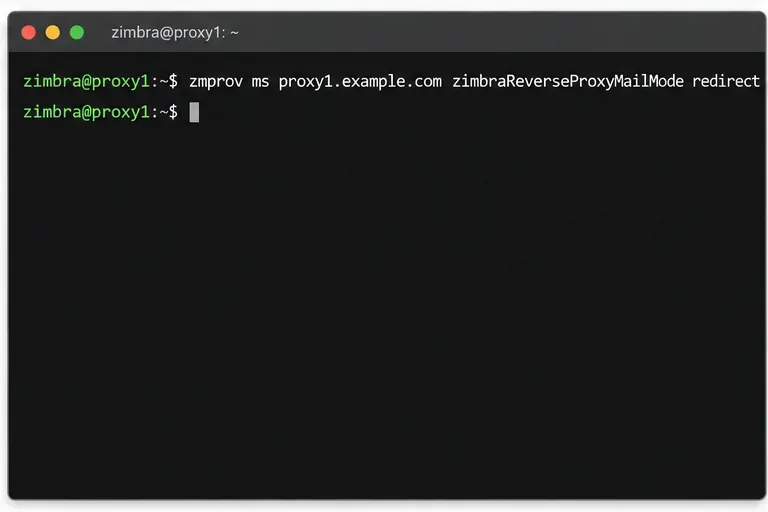
zmprov ms proxy1.example.com zimbraReverseProxyMailMode redirect
The Zimbra Proxy configuration documentation identifies redirect as the mode for redirecting HTTP requests to HTTPS. Apply the same command to each proxy node that accepts public web traffic. If a load balancer can send an HTTP request to several proxies, every eligible proxy needs consistent behavior.
Do not confuse this setting with zimbraMailMode. Zimbra documents that attribute separately for the mailbox server connection. Changing mailstore mode is not the step that enables a browser-facing HTTP redirect on the proxy.
Set the proxy’s mail mode to redirect; repeat with each proxy server name in a multi-node deployment.
3. Apply the change on each proxy
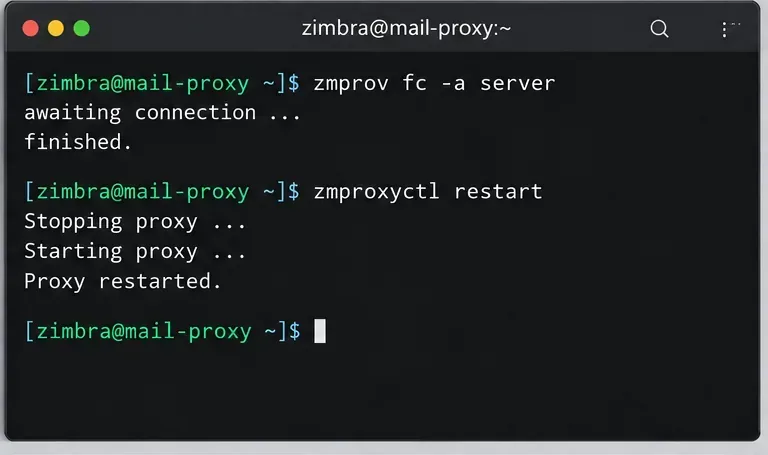
Restart the proxy service on the node where you changed the setting:
zmproxyctl restart
Then check its service status:
zmproxyctl status
Run the restart on each proxy node, one at a time if you have a redundant tier. Follow your installed Zimbra version’s operational guidance if your environment has a prescribed configuration-cache refresh or service orchestration process. Avoid editing generated Nginx files directly: Zimbra manages the proxy configuration from its server settings, and hand edits can be overwritten.
The examples use the Zimbra Daffodil v10 Admin Guide and Zimbra’s published proxy/security documentation. Older ZCS releases may differ in packaging or supported procedures, so check the admin guide for the exact release installed in your environment before applying a change.
A sample operational sequence refreshes configuration data and restarts the proxy; follow the procedure supported for your installed release.
Verify the redirect and HTTPS response
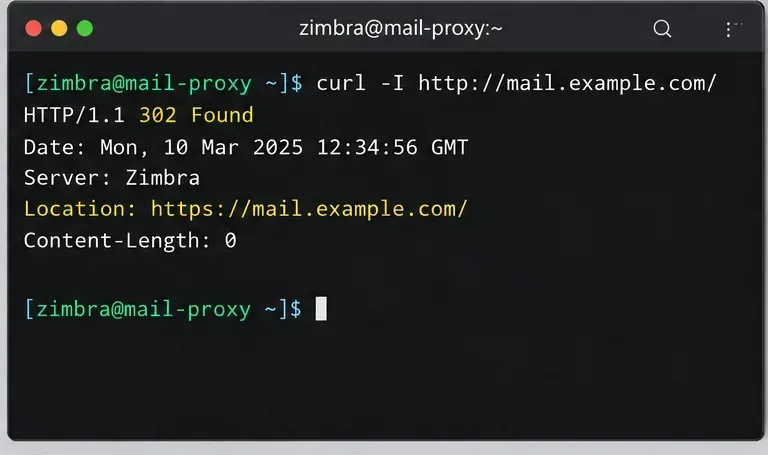
4. Check the HTTP response header
From a system that can reach the public endpoint, request the HTTP URL without following redirects:
In redirect mode, look for a 302 response and a Location header whose value begins with https://mail.example.com/. Exact headers and status handling can vary with your Zimbra release, path, and any load balancer or web gateway in front of the proxy. The following screen is an illustrative example of the expected header pattern, not a captured test from a live server.
Expected redirect pattern: HTTP returns a 302 response and points the browser to the HTTPS hostname. Actual response headers and dates will differ.
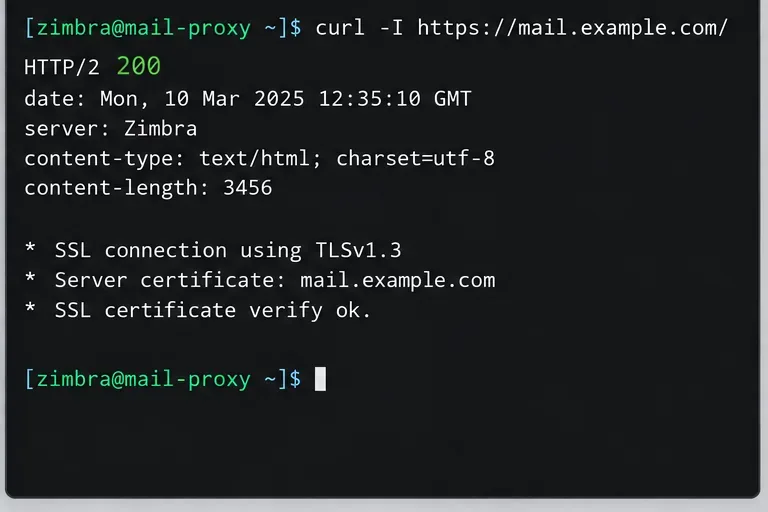
Confirm the TLS certificate validates for the hostname and that the response is the expected webmail page or application redirect. Do not use curl -k to bypass certificate verification: that hides the certificate problem users would see. A login page may return a redirect or a status other than 200 depending on the product version and authentication flow, so judge the response together with the browser check.
The example shows HTTPS reaching the service with a hostname-matching certificate; verify the actual certificate chain on your endpoint.
6. Test in a browser
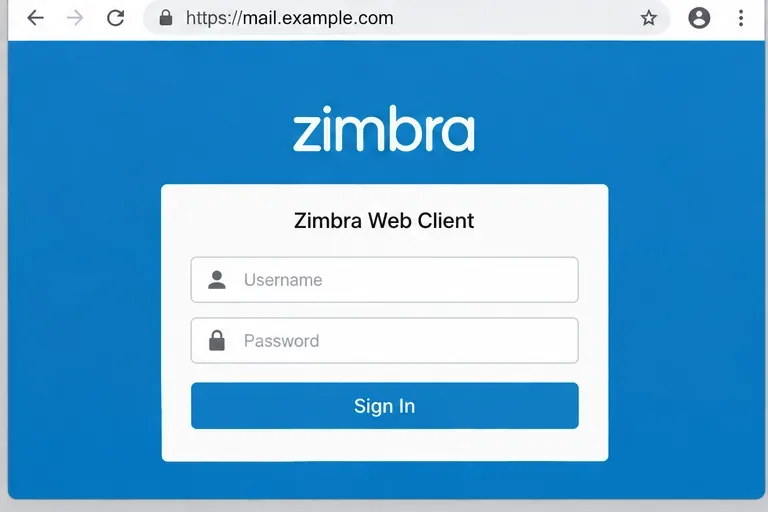
Open http://mail.example.com in a fresh browser session. The address should change to the HTTPS URL before you enter credentials. Then open the HTTPS URL directly and confirm that the sign-in page loads without a certificate warning. Repeat from outside your internal network if public DNS, firewall rules, or a load balancer could produce different results.
Do not test by entering a real password while the address bar still shows HTTP. If the redirect fails, stop and correct the proxy, edge, or certificate configuration first.
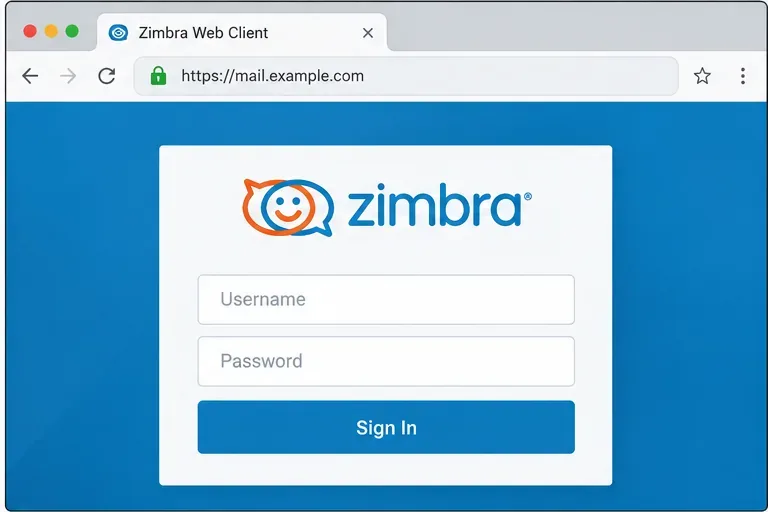
Final browser check: the sign-in page is served at the HTTPS hostname after the redirect.
Troubleshooting quick reference
Symptom
What to check
HTTP stays on the same URL
Query zimbraReverseProxyMailMode on the proxy that handled the request; verify every load-balanced node has the intended value and was restarted.
The Location header uses the wrong hostname or port
Check the public URL, reverse-proxy or load-balancer rules, and Zimbra public service hostname/protocol/port settings used to generate public links.
The browser reports a certificate warning
Check that the certificate is installed on the TLS termination point, covers the public hostname, and includes the necessary chain certificates.
Users see a redirect loop
Review whether a front-end load balancer terminates TLS but forwards HTTP to Zimbra, and confirm that the proxy can correctly identify the external request protocol. Align the TLS and forwarding configuration at the network edge.
A mail client still sends HTTP
Do not assume that client follows a 302. Prefer HTTPS-only access for clients that must never send credentials over HTTP, and configure each client with the HTTPS server URL.
Deployment checklist
The public HTTPS URL resolves to the intended proxy or load balancer.
The TLS certificate is valid for the public hostname and is trusted by clients.
zimbraReverseProxyMailMode is set to redirect on every applicable proxy node.
The proxy service has been restarted according to the installed Zimbra release’s procedure.
An HTTP request returns an HTTPS Location header, and a direct HTTPS request validates the certificate.
Users and mail clients are configured for HTTPS; redirect mode is not treated as a guarantee that every client protects its first request.