Home
» NETWORK ADMIN
»
How to Enable Server-Side Encryption in Nextcloud Without a Noticeable Performance Hit
How to Enable Server-Side Encryption in Nextcloud Without a Noticeable Performance Hit
As of October 2026, the stable Nextcloud 35 administrator documentation makes an important point clearer than many older tutorials did: server-side encryption (SSE) is primarily intended to protect files stored on external, third-party storage, and the default master-key mode offers better performance and broader authentication compatibility than per-user keys. The same documentation also notes that encrypted files now add only about 1% storage overhead, compared with much larger overhead in releases before Nextcloud 25.
That does not mean encryption is literally free. Every encrypted read and write requires cryptographic work, so no responsible guide can promise zero CPU or latency cost on every server. The practical target is different: enable encryption in a way that avoids a noticeable slowdown for users, keeps database and locking pressure under control, and encrypts only the storage that actually needs it.
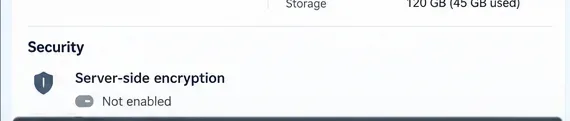
Before changing anything, confirm the current encryption state and record a baseline for the instance.
What Nextcloud server-side encryption protects
Nextcloud SSE encrypts file contents on the server before they are stored. When a user downloads or opens a file through Nextcloud, the server decrypts it before delivering it to the authorized user. The encryption keys remain on the Nextcloud server, which is why SSE is especially useful when the actual file data lives on an external storage provider that you do not fully trust.
SSE does not hide filenames or directory structure, and it does not protect files from a malicious Nextcloud administrator or a fully compromised application server. If the requirement is that even the server administrator must not be able to read files, Nextcloud's end-to-end encryption model is the relevant security layer instead. The official comparison is available in the Nextcloud server-side encryption documentation.
Choose the configuration that creates the least unnecessary work
Decision
Lower-overhead choice
When to choose something else
Key management
Master key, which is the current default and recommended mode for most deployments
Use per-user keys only when that security tradeoff is specifically required and its authentication/recovery limitations are acceptable
Storage scope
Encrypt external storage while leaving local home storage unencrypted when the threat model is the external provider
Encrypt home storage too when data-at-rest protection on the local Nextcloud storage is also required
Locking backend
Redis or Valkey-backed transactional file locking
Database locking may be acceptable for very small systems, but it adds avoidable database load under heavier traffic
Step 1: Back up the instance and establish a performance baseline
Encryption keys and the instance secret are critical recovery material. Nextcloud explicitly recommends backing up the instance configuration and encryption keys before enabling SSE. Losing the required keys or instance secret can make encrypted data unrecoverable.
Before the change, capture a simple baseline using the workload that matters to your users. Measure a few representative uploads and downloads, note PHP-FPM CPU utilization, database load, storage latency, and the response time of the Files app. You do not need a laboratory benchmark. You need a repeatable before-and-after test that can tell you whether the rollout changed user-visible behavior.
Also decide whether you actually need to encrypt home storage. If your goal is protecting an S3, SMB, object-store, or other external backend from the storage provider, keeping local home storage outside SSE avoids doing cryptographic work where it provides no additional value for that threat model.
Step 2: Fix caching and file locking before enabling encryption
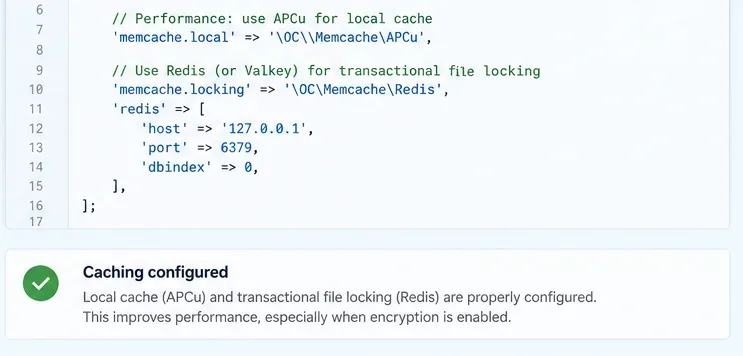
This is the most important performance preparation. Nextcloud recommends memory caching for optimal performance and specifically recommends APCu for local caching plus Redis or a compatible backend for transactional file locking. Transactional file locking is especially relevant to encrypted files because Nextcloud must coordinate file changes safely while encryption and storage operations occur.
Configure local memory caching and a Redis or Valkey-backed locking backend before adding encryption load.
A common single-server configuration uses APCu for the local cache and Redis for locks:
If Redis runs on the same host, Nextcloud's file-locking documentation recommends using a Unix socket where practical. Newer Nextcloud 35 documentation also describes the bundled KeyValueCache option for Redis- or Valkey-compatible servers, which can provide transactional locking without requiring the phpredis PHP extension. Use the configuration that matches your deployment rather than copying a sample blindly.
PHP OPcache should also be enabled and sized so it is not repeatedly evicting compiled code. Nextcloud's server tuning guide says OPcache improves PHP application performance and warns administrators when configured limits exceed 90% utilization. Review the official memory caching guide, transactional file locking guide, and server tuning guide before the rollout.
Step 3: Enable the default encryption module and use master-key mode
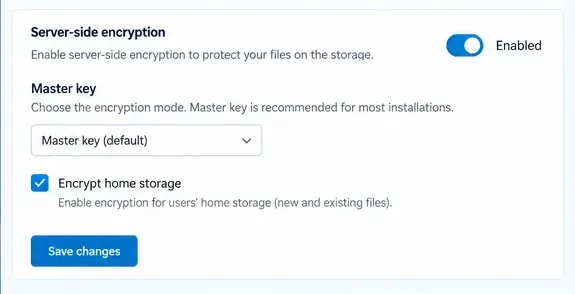
For most current deployments, master-key mode is the best starting point. Nextcloud 35 documents it as the default, recommends it for most deployments, and notes that it offers better performance and compatibility with more login methods. The tradeoff is clear: administrators who control the server can decrypt user files. If that is unacceptable, SSE with a master key is the wrong security boundary.
Use the default master-key mode unless your security requirements specifically justify per-user keys.
In the web interface, open the Server-side encryption section in the administrator settings, enable server-side encryption, then enable the Nextcloud Default Encryption Module from Apps if Nextcloud reports that no encryption module is loaded. Return to the encryption settings and confirm the module is selected. Log out and back in so encryption keys are initialized.
You can also manage encryption with occ. The current command reference documents the following sequence:
If the purpose of SSE is external storage only, clear the option for encrypting home storage before committing to a broader rollout. That choice can materially reduce the amount of data that must pass through the encryption layer.
Step 4: Encrypt the intended external mounts and verify with real traffic
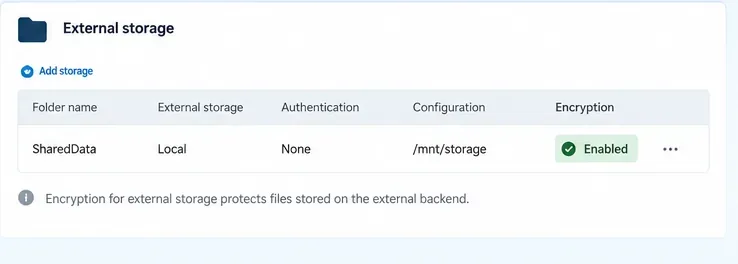
External storage encryption is configured per mount. Enable encryption only for the mounts that require it, then upload a representative file through Nextcloud and download it again. Verify access through the same desktop, mobile, WebDAV, or browser workflow your users actually use.
Enable encryption on the external storage mounts that are inside your threat model instead of encrypting everything automatically.
After the functional test, repeat the baseline measurements from Step 1. Compare upload time, download time, CPU use, database activity, and storage latency. If the change is small and user-visible response time is stable, the server has enough headroom. If performance drops sharply, do not assume encryption itself is the only cause. Check for database-based file locking, saturated PHP-FPM workers, slow external storage, insufficient OPcache, or a Redis connection problem first.
If you need to encrypt files that already existed before SSE was enabled, Nextcloud provides encryption:encrypt-all. Treat that as a migration workload, not a normal interactive request. It can touch a large amount of data, so schedule it during a maintenance window and make sure the backup and rollback plan are sound. The available encryption commands are documented in the official occ encryption reference.
How to tell whether the rollout is healthy
Users do not notice a meaningful increase in upload or download time. Compare the same file sizes and clients before and after the change.
Database load stays stable. A large rise in database activity may indicate that file locking is still using the database instead of Redis or Valkey.
PHP workers are not CPU-starved. Encryption adds CPU work, so instances that were already running near capacity need more headroom.
External storage latency is still the dominant factor when appropriate. Slow S3, SMB, or remote object storage can easily outweigh the cryptographic cost.
No encryption or key warnings appear in the admin overview or logs. Resolve warnings before expanding the rollout.
Common mistakes that cause avoidable slowdowns
Encrypting local home storage when only external storage needs protection
This increases the amount of encrypted I/O without necessarily addressing a real threat. Match the encryption scope to the reason you are enabling SSE.
Leaving transactional locks in the database
Nextcloud's documentation says the default database locking backend places significant load on the database. A Redis- or Valkey-backed locking cache is one of the most direct ways to remove that bottleneck.
Running bulk encryption during peak hours
Interactive traffic and a full-data encryption pass compete for CPU, I/O, PHP workers, and storage bandwidth. Separate migration work from normal production traffic.
Treating SSE as protection from a compromised Nextcloud server
SSE keys are available to the server, so a malicious administrator or fully compromised server remains inside the trust boundary. Use end-to-end encryption when that is the threat you need to address.
Bottom line
The safest way to enable Nextcloud server-side encryption without a noticeable performance hit is to keep the scope narrow, use the default master key when its trust model fits, configure APCu and Redis or Valkey locking first, and benchmark the real workload before and after the change. Current Nextcloud 35 guidance supports this approach: master-key mode is the performance-friendly default, external storage is the main SSE use case, and encrypted-file size overhead is now roughly 1%.