Home
» NETWORK ADMIN
»
How to Enable Virtual Backgrounds in Jitsi Meet on a Low-End PC
How to Enable Virtual Backgrounds in Jitsi Meet on a Low-End PC
Short answer: Join a Jitsi Meet room in a current desktop browser, turn on your camera, open Select background from the meeting toolbar, and choose Blur or one of the available backgrounds. On a low-end PC, treat the effect as optional: test it in the kind of call you actually attend, and switch it off as soon as video becomes choppy, the computer feels overloaded, or the call audio starts breaking up. Jitsi does not publish a universal CPU, GPU, or RAM minimum for virtual backgrounds, so no setting can guarantee smooth performance on every machine.
Jitsi’s implementation analyzes camera frames to separate the person from the background and then composites the selected effect. That work happens in the client running the meeting, so a weak processor, busy browser, or other demanding apps can matter. A background can look correct while still costing enough processing time to make a call uncomfortable.
Before you turn on a background
Use an up-to-date desktop browser and first confirm that the camera works without an effect. Jitsi’s current supported browser list covers desktop Chrome, Firefox, Safari, and Edge, but browser support does not establish that every low-powered computer can run background effects smoothly. The documentation does not give a hardware threshold for this feature.
Close apps and browser tabs you do not need, connect a laptop to power if it is in a power-saving mode, and sit in steady front lighting. These steps do not make the segmentation effect free; they simply reduce competing work and make it easier to judge the result. Avoid changing several settings at once, so you can tell whether the background itself is causing a slowdown.
Enable and assess the effect in four steps
1. Establish a camera baseline
Open your Jitsi meeting link in a current desktop browser, allow camera and microphone access if prompted, and join with the camera on. Jitsi’s meeting start guide explains the initial camera-permission prompt. Spend a short moment with no background effect: check whether your own preview updates smoothly, whether the audio is clear, and whether the computer is already struggling. This baseline helps distinguish an effect-related change from an existing camera, browser, or network problem.
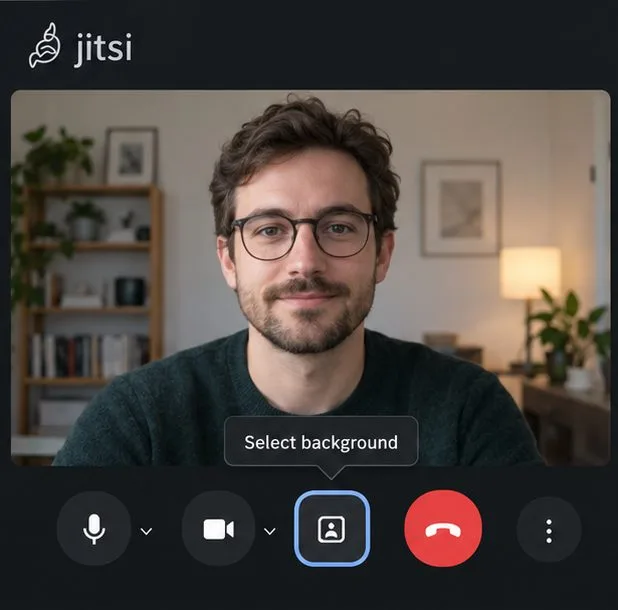
The meeting toolbar shows the Select background control. If it appears in your room, open it to view the available camera background effects.
2. Open the background picker
In the meeting toolbar, choose Select background if the control is visible. The toolbar may be collapsed or adapted to the room’s layout, so check its overflow menu or the camera controls if you do not see it immediately. Jitsi’s configuration lists select-background as a toolbar action, but a service administrator can customize which controls appear. If the option is missing everywhere, the host may have disabled or omitted it; switching browsers cannot restore a feature that the service does not expose.
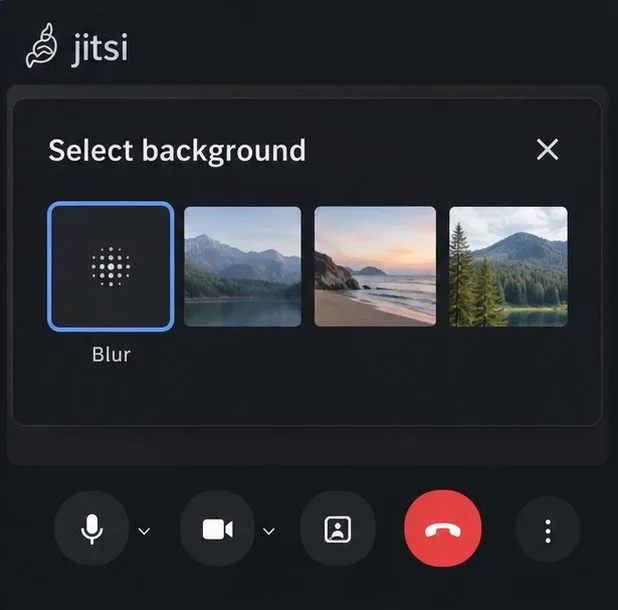
The background picker shows Blur and several background thumbnails; the exact choices depend on the Jitsi service and its configuration.
3. Select one effect and wait for the preview
Choose Blur or a background image offered by the picker. Give the preview a moment to settle, then move your head and hands naturally. Look for obvious edge errors around hair and shoulders, delayed motion, a frozen preview, or a jump in system fan noise. Blur and image backgrounds both rely on foreground segmentation in Jitsi’s implementation, so do not assume that one will always use less processing than the other. A static image may look simpler, but it is not a guaranteed low-CPU mode.
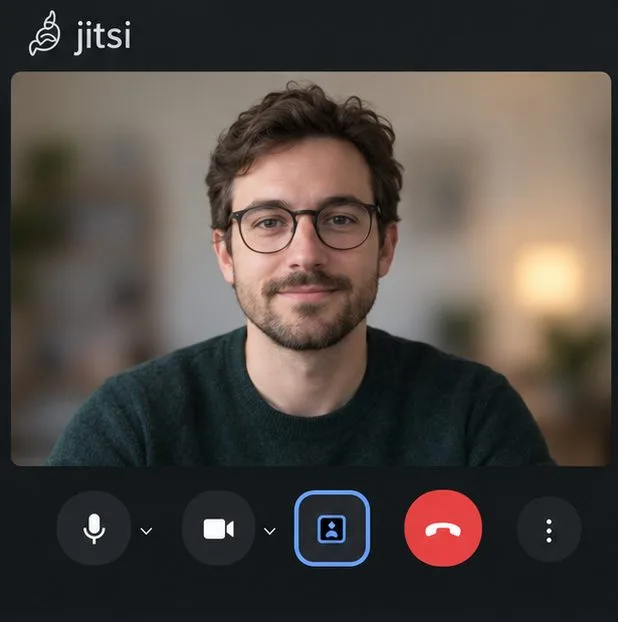
A camera preview with the background effect active. Watch this tile while moving slightly and speaking to judge whether it stays smooth.
4. Test it under real meeting load
Keep the effect on for a brief test while speaking and listening, ideally in a low-stakes call or a private test room. Judge your outgoing camera preview and the call as a whole: the image should keep up with your movements, other participants should hear intelligible speech, and the computer should remain responsive enough to use. A meeting with several incoming video tiles may create more load than a quiet preview, so a quick pre-call check is not a promise about every conference. If performance degrades, use the same control to return to no effect.
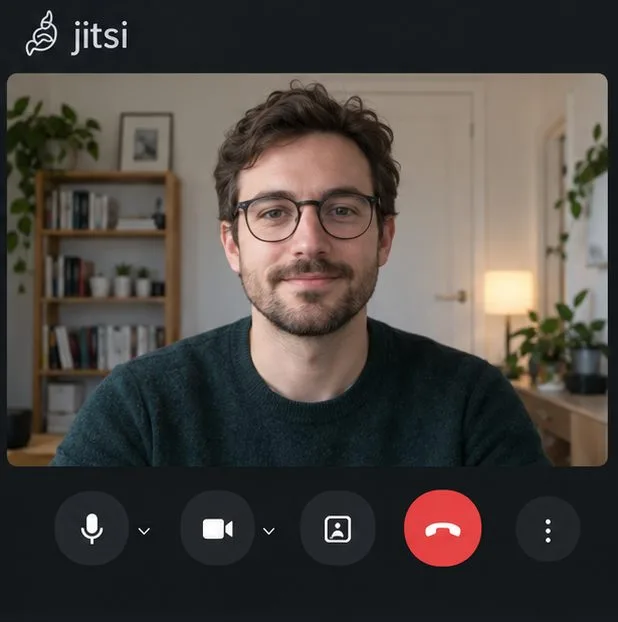
The same meeting view with the effect off. Return to the normal camera view if the effect makes the call choppy.
Quick decision checklist
Keep it on: the preview follows your movements, speech remains clear, and the desktop stays responsive during a representative call.
Try once more after reducing competing work: the effect stutters only while many apps or browser tabs are open, and the ordinary camera remains smooth.
Turn it off for this PC: video freezes or lags, audio breaks up, the browser becomes unresponsive, or the machine heats up and slows down noticeably.
Ask the meeting host or administrator: the camera works but no background control is available. Ask whether background effects are enabled for that service or room.
What to try when the call slows down
First disable the background effect and compare the call again. If the camera and audio recover, keep the effect off for important meetings. You can still improve privacy by repositioning the camera toward a plain wall, moving away from a busy background, or using a physical room divider. Those options avoid the ongoing person-segmentation work.
If the call is still rough with the effect off, troubleshoot the underlying video call separately: close other CPU-heavy software, check that the camera is not being used by another app, and test the meeting in another supported browser. Jitsi’s published browser guidance lists supported desktop browsers and general version notes; it does not promise that switching browsers will solve a hardware bottleneck. If one browser works noticeably better, keep it for calls and update it through your Linux distribution or browser vendor’s supported channel.
For a self-hosted Jitsi deployment, an administrator can inspect the deployment’s current configuration and toolbar policy. The official Jitsi Meet configuration reference includes the select-background toolbar action. Configuration names and implementation details can change, so use the documentation and source corresponding to the deployed release rather than copying an old setting into a public meeting. Ordinary participants generally cannot change the server configuration.
Limits to keep in mind
There is no verified universal “low-end PC” setting or hardware cutoff for Jitsi virtual backgrounds in the documentation reviewed on October 5, 2026. Jitsi’s source code shows the effect processing and compositing camera frames in the client, but source code cannot predict the frame rate or heat of a particular Linux computer. Browser version, camera resolution, desktop workload, lighting, and the meeting itself all affect the experience.
The practical success test is simple: if the effect remains visually stable and the computer handles the complete call comfortably, it is suitable for that setup. If it does not, turn it off. Virtual backgrounds are a presentation and privacy option, not a requirement for joining Jitsi Meet.