Home
» NETWORK ADMIN
»
How to Fix Jitsi Meet “Failed to Connect to Bridge” Error
How to Fix Jitsi Meet “Failed to Connect to Bridge” Error
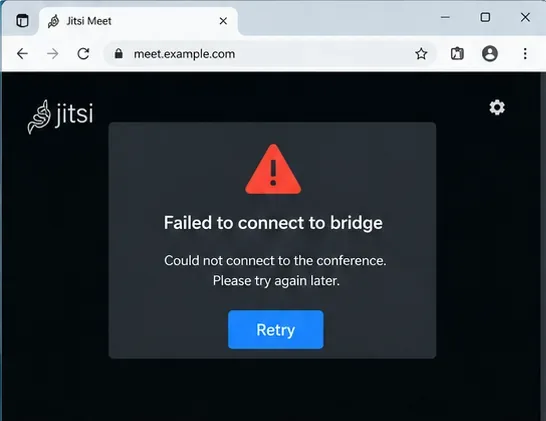
You open a Jitsi Meet room, the page loads normally, and signaling may even appear to work—but the conference never establishes media. Instead, Jitsi reports “Failed to connect to bridge” or repeatedly disconnects while joining. On a self-hosted deployment, that message usually points to a problem between the browser and Jitsi Videobridge (JVB), or between Jicofo and the bridge itself.
The fastest way to troubleshoot it is to work from the server outward: confirm that JVB is running and registered, confirm that its media port is reachable, verify NAT/public-address handling, and only then investigate client-side network restrictions. The official Jitsi self-hosting guide lists UDP port 10000 as the default media path, while Jicofo is responsible for selecting a Videobridge for each conference.
A bridge connection error can appear even though the Jitsi web interface itself loaded successfully.
What the error usually means
Jitsi Meet has several components. The web interface and Prosody handle signaling, Jicofo coordinates conferences, and Jitsi Videobridge forwards the audio and video streams. If the browser can reach the web page but cannot establish media with JVB, or if Jicofo has no healthy bridge available, the meeting can fail at the bridge stage.
For current Debian/Ubuntu installations, Jitsi documents these network requirements: TCP 80 for certificate validation and renewal, TCP 443 for web access, UDP 10000 for general audio/video, UDP 3478 for optional STUN queries, and TCP 5349 for coturn-based fallback media when UDP is blocked. See the official Jitsi Debian/Ubuntu self-hosting guide. JVB’s current reference configuration also shows UDP port 10000 as the default ICE/UDP port in the Jitsi Videobridge reference configuration.
1. Confirm that Jitsi Videobridge is running
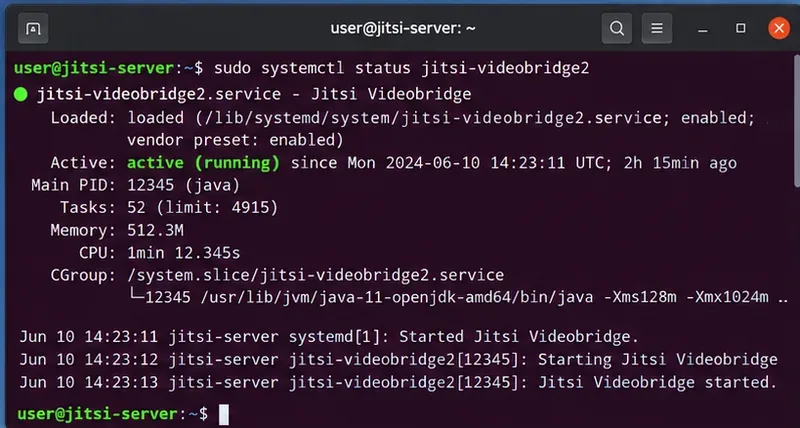
Start with the component named in the error. On a standard package-based installation, run:
sudo systemctl status jitsi-videobridge2
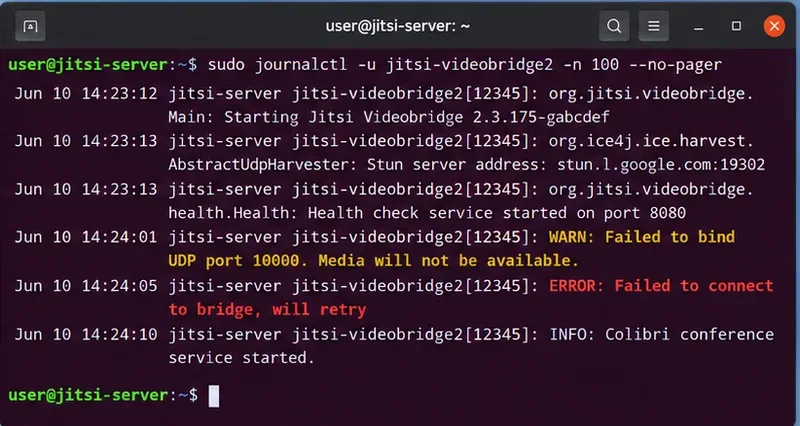
You want to see active (running). If the unit is failed, restarting it may restore service temporarily, but do not stop there—check the logs to learn why it stopped:
A healthy package installation should show the jitsi-videobridge2 systemd unit as active and running.
Look for bind failures, authentication errors, XMPP connection failures, repeated ICE problems, or messages indicating that no valid address is available. Do not assume that an active systemd status proves JVB is usable: a Java process can be running while media networking or XMPP registration is broken.
JVB logs are the next place to look when the service is running but conferences still cannot obtain a working bridge.
2. Verify that UDP 10000 is listening and allowed through the host firewall
Jitsi’s default JVB media port is UDP 10000. First confirm that the server is listening:
sudo ss -lunp | grep ':10000'
If nothing is listening, inspect /etc/jitsi/videobridge/jvb.conf and the JVB logs before changing firewall rules. If the port is listening, check the host firewall:
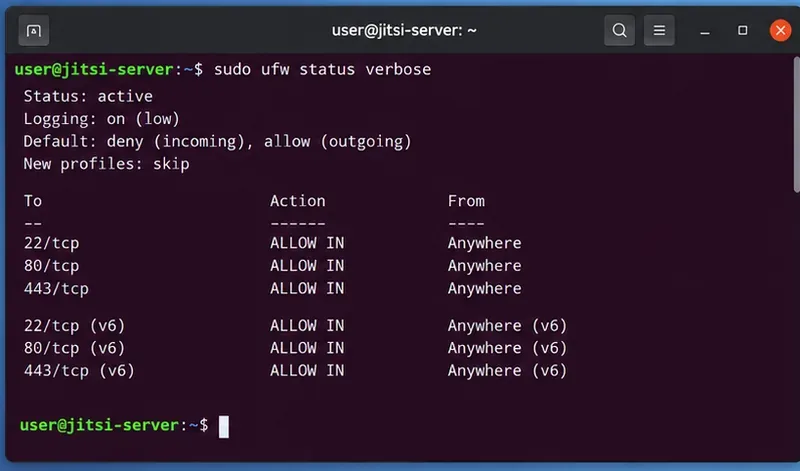
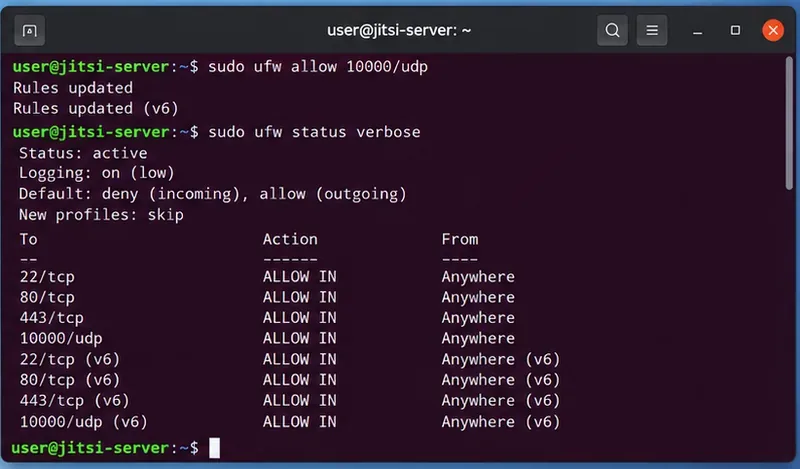
sudo ufw status verbose
If UDP 10000 is absent from the host firewall rules, the web page can still load while conference media fails.
On an Ubuntu server using UFW, Jitsi’s own guide uses:
sudo ufw allow 10000/udp
sudo ufw status verbose
After adding the rule, verify that UDP 10000 is allowed; do not rely only on the success message from the firewall command.
If you use firewalld, nftables, iptables, or a cloud firewall instead of UFW, add the equivalent inbound UDP rule there. A common mistake is opening UDP 10000 in Ubuntu but leaving it blocked by an AWS security group, Azure network security group, Google Cloud VPC firewall, VPS provider firewall, or upstream hardware firewall.
3. Check router port forwarding when the server is behind NAT
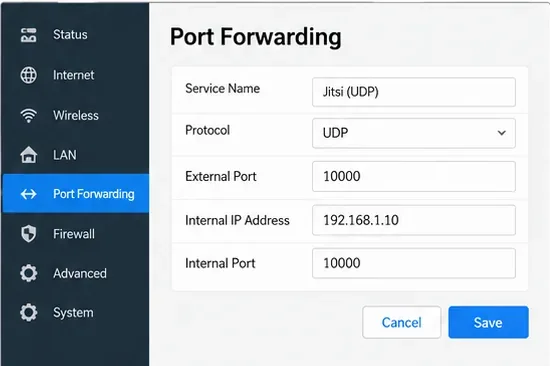
If Jitsi runs on a private address such as 192.168.x.x, opening UFW is not enough. Your edge router must forward the external UDP media port to the machine running JVB. In a simple single-server installation, that usually means forwarding UDP 10000 to UDP 10000 on the Jitsi server.
A self-hosted Jitsi server behind a router needs the JVB media port forwarded to the correct internal host.
If you changed JVB’s port, use the configured value rather than blindly opening 10000. Also verify that another machine or container has not taken the port. Port forwarding screens differ by router, so treat the illustration as a configuration example rather than an exact UI map for your device.
4. Fix the public/private address mapping
NAT can cause a subtler failure: JVB may advertise a private candidate to internet clients even though the router forwards the correct port. Jitsi’s current quick-start documentation shows a static mapping in /etc/jitsi/videobridge/jvb.conf for systems that need explicit local-to-public address translation:
Replace the placeholders with the JVB host’s actual private address and the public address that remote clients can reach. Then restart JVB:
sudo systemctl restart jitsi-videobridge2
Use this only when it matches your topology. Servers with direct public addressing, Docker deployments, multiple NICs, IPv6, or more complex NAT may need different settings. The authoritative example is in the Jitsi quick-start NAT section.
5. For Docker, verify the JVB UDP port is actually published
In Docker, a correct firewall rule on the host does not help if the JVB container is not publishing its media port. Jitsi’s Docker documentation lists JVB_PORT with a default of 10000 and instructs administrators to open UDP 10000 on the host. Check your running deployment:
Then inspect your Compose and environment files and confirm that the JVB service exposes the intended UDP port. If you changed JVB_PORT, the host mapping, firewall rule, and any NAT forwarding must all agree. Refer to the official Jitsi Docker self-hosting guide instead of copying an old Compose snippet from a third-party tutorial.
6. Confirm that Jicofo can see a Videobridge
A perfectly reachable UDP port is not sufficient if JVB never registers with the XMPP control plane. Jicofo selects a Videobridge for a conference, and Jitsi’s scalable-deployment guide recommends checking both the Prosody and Jicofo logs after restarting services to confirm that bridges connect and are picked up.
If you customized XMPP domains or run multiple nodes, verify that Jicofo and JVB use the same bridge “brewery” MUC. The official Jitsi Videobridge MUC documentation states that Jicofo’s jicofo.bridge.brewery-jid must point to the same MUC used by the Videobridge instances.
This is especially important after hostname changes, migrations, split-host deployments, or manual configuration edits. For standard package installations created with the official installer, avoid rewriting the XMPP configuration unless your logs actually indicate a registration or authentication problem.
7. Rule out a restrictive client network, VPN, or proxy
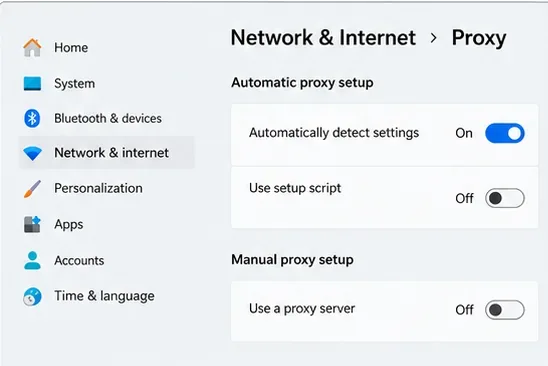
If the server works for some users but not others, test from a different network before changing server configuration. Corporate networks, guest Wi-Fi, VPNs, and strict proxies may block UDP. Temporarily disconnecting a VPN or proxy is a useful diagnostic test; reconnect it afterward if your organization requires it.
Temporarily testing without a VPN or manual proxy can help distinguish a client-network restriction from a server-wide JVB failure.
Jitsi’s Debian/Ubuntu guide documents TCP 5349 as a coturn fallback path for audio/video when UDP is blocked. If you need users on restrictive networks to connect reliably, verify your TURN/coturn configuration rather than assuming that opening TCP 443 for the website automatically provides a media fallback.
8. Retry with a clean browser session only after the server checks pass
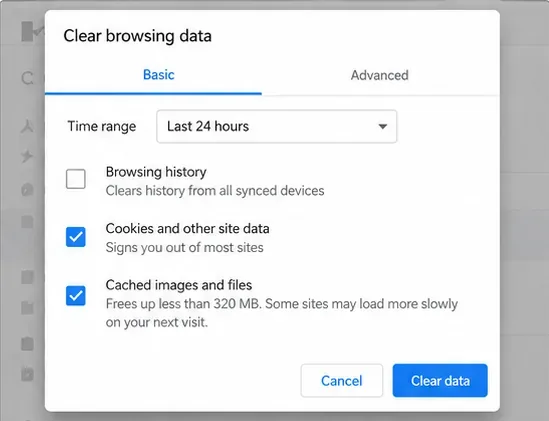
A stale browser session is less likely than a broken JVB route when every participant sees the same bridge error, but it is quick to eliminate. Reload the room, try a private browsing window, or clear site data for your Jitsi domain and sign in again if authentication is enabled.
A clean browser session is a low-risk client-side check, but it should not replace server-side JVB, firewall, and NAT troubleshooting.
If the error reproduces across different browsers and networks, return to the server-side checks rather than repeatedly clearing browser data.
How to verify that the fix actually worked
Do not consider the issue solved just because the error popup disappeared. Test the complete media path.
Create a new room and join from two devices.
Put the devices on different networks if possible, such as one on home broadband and one on mobile data.
Confirm that both audio and video flow in both directions for several minutes.
Watch the JVB and Jicofo logs while joining and verify that the conference is assigned to a bridge without repeated ICE or bridge-health failures.
Re-run sudo ss -lunp | grep ':10000' and your firewall status check after any reboot or firewall change.
For multi-bridge installations, test more than one conference. Jitsi’s scalable setup guide explains that Jicofo selects a Videobridge for new conferences, so one unhealthy bridge can produce intermittent failures even when another bridge works.
For a self-hosted Jitsi Meet server, “Failed to connect to bridge” is best treated as a media-path or bridge-registration problem first. Verify that Jitsi Videobridge is healthy, that UDP 10000 is listening and reachable through every firewall/NAT layer, that JVB advertises a usable public address when NAT is involved, and that Jicofo sees the bridge. Only after those checks should you spend time on browser cache or individual client settings.
The exact fix depends on your topology, so avoid applying old Jitsi configuration keys just because they appear in historical forum posts. The commands and settings above are aligned with the current official Jitsi Handbook and current Jitsi Videobridge configuration sources checked in October 2026.