Home
» NETWORK ADMIN
»
How to Fix the ownCloud Mobile App “Connection Refused” Error
How to Fix the ownCloud Mobile App “Connection Refused” Error
A “Connection refused” message in the ownCloud mobile app usually points to a connectivity problem before authentication even begins: the phone reached an address, but nothing accepted the connection on the requested network endpoint. The exact wording can vary by Android or iOS release, so treat the message as a symptom rather than a diagnosis.
Illustrative scenario only: imagine a small design company called Northstar Studio. Its staff normally connect to https://cloud.example.com/owncloud from the ownCloud mobile app. After a reverse-proxy change, several phones report “Connection refused.” The ownCloud web interface still works from an administrator's laptop inside the office, but not from cellular data. This fictional scenario will be used throughout the guide to show how the troubleshooting steps fit together; it is not a report of a real deployment or test result.
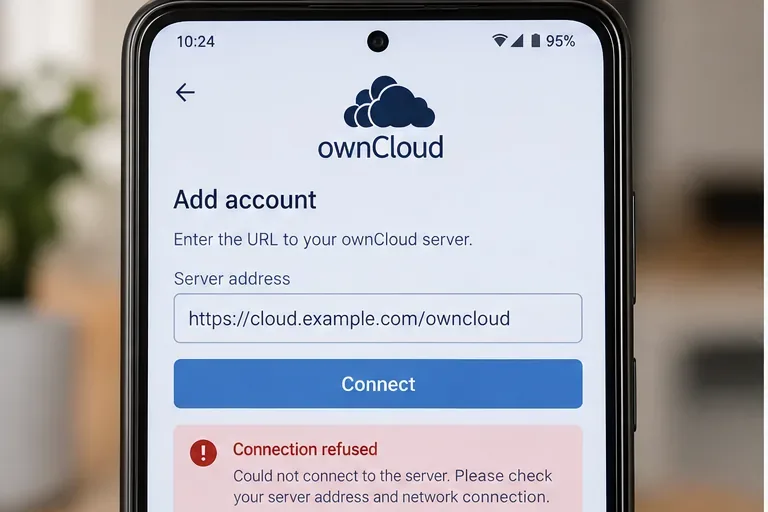
Start with the exact server address the mobile app is trying to reach. A refusal happens before a successful ownCloud login can occur.
First, separate “connection refused” from login errors
Do not begin by resetting the user's password. A wrong password, an expired token, or an OAuth problem happens after the client can communicate with the server. A refused TCP connection is more commonly associated with the wrong host or port, a stopped web server or proxy, a firewall rule, or a service listening only on an internal interface.
ownCloud's current mobile documentation confirms that the apps are configured with the ownCloud server URL. The ownCloud WebDAV documentation also says the mobile apps should use the base URL and folder, such as example.com/owncloud, rather than manually entering a WebDAV endpoint. See the ownCloud WebDAV access documentation.
1. Verify the URL in the mobile app
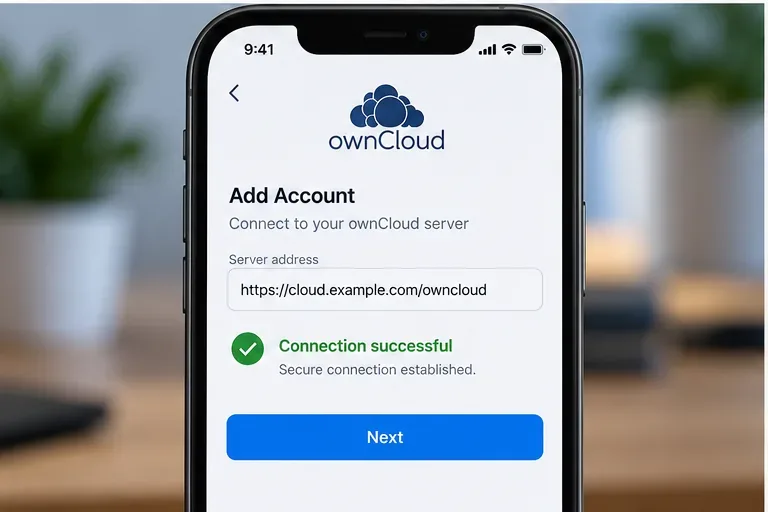
In the Northstar example, the expected URL is https://cloud.example.com/owncloud. Check all four components: scheme, hostname, optional port, and path. Common mistakes include using http:// when the public service only listens on HTTPS, leaving out a nonstandard port, using an internal hostname that cannot be resolved outside the office, or entering a DAV endpoint instead of the ownCloud base URL.
The Android documentation says the app tests the connection after the server URL and credentials are entered, and recommends an SSL-enabled server so the connection can use HTTPS. The iOS documentation similarly checks the server URL, authentication method, and TLS certificate while adding an account. Refer to the ownCloud Android connection guide and ownCloud iOS account guide.
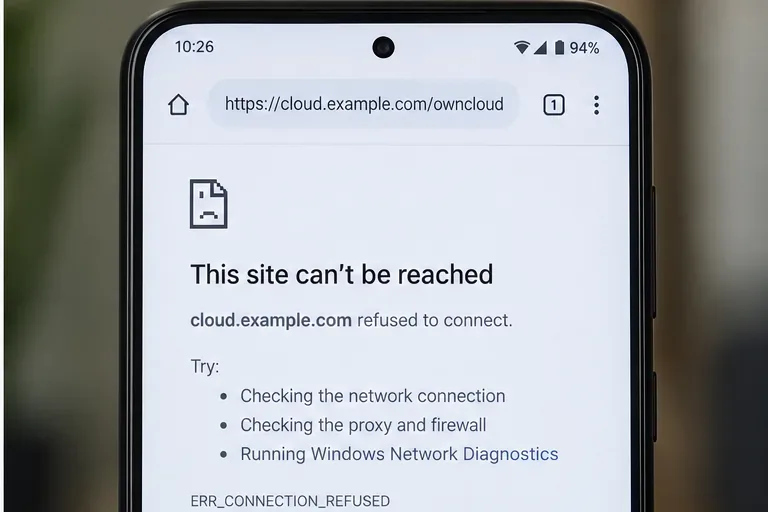
Open the same URL in the phone's browser. If the browser is also refused, focus on network reachability and the web-service endpoint rather than app credentials.
2. Test the same URL outside the app
On the affected phone, open the exact ownCloud URL in a browser. This is a fast dividing line. If the browser can load the ownCloud page but the app cannot, investigate app-specific certificate, redirect, OAuth, or account configuration. If both browser and app fail on the same network, continue with server and network checks.
Also test from more than one network. In our illustrative Northstar case, office Wi-Fi works but cellular data fails. That points toward a public DNS, firewall, NAT, or reverse-proxy exposure problem rather than an ownCloud username problem.
3. Confirm that the public endpoint actually listens
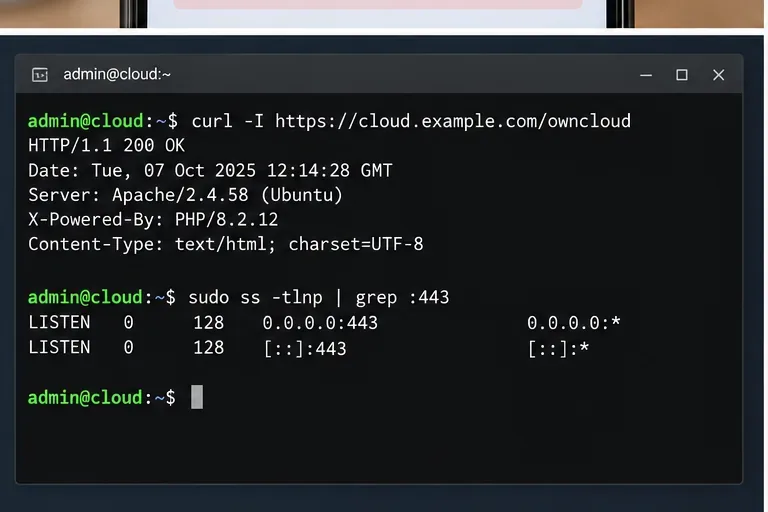
From a machine that can reach the server, test the URL and the listening socket. Commands such as the following are useful starting points:
curl -I https://cloud.example.com/owncloud
sudo ss -tlnp | grep -E ':80|:443'
A successful HTTP response does not have to be 200; a redirect can also prove that a web service is answering. The important distinction is whether a TCP connection is accepted. If nothing listens on the expected public port, fix that before changing ownCloud application settings.
Server-side checks can confirm whether HTTPS is responding and whether a process is listening on port 443.
4. Check the web server or reverse proxy
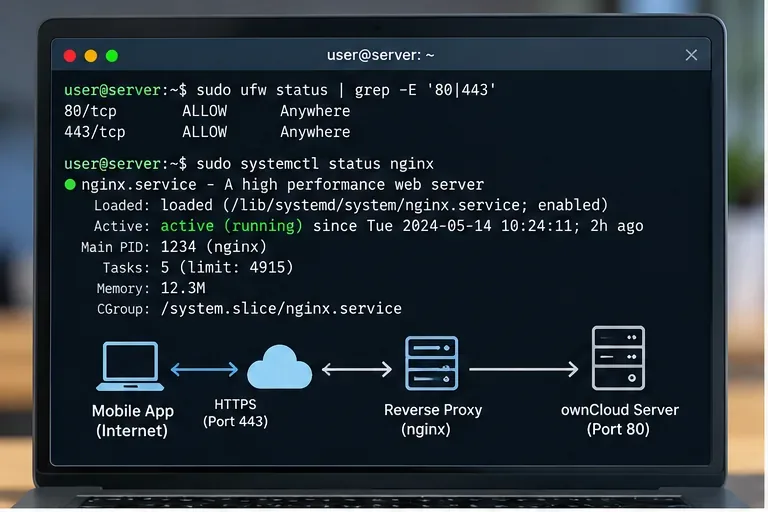
Many ownCloud deployments place Apache, NGINX, HAProxy, Traefik, or another proxy in front of the application. Make sure the public-facing service is running, bound to the intended interface, and forwarding traffic to the actual ownCloud backend. A proxy that is stopped, bound only to 127.0.0.1, or configured for the wrong upstream port can produce an immediate refusal.
ownCloud documents reverse proxies explicitly and requires proxy addresses that ownCloud should trust to be configured under trusted_proxies. It also documents overwrite settings for cases where automatic hostname, protocol, or webroot detection fails behind a proxy. See ownCloud's reverse proxy configuration guide.
When a proxy sits in front of ownCloud, verify both the Internet-facing listener and the proxy-to-ownCloud backend path.
5. Verify firewall, NAT, and network path
If HTTPS works on the server itself but not from a phone outside the LAN, check the host firewall, cloud security group, router or NAT rule, and any upstream corporate firewall. For a normal HTTPS deployment, TCP 443 must be reachable at the public address. If you intentionally use a custom port, that exact port must be exposed and included in the URL.
Do not disable a firewall as a permanent fix. Instead, identify the required listener and permit only the traffic your design needs. In the Northstar scenario, the useful question is not “Is the firewall on?” but “Can an external client reach the address and port published for ownCloud?”
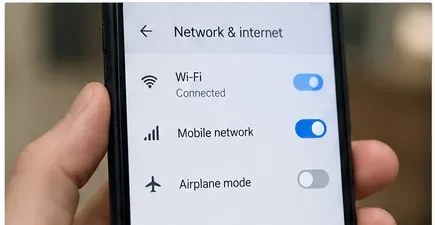
Switching between Wi-Fi and mobile data is a practical way to determine whether the refusal follows one network path.
6. Check TLS certificates and redirects after the port is reachable
A certificate problem is different from a literal TCP refusal, but it often appears immediately after you fix reachability. The current iOS documentation says the app checks TLS certificates when adding a server and lets the user inspect certificate details. The Android documentation also describes warnings for certificates that cannot be verified.
Use a certificate whose hostname matches the public ownCloud hostname and whose chain is trusted by the device whenever possible. Also review HTTP-to-HTTPS redirects. The iOS security documentation notes that redirects during login are not silently followed; users are asked to approve them. See ownCloud iOS security documentation.
After reachability and TLS are correct, the mobile client should be able to proceed beyond the initial server-connection check.
7. Confirm ownCloud trusted domains and proxy URL handling
Once the web server accepts connections, verify that ownCloud recognizes the hostname used by the phone. ownCloud requires URLs used to access the server to be allowed in trusted_domains. This matters when you introduce a new public hostname, migrate the service, or expose a previously internal installation.
For a classic installation, inspect the configuration rather than blindly editing it. You can use occ to read the configured domains:
If the public hostname is missing, add it using the documented occ config:system:set syntax for an unused array index. The official command reference is available in the ownCloud occ command documentation. For container deployments, current ownCloud documentation exposes equivalent domain and proxy-related settings through environment variables such as OWNCLOUD_TRUSTED_DOMAINS and OWNCLOUD_TRUSTED_PROXIES.
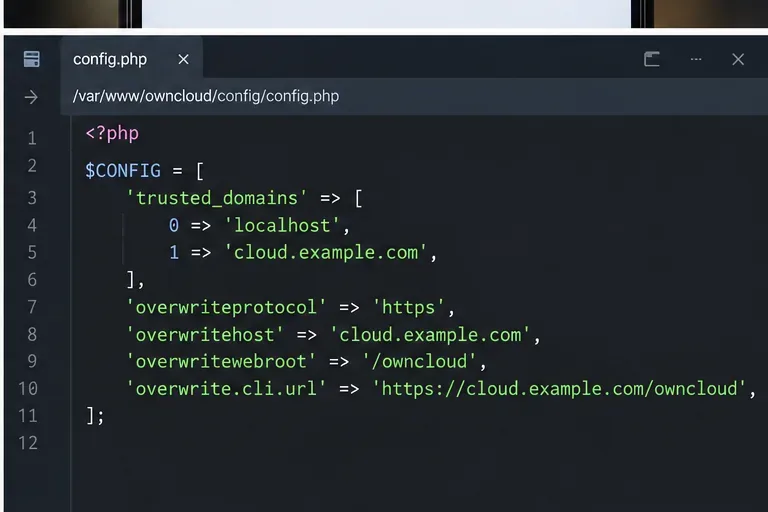
Trusted domains and overwrite settings become relevant after the network endpoint is reachable, especially behind a reverse proxy.
8. Retest from the original phone and compare results
Return to the affected device and test in a controlled sequence: first load the URL in the browser, then add or reconnect the ownCloud account, then open the Files view and confirm that a directory listing appears. Repeat once on Wi-Fi and once on mobile data if the service is intended to work from both.
In the Northstar example, suppose the administrator discovers that the replacement reverse proxy was listening on port 443 only on the private interface. Binding the public listener correctly would explain why office access worked while cellular access was refused. That is only an illustration of the reasoning process, not a claim about a real ownCloud incident.
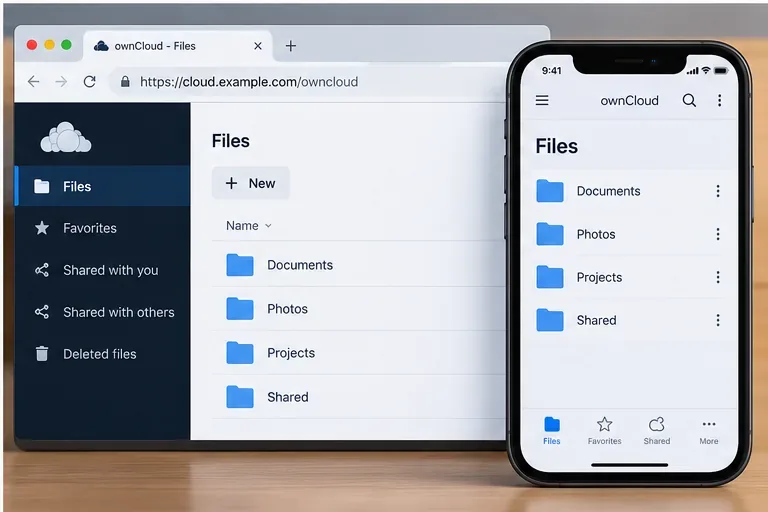
A useful final check is that both the web interface and mobile app can reach the same server and display the expected file hierarchy.
Quick diagnosis table
What you observe
Most useful next check
App and phone browser are both refused
Public hostname, port, listener, firewall, NAT, proxy service
Works on Wi-Fi but not mobile data
Public DNS and Internet-facing firewall/NAT/proxy path
Browser works, app stops at certificate review
TLS hostname, certificate chain, redirects
Server answers but ownCloud rejects the host
trusted_domains and reverse-proxy overwrite settings
Connection succeeds but login fails
Credentials, OAuth2, two-factor authentication, or token policy
What not to change first
Avoid changing passwords, database settings, file permissions, or PHP memory limits just because the mobile app says “Connection refused.” Those settings may matter for other ownCloud failures, but they are not the first place to investigate when the client cannot establish a network connection at all. Likewise, do not permanently bypass certificate warnings as a substitute for fixing a public TLS configuration.
Final verification checklist
The phone uses the intended ownCloud base URL, including the correct scheme, hostname, path, and nonstandard port if applicable.
The hostname resolves correctly from the network where the phone is connected.
A public web server or reverse proxy is listening on the expected TCP port.
Host, cloud, router, and upstream firewalls permit the intended traffic.
The reverse proxy can reach the ownCloud backend.
The TLS certificate is appropriate for the public hostname and accepted by the device.
The hostname is present in ownCloud's trusted-domain configuration.
The web interface and mobile app both work from every network the deployment is supposed to support.
As of October 2026, ownCloud publishes current documentation for its Classic server and separate Android and iOS mobile clients. Exact labels and screens can change between app releases, so use the troubleshooting order above as the durable method: prove network reachability first, then validate proxy and TLS behavior, and only then move into ownCloud application and authentication settings.